Mailboxes and Forwarders
CorePanel runs a full mail stack — Postfix, Dovecot and Rspamd — and manages it per domain. This page covers the day-to-day: the addresses themselves. For how the stack fits together, see Mail System.
Which domains can have mail
Section titled “Which domains can have mail”| Primary domain | Yes — its own mailboxes and DKIM identity |
| Addon domain | Yes — its own mailboxes and DKIM identity |
| Alias (parked) domain | No mailboxes of its own; its mail is redirected to the primary |
| Subdomain | No. Mail belongs to domains, not to subdomains |
Where mail is managed
Section titled “Where mail is managed”Mail is managed inside the account that owns the domain. Open the account from Accounts, and its workspace has a Mail group with three sections:
| Section | What it holds |
|---|---|
| Email accounts | The mailboxes, and from each one its own workspace: password, quota, suspension, aliases, device settings, autoresponder, filters and anti-spam |
| Forwarders | Forwarders, the catch-all and the whole-domain redirect |
| Email authentication | SPF, DKIM and DMARC |
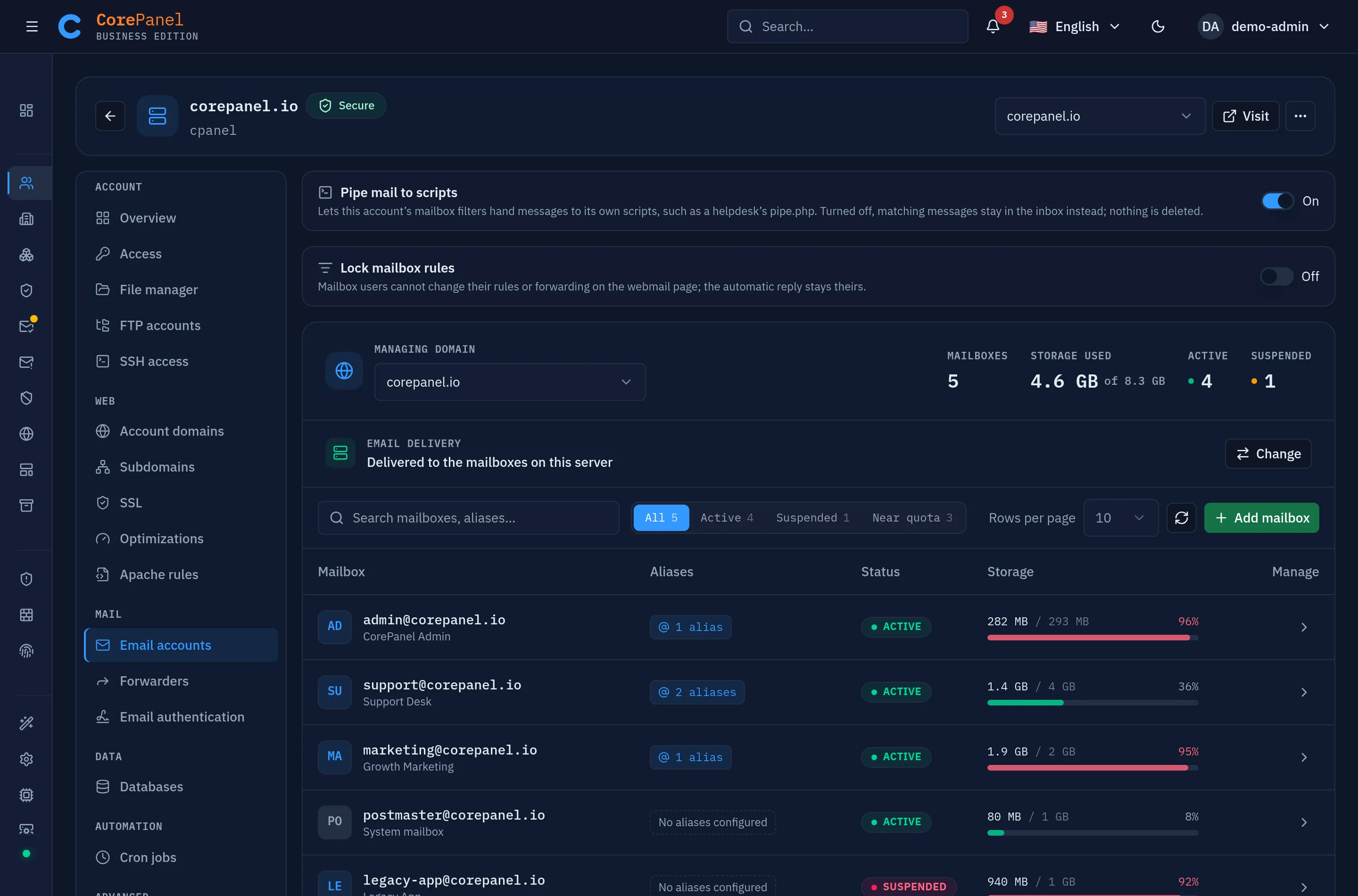
Each section opens on a domain picker that lists only that account’s domains. An account with one domain opens straight on it, and the domain you last worked on is remembered per account. There is no server-wide mail page: every mail domain belongs to an account, so the account is where you find it. Use the account picker in the workspace header to move to another account without leaving the section you are in.
The view is the same for the server owner and for a reseller, who sees only their own accounts in the list and so only their own domains in the picker. The account itself gets the mailboxes and forwarders in its own client panel.
Links to the old top-level pages (/email-accounts, /email-forwarders,
/email-authentication) send you to the accounts list.
Mailboxes
Section titled “Mailboxes”Email accounts lists an account’s mailboxes per domain. Creating one asks for the
local part, a password and a quota in MB (0 = unlimited).
A mailbox password must be 12 to 128 characters. It can’t be one of the most common
passwords, and it can’t contain the mailbox name, its domain or the server hostname (any
part of four characters or more).
Upper case, digits and symbols are not required: a long passphrase like
quiet harbour lantern is accepted, and it is stronger than Company2026!. The same rule
applies when you create a mailbox and when you change its password, from the panel or the
API. Imported mailboxes keep the password hash they had.
You can afterwards:
- change the password;
- resize the quota;
- enable or disable the account without deleting it;
- delete it.
Mailbox creation is capped by the account’s Email accounts limit (0 = unlimited).
Mail to an address that does not exist
Section titled “Mail to an address that does not exist”The server refuses it during the SMTP session, so the sending server is told immediately and no message is ever accepted. Writing to an address that was mistyped, or to a mailbox that was deleted, produces an instant “no such recipient here” rather than a bounce arriving minutes later.
That matters for more than tidiness. Accepting a message first and discovering afterwards that it has nowhere to go leaves the server owing its sender a bounce — and the senders on spam runs are forged, so those bounces go to people who never wrote to you. A server doing that is emitting backscatter, and mail providers score it against the server’s reputation. Refusing during the session emits none.
A mailbox that exists but is suspended is refused with a different reason — “this mailbox is suspended” — so a correspondent is not told to delete an address that is coming back.
Suspended, and the state in between
Section titled “Suspended, and the state in between”A mailbox has two halves that can be shut independently:
| State | Receives mail | Can sign in |
|---|---|---|
| Active | yes | yes |
| Sign-in blocked | yes | no |
| Suspended | no — the sender gets a bounce | no |
Suspending from the panel closes both: the address stops accepting mail and the sender is told so, which is the honest signal for an account that is really shut.
Sign-in blocked is the state you inherit rather than choose. Other panels suspend a mailbox’s login while the address keeps receiving — cPanel does it by locking the password hash — so an imported mailbox arrives that way: the mail keeps arriving and piling up, and the owner cannot read it until you turn sign-in back on. Reactivating the mailbox opens both halves.
Recent access
Section titled “Recent access”The mailbox’s Security section also shows its own sign-in record: when it last signed in successfully, when it was last rejected, how many rejections there have been and from how many distinct addresses, above the most recent events.
This is usually the fastest way to settle “my email stopped working” — whether the last accepted sign-in was minutes or months ago, and whether anything has been rejected since, answers the question before any setting is touched. The full picture, for every mailbox on the server, is in Access Protection.
Connecting a mail client
Section titled “Connecting a mail client”Use the server’s hostname, the full email address as the username, and TLS:
| IMAP | 993, SSL/TLS |
| SMTP | 587 with STARTTLS, or 465 with SSL/TLS — either way, authentication is required |
| Username | The full address, info@example.com |
Both submission ports are open and equivalent, so a client migrated from another panel keeps whichever it was already set to.
The mailbox’s own workspace has the exact values in its Connect devices section: the
server name to use (mail.<domain> when the domain’s certificate covers it, otherwise the
server’s hostname), the ports and the username, each with a copy button, and a
Download profile button with a configuration profile for iPhone, iPad and Mac. The
customer sees the same section in their client panel, and the
mailbox’s user can look it up for themselves on the
mailbox page at https://webmail.<domain>/mailbox/.
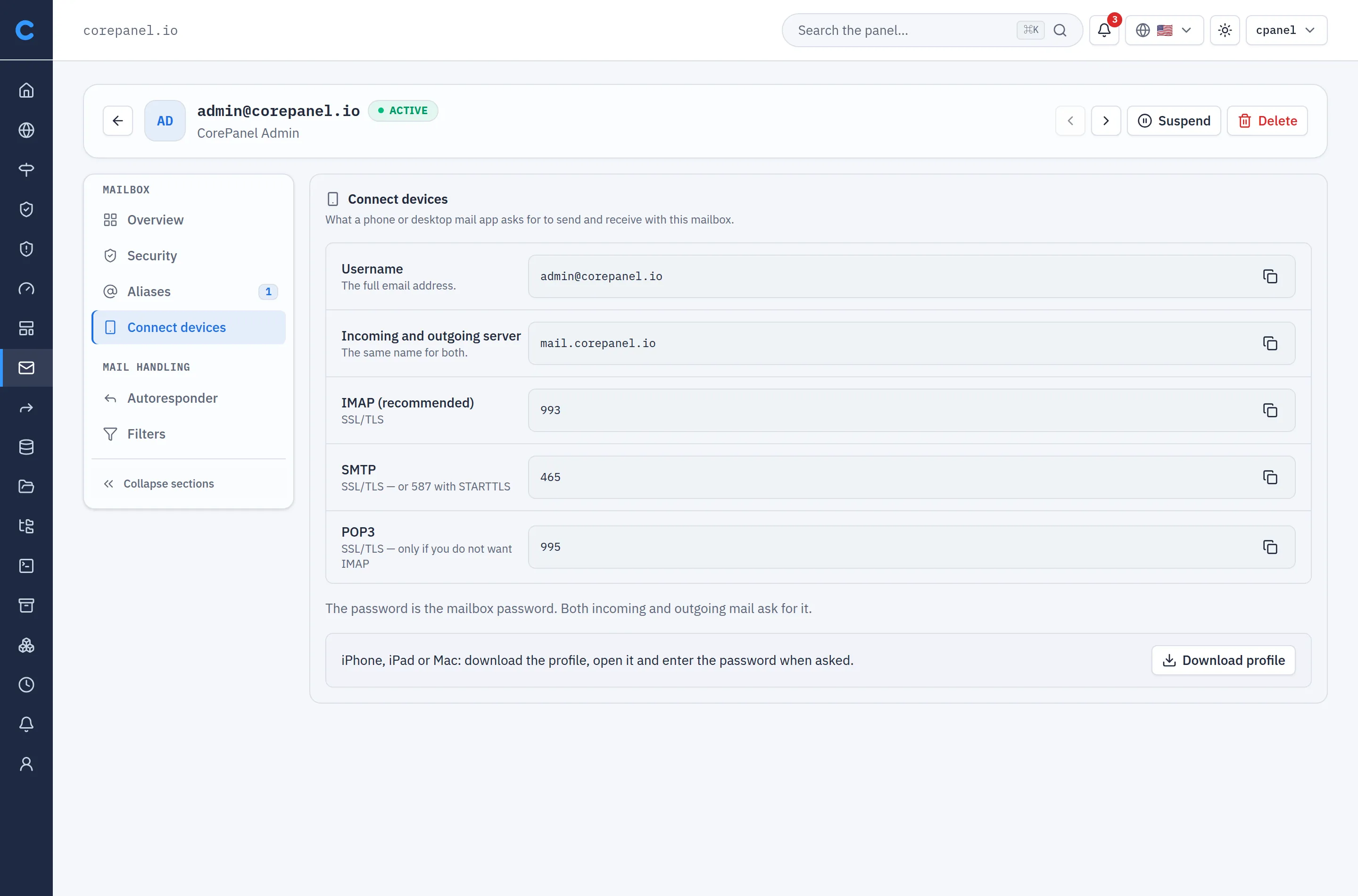
Webmail is available at webmail.<domain> — provisioned
automatically for every domain, which is why webmail is a reserved subdomain label. Its
sign-in shows @<domain> after the field, so the part before the @ is enough there;
Roundcube’s own sign-in screen, when it is used, needs the full address.
Webmail is reachable from the whole internet for every domain on the server, so mailbox passwords are what stands between an attacker and the mail. Set strong ones — the panel generates them for you when you create or edit a mailbox.
Which addresses a mailbox can send as
Section titled “Which addresses a mailbox can send as”A mail client that signs in with a mailbox may send only as an address that mailbox owns.
The server refuses any other sender with
553 5.7.1 … Sender address rejected: not owned by user …. The mailbox may send as:
- its own address, also spelled with any alias domain of its domain;
- a forwarder that delivers to it — the people who receive
sales@can answer assales@, from their mail app or as an identity in webmail; - an address of its own domain that is nobody’s, such as
noreply@or a newsletter’s sender: not a mailbox, and not a forwarder that delivers to one.
It cannot send as another mailbox, even one of the same domain, or as any address of another domain, even when the same account owns both. Without this, anyone holding one mailbox’s password could send mail as any address on the server, and receiving servers would accept it, because the domain’s SPF record names this server.
The rule covers mail clients, webmail and anything else that signs in to send. It does not
yet cover mail an account’s own programs send without signing in — PHP’s mail(), cron —
which still goes out with the sender they set.
Forwarders
Section titled “Forwarders”A forwarder (alias) sends mail arriving at one address on to one or more other addresses. It is not a mailbox: nothing is stored, the message is passed along. Forwarders, the catch-all and the whole-domain redirect are all in the account’s Forwarders section.
Use them for role addresses (sales@, billing@) that should land in a person’s
existing mailbox, or to deliver one address to a whole team.
You can forward to any address, inside or outside the server. Every destination is validated as a real email address.
Destinations on this server must be able to receive
Section titled “Destinations on this server must be able to receive”A forwarder pointing at an address on one of your own domains is only accepted when something there can actually take delivery: a mailbox, another forwarder, or a catch-all. If there is nothing — or the destination mailbox is suspended — saving is refused, and the error names the address.
The reason is what happens otherwise. The forwarder saves, lists, and looks perfectly healthy, while every message through it is accepted by the server, passed on, found to have nowhere to go, and bounced back to whoever wrote to you. Nothing in the panel shows it; the only trace is in the mail log.
That check runs when you save, so a destination deleted or suspended later can still leave a forwarder pointing at nothing. Those are flagged where you see them:
corepanel mail forwarder list example.comsupport@example.com -> old-staff@example.com !! cannot receive: old-staff@example.com
1 forwarder(s) point at an address that cannot receive mail; everymessage through them bounces back to the sender. Create or reactivate themailbox, or repoint the forwarder with `corepanel mail forwarder set`.Destinations on domains this server does not host are never flagged — there is no way to check them from here.
Keeping a copy in the mailbox
Section titled “Keeping a copy in the mailbox”An address is normally either a mailbox or a forwarder: mail is delivered, or it is passed along. The one way to have both is to list the address among its own destinations.
sales@example.com forwarding to sales@example.com and boss@partner.tld delivers the
message into the sales@ mailbox and sends a copy to boss@. It is the arrangement you
want for a role address somebody still reads locally while a manager, an archive or a
ticketing system gets a copy.
Two conditions, both checked when you save:
- A mailbox must exist at that address, and its delivery must be open. Pointing at yourself with no mailbox there resolves to an unknown user, and a suspended mailbox bounces — so both are refused rather than silently generating bounces later.
- Deleting the mailbox removes the copy. The self-reference goes with it, and the forwarder goes too if that was its only destination. Nothing is left pointing at an address that no longer resolves.
Any other forwarder on the address of a mailbox is still rejected. Postfix resolves forwarders before mailbox delivery, so it would divert every message away from the mailbox without saying so.
Forward to a script
Section titled “Forward to a script”A forwarder can also pipe every message to a script in the account’s home — the way
cPanel ticket systems receive mail: support@example.com → |/home/acme/public_html/helpdesk/pipe.php,
on an address that has no mailbox. Open the forwarder, turn on Pipe to a script,
and choose the script with Choose… or type its path. The script can be the forwarder’s
only destination, or one more next to addresses that also get a copy.
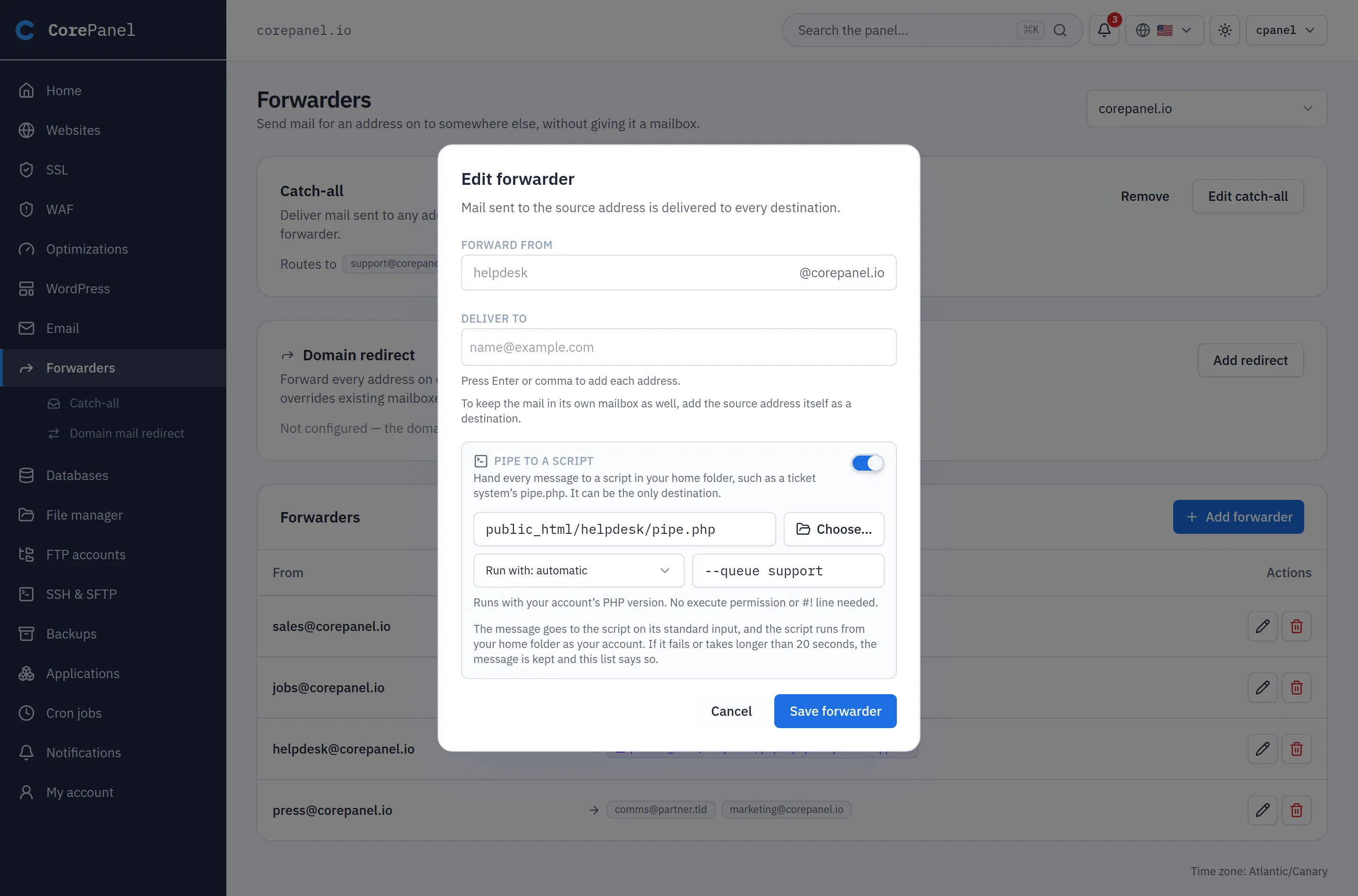
Everything about the script is as for the filter action: it stays
where it is, Run with decides the interpreter (automatic: .php with the account’s
PHP, .sh with bash, anything else as an executable), it gets the message on standard
input, runs as the account from its home folder, and has the same limits. It is checked
when you save, so a missing file or one that cannot run is refused then.
What differs is where a message goes when the script fails (or takes more than
20 seconds). There is no inbox to fall back to, so it is kept in a folder of its own in
the account’s home, mail/<domain>/<address>--pipe/ (a Maildir — support--pipe for
support@). Nothing is lost, and the forwarder list says how much is waiting there, so a
broken ticket system shows up in the panel instead of only in the mail log. Those messages
can be read from the File manager and deleted once dealt
with; the folder holds up to 256 MB, after which further messages bounce to their sender.
Deleting the forwarder leaves the folder in place.
The <address>--pipe address is internal: the server refuses it as a recipient from
outside, it cannot be the destination of another forwarder or a catch-all, and no mailbox
or forwarder can be created with a name ending in --pipe. A domain whose mail is
redirected to another domain cannot have a forwarder that pipes,
and the other way round.
From the CLI the pipe is set with the forwarder:
# A forwarder that only pipescorepanel mail forwarder set support@example.com --pipe public_html/helpdesk/pipe.php# Addresses and a script, run with bash, with two argumentscorepanel mail forwarder set orders@example.com ops@example.com \ --pipe bin/import-order --pipe-with bash --pipe-arg=--queue --pipe-arg="Online shop"set replaces the forwarder as a whole, so setting it again without --pipe removes the
pipe. While the account’s pipes are off, or it is
suspended, the script does not run and the messages wait in that same folder; the account
cannot add new pipes then, and the ones it has stay listed.
Addresses that refuse their mail
Section titled “Addresses that refuse their mail”An account migrated from cPanel can have addresses marked Refuses its mail in the forwarder list. Each was a forwarder that piped to a program the migration could not carry — one outside the account’s home, a shell command, one of cPanel’s own programs, a script that was not there — and had nothing else to deliver to. The reason is shown under the badge.
Leaving such an address out would make it disappear, and on a domain with a
catch-all the catch-all would then take its mail without anybody noticing. So
it is kept, and a sender is told 550 5.1.1 this address does not accept mail while still
connected — where cPanel accepted the message and bounced it once the pipe failed. Edit it to give it
destinations or a script, and it becomes an ordinary forwarder; delete it, and its mail
goes wherever any unknown address of the domain goes. Nothing in the panel creates one.
Catch-all
Section titled “Catch-all”A catch-all delivers everything sent to an address that does not exist at the domain to one mailbox of your choice.
Convenient — nothing is ever lost to a typo — and expensive: spammers enumerate addresses, and a catch-all accepts every one of them. Prefer explicit addresses and forwarders, and use a catch-all only temporarily, for example just after a migration while you find out which addresses people actually use.
The catch-all can also pipe to a script, exactly as a forwarder can:
turn on Pipe to a script in its dialog, with or without addresses next to it. It is
cPanel’s “Default Address → Pipe to a program”, and a ticket system that should open a
ticket for any address of the domain is what it is for. What the script fails on waits
in mail/<domain>/catchall--pipe--pipe/. From the CLI:
corepanel mail catchall set example.com --pipe public_html/helpdesk/pipe.phpWhole-domain redirect
Section titled “Whole-domain redirect”A domain redirect sends every address at one domain to the same local part at
another: anything@olddomain.com → anything@newdomain.com.
This is what CorePanel sets up automatically when you add a domain alias, so that mail to the alias never bounces. You can also configure one by hand after a rename, so the old domain’s mail keeps arriving without recreating every mailbox.
A domain has one route: a catch-all and a redirect are mutually exclusive.
Where the domain’s mail is delivered
Section titled “Where the domain’s mail is delivered”If a domain’s email is at Google Workspace, Microsoft 365 or another provider, set Email delivery → With another provider at the top of Email accounts. Otherwise mail this server sends to that domain (contact forms, WordPress, cron) lands in a local mailbox nobody reads.
-
Nothing is deleted. Mailboxes, forwarders and the catch-all are kept but stop receiving; choose On this server to bring them back.
-
Mail still arriving here is retried, not refused. Senders using the old MX get a temporary error and try again later, when they find the new provider.
-
The panel suggests, never switches. It shows a notice when the MX points to a known provider while delivery is still local.
-
A domain with a whole-domain redirect (every parked domain) follows its redirect and has no setting of its own.
-
A domain imported from cPanel keeps the delivery it had there.
CLI: corepanel mail routing set example.com remote.
Backup MX
Section titled “Backup MX”The server administrator can also choose Backup MX: the domain’s mail server is elsewhere, and this one holds its mail while that server is down, then passes it on.
- List this server in the domain’s MX records with a higher number than the main server. The panel warns you if it is missing, and refuses Backup MX while this server is ranked first.
- It accepts mail for any address of the domain, so allow the main server to accept mail relayed from this one.
- Customers see the setting but cannot change it, nor the domain’s MX records.
- Behind NAT (public IP not on the server), set Postfix’s
proxy_interfacesto that IP, or Postfix does not recognise itself in the MX list.
CLI: corepanel mail routing set example.com backup.
Per-mailbox: autoresponder and filters
Section titled “Per-mailbox: autoresponder and filters”Opening a mailbox gives you its own workspace.
Autoresponder
Section titled “Autoresponder”An out-of-office reply with a subject, a body, a start and end date, and a minimum interval between replies to the same sender (so one correspondent does not receive twenty identical answers).
Filters
Section titled “Filters”Rules applied at delivery: match on sender, recipient, subject or body, and file the message into a folder, forward it, discard it, or pipe it to a script. Filters are compiled to Sieve and run in Dovecot, so they apply no matter which client you read the mail with — including webmail and your phone.
The mailbox’s user edits the same list on the mailbox page, without pipes. A rule there with no conditions — shown here as applying to every message — is that page’s “forward a copy of every message”; it stays at the top of the list.
Pipe to a script
Section titled “Pipe to a script”The Pipe to a script action hands each matching message to a script in the account’s
home — the classic use is a helpdesk or ticket system (WHMCS, osTicket, HelpSpot, your own
pipe.php) that opens a ticket from every email sent to support@. It is cPanel’s “pipe
to a program”, and it works the same way: the script stays where it is, usually
inside a site’s folder, and nothing has to be moved or copied anywhere.
In the mailbox’s Filters, add a rule, choose Pipe to a script as its action, and
click Choose… to browse the account’s home and pick the file. You can also type the
path, relative to the home (public_html/helpdesk/pipe.php) or absolute
(/home/acme/domains/shop.example/hooks/pipe.php for an addon domain).
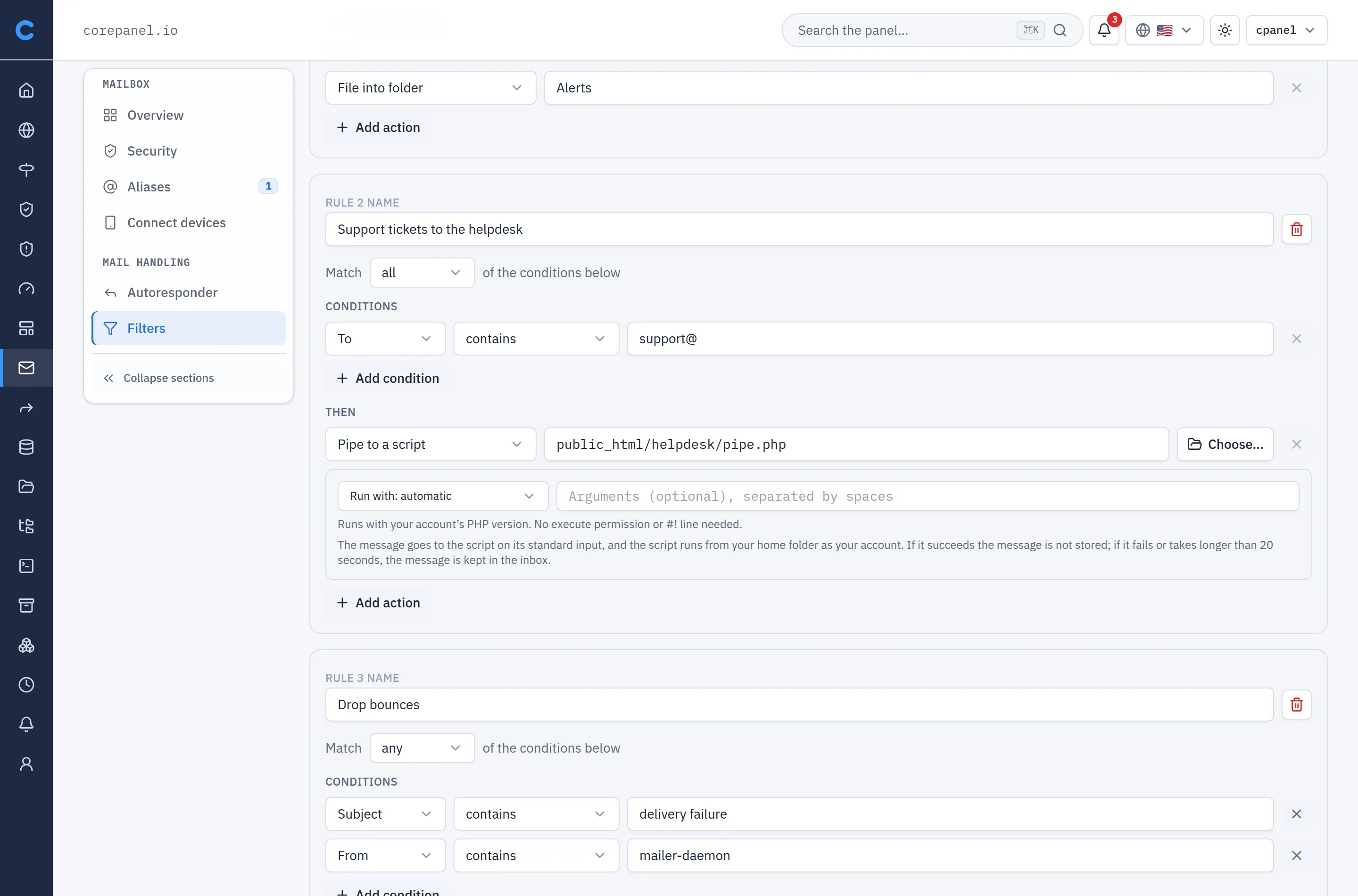
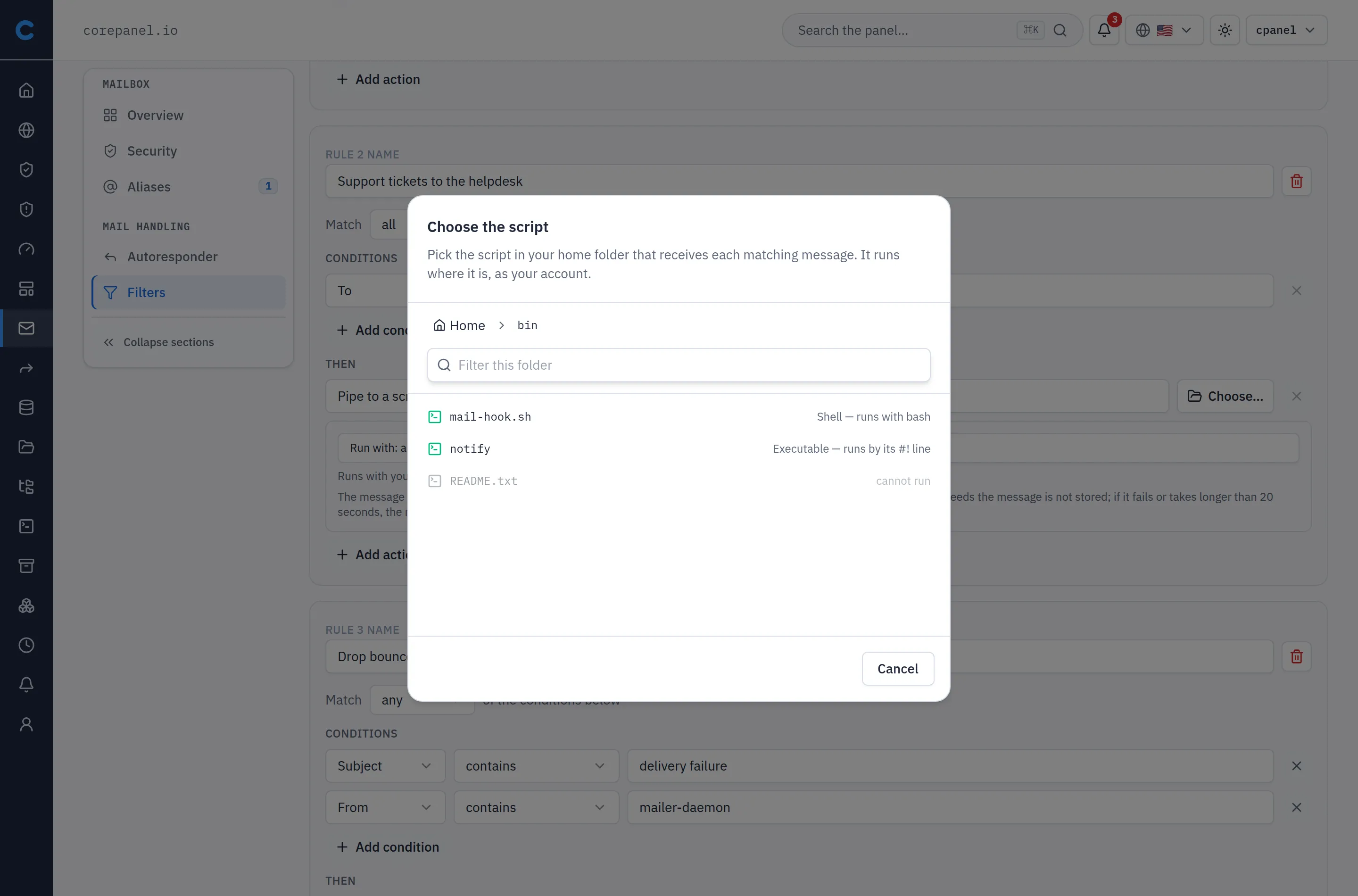
Choose… opens the account’s home folder. Folders open on click; every file says how it would run, and a file that could not run is shown but cannot be picked:
Which scripts run, and how
Section titled “Which scripts run, and how”Under the script path, Run with says which interpreter runs it. Left on automatic, the script’s name and permissions decide:
| The script is… | It runs with | Execute permission | #! first line |
|---|---|---|---|
a .php file | the account’s PHP version (the same php its cron jobs use) | not needed | not needed (ignored if present) |
a .sh file | bash | not needed | not needed (ignored) |
anything else — no extension, .pl, .py | itself, as a program | required | required |
Choose an interpreter instead — PHP, bash, sh or Perl — and
the script runs with it whatever its name, with no execute permission and no #! line
needed. It is the way to set up here a pipe you had on cPanel written with its
interpreter: |/usr/bin/env bash /home/acme/bin/import-ticket becomes Run with: bash
on bin/import-ticket, and |/usr/bin/php -q /home/acme/public_html/x.php becomes
Run with: PHP on public_html/x.php. The file extension does not matter then, and neither does
upper or lower case: Pipe.PHP and hook.SH run like .php and .sh.
So the ways to pipe to PHP are:
-
A
.phpfile, not executable — the usual case, and what an FTP upload produces. Nothing else to do:<?php// public_html/helpdesk/pipe.php — chosen as is in the filter$message = stream_get_contents(STDIN);// ... open a ticket from $message -
A PHP script without the
.phpextension — choose Run with: PHP, or make it executable and give it a#!line:#!/usr/local/bin/phpor#!/usr/bin/env php, which resolve to the account’s PHP version.#!/usr/bin/phpdoes not exist on CorePanel servers, so a script copied from elsewhere with that line has to be changed:#!/usr/local/bin/php<?php$message = stream_get_contents(STDIN);On a server transformed from cPanel, until the cPanel clean-up has run,
/usr/local/bin/phpmay still be cPanel’s own PHP. A.phpname or Run with: PHP always gets the account’s version.
And the ways to pipe to a shell script:
-
A
.shfile, not executable — runs with bash; its#!line, if any, is not read:Terminal window # bin/mail-hook.sh — appends every piped message to a logcat >> "$HOME/mail-hook.log" -
A script without the
.shextension — choose Run with: bash (or sh), or make it executable with its own#!line. Perl works the same way. Python is not in Run with: a Python script runs only as an executable with its own#!line:bin/notify #!/bin/bashmessage=$(cat)
To make a script executable, select it in the File manager,
open Permissions and tick Execute for the owner (the octal field then reads 700),
or run chmod 700 bin/notify over SSH. With an interpreter chosen, Choose… lets you
pick any file, executable or not.
The Arguments field passes extra arguments to the script, after its path, separated
by spaces — for example --queue=sales for a helpdesk that reads its queue from the
command line. Up to 8. An argument that itself contains a space cannot be typed here; set
it from the CLI or the API, where args is a list, and the panel keeps it as it is as
long as you do not edit the field.
What the script gets, and what happens to the message
Section titled “What the script gets, and what happens to the message”- The message arrives on the script’s standard input, headers and body, exactly as delivered.
- The script runs as the account — the same user its PHP sites and cron jobs run
as — with the home folder as its working directory (as in cPanel; scripts that
include files by a relative path count on it).
HOME,USERandPATH(/usr/local/bin:/usr/bin:/bin) are set. - If the script exits with 0, it has taken the message: it is not also stored in the mailbox, exactly like a cPanel pipe. Add a File into folder or Keep in inbox action to the same rule if you want a copy as well.
- If the script fails — a non-zero exit, a PHP fatal error, a missing file — or runs for more than 20 seconds, the message is kept in the inbox instead. Nothing is lost; the reason is in the server’s mail log.
- A message that several rules pipe is handed to each of their scripts. Rules that pipe to the same script, with the same arguments, run it once, as cPanel does. A mailbox’s filters can pipe to up to 16 different scripts.
Limits, so one account’s scripts cannot slow the mail of every other account down:
| Limit | Value |
|---|---|
| Running time | 20 seconds, then the script and everything it started are stopped |
| CPU time | 60 seconds per process |
PHP memory_limit | 256 MB |
| Scripts running at once | 8 per account — a message arriving while all 8 are busy waits up to 4 seconds for one to finish (two such messages at most wait at a time); otherwise it is kept in the inbox |
| Processes left running | killed as soon as the script ends — a background job (&, nohup, setsid) does not outlive it |
The script has to be inside the account’s home. A path that leads outside it — an
absolute path elsewhere, or a link that points out of the home — is refused when the
filter is saved, and again when a message arrives. When you save, the panel also checks
that the file exists and that it can run (a .php or .sh file, or executable), so a
typo is caught then rather than by a ticket that never arrives.
Pipes can only be set up from the panel or by writing the Sieve file into the account’s home. A mail client connected with just a mailbox’s password (ManageSieve) cannot add one: running code is the account’s decision, not every mailbox user’s.
Turning pipes off for an account
Section titled “Turning pipes off for an account”Pipes are on for every account by default. The operator can turn them off for one
account — in the account workspace, Email accounts shows a Pipe mail to scripts
switch above the mailboxes — or from the CLI with
corepanel mail pipe disable. A suspended account never
runs pipes, whatever the switch says.
While pipes are off, the mail server enforces it, from the next message: pipe actions are left out and the mailbox’s other rules keep running, so matching messages simply stay in the inbox. A forwarder’s pipe keeps its messages in its own folder instead. Nothing is deleted — turning pipes back on restores every pipe as it was. The account cannot add new pipes while they are off; the ones it already had stay listed, marked as not running.
Locking the mailbox page’s rules
Section titled “Locking the mailbox page’s rules”On the mailbox page each mailbox’s user can edit their own rules and forward their mail. To keep them from doing so for every mailbox of one account, turn on Lock mailbox rules — in the account workspace, under Email accounts, below the pipes switch. It is off by default. While it is on, the page shows the rules read only; the rules already saved keep running, the panel still edits them, and the mailbox’s user can still set an automatic reply. A reseller can lock the accounts of their own organisation. The lock travels with the account’s backups, so a restore or a move keeps it.
Email authentication
Section titled “Email authentication”The account’s Email authentication section shows, per domain, the state of the records that decide whether your mail is trusted:
| Record | Role |
|---|---|
| SPF | Lists which servers may send for the domain |
| DKIM | Signs outgoing mail with the domain’s key |
| DMARC | Tells receivers what to do when SPF and DKIM fail, and where to send reports |
For a domain whose DNS CorePanel serves, SPF and DKIM are published automatically when the domain is created. For a domain on external DNS, the page gives you the exact record values to paste into your provider, and Verify re-checks what is actually visible in DNS.
Publishing a DMARC record is the step most often skipped, and it is the one that turns
SPF and DKIM into an enforceable policy. Start with p=none and reports, then tighten.
From the CLI
Section titled “From the CLI”corepanel mail list example.comcorepanel mail quota sales@example.com 1024corepanel mail suspend sales@example.comcorepanel mail forwarder set sales@example.com owner@example.comcorepanel mail catchall set example.com bucket@example.comcorepanel mail redirect set old-example.com example.comcorepanel mail vacation set sales@example.com --subject "Away" --message "Back on Monday"Mailboxes are created from the panel; the CLI covers listing, quotas, suspension, deletion, forwarders, catch-alls, redirects, autoresponders and filters. The full command list is in the CLI reference.