Partial Restore
A full restore rebuilds an account that is gone. Most of the time the account is still there and something in it is not: a folder somebody deleted, a table that broke, a mailbox emptied by mistake, an addon domain removed from the wrong account. A partial restore puts back only what you pick, into the account as it is now.
In Backup & Transfers → Backups, open a backup’s menu and choose Browse and restore part of it. The browser shows what the backup holds, tab by tab — files, databases, mail, domains, configuration and apps — and marks each item as On this server or Gone.
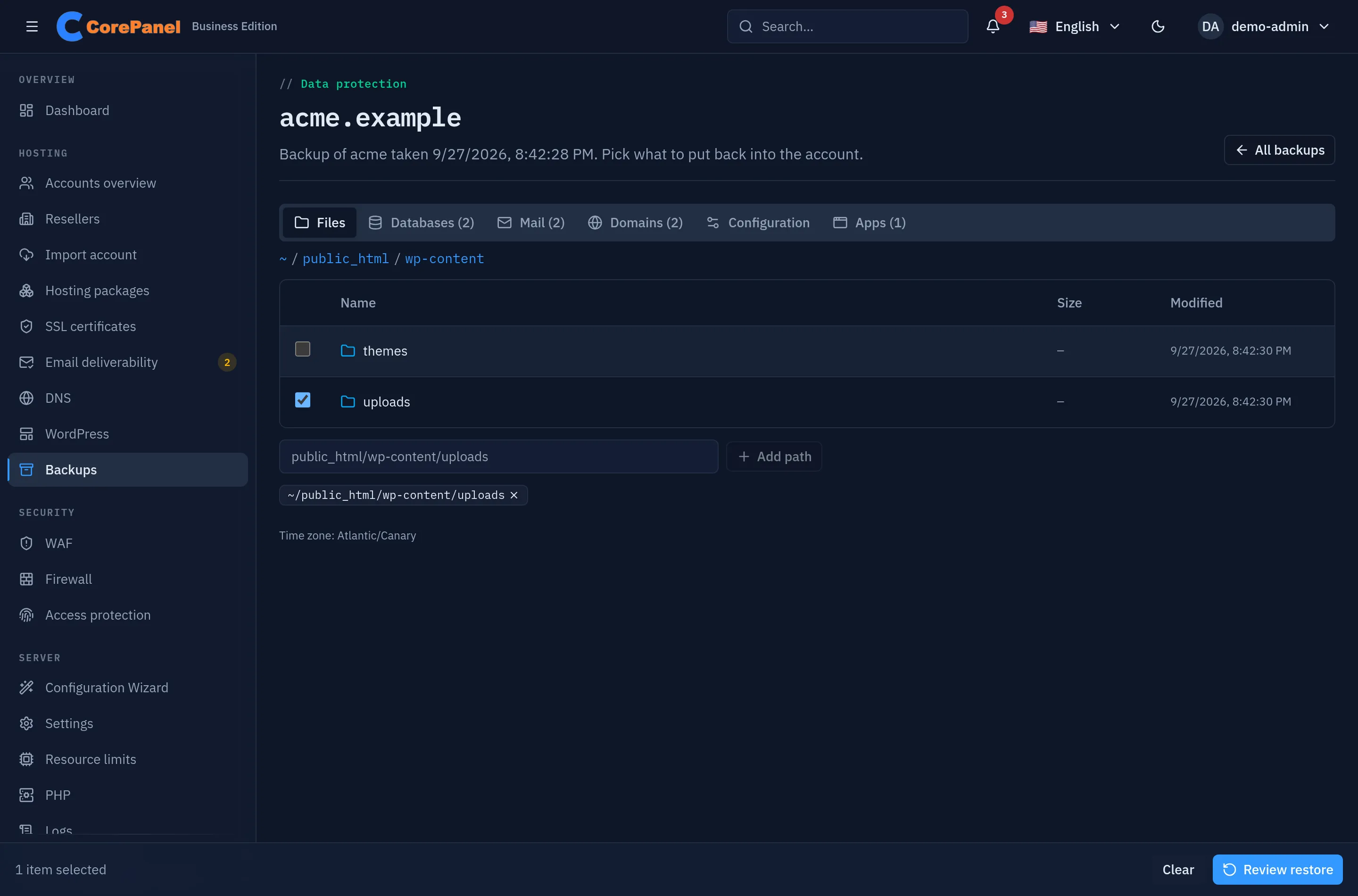
The browser reads only the front of the archive — its manifest, the account’s settings and the file index — so opening a backup of hundreds of gigabytes is instant, and one at a remote destination is not downloaded to be browsed. Backups made before archives carried a file index cannot be listed file by file; type the paths to restore instead.
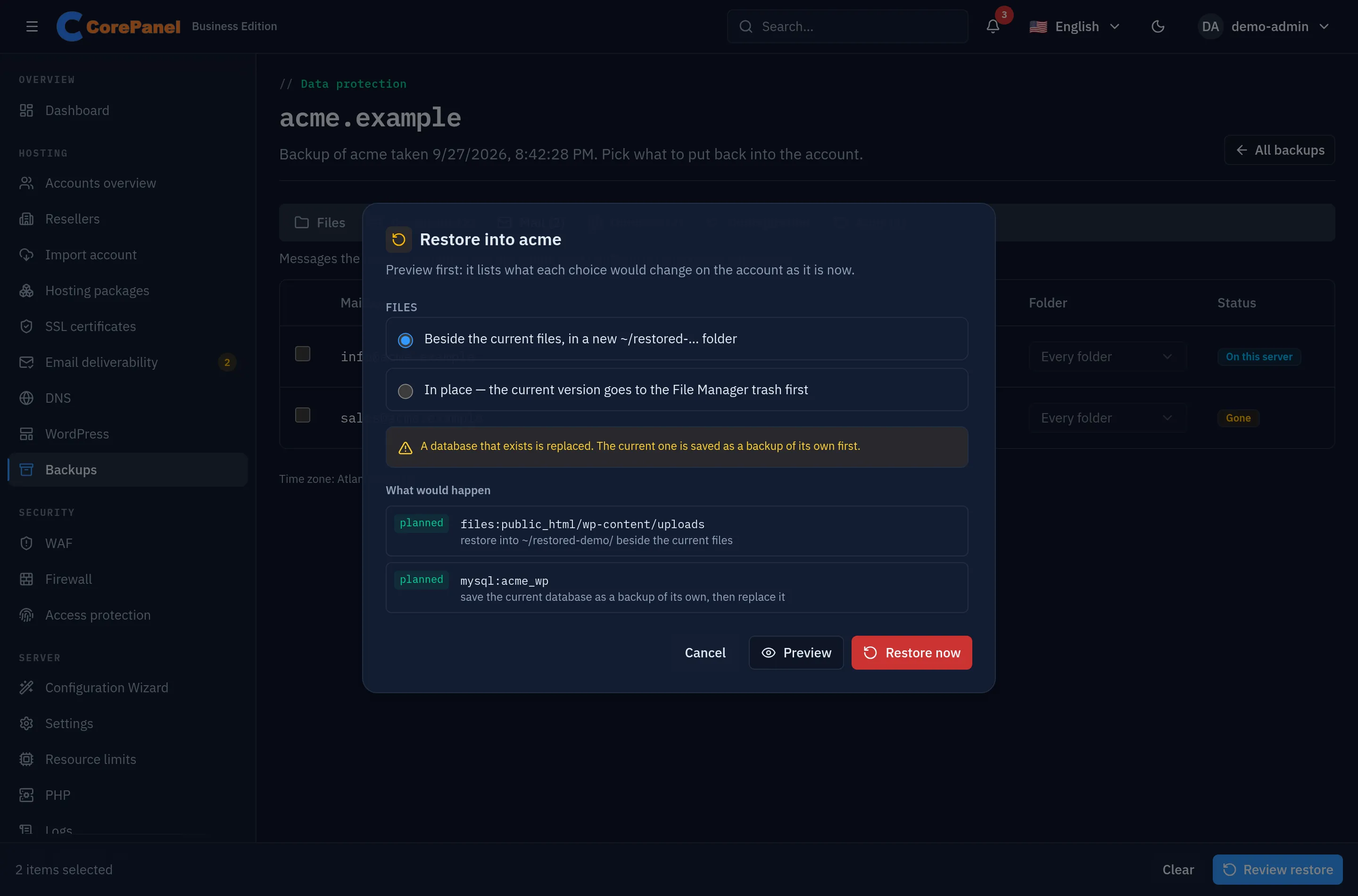
Your selection is kept while you move between tabs. Review restore opens the confirmation, and it always starts with a Preview: a dry run that says what each choice would change on the account as it is now. Restore now is only offered once the preview has run.
| What | How it comes back |
|---|---|
| Files and folders | Beside the current files by default, in a new ~/restored-<date>-j<job>/ folder: nothing live is touched, and you compare and move what you need. In place replaces them; the current version of each selected path goes to the File Manager trash first, so the overwrite can be undone from there. A path the archive does not have is never moved, and when the restore cannot put anything in its place, what went to the trash is put back. Overwriting needs an archive with a file index; an older one can only restore beside |
| A database | A database that exists is saved first as a backup of its own — a snapshot, listed with the account’s backups and restorable partially like any other — and then replaced whole: tables created since the backup are dropped. A database that is gone is recreated with its users and their passwords. Only names in the account’s own namespace (<user>_…) are touched |
| A mailbox, or one folder | Merged: the messages the mailbox no longer has are added, and nothing is removed or duplicated — a message is recognised by its Maildir name, whatever flags it gained since. A deleted mailbox comes back with its archived password. The mail server rescans the mailbox and its quota when the merge ends |
| An addon domain, alias or subdomain | Recreated when it was deleted, with its web settings, WAF settings, uploaded certificate and DNS records — and the files its document root lacks. A domain that exists is left as it is |
| Configuration | Per block, replacing the account’s current one: cron jobs (the report lists the ones it removed), forwarders and catch-alls of the domains the backup knows, WAF settings, web optimizations and SSH access (level, password login and keys). An account whose shell CorePanel does not manage (legacy, kept from a cPanel transformation) keeps its SSH access as it is. DNS is the exception: it adds back the records the zones lack and removes nothing; an address, alias, mail or service record whose name the zone now answers differently is left as it is now |
| An application | Recreated with its data, environment and release when it is gone. Replace deletes the current one, data included, and restores the archived one — only after checking that the archived one has a site of this account to be published on |
A few rules hold for every choice:
- The account must exist on this server, and be the same account. Its username and its primary domain must both match the backup’s: a username given to a new customer after the old one was deleted does not receive the old one’s data. A backup of an account that is gone is restored whole instead.
- What belongs to another account is left alone. A database, a mailbox or a domain whose name is now another account’s is skipped and named in the report.
- Everything goes back through the same use cases as a change made by hand — the edition and the WAF floor apply. The package’s limits do not stop your restore, as in a full restore: a recreated database or mailbox that takes the account over its limit comes back, and the report says so.
- One partial restore per account runs at a time.
Following the job
Section titled “Following the job”The job appears in the backups list as a Partial restore, with the same per-resource report as any other job; a preview is listed too, marked Preview only. A database snapshot is marked Snapshot before a restore. Your snapshots are kept like manual backups — no schedule prunes them — so a replace costs the database’s size on this server’s disk until you delete it from its menu. The ones a customer’s restores take are rotated instead — see below.
From the CLI, the same thing is corepanel account backup-contents, backup-files and
restore-partial — see the CLI reference.
Partial restores your customers run
Section titled “Partial restores your customers run”With customer backups switched on, the account owner can restore files, databases and mailboxes from their own client panel, through the same browser with only those three tabs — see the client panel. The switch governs both: turning it off removes the button and refuses the restore. On top of the rules above:
| Your partial restore | The customer’s | |
|---|---|---|
| Archives it can use | Any: a backup job, a path on this server, a destination’s key | Only this server’s backups of their account — never an upload, a path or a key |
| What it can restore | Everything in the browser | Files, databases and mailboxes — or all of them at once, as the backup had them |
| Recreating past the package’s limits | Allowed, with a warning | Refused; the preview says so |
| How often | Whenever you like | One at a time, 10 minutes apart (previews unlimited) |
| Database snapshot | Snapshot before a restore, kept until you delete it | Snapshot before a customer’s restore, their two most recent kept |
| Disk space | Not checked | Files are refused when they would not fit the account’s disk limit, or would take more than half of the free space on the server |
The space check exists because a restore is written by the system and handed to the account afterwards, so the account’s quota never sees it being written: without the check, a customer could restore a copy of their whole home every ten minutes until the disk was full. It is measured from the backup’s file list, which is why a customer cannot restore files from a backup made before backups carried one — you still can.
Their restores appear in your list like yours, recorded as the customer’s; their previews are marked Preview of a customer’s restore, and only their five most recent are kept.
Putting a whole account back as it was
Section titled “Putting a whole account back as it was”The customer’s first choice in the client panel is not a selection at all: put my
account back as it was on the day of the backup — the home mirrored to the backup
(changed files go back, files and folders created since are deleted, with no trash),
every database in the backup replaced and every mailbox merged into. The
client panel page describes it as the customer
sees it, with what it never touches: mail, PHP’s temporary folder, logs, application
deploy files, ~/backups, the trash, caches, and the files of a site added after the
backup.
It runs on the same engine and under the same rules as a customer’s partial restore — their own backups only, the plan’s limits, the 10-minute spacing, the database snapshots — and it is all or nothing for the home: the backup’s files are written aside and moved into place only once the whole archive has been read and checked, so a restore that cannot finish leaves the account as it was. It needs a backup with a file list, which is also what its preview is computed from. While it runs, adding a site, a subdomain or an FTP account to that account is refused with a message — a folder made after the restore worked out what to keep would be deleted by it.
You can run the same thing on any account through the API — cp.StartPartialRestore with
"everything": true, after a "dryRun": true whose report carries the figures. It needs
corepanel-sys and corepanel-core of the same release: an older corepanel-sys refuses
it with a message and nothing is changed.