Files and FTP Access
Every account owns a home directory, and everything it serves lives inside it. Knowing the layout answers most “where do I upload this?” questions without opening the panel.
The home directory
Section titled “The home directory”/home/example/├── public_html/ ← example.com (the primary domain)│ └── index.php├── domains/│ ├── blog.example.com/ ← a subdomain│ └── otherproject.com/ ← an addon domain└── … other files, not served by the web server| Path | Serves |
|---|---|
~/public_html | The primary domain, and every alias of it |
~/domains/<domain> | An addon domain |
~/domains/<fqdn> | A subdomain, for example ~/domains/blog.example.com |
domains/ sits next to public_html, not inside it. That is deliberate: a site
placed inside the primary’s document root would be served twice — once under its own
name and again as https://example.com/<name>/, that second time with the primary’s
settings (its web mode, its WAF exceptions, its maintenance state), and search engines
would index the duplicate. Keeping each site in its own directory means each one is
reachable only under its own domain.
Anything outside public_html and domains is not reachable over the web — which is
where application code, configuration and data that must not be downloadable belong.
Files are owned by the account’s Linux user. PHP runs as that same user, so a file the account can read, its site can read — and no other account can.
FTP access
Section titled “FTP access”Every account is created with one FTP login — the account credential, named after the account’s system user and reaching the whole home:
| Server | Your server’s hostname or IP |
| Username | The account’s system username |
| Password | Set when the account was created — independent from the account password |
| Encryption | Explicit FTP over TLS (FTPS) |
| Home | The account’s home directory |
The FTP server is Pure-FTPd, authenticating against CorePanel through the
corepanel-auth broker, and each session is chrooted to the directory its account is
confined to: it cannot walk out of it.
Additional FTP accounts
Section titled “Additional FTP accounts”Beside that first login you can create more, each confined to a single directory. The
usual reason is handing out access without handing out everything: a designer who should
reach one site’s uploads folder, a deployment script that should reach one docroot.
Find them in the account workspace under FTP accounts — and a customer with the client panel manages their own under FTP accounts, with the same screen and the same rules.
| Field | What to put in it |
|---|---|
| Username | The name, plus one of the account’s own domains: designer@example.com |
| Directory | Relative to the account home, e.g. domains/example.com/uploads. Created if it does not exist. Leave it empty for the whole home |
| Password | Its own — it is a separate credential, not a copy of anything |
The domain half of the name is not decoration. FTP authenticates by username alone, so logins are unique across the whole server; requiring a domain the account already owns is what stops one customer taking a name another account may need later.
These accounts are virtual — no Linux user is created. They sign in with the hosting account’s own uid and gid, which means they share its disk quota and can see exactly what that user can see. Confining one to a directory limits where its session starts and what it can walk into; it is not a new identity on the server.
Deleting one removes the credential and leaves its files alone — the directory it pointed at stays exactly as it was. The account credential itself cannot be deleted: it is what the hosting account signs in with.
How many you may create comes from the account’s hosting package
(FTP accounts, where 0 means unlimited), with a hard ceiling of 100 underneath it. The
account credential is mandatory and counts against neither.
Changing an FTP password
Section titled “Changing an FTP password”In the FTP accounts section, use Change password on the row you mean — the account credential included. Changing it does not change the panel password for the account, and vice versa: the two start identical when the account is created and are independent from then on.
From the command line, corepanel ftp list shows the ids and
corepanel ftp creates, deletes and rotates them.
SFTP access
Section titled “SFTP access”The same home is reachable over SFTP, on the server’s SSH port, with keys managed in
the panel — jailed to the home, with no shell. A new account can use it as soon as it has
a key. What works over it (and what does not — rsync needs a shell), keys, and password
login are in SSH and SFTP Access.
Repairing file permissions
Section titled “Repairing file permissions”Work done as root on the server is the usual way a site stops working without anyone
touching its code. A site unpacked or copied by root leaves files PHP cannot read, because
PHP runs as the account. A file moved in from /tmp or /var/www with mv keeps the
security label it had there. SELinux then stops the web server from reading it, and the
page answers an error with nothing obvious in the logs.
Repair file permissions, on the account’s Overview, fixes both in one pass over the whole home. When it has finished:
- every file and folder belongs to the account;
- nothing is writable by anyone else, and no file carries a set-user-id or set-group-id bit;
- the account can always read its own files and open its own folders. Anything stricter
that was set on purpose, such as a
wp-config.phpat0400, is kept; - the home folder is
0700; - every file has the SELinux label its location should have — what
restorecon -Fwould set.
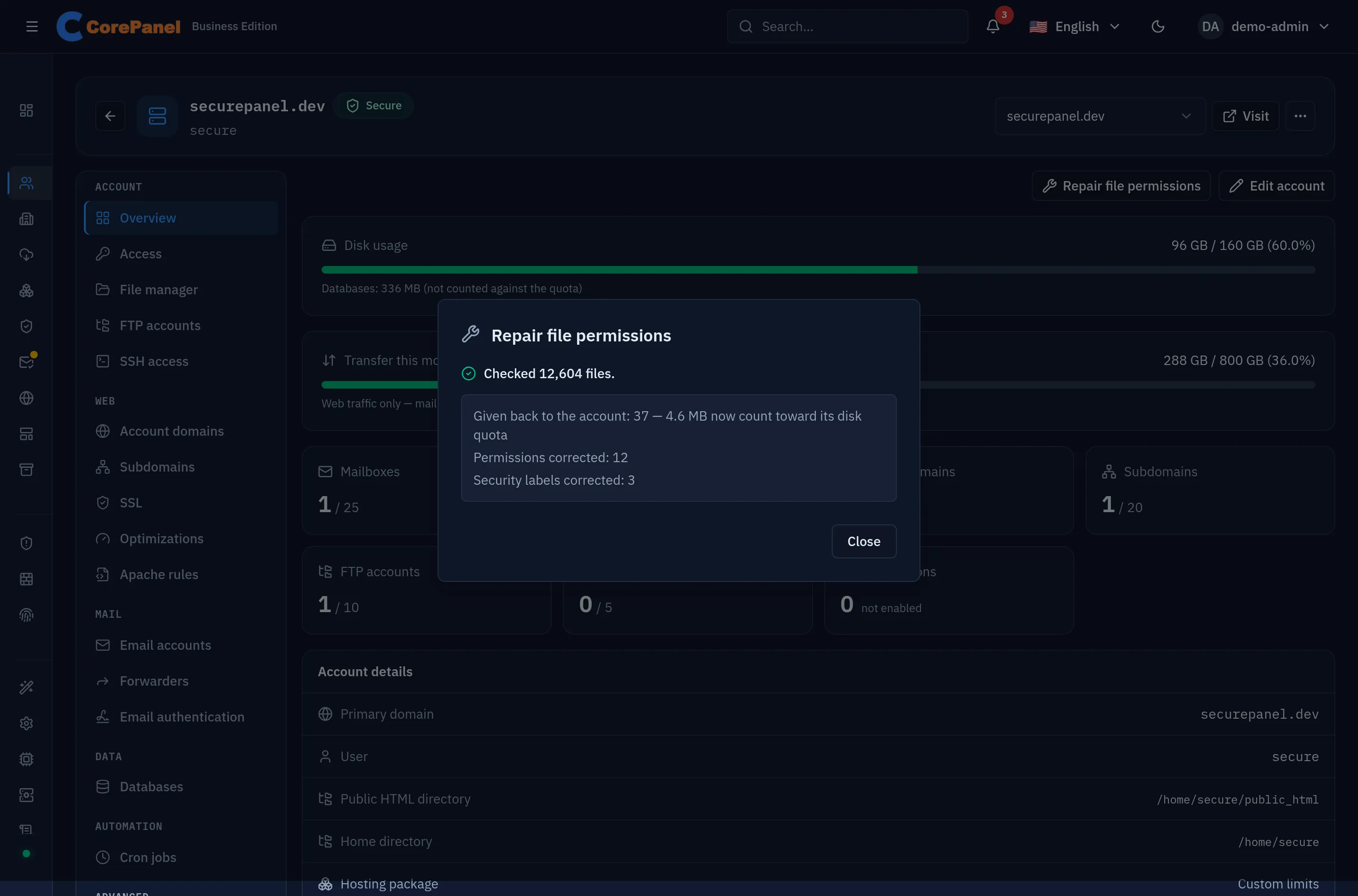
It is safe on a live site: nothing is deleted, moved or renamed. It runs on the server in the background, one repair per account and at low priority, so you can close the dialog and it carries on. A large home takes roughly 1½ to 4 minutes per million files.
Some things are left alone on purpose, and the report lists them:
- symbolic links, which are never followed or changed;
- device files and files with more than one hard link — changing these could reach a file outside the home;
- anything mounted inside the home;
- folders nested more than 256 levels deep.
Two consequences are worth knowing:
- Files handed back to the account count against its disk quota, and the report says how much that is. Files owned by root were not being counted before, so an account close to its limit can go over it.
- An account migrated from cPanel whose cutover is still pending cannot be repaired yet. cPanel is still serving its sites through the permissions the repair would remove. The button explains why.
Administrators can repair any account, and resellers can repair their own accounts. The
customer’s own panel does not offer it. From the command line, the same repair is
corepanel account repair-permissions
(alias fixperms).
What CorePanel does not include (yet)
Section titled “What CorePanel does not include (yet)”The panel’s file manager uploads, downloads, previews,
edits, searches and organises an account’s files — a name search through every folder,
folder sizes, rename, copy, move, permissions and a trash that empties itself after 30 days, uploads and downloads up to 2 GB by default, and text files up to 2 MB in an editor
that checks PHP and .htaccess on save, and it extracts and compresses zip files and
tarballs. Anything over its transfer limit, and archive formats it does not open (.rar,
.7z), go over FTPS or SFTP.