Layout and preferences
The client panel can be laid out two ways, in two themes and five languages, and each customer has their own notifications feed. You set the defaults; the customer can change them for their account. This page covers each preference and who decides it.
Two layouts
Section titled “Two layouts”Both views have the same sections, URLs and permissions. Only the home page changes.
- Icon view (default) — the home page is headed by the account’s domain, with a Visit site button, over a page of tools grouped the way cPanel groups them: Domains, Email, Files & backups, Databases, Security, WordPress, Advanced and Preferences, each group in its own colour. Beside each section sit the functions a cPanel customer looks for by name (New subdomain, Autoresponders, phpMyAdmin & SQL, Restore a database…), each opening straight on what it names. Beside them, Account overview, a WAF protection card — the attacks blocked in the last 30 days, a bar per day and a link to the WAF screen — and Usage against the plan. On a phone the WAF card shrinks to one line under the overview. Tools sit two to a row, one on a phone.
- List view — the home page is a summary: counts of domains, subdomains, databases and cron jobs, and the list of domains. The sidebar shows the functions under the section that is open.
In both, the sidebar sits down the left, its sections under the same group headings as the icon view, and search, notifications, language, theme and the account menu run across the top. Opening one WordPress site or one database shrinks the sidebar to icons while the customer is inside it.
⌘K (Ctrl+K) or the Search the panel field searches every section and function. It understands what customers type: “phpmyadmin” finds Databases, “default address” finds the catch-all.
Who chooses the layout
Section titled “Who chooses the layout”- You set the default in Server → Settings → Client panel (Pro and Business, super-administrators only). It applies to every account that has not chosen.
- The customer can override it in My account → Appearance or the account menu. “Whatever my provider chooses” puts them back on your default.
The choice is stored on the account, so it follows them to any device.
Links that open a dialog
Section titled “Links that open a dialog”Every function has its own address, so you can send a customer straight to it from a ticket, a help article or a WHMCS template. A link only opens the dialog; nothing is saved until the customer confirms.
| Link | Opens |
|---|---|
/my/sites?open=add-subdomain | Add subdomain |
/my/sites?open=add-domain&type=addon | Add domain with Addon chosen (type=alias for an alias) |
/my/sites?open=settings&domain=shop.example.com | That site’s settings: HTTPS redirect, www, web mode |
/my/sites?pick=settings | Asks for a site, then opens its settings |
/my/wordpress?open=install | Install WordPress |
/my/wordpress?pick=login | Asks for a site, then signs in to its wp-admin |
/my/wordpress?pick=updates | Asks for a site, then its plugins and themes (pick=restore, pick=security) |
/my/email?pick=autoresponder | Asks for a mailbox, then its autoresponder (pick=filters, pick=security) |
/my/forwarders?open=catch-all | The catch-all of the last selected domain (open=domain-redirect for the whole-domain redirect) |
/my/dns?open=verify | Verify my domain (open=mail, point, website, spf, custom for the other tasks) |
/my/databases?pick=sql | Asks for a database, then its SQL console (pick=users for its users) |
/my/files?view=trash | The File Manager trash |
/my/ftp?open=add | Add FTP account |
/my/ssh?open=add-key | Add SSH key |
/my/backups?pick=files | Asks for a backup, then its files (pick=databases, pick=mail) |
/my/backups/<id>?tab=databases | That backup, on its databases (tab=files, tab=mail) |
/my/apps?app=api&focus=logs | The application api, on its logs (focus=env for its variables) |
/my/apps?pick=logs | Asks for an application, then its logs (pick=env) |
A pick link asks the customer which item they mean, unless there is only one.
The panel follows the customer’s computer: Classic Blue (light, with a navy menu) on a light desktop, dark on a dark one. The sun/moon button offers Classic Blue, Dark and System. The choice is kept per browser, separately from your own panel’s theme.
Language
Section titled “Language”English, Spanish, German, Indonesian and Brazilian Portuguese, from the globe in the header, My account → Appearance → Language, or the login form.
- Until the customer chooses, the panel follows their browser. Once they choose, it is stored on the account.
- Any Portuguese (
pt,pt-PT,pt-BR) gets Brazilian Portuguese; anything else unsupported gets English. - Notification emails are still in English, whatever the panel’s language.
Notifications
Section titled “Notifications”The customer has their own bell and feed with the account owner copy of each event — the same one emailed to them. Your copy, and anything about the server itself, is not there.
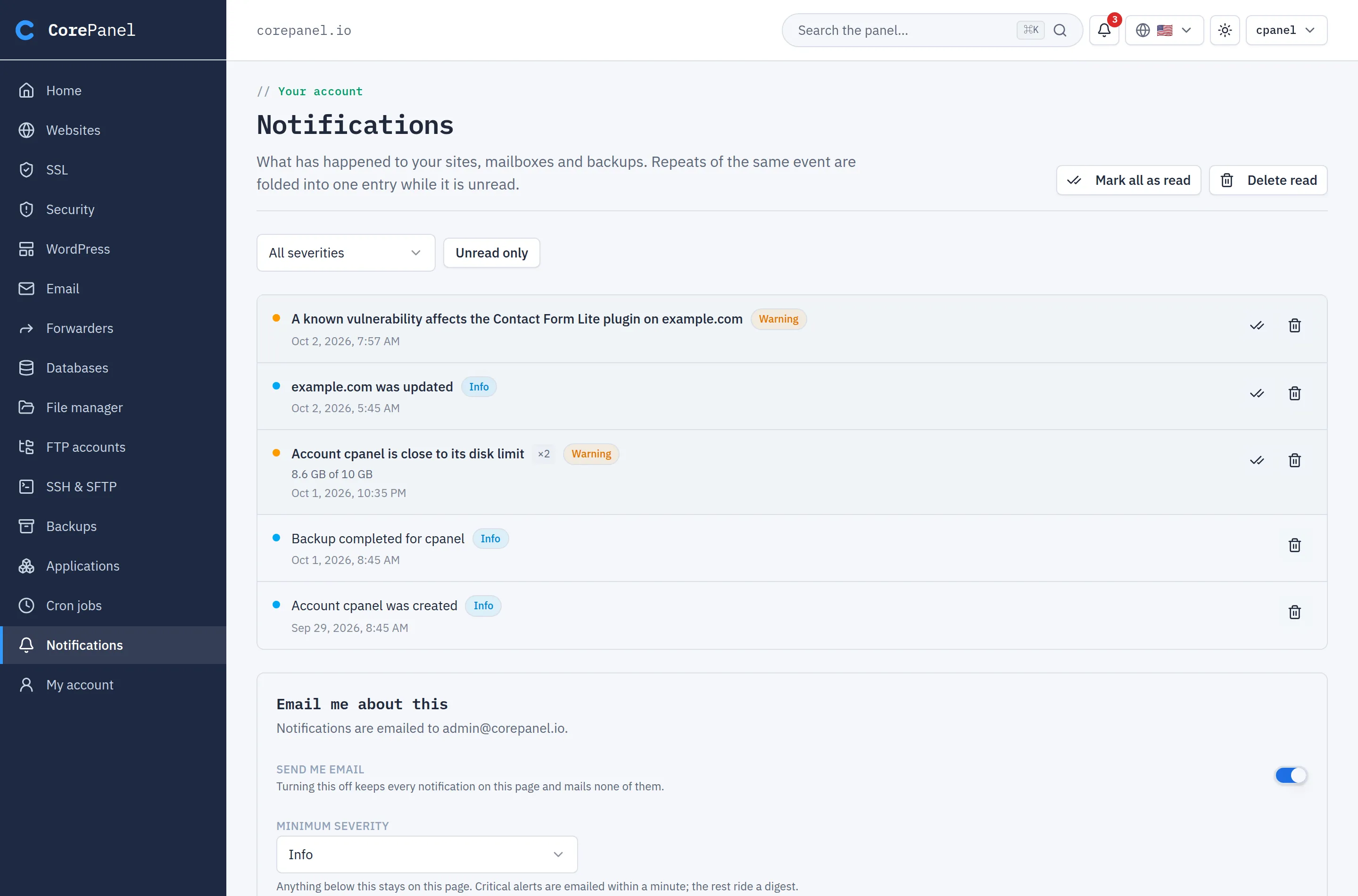
They can read, mark as read and delete entries, and choose what reaches their mailbox:
- Send me email — off keeps everything on the page only.
- Minimum severity — Info by default, so “your backup finished” reaches them.
The digest interval, the From address and sending a test stay with you. Read status is separate: clearing their feed does not touch yours.
In a support session
Section titled “In a support session”When you log in as a customer, you can switch the layout, theme and language to see what they see — nothing is saved to their account. Their notification preferences are read-only to you.