Host Firewall
The web application firewall inspects HTTP requests. The host firewall works one layer below it, on the network itself: it decides which ports of this server are reachable at all, and from where.
CorePanel manages firewalld directly — no agent, no second firewall competing with
the first. What it builds is a dedicated corepanel zone whose policy is to drop
inbound traffic, with the ports of your installed stack opened explicitly, plus two
address lists: one that blocks and one that always lets through.
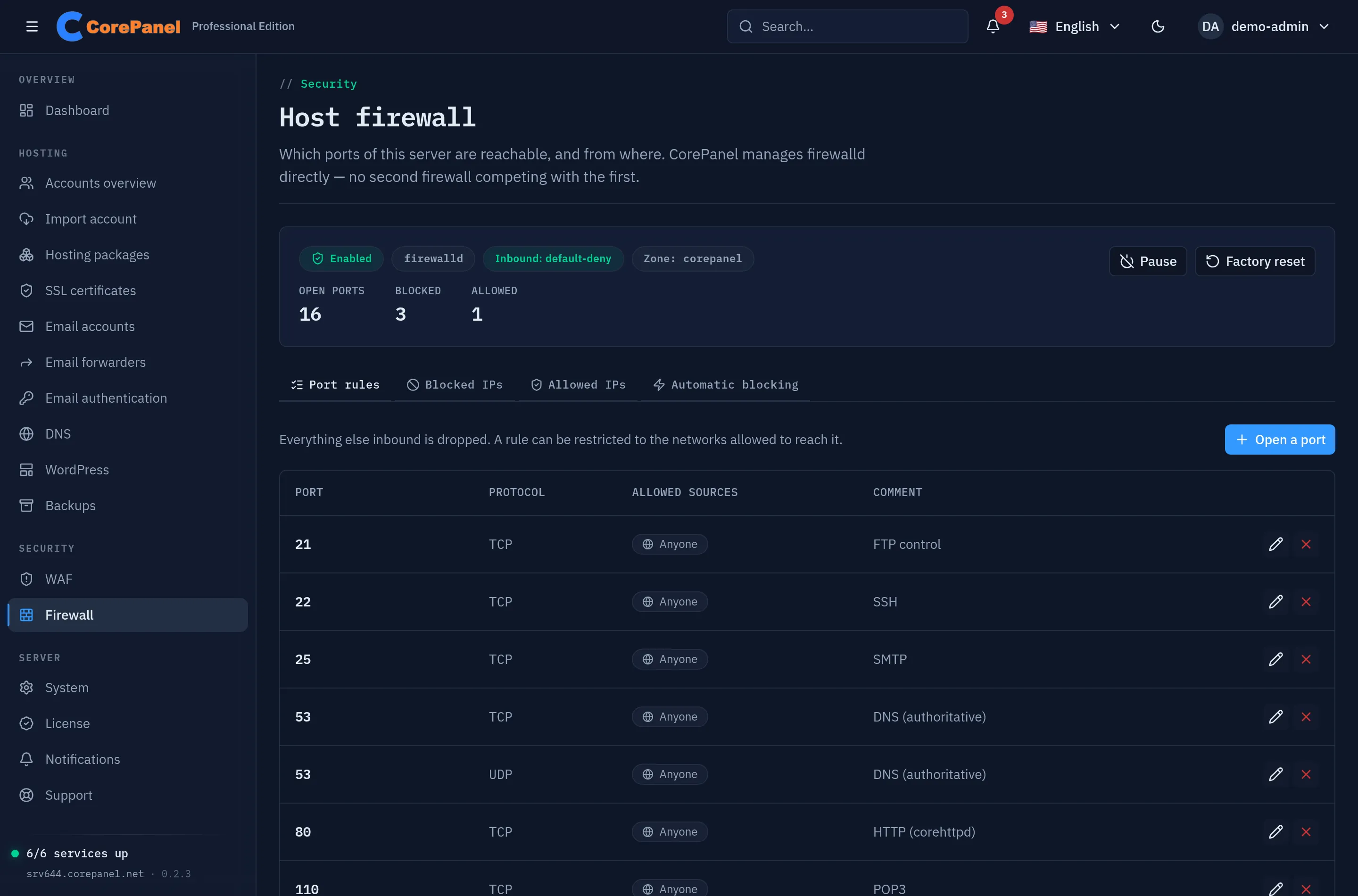
Everything below is in Security → Firewall in the panel, and in
corepanel firewall on the command line. Both drive the same rules; the CLI is what
you reach for over SSH, which is also why it is the way out if something goes wrong.
What a new server starts with
Section titled “What a new server starts with”The installer leaves firewalld running, with the ports of the stack it just installed open in the server’s default zone. A new CorePanel server therefore has a firewall from the first boot, on every edition, without anyone deciding anything.
That is not the same as CorePanel managing it. Adopting the firewall — building the
corepanel zone and taking over the rules — is an explicit action, and it is what
unlocks blocking, the allowlist and automatic blocking (and, on Pro and Business, port
rules):
corepanel firewall statusFirewall: runningManaged by CorePanel: noDefault zone: public...firewalld is running but CorePanel does not manage it. Run `corepanel firewall enable` to take it over.Servers installed before this feature existed have no firewall at all: the installer
runs once, and it is not re-run by an update. Neither does a server
transformed from cPanel, whose CSF the cutover switched off.
corepanel firewall status says so plainly, and so does the panel.
The panel tells you when a server is unprotected
Section titled “The panel tells you when a server is unprotected”Until CorePanel manages the firewall, an address caught guessing passwords is only refused mail and FTP by the authentication broker — the panel, SSH and every website stay open to it. So the panel says so where you will see it:
- On the dashboard, a card reading This server has no firewall (firewalld is not
installed, with the
dnf install firewalldcommand to copy) or CorePanel is not managing the firewall (installed but not adopted), with a link to the Firewall section. Do not remind me hides it in that browser; the card comes back if the situation changes — from “not installed” to “not adopted”, for instance. - Above every Access protection view, one line saying the same thing next to the addresses it concerns.
Neither appears once the firewall is adopted — including while it is paused, which is a decision rather than an oversight — nor while another firewall is active on the server, for the reason in the next section.
Adopting the firewall
Section titled “Adopting the firewall”Switching a server you reach over the network to default-deny is the operation that deserves a look before it runs. So the port list is deterministic, and the panel shows it before anything changes — an unprotected server lands on this card rather than on a button:
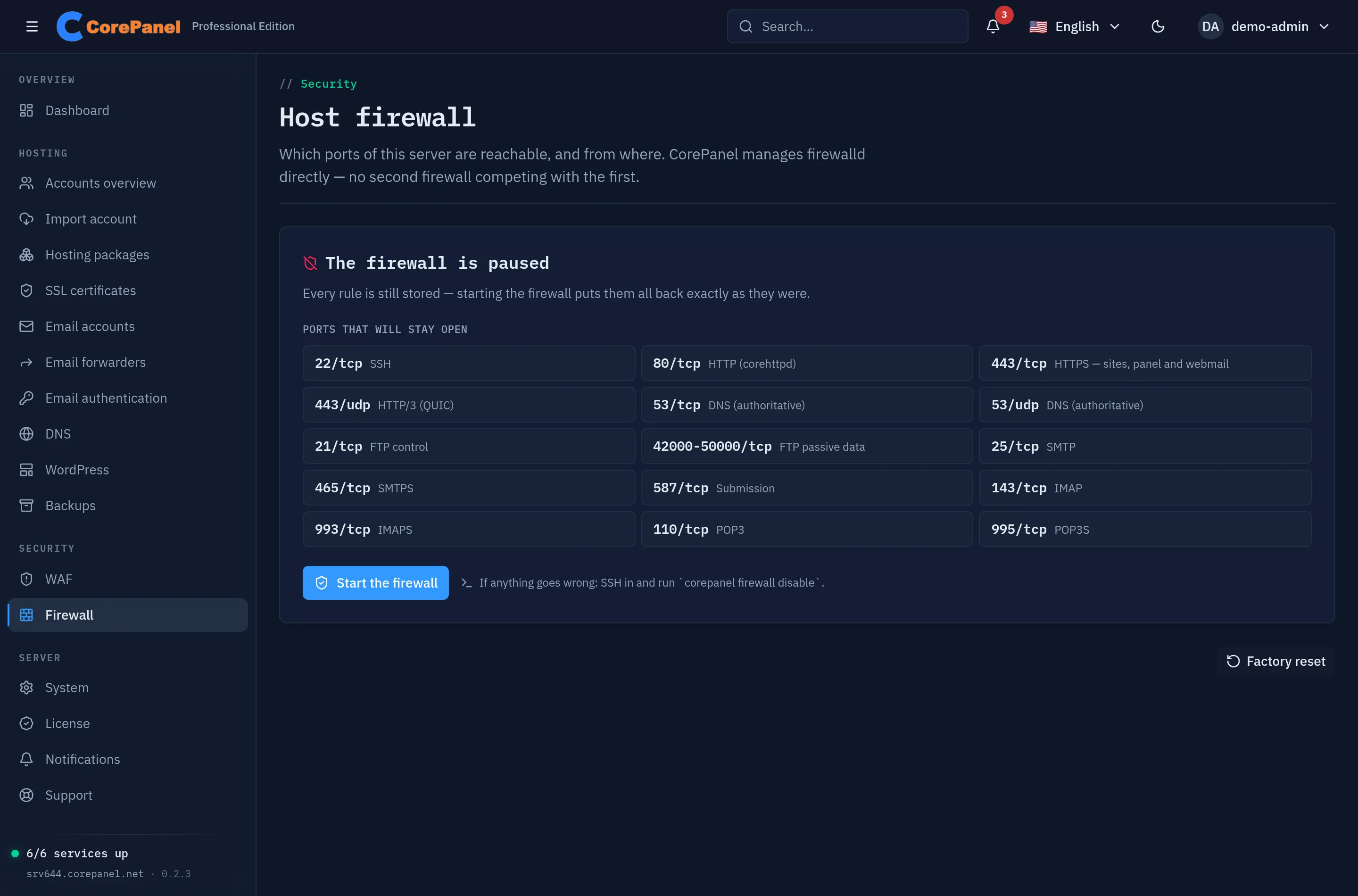
The same list from the shell:
corepanel firewall seedPORT PROTO SERVICE22 tcp SSH80 tcp HTTP (corehttpd)443 tcp HTTPS — sites, panel and webmail443 udp HTTP/3 (QUIC)53 tcp DNS (authoritative)53 udp DNS (authoritative)21 tcp FTP control42000-50000 tcp FTP passive data25 tcp SMTP465 tcp SMTPS587 tcp Submission143 tcp IMAP993 tcp IMAPS110 tcp POP3995 tcp POP3SThe passive FTP range is read from the FTP server’s own configuration, so a server tuned to a different range seeds that one.
The list is derived from what CorePanel installed, not from a template. In particular
the SSH port is read from the running sshd, not guessed from a configuration file
that may resolve Include directives differently — a server reachable only on 2222
seeds 2222. That is the one mistake that would end the session giving the order.
Then Enable the firewall in the panel, or:
corepanel firewall enableEither way adoption works in an order chosen so the dangerous step is last: build the zone, create the address lists, apply the seed, and only then make the zone default. Traffic starts being dropped at the final step, with every rule already in place. Running it again on an adopted server repairs anything missing.
Four conditions are checked first, and refused with an explanation rather than worked around:
| Condition | Why |
|---|---|
| firewalld is installed | Minimal cloud images ship without it — including AlmaLinux 10’s. Install it with dnf install firewalld; CorePanel will not install a firewall behind your back |
| No other firewall is active | firewalld’s own service unit conflicts with the iptables, ip6tables, ebtables, ipset and nftables services: starting it stops them, and their rules go with them. CorePanel refuses instead, and also while ufw is running or CSF is enabled. The panel names what it found; disable it first if you want CorePanel to manage the firewall |
| The backend is nftables | The deprecated iptables backend cannot hold the address lists as native kernel sets |
| No direct rules are present | Direct rules push firewalld back onto the legacy path; the ones found are listed so you can remove them |
How a packet is judged
Section titled “How a packet is judged”Rules are not a flat list — they are evaluated in a fixed order, and the first decision wins. This is what makes the allowlist as powerful as it is:
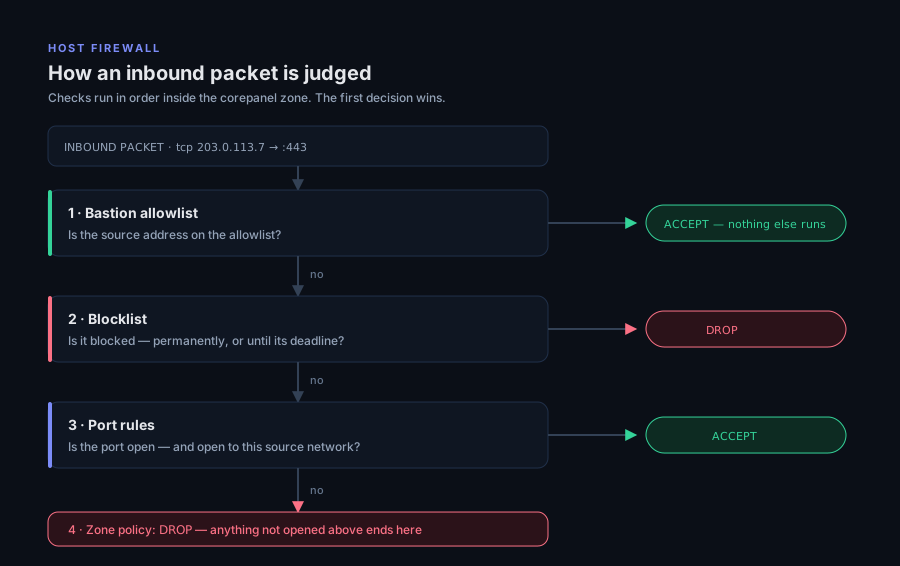
Two consequences worth keeping in mind:
- An allowlisted address bypasses the port rules too, not just the blocklist. It is not “never block this”, it is “always accept this”. Use it for the office or the jump host you must never lose access from, and for nothing else.
- Outbound traffic is never filtered. The panel’s own calls out — licence check-in, ACME challenges, package updates — cannot be broken by anything in this section.
IPv4 and IPv6
Section titled “IPv4 and IPv6”Both, everywhere, without a switch to find.
- Port rules cover both families. Opening 8443 opens it over IPv4 and IPv6 alike —
firewalld’s port rules are family-agnostic, and so is the zone’s default-deny target.
A rule restricted to source networks is the one exception, and only because a network
belongs to one family:
--source 203.0.113.0/24restricts the IPv4 side, and you add--source 2001:db8::/32for the IPv6 one. A rule with both listed accepts from both. - The address lists are twin sets. Blocking or allowing a v6 address puts it in the
v6 set and a v4 address in the v4 one; the panel and
deny listmerge them into a single list, with the family shown per entry. Automatic blocking works the same way. - A bare address becomes a host prefix —
/32for IPv4,/128for IPv6. - A prefix with host bits set is refused, not masked.
2001:db8::1/32is an error naming both fixes, because silently widening it to2001:db8::/32would block a great deal more than you asked for. - IPv4-mapped addresses (
::ffff:198.51.100.10) are unmapped to plain IPv4, so they land in the set that actually matches the traffic instead of sitting inert in the other. - Zoned addresses (
fe80::1%eth0) are refused: a firewall rule cannot use a zone.
Port rules
Section titled “Port rules”The Port rules tab lists every open port with its sources and its comment; “Open a port” adds one, and each row can be edited or closed. From the shell:
corepanel firewall ports listcorepanel firewall ports open 8443 --source 203.0.113.0/24 --comment "staging"corepanel firewall ports close 8443A port is a single number or a range (40000-50000), TCP unless --udp is passed, and
optionally restricted to source networks. A port with no restriction is reachable by the
whole internet — which is what you want for 80 and 443, and rarely for anything else.
Changing who may reach an open port does not close it in between — the pencil icon on a row, or:
corepanel firewall ports edit 8443 --source 198.51.100.0/24The new sources are in place before the old ones are withdrawn, so an address that keeps access never loses it for an instant. The port and protocol are the rule’s identity and cannot be changed — close the rule and open the new one instead.
Comments are CorePanel’s, not firewalld’s — the firewall has nowhere to store them. They are kept per port and protocol, which is why editing a rule’s sources keeps its comment while closing and reopening the port does not inherit the old one.
Blocking addresses
Section titled “Blocking addresses”The Blocked IPs tab, or:
corepanel firewall deny 203.0.113.7 --ttl 24h --comment "ssh brute force"corepanel firewall deny 198.51.100.0/24corepanel firewall deny listA block is permanent unless it is given a deadline — the panel offers 1 hour, 24 hours,
7 days or permanent (and a free-form value in hours); the CLI takes --ttl, from one
minute to seven days. The list shows what is blocked, how long each entry has left, and
why:
ADDRESS EXPIRES ORIGIN COMMENT203.0.113.7/32 in 23h manual ssh brute force198.51.100.0/24 permanent manual scanner192.0.2.4/32 in 41m manual -An entry the kernel is blocking that CorePanel has no record for is listed as
untracked rather than hidden. It usually means the metadata was lost; the address is
genuinely blocked either way, and you can remove it like any other.
Unblocking an address that is not blocked succeeds, which makes deny remove safe to
run from a script that does not check first.
Blocking attackers automatically
Section titled “Blocking attackers automatically”The Automatic blocking tab, or corepanel firewall autoblock.
CorePanel watches its own login paths. When an address crosses the threshold of one of them it is reported, and this policy decides what happens next.
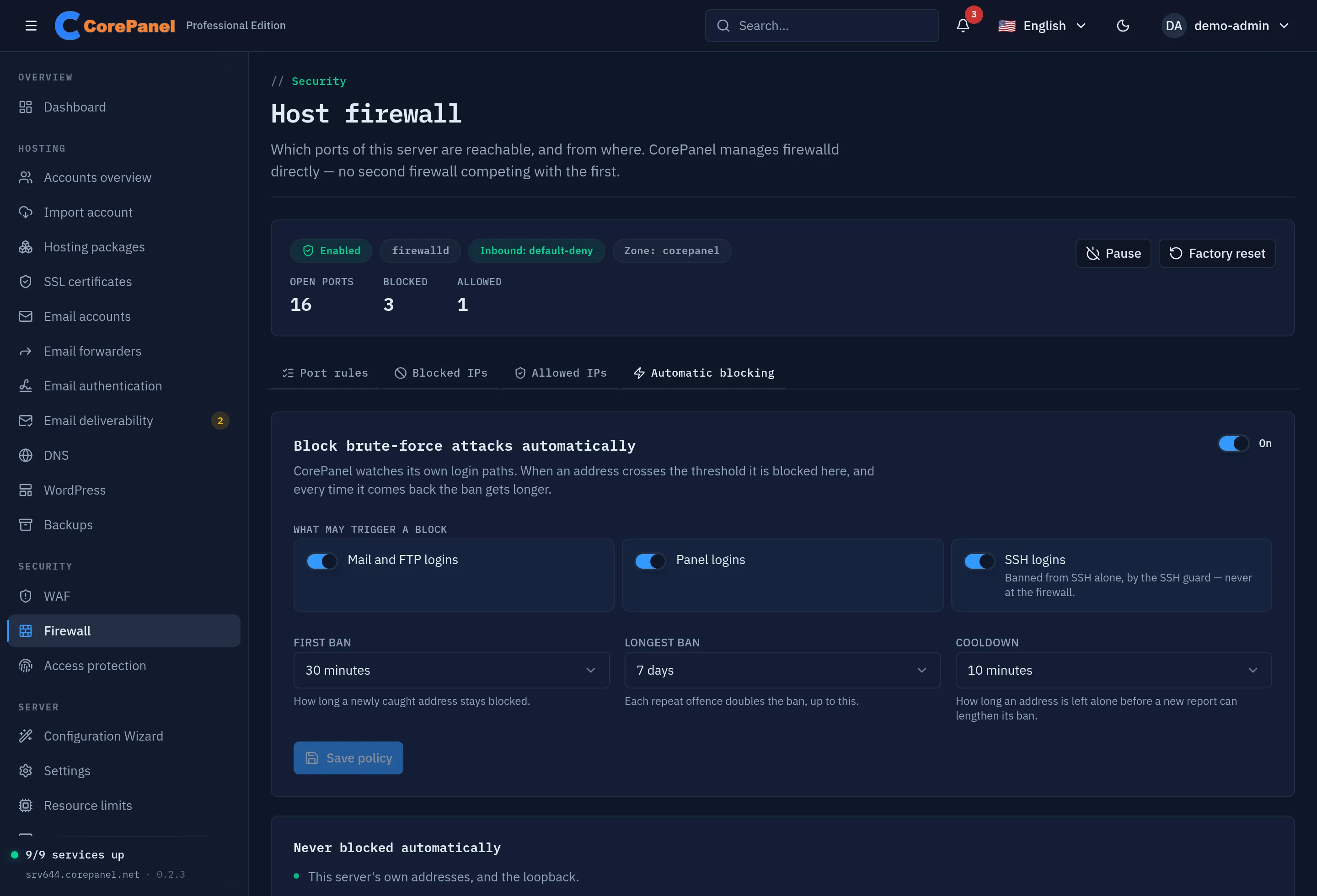
The ban gets longer every time the same address comes back:
| Offence | Ban |
|---|---|
| 1st | 30 minutes (--ttl) |
| 2nd | 1 hour |
| 3rd | 2 hours |
| … | doubling |
| — | stops at 7 days (--max-ttl) |
Escalation is an update of the deadline, never an unblock followed by a re-block, so the address stays blocked throughout — there is no window in which it is let back in.
Cooldown (10 minutes by default) is how long an address is left alone before a new report can lengthen its ban. Without it the counter would measure how fast an attacker knocks rather than how often they come back, and a determined bot would reach the seven-day ceiling in under a minute.
Signal sources are the login paths allowed to trigger a block. Each can be switched off on its own:
| Source | Watches | Status |
|---|---|---|
panel | Panel logins, via the API’s brute-force guard | Reporting |
mail | IMAP, POP3, SMTP and FTP logins, via the authentication broker | Reporting |
ssh | SSH logins, root included, via the authentication broker | Reporting — banned from SSH only |
An SSH attacker is never banned here. The ssh source, the ban lengths and the cooldown
on this tab apply to it, but the ban itself is made by the
SSH guard: only new connections to the SSH
port are dropped, and the address keeps its websites, its mail and the panel — the page
you would release yourself from. It works whether or not this firewall is adopted.
Switching the ssh source or automatic blocking off stops new SSH bans and suspends the
ones in force.
Only an address that crossed the threshold is ever reported. A username being locked out is not evidence against whichever address happened to be last: on a shared or NAT’d source that would ban a gateway full of innocent people, at the attacker’s choosing.
The mail source carries an extra rule that this page enforces regardless of what the
detector sends: an address that has failed against fewer than three different accounts
is never blocked, however many times it failed. One mailbox failing over and over is a
stale password on somebody’s device, and banning the address it comes from cuts off
whoever owns it. See Access protection for the rest of what
the mail detector requires before it will report anything at all.
corepanel firewall autoblockcorepanel firewall autoblock set --enable --sources panel,ssh --ttl 1h --max-ttl 48hcorepanel firewall autoblock set --disableAutomatic blocking runs on every edition, Personal included, as soon as the firewall is adopted. Until it is, the authentication broker still refuses an attacking address mail and FTP on its own. Turning the switch off keeps detection running: you keep seeing the attacks, and nothing is banned at the firewall without you.
The bastion allowlist
Section titled “The bastion allowlist”The Allowed IPs tab, or:
corepanel firewall allow 203.0.113.10 --comment "office"corepanel firewall allow listAddresses here are accepted before every other rule is evaluated: they cannot be blocked, and they reach ports that are closed to everyone else. Powerful, and worth keeping short.
Add and remove them through the panel or the CLI, which take effect for automatic blocking
and the SSH guard at once. An entry written straight into firewalld with firewall-cmd
reaches the kernel immediately too, but automatic blocking only notices it within five
minutes: CorePanel keeps the list in memory rather than asking firewalld on every report.
When something goes wrong
Section titled “When something goes wrong”The panel has a Pause button in the status header, on every edition. But the firewall is the one feature whose failure mode is losing access to the machine that runs it — including access to the panel. So the way out does not depend on the panel, on a licence, or on anything that could itself be unreachable: SSH in and run
corepanel firewall disablefirewalld stops, the server accepts everything again immediately, and nothing is
destroyed: every rule stays in firewalld’s permanent configuration, and
corepanel firewall enable puts it all back. This command asks no questions and no
edition may refuse it.
To go further and remove CorePanel’s configuration entirely — handing the default zone back to what it was before adoption and deleting the zone, its rules and both address lists:
corepanel firewall factory-resetThat one is destructive: the blocked and allowed addresses go with the lists. It is not
how you turn the firewall off; disable is, and disable is reversible.
Related
Section titled “Related”- Web Application Firewall — the layer above, inspecting HTTP requests
- CorePanel CLI — the full
corepanel firewallcommand reference - Access protection — what the broker does on a server whose firewall is not adopted
- Licensing — what happens to paid features when a licence lapses