Importing cPanel accounts
CorePanel can take over hosting accounts from an existing cPanel/WHM server and recreate them natively — files, mail, databases, DNS, cron and SSL — while preserving the original passwords wherever the hash scheme allows, so most users never have to reset anything.
There are two ways to run an import, and they take different inputs:
| Admin panel (UI) | CLI | |
|---|---|---|
| Input | Live pull over SSH from the source WHM | A staged cpmove/backup archive already on the server |
| Scale | One or many accounts (batch) | One account per invocation |
| DNS cut-over | Optional, automatic | Not performed |
| Progress | Live, reconnectable | Printed to the terminal |
| Best for | Migrating a whole server, hands-off | Scripting, air-gapped transfers, a single archived account |
The panel has two more doors into the same engine: an uploaded archive (below), and the import with one account’s own cPanel login (below), for an account on shared hosting where nobody has root on the source.
Every path feeds the same import engine, so the scope of what gets imported and how credentials are handled is identical.
The road also runs the other way: an account can be
exported for cPanel as an archive
restorepkg restores.
What gets imported (scope)
Section titled “What gets imported (scope)”Everything below is provisioned automatically from one cPanel account:
-
System account — the Linux user, its password hash (when compatible), and optionally its original UID/GID.
-
Closed logins — a mailbox or FTP account the source had locked arrives closed: it is created inactive, and the password cPanel kept behind the lock marker is preserved, so reopening it later restores the login its owner already knows instead of replacing it. These are not listed as passwords needing a reset — there is nothing to reset, and acting on such a list would reopen an access somebody deliberately shut.
-
Suspension state — an account cPanel had suspended is imported suspended, with the source’s own suspension date. That is not a detail of bookkeeping: importing it active would put a site somebody deliberately took down — for non-payment, for abuse — back on the internet. Its sites serve the suspension page and its logins stay closed until you lift it, which any edition can do.
-
Primary domain — virtual host, managed DNS zone and a fresh DKIM key.
-
Where each domain’s mail is delivered — a domain cPanel set to Remote Mail Exchanger arrives with Email delivery set to With another provider, so mail this server sends to it leaves by MX instead of landing in a local mailbox. Backup Mail Exchanger is not carried from an archive: this server is not in that domain’s MX records yet, so the report names the domain and you set it if it should be. Automatically Detect stays On this server — an archive records the setting, not what cPanel detected; the panel’s notice tells you if the MX points elsewhere.
-
PHP version — the primary domain’s source version sets the account’s: exact
X.Yif installed, otherwise the newest minor of the same major, otherwise the server default. cPanel sets PHP per site, and so does CorePanel: an addon or a subdomain that ran a different version keeps its own, by the same rule, as a version of its own. The report has aphp:line for the account and one for each such site, and says when a version was not installed and another one was taken. A site whose version could not be applied runs the account’s, and the report warns about it by name. Aliases run the version of the site they republish. A site left on its old server’s default records no version at all (cPanel writesinherit), and an archive does not carry that server’s configuration — so there is nothing to read it from. Such a domain is reported by name, and the account’s version is then decided by the rule above without it: another of its domains that does name one, otherwise the newest version installed here, which can be several releases newer than the site ran. Check it after the import and move the account withcorepanel account update <account> --php <version>if it needs another one. A whole-server transform has the source server in front of it and reads the answer instead of guessing. -
Secondary domains — addon domains, domain aliases (parked) and subdomains, each with its own vhost. cPanel does not store an addon as a domain: it creates an internal subdomain of the primary (
addon.com→addon.example.com) and keeps the real vhost under that name. CorePanel imports the addon as a first-class domain carrying that vhost’s document root, PHP version and certificate, and does not recreate the internal hostname — the report notes it rather than standing up a second site on the same files. -
Domains parked on an addon — a domain parked on top of an addon rather than on the account’s main site. cPanel files it as a second addon entry pointing at the same internal subdomain, so nothing but the name says which of the two is the site. CorePanel imports it as an alias of that addon: it serves the addon’s document root and its mail is redirected there, and the report says which addon it belongs to.
-
Nested subdomains — a subdomain whose prefix is more than one label (
dev.blog.example.com), imported as it is: one vhost, one record in the zone that owns it. Note a nested name is not covered by the parent’s wildcard certificate — a wildcard spans a single label — so CorePanel issues one of its own for it. -
Mailboxes — with their messages (full Maildir) and passwords preserved.
-
Mail extras — forwarders, autoresponders and mail filters (translated to CorePanel’s Sieve model), each mailbox’s filters in the order cPanel ran them. cPanel’s matches is a regular expression; one a wildcard pattern can say (
^Invoice .*, literal text,.and.*) becomes one. A filter with a condition that cannot be translated — another regular expression (a class, a group,\d), a negated test, a header CorePanel filters do not test — is left out whole and named in the report: without that condition it would catch more mail than it did. An action that cannot be one is left out on its own and named, unless what remains would only discard. Discard Message stays a discard. -
Pipes to scripts — a forwarder, the default address (catch-all) or a mail filter that pipes to a program, the way ticket systems receive mail, keeps doing so: the script stays where the home restore put it and the pipe points at it there. The command is translated:
|/home/user/public_html/support/pipe.phpand$home/…become the path in the home,|/usr/bin/php -q …,|/usr/bin/env bash …or|/usr/bin/perl …choose what runs the script, and the rest of the command becomes its arguments, split the way Exim splits them: single quotes group words literally, double quotes group them with backslash escapes, and a quote cPanel left unclosed runs to the end of the line. A pipe that cannot be one here is named in the report: a program outside the home, one of cPanel’s own (Mailman, BoxTrapper), a shell command (> file,-c), a script the home does not have. A forwarder that also had addresses keeps them, and one on an address that is also a mailbox leaves the mailbox receiving. Any other forwarder that only piped becomes an address that refuses its mail — not a missing one, which would let the domain’s default address (catch-all) take its mail without anybody noticing. A default address whose pipe cannot come across is left out. An address cPanel itself refused (:fail:) refuses its mail here too, with cPanel’s message as the reason. A script cPanel ran with Python, Ruby or Node runs as a program by its#!line, and the report says so. A cPanel PHP named by its EasyApache or LiteSpeed path (ea-php81,lsphp81) runs with the account’s PHP. Pipes are imported even while the account’s mail pipes are off or it arrives suspended: a forwarder’s messages wait until they are on, and a filter’s pipe is skipped until then, so its messages stay in the inbox. -
An address that is a mailbox and a forwarder delivers to both on cPanel, and it keeps doing so: the forwarder comes across naming its own address among its destinations, which is how CorePanel keeps the mail in the mailbox while sending the copy (or piping it) on.
-
FTP accounts — the main account plus any extra ones, passwords preserved.
-
MySQL — databases with their data, plus database users (their MySQL password hash is re-applied, so app config keeps working).
-
Cron jobs — installed as panel-managed cron. A job that called one of cPanel’s PHP binaries by path (
/opt/cpanel/ea-php81/root/usr/bin/php,/usr/local/bin/ea-php81,/usr/bin/php) is rewritten to a barephp, which is the account’s own PHP version. Those paths do not exist on CorePanel, and a job that kept one would fail every time it ran without any message. The report lists each job it rewrote. -
SSL certificates — cert, chain and key installed via the certificate manager.
-
DNS records — parsed from the source BIND zones and merged into the new zone; A/AAAA records that pointed at the old server IP are rewritten to this server’s IP, while MX, TXT/SPF, DKIM, CNAME and CAA are preserved. The
autodiscoverandautoconfigrecords cPanel adds for its own mail autoconfiguration service are left behind (an address pointing at the old server, and the_autodiscover._tcpSRV tocpanelemaildiscovery.cpanel.net): nothing answers them here, and Outlook would stop to warn about the certificate. Mail apps are set up with the values in the mailbox’s Connect devices section. The same names pointing elsewhere, such as Microsoft 365’sautodiscover.outlook.com, are kept. -
Home directory — the full site tree, restored and re-owned (with SELinux contexts fixed).
-
WordPress installations — the import ends by scanning the account it just created, so every WordPress it brought over is already listed (and manageable) in WordPress when the job finishes. cPanel has no catalog of its own to copy: the sites are found on disk, exactly as the manual Scan does.
-
.htaccessrules — read where they are, not converted. Permalink blocks, front controllers,Deny from allfiles and password-protected directories keep working without anything being turned on. See .htaccess Support for what is applied and what is reported instead. -
SSH access and the account’s keys — the account is enrolled from the login shell it had on the source: cPanel’s
jailshellbecomes CorePanel’sshelllevel (a console inside the account’s own jail), and so does a real shell such as/bin/bash— the customer keeps a console, jailed here;noshell, which on cPanel refuses a shell but serves SFTP, becomessftp;nologinand/bin/falsebecomeoff, because those accounts could not log in there at all. Packages imported from cPanel allowshell, since cPanel decides a shell per account. A package of yours that stops lower caps it: under a package that stops atsftp, ajailshellaccount lands atsftp, and abashone at the level a new account gets from that package — the import creates the account here without a shell, so there is no shell of its own to leave it on. (An in-place transformation is different — there such an account keeps the shell it has.) A suspended account is judged by the shell it had before the suspension — cPanel replaces it with/bin/falseandpkgacctcarries the real one in the archive’ssuspendinfo— and stays closed until you lift the suspension. The shell is read from theshellfilepkgacctwrites at the top of the archive; one made with--skipshellhas none, and the account starts at its package’s level too. The report says which.The keys in the account’s own
~/.ssh/authorized_keysandauthorized_keys2are read into the panel with their options (from=,command=,no-pty) preserved, and the files are left untouched. This matters more than it sounds: once CorePanel manages an account’s SSH it reads a key file of its own, so a key that was not imported would stop working. Anything that could not be carried — a DSA key, an RSA key under 2048 bits, an unparsable line, or a home so permissive that sshd’s ownStrictModesalready ignores it — is named in the report with its reason.
Where the sites end up
Section titled “Where the sites end up”Every site keeps serving from the path it had on the source server. The importer does not move the files into CorePanel’s own layout, it re-points the vhosts at where the restored home actually put them:
| On cPanel | On CorePanel after the import |
|---|---|
~/public_html (primary) | ~/public_html |
~/public_html/addon.com (addon, cPanel nests them) | ~/public_html/addon.com |
~/public_html/blog (subdomain, named after the label) | ~/public_html/blog |
~/dl.example.com (a site edited by hand to sit beside public_html) | ~/dl.example.com |
Only the home directory prefix changes, and only when the account gets a different
username here (a name conflict on import). A site provisioned by CorePanel afterwards
uses CorePanel’s own layout — ~/domains/<name> — but nothing already imported is
rewritten to match it.
This matters because absolute paths are baked into the sites themselves: wp-config.php,
compiled caches, .htaccess include paths, and the cron jobs the importer restores
alongside them. Moving the tree would break all of those silently. CorePanel instead
extends the two things that make a directory servable — its SELinux file context and the
PHP pool’s open_basedir — to cover the imported path.
What is not imported
Section titled “What is not imported”This is a one-shot import, not a two-way sync, and it only reads cPanel archives:
- Other panels (Plesk, DirectAdmin) — cPanel only.
- The cPanel reseller tree — you decide which CorePanel seller each account belongs to. Its package is resolved for you from the plan name when a package of that name exists.
- cPanel-specific state with no CorePanel equivalent —
cpbackupjobs, Softaculous installs, cPanel API tokens. - Account-level mail filters (cPanel’s Global Email Filters) — a CorePanel filter belongs to one mailbox, and a filter for every message of the account has no single mailbox to go to. Each one is named in the report; set it up again on the mailboxes that need it.
- A mailbox on a domain that has no mail identity on this server (e.g. a mailbox under an alias or a subdomain) — it is reported as dropped, never silently lost.
- SSH password login, on this path — an archive comes from a server this one cannot
ask, so nothing here can know whether its sshd allowed passwords, and an unanswerable
question does not become a grant. Accounts arrive with key login only; grant a password
where a customer needs one with
corepanel account ssh password allow <account> --for 30d. (The in-place transformation is the source server, so it can ask, and it preserves what it finds.) - Databases and database users outside the account’s own namespace. Every MySQL
name an account owns here is
<account>_<something>(plus the account’s own main MySQL login, named exactly like the account, which cPanel archives carry); one an archive names outside that —shop_wparriving for the accountblog, say, or a name that already belongs to another account here — is reported failed and not created, granted or attached. An archive is input from somewhere else, and a name is all it would take to hand one account another’s database. A cPanel account with database prefixing turned off (or an old 8-character prefix) needs those databases renamed and loaded by hand. - A PHP version this server does not have — a site keeps its own version only when that version, or another of the same major, is installed here. Otherwise it gets the newest installed version, and when that is the account’s, it runs the account’s. The report names every site this affects so you can check it first. Install the version and set it on the site afterwards if it needs it.
How passwords are preserved
Section titled “How passwords are preserved”CorePanel imports the original password hashes verbatim whenever they can be verified later — no plaintext is ever needed or shown.
| Credential | Preserved when the hash is… | Otherwise |
|---|---|---|
| System / SSH / main FTP | SHA-512 $6$, SHA-256 $5$, MD5 $1$, bcrypt $2a/2b/2y$, yescrypt $y$ | Random password set, reset required |
| Mailbox & extra FTP | Same crypt families as above | Random password set, reset required |
| MySQL users | mysql_native_password / caching_sha2_password (re-applied at the MySQL layer) | — |
A hash is also reset, instead of kept, when its own parameters ask for more work than a sign-in may spend — sha-crypt above 700,000 rounds, bcrypt above cost 12, yescrypt above 64 MiB, argon2 above 64 MiB or four passes. Real systems write far less (crypt’s default is 5,000 rounds, cPanel’s bcrypt cost 10–12, a distribution’s yescrypt 16 MiB), but a hash asking for minutes of CPU or gigabytes of memory would let anyone who knows the name slow the server down with every wrong guess.
The system login is the strictest case: RHEL’s crypt(3) verifies the hash at SSH/FTP
login, so a scheme it can’t check (e.g. argon2) is treated as non-preservable — the account
gets a random password and is flagged for a reset, rather than becoming an account that can
never log in. When a credential can’t be preserved, the login still exists — the user
just has to set a new password. Those users are listed under Password resets required in
the report.
Procedure — Admin panel (live pull over SSH)
Section titled “Procedure — Admin panel (live pull over SSH)”Open Backup & Transfers → Transfers in the panel. The import runs entirely on the CorePanel server, so you can close the browser and reconnect to it later.
1. Connect to the source server
Section titled “1. Connect to the source server”Enter the source WHM/cPanel hostname or IP, the SSH port, and root SSH credentials. The password is used only for the connection and is never stored.
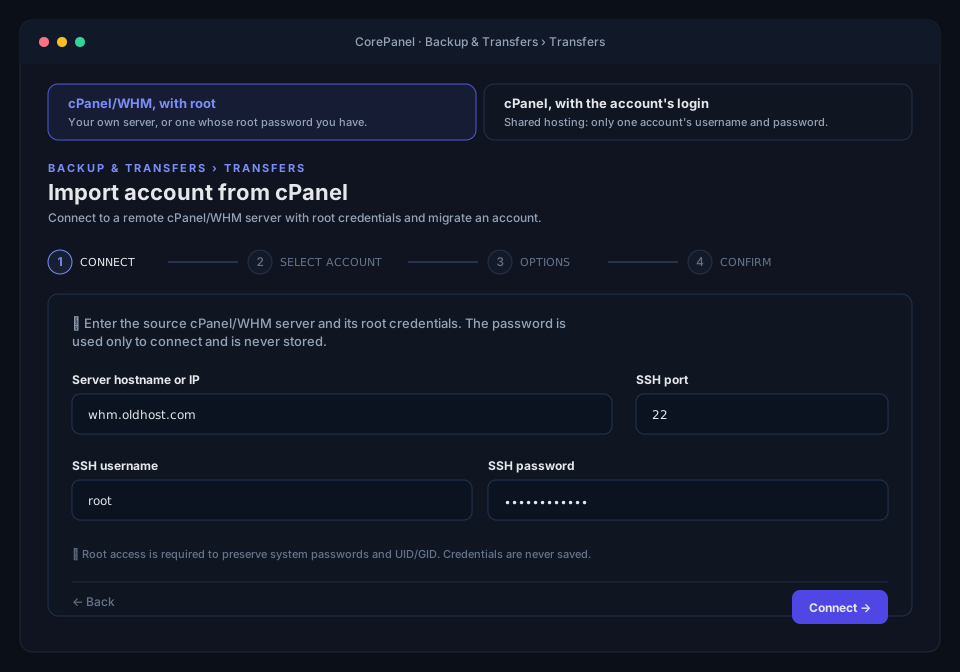
2. Select the accounts
Section titled “2. Select the accounts”CorePanel lists every account on the source server with its primary domain, plan and disk usage. Verify the server’s host-key fingerprint matches the real source, search/filter, and tick one or many accounts (Select all acts on the current filter). Suspended accounts are flagged.
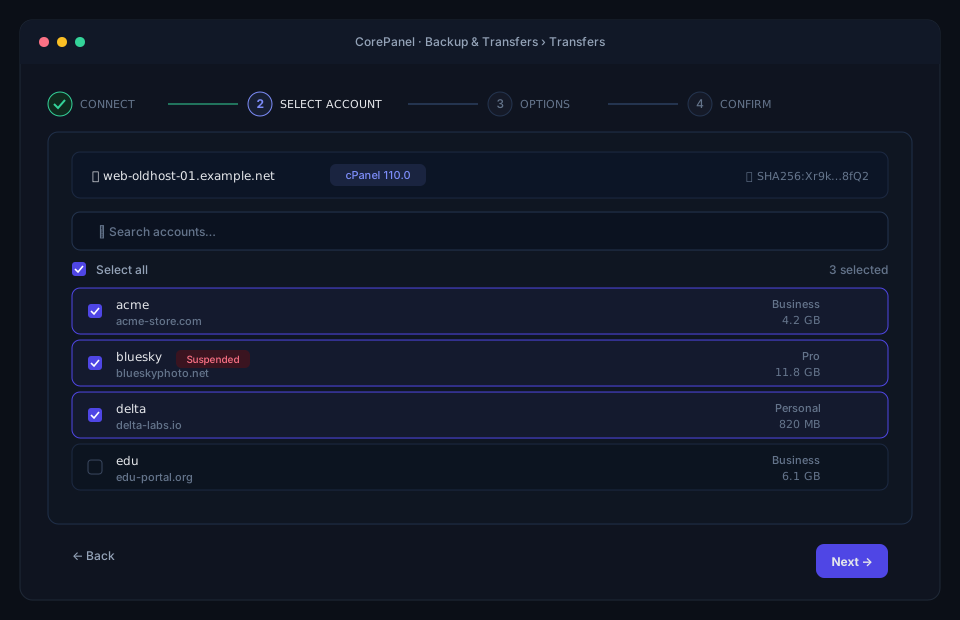
3. Choose options
Section titled “3. Choose options”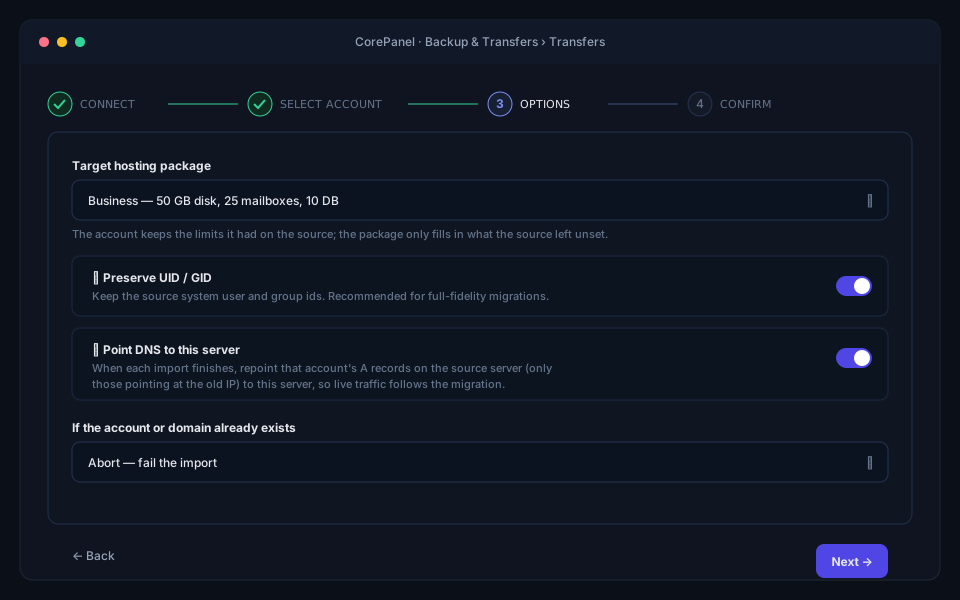
-
Target hosting package — pick one to attach every imported account to it. Leave it unset and CorePanel resolves each account’s own cPanel plan by name, so accounts that came from different plans land on the matching CorePanel packages instead of all on one.
Either way, the limits an account arrives with are the ones the source recorded for that account — disk, bandwidth, mailboxes, databases, FTP, aliases, subdomains and addon domains — not the package’s. Both panels copy limits into the account when it is created and let you edit a single account afterwards, so an account whose database limit was raised by hand keeps the number it was running under. The package only supplies what the source left unsaid. Applications are the exception: cPanel’s Passenger limit is a different product, so imported accounts get no applications until you grant them.
-
Preserve UID / GID (recommended) — keep the source system user/group ids for a full-fidelity migration.
-
Point DNS to this server — when each account finishes, CorePanel logs into the source server (still authoritative during the switch) and repoints only the A records that pointed at the old IP, so live traffic follows the migration without waiting for a registrar change. Domains whose DNS lives elsewhere are left untouched and flagged as external.
-
If the account or domain already exists — Abort (fail) or Skip (do nothing).
4. Review and start
Section titled “4. Review and start”Confirm the summary and start. Accounts are imported one at a time on the server.
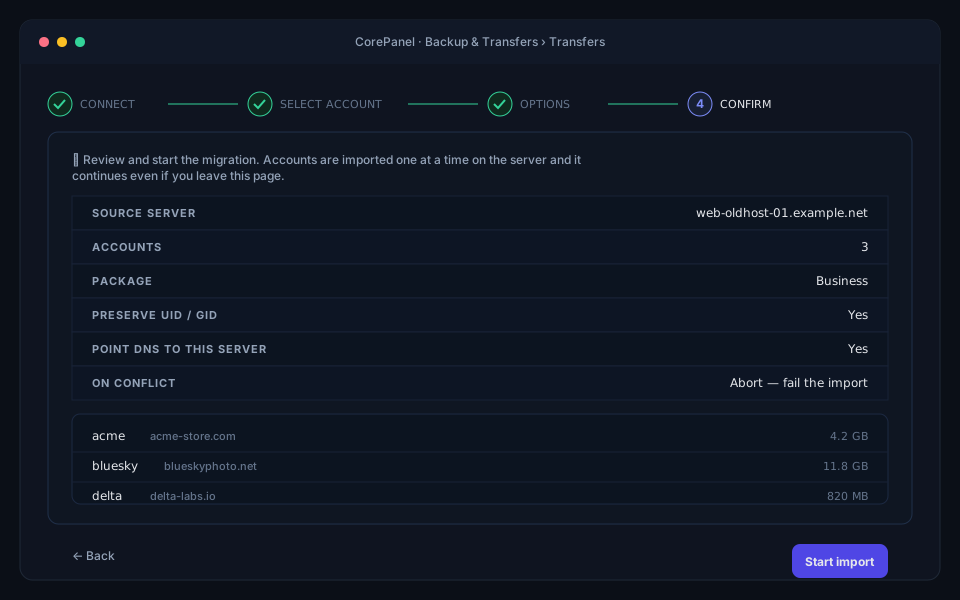
5. Watch live progress
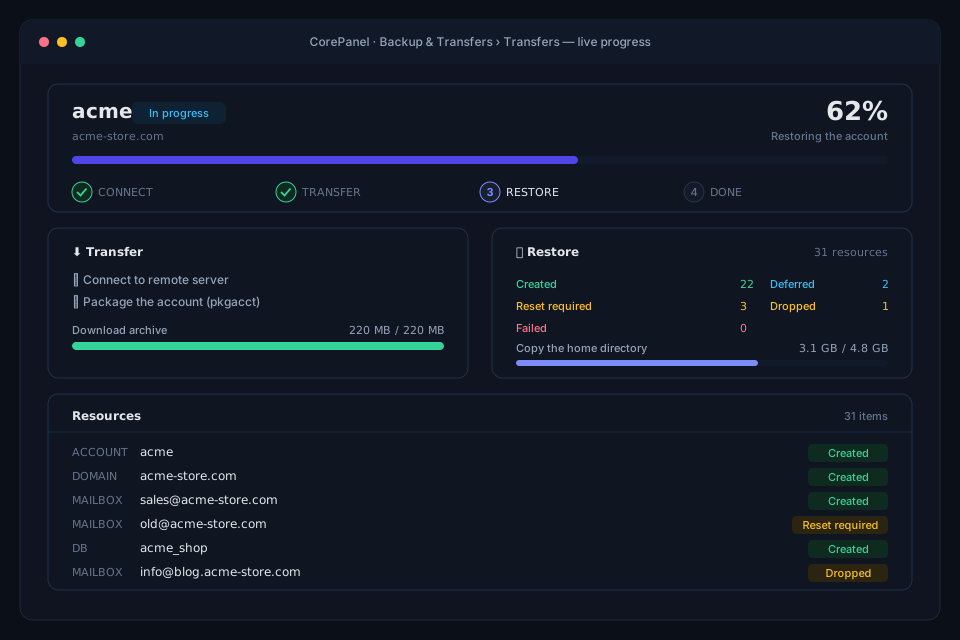
Section titled “5. Watch live progress”Each account shows a phase tracker (Connect → Transfer → Restore → Done), the transfer size, a live count of created / reset / deferred / dropped / failed resources, and the full per-resource log. The import keeps running on the server if you navigate away — reopen the page and pick it up from Recent imports.
The home directory is copied while the account is being restored, straight into its final place, so its bytes show inside the Restore card as Copy the home directory rather than under the transfer.
Procedure — Admin panel (uploaded archive)
Section titled “Procedure — Admin panel (uploaded archive)”When you already have the account’s archive — a cpmove-<user>.tar.gz made by WHM’s
pkgacct, or a cPanel full backup — and no SSH access to the server it came from, upload
it instead:
- Open Backup & Transfers → Import / Export and choose the file. The server checks it has room to store the file before the upload starts, then reads which account it carries. The import itself needs room for the account on top of that.
- When the row shows cPanel archive, open its menu and choose Import this account.
- Review the dry run — what will be created, which passwords need a reset, and any account or domain that already exists here — pick the options, and start.
- Follow the import in the Transfers tab, as for a live pull. Its first two steps read Uploaded and Read, and an Archive card stands where a live pull shows the connection and the download: the archive is already on the server, so nothing is fetched.
The options are those of the live pull except Point DNS to this server: an uploaded archive has no source server to log into, so the records are changed by hand. The account lands on the primary seller — never on a reseller of this server picked by the name the archive gives as its owner, since an uploaded file can say anything; move it afterwards if it belongs to one. See Uploading an archive for the details of the upload itself.
Procedure — Admin panel (with the account’s own login, no root)
Section titled “Procedure — Admin panel (with the account’s own login, no root)”The case this serves is the most common one at the bottom of the market: a customer on
shared hosting who wants to move to your server and only has their cPanel login —
no root, no WHM, often no shell. It is the equivalent of WHM’s Transfer or Restore a
cPanel Account with the account’s password, and it works on accounts with noshell,
because everything goes over cPanel’s own HTTPS port (2083).
Open Backup & Transfers → Transfers and choose cPanel, with the account’s login.
1. Log in
Section titled “1. Log in”Enter the cPanel server, the port (2083 unless that host moved it), the cPanel username and password. The password is used for the login and is never stored — not on disk, not in the job.
- Two-factor authentication. If the account has 2FA, the panel asks for the current code from its authenticator app. It is needed once, to log in; the import does not ask again.
- Certificate. If the server’s certificate does not verify — a cPanel serving its own self-signed certificate, typically — the panel shows its SHA-256 fingerprint before anything is sent. Compare it with the one the server shows and confirm only if they match; every later connection of the job must present that same certificate. A certificate that verifies needs no confirmation.
2. Check the preflight
Section titled “2. Check the preflight”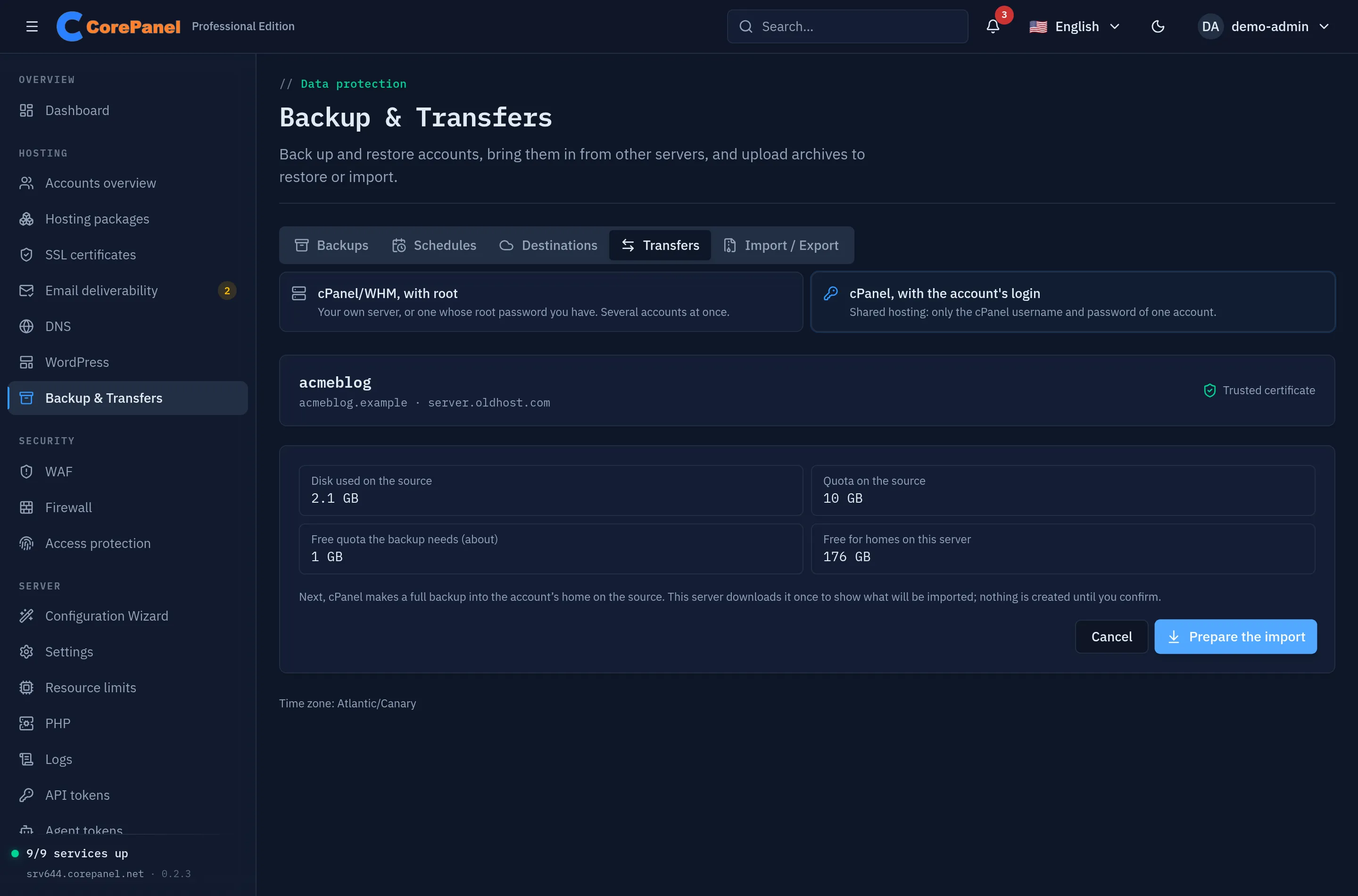
cPanel writes the backup inside the account’s own home on the source, so it counts against that account’s quota there. Before anything is packaged, the panel reads the account’s disk usage and quota and stops — saying how much has to be free — when the backup cannot fit: about half the space the account uses must be free, and cPanel itself refuses at 90% of the quota. It also stops when the hosting provider has turned off the Backup feature for the account; then the account cannot package itself and only a migration with root is left. Free space for homes on this server is shown as a warning.
3. Prepare and review
Section titled “3. Prepare and review”Prepare the import asks cPanel for a full backup. cPanel may hold it for a while before starting — it waits for the source’s load to drop — and the panel says so. If another backup appears in the account’s home in the meantime (the customer made one, say), this server cannot tell which file is its own: it stops, touches neither, and names both. Once the backup is complete, this server downloads it once to show the same dry run as any import: the account, what will be created, which passwords carry over, and anything that already exists here. Only metadata is kept from this pass; the home is not written anywhere.
4. Import
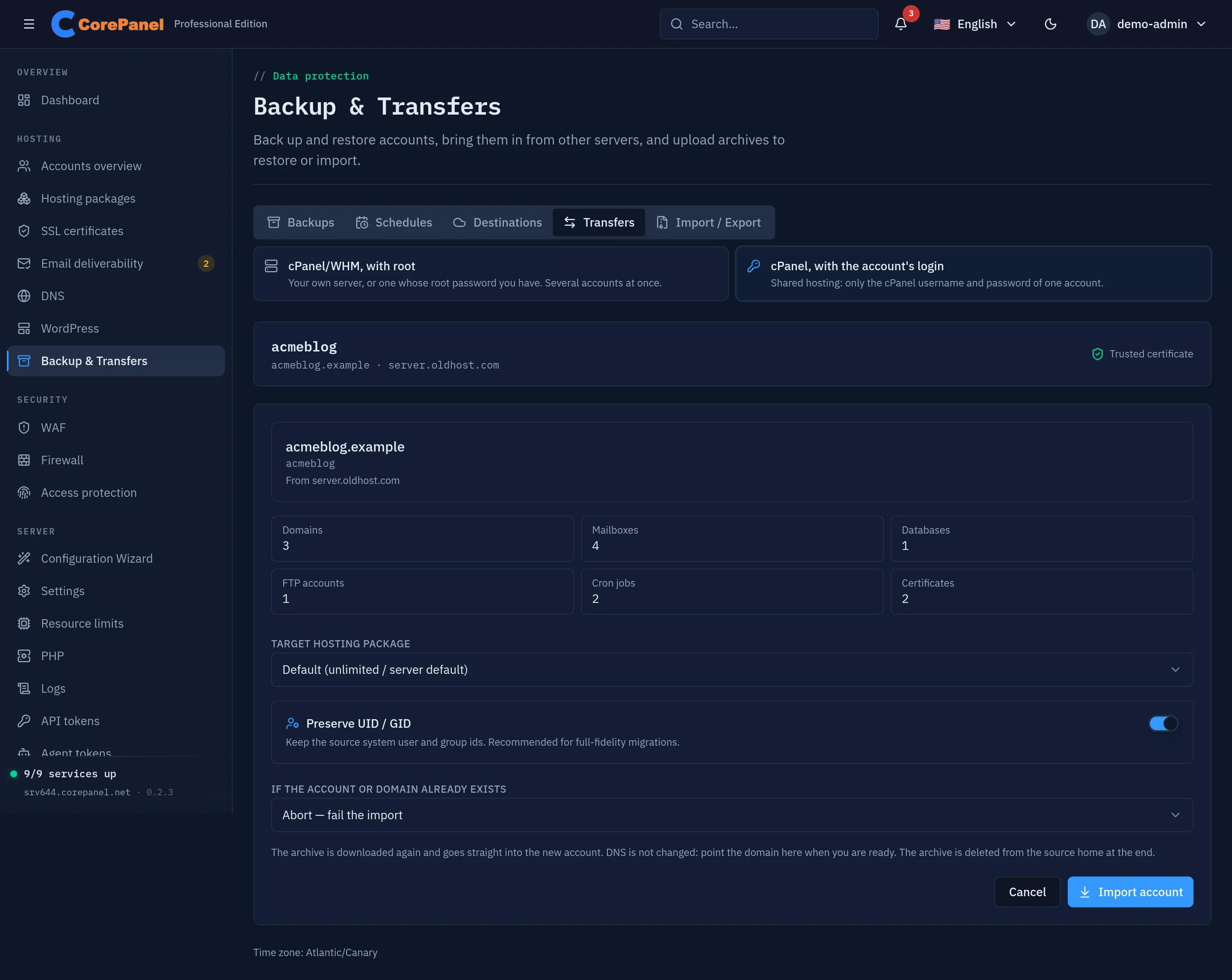
Section titled “4. Import”Pick the options and Import account. The account is created from what you reviewed, then the archive is downloaded a second time and split on the way: the home goes straight into the account, and the database dumps are loaded once the home is in. cPanel does not let a download resume, so a cut connection means starting the import again. A database whose dump does not arrive whole in this download is not created — it is reported failed, never restored empty. And the archive is read twice — once for the preview, once for real — so that the home never needs room on this server beyond its own.
The progress is the import’s usual view; its first two steps read Packaged and Previewed, and the bytes of the second download are the Restore card’s. The account can write its own home on the source, so the archive is checked against the one previewed: if its size changed, the import stops before creating anything; if it kept its size but not its content, the import goes on and the report says so, because what was imported is then not what the preview showed.
When it finishes — successfully or not — the archive is deleted from the account’s home on the source, so the customer’s quota there is not left full, and the session is closed. If it cannot be deleted, the report names the file.
What is different from the other imports
Section titled “What is different from the other imports”- DNS is not repointed. The account may not have the zone editor, and its zones may not even live on that server. Point the domains (or their nameservers) at this server when you are ready; the report reminds you.
- The account lands on the primary seller. The archive names a reseller of the source server as its owner, which means nothing here. Move the account to another seller afterwards if it belongs to one.
- One account per import, and no inventory: the login sees only its own account.
- Nothing else changes on the source. The backup is made and deleted; the account, its sites and its mail are left as they were.
- The archive waits in the customer’s quota, so it does not wait long. A connection
nobody looks at for 30 minutes is closed and its archive deleted, and a preview is
closed two hours after it is ready even with the page open. If cPanel ends the
session in the meantime, the panel says so and names the archive it could no longer
delete. If the panel restarts in the middle, the archive stays in the source home as
backup-<date>_<user>.tar.gz: an interrupted import names it in its report, and the panel’s log names it from the moment cPanel made it. Delete it from that account’s File Manager. - Resellers can run it too (Pro and Business), for customers of their own, under stricter rules: see Resellers — bringing customers from cPanel.
Procedure — CLI (from a staged archive)
Section titled “Procedure — CLI (from a staged archive)”Use the CLI when you already have a cpmove-<user>.tar.gz / backup-*.tar.gz archive (or
an extracted account directory). The archive path is resolved on the CorePanel server,
so stage it there first, in /var/lib/corepanel/import/ — the only place the import reads
an archive from (besides the backups directory, where uploads land). A path anywhere else,
or one reached through a symlink, is refused before anything is created:
install -d -o corepanel -g corepanel -m 0700 /var/lib/corepanel/importinstall -o corepanel -g corepanel -m 0600 cpmove-acme.tar.gz /var/lib/corepanel/import/Preview first (--dry-run)
Section titled “Preview first (--dry-run)”A dry-run parses the archive and prints the plan — resource counts, credential compatibility, conflicts and warnings — without touching the system:
corepanel account import /var/lib/corepanel/import/cpmove-acme.tar.gz --dry-runcPanel import preview (dry-run)==============================Source: cpanel 110.0.5 @ web-oldhost-01.example.netAccount: acme (uid 1042, gid 1042)Domain: acme-store.comPlan: businessContact: admin@acme-store.com
Resources: domains=5 mailboxes=8 forwarders=4 databases=2 db-users=2 dns-records=27 ftp=3 cron=1 certificates=1
Credentials: system password: preserved mailbox/ftp: 9 preserved, 2 reset (of 11)
Domains: - acme-store.com primary [ssl] - shop.acme-store.com subdomain - dev.shop.acme-store.com subdomain - acme-labs.io addon - acme-labs.net alias of acme-labs.io
Conflicts: noneRun the import
Section titled “Run the import”corepanel account import /var/lib/corepanel/import/cpmove-acme.tar.gz \ --package 3 --preserve-uid --report /root/import-acme.jsonFlags:
| Flag | Purpose |
|---|---|
--dry-run | Parse and validate only; print the plan and touch nothing |
--seller <id> | Target seller id (default: the primary seller) |
--package <id> | Target hosting package; its limits drive the account |
--preserve-uid | Keep the source UID/GID via useradd -u/-g |
--on-conflict abort|skip | Policy when the user/domain already exists (default abort) |
--report <path> | Write the full JSON import report to this path |
The command prints the per-resource result and exits non-zero if the job status is
failed, so it fits cleanly into migration scripts:
cPanel import=============Job:      #42Status:   partialAccount:  acme (id 17)Domain:   acme-store.com
Resources:  [created ] account:acme — system password preserved ($6$)  [created ] domain:acme-store.com — primary domain, vhost and managed DNS zone  [created ] mailbox:sales@acme-store.com — mailbox password preserved  [reset   ] mailbox:old@acme-store.com — mailbox password could not be preserved; a reset is required  [created ] db:acme_shop — database restored
Password resets required (1):  ! old@acme-store.com
A running or finished job can also be polled with core.GetImportJob and listed with
core.ListImportJobs — the same jobs the panel’s Recent imports shows.
Reading the report
Section titled “Reading the report”Each resource ends in one of these states:
| Status | Meaning |
|---|---|
| created | Imported successfully, credential preserved |
| reset required | Imported, but the password couldn’t be preserved — the user must set a new one |
| deferred | Recognized and handled in a later phase (not lost) |
| dropped | Permanently not imported (e.g. a package limit was hit, or a mailbox with no mail identity here) |
| skipped | Already existed, or skipped by the conflict policy |
| failed | An error occurred provisioning this resource |
The overall job is completed only when every resource is created/deferred with no
forced resets; any reset, dropped or failed resource makes it partial.
Warnings sit beside those statuses and can also downgrade a job to partial — an
unmapped document root (see Where the sites end up) does,
because the domain exists but its site is not serving.
After the import
Section titled “After the import”- Hand out password resets. Everyone listed under Password resets required has a working login but a randomized password — send them a reset.
- Check DNS. If you didn’t use Point DNS to this server, update the A records (or the registrar’s nameservers) so the domains resolve to CorePanel. Domains flagged external always need a manual change.
- Verify the account. Confirm the site serves over HTTPS, mail authenticates
(STARTTLS + IMAP login), and the databases contain their data. An account that
arrived suspended is the exception: its site correctly shows the suspension
page and none of its logins work. The report says so, and the accounts list badges
it — lift the suspension if it
should be serving.
The report’s wordpress line says how many installations were cataloged; if it reads
deferred, the scan could not run — the sites are unaffected, run
corepanel wp scan <account>to list them. - Re-run if needed. Imports are idempotent — re-running against an existing imported account resumes only the missing resources; it never duplicates them.