Uploading an Archive
Not every archive was made by this server. One downloaded from another CorePanel server, or a cPanel account backup someone handed you, has to reach this server’s disk before it can be restored or imported. Backup & Transfers → Import / Export takes it from your computer and puts it there. Two kinds are accepted:
| Archive | What you can do with it |
|---|---|
A CorePanel backup (cpbackup-*.tar), from this server or any other | Everything you can do with a backup this server made: restore it whole, or browse it and put part of it back |
A cPanel account archive (cpmove-*.tar.gz, from WHM’s pkgacct or a cPanel full backup) | Import the account, exactly like the cPanel importer does from a live server |
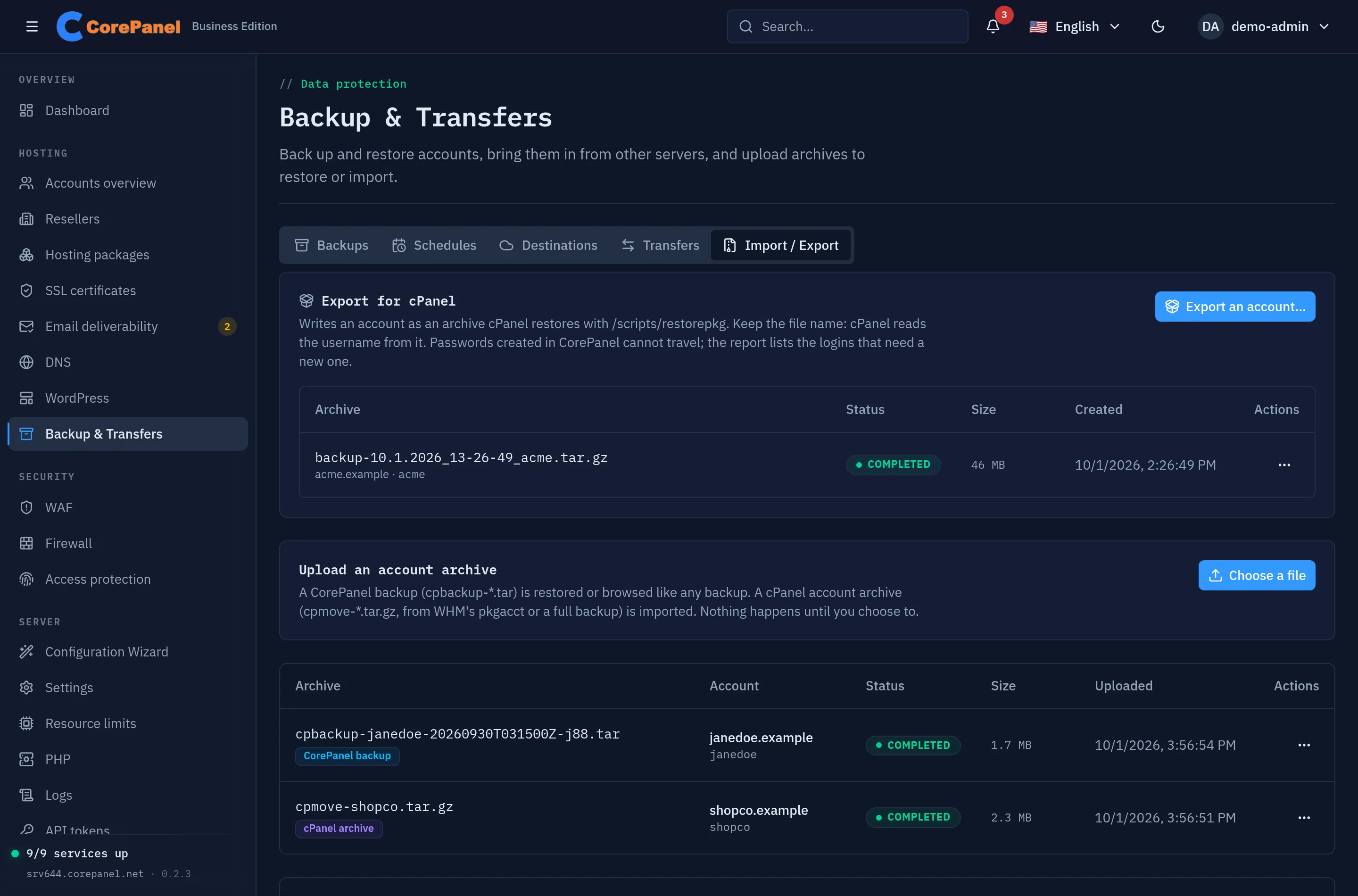
Choose the file and the upload starts. It travels in pieces, so a dropped connection costs one piece and not the whole file, and you can look at the other tabs while it runs — leaving the page cancels it.
The server checks it has room before the first byte is sent. The file’s whole size is
set aside on the server’s disk — and on the backups disk too, when
/var/lib/corepanel/backups is a separate one — and the upload is refused if that would
leave less than 2 GB or 10% of the disk free, whichever is larger. An archive is often
tens of gigabytes, and a disk filled half-way through an upload takes the hosted sites
down with it. That check covers storing the file; restoring or importing it needs room
for the account as well.
Once it has arrived, the server reads what the archive is — the row says Reading — and then shows the account it carries and whether it is a CorePanel backup or a cPanel archive. A cPanel archive is read to the end to find that out, so a large one takes a few minutes. A file that is neither is marked Failed with the reason, and deleted.
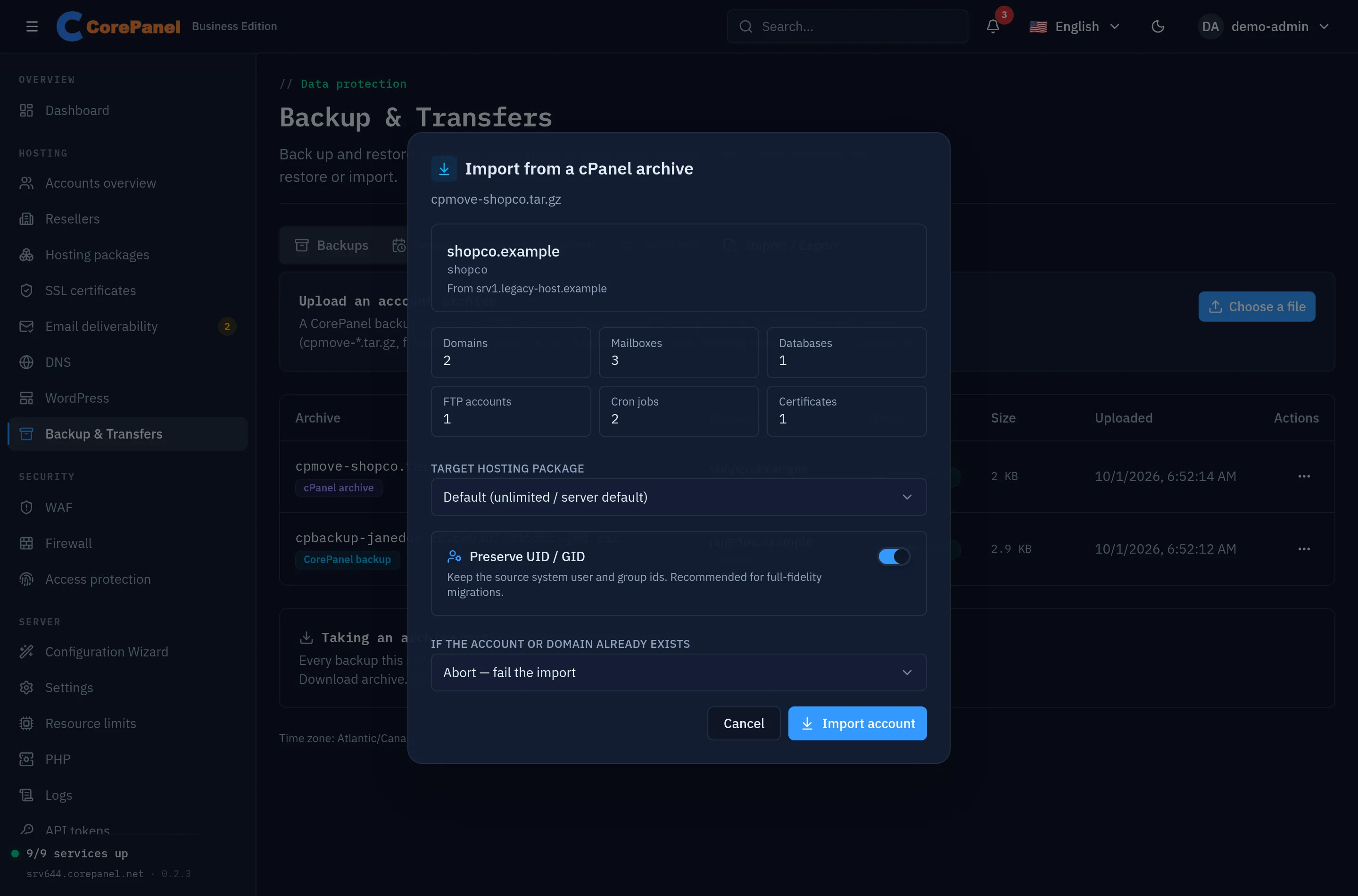
Nothing is restored or imported until you choose it from the row’s menu:
- Restore from this backup and Browse and restore part of it for a CorePanel backup.
- Import this account for a cPanel archive. The dialog opens on the importer’s dry run — the domains, mailboxes, databases and cron jobs it would create, the passwords that can not be carried over, and anything that collides with an account or domain already on this server — followed by the same options the live import offers. The import then runs in the Transfers tab, with its live progress.
An uploaded archive stays until you delete it from its menu; no retention rule touches it. It cannot be deleted while a restore or an import is reading it. An upload that a panel restart interrupted while it was being read is marked failed and removed; upload it again.
What an uploaded archive is not trusted with
Section titled “What an uploaded archive is not trusted with”An uploaded file was made somewhere else, by someone else, so what it says about itself is a claim. The restore treats it that way:
- Which reseller. A restored or imported account lands on the primary seller, not on the seller number or the owner name the archive carries — those mean something only on the server that wrote them.
- Which domains. A mailbox or a mail route on a domain that already belongs to another account on this server is skipped and reported, never created.
- Which folders. An FTP login whose folder lies outside the account’s own home opens at the home instead, and the report says so.
- Which account. Browsing an uploaded backup shows a warning: a partial restore writes into the live account with the name the archive gives, so check it is the right one before choosing anything.