Mail Queue
When a customer says “my mail is not arriving”, there are two places to look. Email deliverability covers the first: whether this server’s name, reverse DNS and reputation get its mail accepted at all. Mail queue covers the second: what is still sitting on the server waiting to leave, and what the receiving side said the last time it was tried.
The page has two tabs. Queue shows what is waiting now. Track delivery answers the question that usually comes next: what happened to a message that is no longer queued. It shows whether the message was delivered, where to and what the other side said. It also shows whether the message bounced, or was refused before it was accepted. See Track delivery.
The page lives at Email → Mail queue and is available on every edition. Only super-administrators can open it, because one queue holds the outbound mail of every account on the server, and the mail log names every account’s correspondents. Resellers cannot see it, and an MCP agent token cannot read it either.
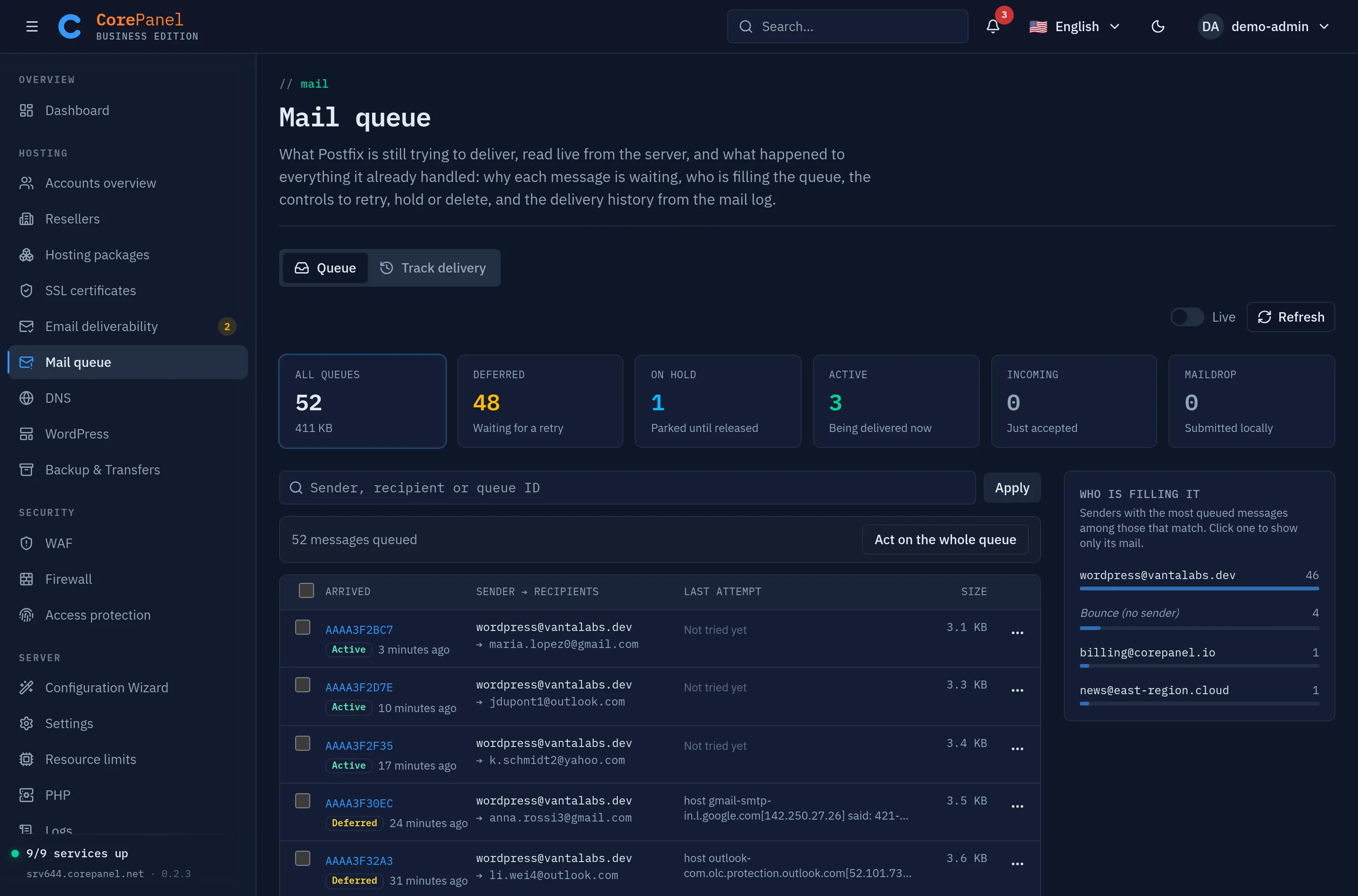
Nothing on this page is cached. Each refresh reads the queue directly from Postfix
(postqueue -j), and the Live switch re-reads it every 15 seconds.
The queues
Section titled “The queues”The tiles show every queue’s size whatever the search is set to, so the overall picture stays in view while you look at one sender. Clicking a tile filters the table to that queue.
| Queue | What is in it |
|---|---|
| Deferred | Mail that could not be delivered yet and will be tried again. This is where problems show up. |
| On hold | Mail that you (or another tool) parked. Postfix leaves it alone until it is released or deleted. |
| Active | Mail being delivered right now. |
| Incoming | Mail that has just been accepted and has not been scheduled yet. |
| Maildrop | Mail submitted locally (PHP mail(), sendmail) that Postfix has not picked up yet. |
Postfix keeps retrying deferred mail, waiting longer between attempts each time. After five days it gives up and returns the message to the sender as undeliverable.
Reading a message
Section titled “Reading a message”Each row shows the message’s sender and its first recipient, with a count of any others. The Last attempt column shows what the receiving server answered, word for word. It is usually enough to tell what kind of problem you have:
421/451with “rate”, “volume” or “reputation”: the provider is throttling this server. Retrying now will not help. If one sender accounts for most of the queue, that sender is the problem.- “Host or domain name not found”: the recipient’s domain has no mail server, or DNS could not be resolved. A typo in the address is the usual cause.
- “Connection timed out” / “Connection refused”: the recipient’s server is down or unreachable. The message delivers by itself once it comes back.
- “Not tried yet”: the message is new or is being delivered right now.
A sender shown as Bounce (no sender) is a delivery report. Postfix sends these with an empty sender so that they can never bounce back themselves. A queue full of bounces usually means the server is sending spam: someone sends to addresses that do not exist, and the failures come back here.
Click a queue ID to open the message. The dialog shows the reason for every recipient,
the message headers and the start of its body, each cut at 64 KiB. Everything is shown as
plain text and never rendered. The headers are usually where you find out who sent a
message. On mail submitted on the server itself, by PHP’s mail() or by sendmail, the
first Received: line reads from userid N. That number is the Linux user ID of the
account that sent it.
Who is filling it
Section titled “Who is filling it”The panel on the right ranks the senders with the most messages among those the search
matches. During a spam run this panel tells you what is happening: one address, often
wordpress@ or a contact form, with hundreds of messages. Click a sender to show only its
mail. Bounce (no sender) can be picked the same way.
A sender picked here is matched exactly, unlike the search box, which matches any part
of the sender or a recipient. The difference matters when you act on everything matching.
Searching for a@gmail.co also matches mail to maria@gmail.com, so deleting by that
search would remove other customers’ mail too. Picking the sender only reaches messages
sent from that exact address. A chip next to the search box shows the sender filter, and
its × removes it.
Acting on messages
Section titled “Acting on messages”| Action | What it does |
|---|---|
| Retry now | Asks for immediate delivery of deferred mail instead of waiting for the next scheduled attempt. Messages in any other queue are skipped. |
| Hold | Moves messages to the hold queue, where Postfix leaves them alone. A message that is being delivered right now is held once that attempt finishes. |
| Release | Moves held messages back to the deferred queue, from where they are tried again. |
| Delete | Removes messages from the server without telling anyone: the sender gets no bounce. This cannot be undone. |
There are two ways to choose which messages an action reaches:
- Selected messages. Tick rows (or the header box for the whole page) and use the buttons above the table, or use a single row’s ⋯ menu.
- Everything matching. With nothing ticked, Act on all matching (or Act on the whole queue when no filter is set) applies the action to every message the current search and queue selection match. This includes messages beyond the ones listed on the page. It is the tool for a spam run: search for the sender, then hold or delete everything it queued.
Delete always asks for confirmation, and so does any action on “everything matching”. The server applies the filter again when you confirm. So the count can differ from the one the dialog showed: messages that arrived in the meantime are included, and messages that were delivered are not.
When the action finishes, a notice reports how many messages it reached. It also reports how many it skipped (for example, retrying a held message), and how many were no longer in the queue (delivered or removed between your last refresh and your click).
Stopping a spam run
Section titled “Stopping a spam run”- Click the sender at the top of Who is filling it. The queue now shows only mail from that exact address.
- Choose Act on all matching → Hold. Nothing more from that sender leaves the server while you investigate, and nothing is lost if it turns out to be legitimate.
- Open one of the messages and read its headers to find the script or mailbox that sent it. Fix the cause: change the mailbox password, or remove or patch the form.
- Delete the held messages with Act on all matching → Delete. Release them instead if they turn out to be real mail.
Limits
Section titled “Limits”- The table lists the newest 500 messages that match. When more match, a note under the table says so. Actions on “everything matching” still reach all of them.
- Each message lists its first 20 recipients. The recipient count is always the real one. A message with so many recipients that listing them would be unreasonable shows only the count, but it can still be held, released or deleted like any other.
- Retrying a selection is done one message at a time. When more than 1,000 messages are selected, or every deferred message is, the panel flushes the whole deferred queue instead. Retrying a message early does no harm.
- If Postfix reports a queued message the panel cannot read, a notice above the table gives the count. Those messages are not included in any of the numbers.
The queue keeps no history: once a message has been delivered, bounced or deleted, it is no longer listed on this tab. Track delivery finds it in the mail log. Each row’s ⋯ menu has a Track delivery item that opens that tab already searching for the message’s queue ID.
Track delivery
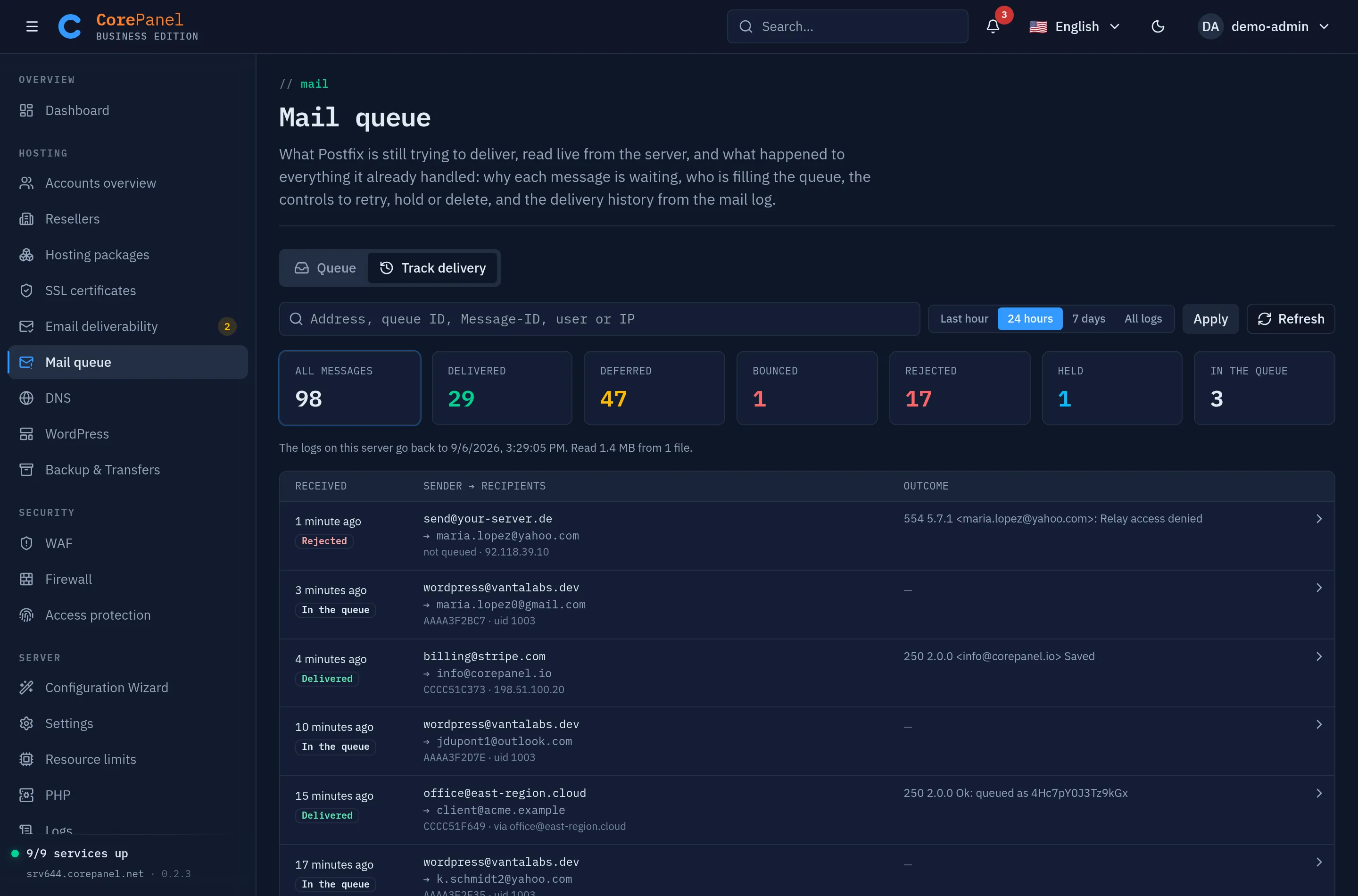
Section titled “Track delivery”The Track delivery tab reads the mail log (/var/log/maillog and its weekly rotations)
and rebuilds every message from the lines Postfix wrote about it. Each line is matched to
its message by queue ID. Nothing is stored: every search reads the log again. The answer
reaches back as far as the server keeps its logs, which is four weeks on a default install.
Searching
Section titled “Searching”Type any of these in the search box:
- An address. Any part of it matches: the sender, any recipient, or the address a message was originally sent to before an alias or forward rewrote it.
- A mailbox user or an IP address. Mail sent through a mail client is listed under the mailbox that authenticated. Mail received from another server is listed under that server’s name and IP.
- A queue ID or a Message-ID. These must match exactly. A Message-ID can be pasted with or without its angle brackets. It is what to ask a customer for: their mail client shows it in the message source.
The range picker limits the search to the last hour, 24 hours, 7 days, or all logs. A message is included when anything happened to it inside the range. A message received three days ago and delivered an hour ago therefore appears under “last hour”.
The tiles count the messages found by status, and clicking one shows only that status. The line under the tiles says how far back this server’s logs go. Nothing older can be found, and an empty result for an older date means the log is gone, not that the mail was never sent.
What each status means
Section titled “What each status means”| Status | What happened |
|---|---|
| Delivered | The receiving server or the local mailbox accepted it. The response shows what it answered, often with its own queue ID. |
| Deferred | The last attempt failed temporarily. Postfix keeps trying, and the message is still in the queue. |
| Bounced | It was refused for good and the sender was told. Bounce sent in the details links to that notification. |
| Expired | It was still deferred when Postfix gave up after five days, and was returned to the sender. |
| Rejected | It was refused while it was being received: a relay attempt, a spam filter (rspamd greylisting answers 4.7.1 Try again later), or a header check. It was never queued, and a message refused at the first recipient has no queue ID at all. |
| Discarded | A rule accepted it and dropped it silently. |
| Held | It is in the hold queue. |
| Deleted | An administrator deleted it from the queue. |
| In the queue | It was received and nothing has been logged about it since. |
A message with several recipients takes the status of the one that needs attention most: a bounce comes before a deferral, and a deferral before a delivery. Each recipient’s own status is in the details.
A message’s details
Section titled “A message’s details”Click a row to open it. The dialog shows:
- Origin: how the message reached the server. It may have come from a mail client
(“authenticated as” the mailbox, with its IP), or from another server (“received by
SMTP from” its name and IP). Or it may have been submitted on this server by uid N.
That means a PHP script, a cron job or
sendmail, run as the Linux user of the account with that ID. - Recipients: each one with its status and DSN code (
2.0.0delivered,4.x.xtemporary,5.x.xpermanent). It also shows where the last attempt went, what the other side said word for word, and how many attempts were made. - Log lines: the Postfix lines about the message, oldest first. When a message has more than 40, the first and last 20 are kept.
When the message may still be queued (deferred, held or in the queue), Find in the queue switches to the Queue tab with its queue ID in the search box.
Answering “my mail never arrived”
Section titled “Answering “my mail never arrived””- Search for the recipient’s address and pick a range that covers when it was sent.
- Delivered with a response such as
250 2.0.0 Ok: queued as …means the receiving server took it. From there it is that server’s responsibility: ask the recipient to look in their spam folder, and quote the response, which names the message on their side. - Deferred or Bounced: the response says why. Read it as described in Reading a message.
- Rejected on incoming mail: this server refused it, and the reason says which check did.
- Nothing found: the message never reached this server. Check the address the sender used, or ask for the Message-ID and search for that.
Limits
Section titled “Limits”- One search reads at most 1 GiB of log, newest first. When the range reaches back further than that, a notice says older messages were left out. Searching for an address over a shorter range avoids it.
- Each search returns the newest 200 messages that match. A note under the table says when more matched.
- Each message lists its first 50 recipients, with the real count beside them.
- A message received before the oldest line read shows a notice that how it arrived is not known.
- A search has 50 seconds. On a very busy server, a range of all logs may not finish in that time. Pick a shorter range or search for an address.
- The mail log is written through syslog, and any program on the server can write a line to it that looks like Postfix’s, including a script run by an account. Track delivery reads what is in the log. When an answer matters, for example before acting against an account, check it against the queue and the message headers.