Transforming a cPanel server
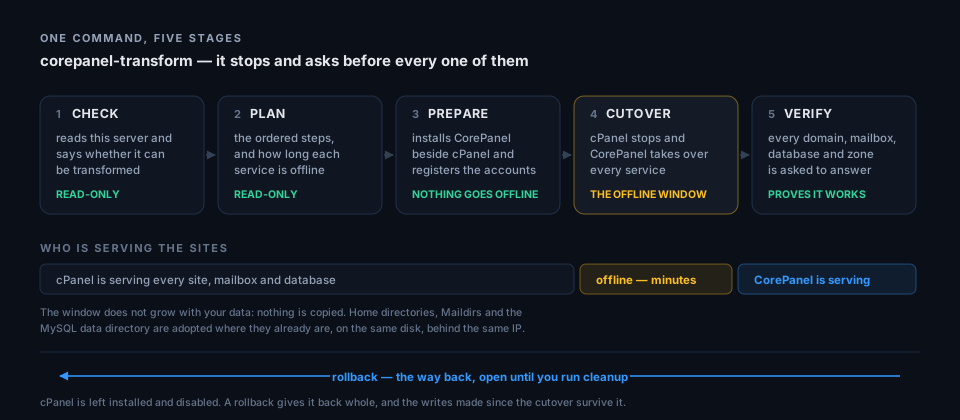
This turns the cPanel server you already have into a CorePanel server — this machine, not a copy of it. Home directories, mailboxes and the MySQL data directory stay exactly where they are and CorePanel adopts them, so the sites are offline for seconds rather than hours, whether the server holds 20 GB or 2 TB.
To move the accounts onto a different server instead, see Coming from cPanel.
The tool is in beta: it runs end to end on real cPanel servers, and each new one still
teaches it something. Run the current build — corepanel-transform version says which you
have — and read the changelog before you book a window.
Before you start
Section titled “Before you start”CloudLinux 8 and later can stay, with no reboot. Two things do have to come off first: CloudLinux 7 and MySQL Governor — the check refuses while either is there and names the way out. What stays and what changes is in CloudLinux, after the tutorial.
Remove BitNinja, cPGuard, CSF/LFD and similar add-ons — recommended. You will not need them: CorePanel brings its own WAF and its own brute-force protection in every edition. The transformation stands them down anyway — they redirect ports or open cPanel’s and not CorePanel’s — so taking them off beforehand, and cancelling their subscriptions, leaves less to reconcile afterwards. One exception: leave Imunify until the rollback window closes, because its quarantine holds customers’ own files.
Everything else on the server, the tool recognises. JetBackup, LiteSpeed, Softaculous, Imunify, R1Soft, Acronis, MailScanner, MailChannels and the rest are named in the check with what happens to each and what replaces it. You do not have to inventory the server yourself.
Then the things the run assumes:
| The OS | AlmaLinux or Rocky 8, 9 or 10, or CloudLinux 8 or later. RHEL, Oracle Linux, CentOS Stream and other rebuilds are refused: convert to AlmaLinux or Rocky first. On CentOS 7, run cPanel’s own elevate-cpanel first, aiming at AlmaLinux 9. |
| One IP for every account | CorePanel has no dedicated IPs: every site answers on the server’s main address and all mail leaves from it. Move accounts with a dedicated IP to the shared one first. Why. |
Every account under /home | Not some in /home and some in /home2, and not all of them somewhere else. Why. |
| MariaDB 10.4 or newer | Whatever major it is, it is adopted as it stands — a 10.5 or a 10.6 like a 10.11. Older than 10.4 is upgraded first with cPanel’s own tool: WHM » Database Services » Upgrade Database Version. Back up the databases before you do. MySQL cannot be transformed. Why. |
| 2 GB of RAM | Both panels run on the machine from PREPARE until CUTOVER. Why. |
| Root | Every stage runs as root, on the cPanel server itself. |
| A backup | A hypervisor snapshot of the whole VM is the cheapest kind. The tool asks you to type I-HAVE-A-BACKUP before it changes anything. |
| An hour, unhurried | The offline part is seconds. The sitting around it is not something to rush. |
Until you are done, stop creating accounts in WHM — not forbidden, just one more thing
to reconcile. The tool also reports anonymously as it goes: which stage ran, how long it
took and how long the sites were offline, never a hostname, a domain or an account name.
--no-telemetry turns it off; the field list is in
Usage statistics.
Talk to us
Section titled “Talk to us”This is optional. The transformation is built to be done on your own: the tool walks you through every stage, stops to ask before each one, checks the result itself, and keeps the way back to cPanel open as one command. Nothing in it waits for us.
If you would still like a person with you, before the window or on the day, run this on the server:
corepanel-transform room# or, without installing the tool:curl -fsSL https://get.corepanel.net/check | sh -s -- roomIt shows the summary it would send — versions, counts and the check’s score, never a hostname, a domain or an account — and sends it only if you say yes. You get back a link to a private room where you and the CorePanel team talk. No account is needed.
- The link is the key. Anyone who has it can read and write in the room, so do not paste it into a forum or a ticket. Lost it? Run the command again: while the room is open, it prints the same link.
- We never ask for a password in the room. Nobody from CorePanel will.
- We answer Monday to Friday, 9:00–17:00 UK time. The room shows those hours in your own time too. Outside them, your message waits for us there.
- Email is optional. Leave an address in the room and confirm it, to hear when we reply.
- Rooms close on their own: after 30 days with no messages, or 15 if nobody has replied yet (with a warning 3 days before), or when the rollback window ends. Run the command again to open a new one.
If the room cannot be reached, nothing on your server changes — write to us at corepanel.net/contact instead.
The tutorial
Section titled “The tutorial”Step 1 — Ask the server whether it can be done
Section titled “Step 1 — Ask the server whether it can be done”On the cPanel server, as root:
curl -fsSL https://get.corepanel.net/check | shIt downloads a single binary, verifies its checksum, prints a report and deletes itself.
It reads and nothing else — nothing is installed, configured or stopped — so run it on
a production server in the middle of the day. It does look up where each domain points and
ask each site for its homepage, the way a visitor would, so it can tell you what is already
broken before you book a window; --no-dns turns both off.
The verdict comes in one of three states:
- READY TO TRANSFORM — go ahead.
- READY TO TRANSFORM, WITH ITEMS TO REVIEW — go ahead, once you have read the warnings. Fix them before the window, not during it.
- CANNOT BE TRANSFORMED IN PLACE — the report names each blocker and its way out.
Every finding explained: The cPanel migration check.
Step 2 — Install the tool
Section titled “Step 2 — Install the tool”curl -fsSL https://get.corepanel.net/check | sh -s -- --installThat puts corepanel-transform in /usr/local/bin. Nothing else on the server changes.
Step 3 — Run it
Section titled “Step 3 — Run it”corepanel-transformWith no arguments it walks the whole transformation as one guided sitting, in five stages:
| Stage | ||
|---|---|---|
| 1 | CHECK | reads this server again and says whether it can be transformed |
| 2 | PLAN | writes the ordered steps and the offline window |
| 3 | PREPARE | installs CorePanel beside cPanel — nothing goes offline |
| 4 | CUTOVER | cPanel stops, CorePanel takes over — the offline window |
| 5 | VERIFY | proves every domain, mailbox, database and zone answers |
Before each stage it prints what that stage will do to this server and then asks:
Enter goes on, q stops. Two stages want a word rather than a keypress — PREPARE
asks for I-HAVE-A-BACKUP, CUTOVER for TRANSFORM.
Stopping costs nothing. Every step is written down before the next one starts, so
answering q, or losing the SSH session, and running corepanel-transform again picks
up exactly where it stopped.
If your server has more than 20 websites, the free Personal edition cannot hold it and PREPARE says so, offering a free 21-day trial of Pro (up to 50 websites) or Business (no cap) on the spot — no card, no key. By hand:
corepanel license trial --edition business --email you@example.comStep 4 — Read the verification, then look yourself
Section titled “Step 4 — Read the verification, then look yourself”VERIFY checks every domain, mailbox, database and zone against the inventory taken before anything happened, and reports per account. Read it before you tell anyone the move is done. Then spend five minutes looking with your own eyes:
corepanel account list # every account is herecurl -sI https://example.com/ # and once in a real browserdoveadm auth test user@example.com # a mailbox logs indig SOA example.com @127.0.0.1 # the zone answersThen open the panel. The cutover prints where, and the run repeats it as the last thing on the screen whether it finished or stopped:
SIGNING IN TO THE PANEL
  panel     https://your-server-hostname  user      coreadmin  password  <generated>
The password is also in /root/.corepanel_password, readable by root only. Change it
in the panel whenever you like; nothing reads that file back.
A transformed server opens on its dashboard rather than on the configuration assistant,
because PREPARE has already read its identity out of cPanel — the address from ADDR, the
hostname from HOST, the nameservers from NS through NS4, the contact address from
CONTACTEMAIL. Two of those need a minute of yours: open Server → Configuration Wizard
to confirm the contact address (recorded, but not yet the ACME contact) and to give the
administrator a name, which cPanel does not hold.
Step 5 — Live with it for a few days
Section titled “Step 5 — Live with it for a few days”cPanel is not removed. It is stopped and disabled; its packages, its
/usr/local/cpanel and its licence are all still on the disk. That is what keeps the way
back open, and it costs nothing but disk space.
corepanel-transform status # what this run did, step by stepcorepanel-transform rollback # gives the server back to cPanel (asks you to type ROLLBACK)A rollback gives back a whole cPanel — mail, FTP and DNS included — and because the data was never copied, mail delivered and database rows written since the cutover survive it. There is one copy of the data, and both panels read the same bytes.
Step 6 — Remove cPanel, another day
Section titled “Step 6 — Remove cPanel, another day”When you are sure — days later, not the same evening:
corepanel-transform cleanup # asks you to type ERASE-CPANELThis is the point of no return, and the one thing the guided run never offers you. It refuses unless VERIFY has passed, the report found nothing broken, and something is answering on ports 80 and 443 right now. Until then the panel’s dashboard carries a card saying cPanel is still installed, with this command on it — see Dashboard.
That is the whole tutorial. Everything below is the detail behind it.
What actually happens
Section titled “What actually happens”Why the window is short
Section titled “Why the window is short”The data never moves. Home directories, Maildirs and the MySQL data directory are adopted where they already are — same paths, same uids, same bytes on the same disk. The IP does not change either, so DNS delegation is untouched and there is no propagation to wait for.
What the transformation does is swap which set of daemons serves that data. That is why the offline window is measured in seconds regardless of the server’s size — stopping one set of daemons and starting another costs what it costs whether they were serving 20 GB or 2 TB — and why a rollback afterwards does not lose the writes made in between.
The one step that can scale with data size is the database, and the plan prices it from your server before you agree to anything:
| What you have | What happens | How long |
|---|---|---|
| MariaDB 10.4 or newer | Adopted in place, on the version it runs: at most a restart | Seconds |
| MariaDB older than 10.4 | Not transformed: upgrade it with cPanel’s own tool first (Before you start) | — |
| MySQL 5.7 / 8.0 | Not transformed: MariaDB cannot adopt a MySQL data directory | — |
PREPARE, in detail
Section titled “PREPARE, in detail”cPanel keeps serving every site, mailbox and database throughout this stage. What lands is only what genuinely coexists: CorePanel itself (its web server installed but masked, so there is no fight for port 80), the PHP stack under its own prefix, and the panel on a port of its own.
Then every account is registered, not created: the system user is adopted with its
uid and its password hash, the home directory is adopted where it is, and the site is
provisioned around them — PHP-FPM pool, vhost, DNS zone. Mailboxes, FTP logins,
databases, certificates and cron jobs all come across with their existing credentials.
Each domain keeps cPanel’s own DKIM key (selector default), carried when the zones are
published in the cutover, so mail stays signed with the key whose record is already in the
world’s DNS — including DNS hosted elsewhere. A domain cPanel had no key for gets a new one.
Mail, FTP and DNS are not installed here, and that is not an oversight: cPanel ships its own builds of those same daemons at the same paths, so installing ours would replace binaries under a running service. They are cutover work.
The PHP your sites are actually on
Section titled “The PHP your sites are actually on”Before a single account is registered, PREPARE reads the interpreters cPanel is running right now and makes this server match them.
Versions. Every PHP version some site on the server is on gets installed, whether or not a fresh CorePanel would have it. This is not a nicety. An account is given the PHP version CorePanel has, falling back to the newest one installed — so on a server where only 8.4 was present, every site that ran cPanel’s 8.1 came back on 8.4, three minor versions up, and nothing said so. That includes the old branches: on EL8 — CloudLinux 8 among them — CorePanel installs 5.6 and 7.0 to 7.3 from Remi, so a site on one of them stays on it. On EL9 and EL10 Remi does not publish anything older than 7.4, and a site on one of those branches is named by the check and again by PREPARE, along with the version it lands on instead: the newest installed version of the same major, otherwise the newest installed version of all. A 7.3 site on EL9 therefore lands on 7.4, and a 5.6 site on the newest PHP there is. The check names this before you start, so you can test those sites while cPanel is still serving them.
Sites with no version of their own. A cPanel site that was never moved off the
server’s default does not record a version at all — its vhost says inherit, and the
version it runs is whatever /etc/cpanel/ea4/php.conf says the server’s default is. That
is the state of every account nobody has touched the PHP of, so on most servers it is the
common case rather than the exception. The transform reads that file and resolves it, so
those accounts count exactly like the ones that name a version: their PHP gets installed,
and their extensions get carried across. Without that step they carry no version at all,
which lands them on the newest one installed — and takes their extensions with it.
Memory limit. CorePanel holds every account to one memory_limit,
pinned so that a site cannot raise its own. On cPanel it can be raised in three places: the
PHP version’s own php.ini, the .user.ini that the MultiPHP INI Editor writes into a
site’s document root, and CloudLinux’s PHP Selector. A site that relied on one of them
would run out of memory on CorePanel’s default of 256 MB, because a .user.ini is still
read but its memory_limit no longer counts. So PREPARE raises CorePanel’s limit to the
largest any site ran with, before a single account is registered, and the check names the
site it came from. It only ever raises the limit, never lowers it, and caps it at half the
server’s RAM: every source but the version’s php.ini is written by a customer, and one
.user.ini asking for 16G would otherwise lift the ceiling for everyone. A site that ran
with no limit at all (-1) is named instead, because CorePanel always sets one. If only
one site needed the extra memory, lower it again afterwards with
corepanel php limits set --memory-limit <MB>.
Extensions. Each source interpreter is asked what it loads, the answer is compared
with what the interpreter replacing it loads, and the difference is installed from the
extension catalogue. On a typical cPanel server that is imap,
soap, bcmath, posix and the ionCube Loader — the last of which matters more
than the rest put together, because software encoded with ionCube does not fail when the
loader is missing. It answers 200 OK with a page saying it cannot run, which is exactly
what a health check reads as a working site. WHMCS is the common case.
An extension the catalogue does not carry cannot be installed for you, and is listed by name with the interpreter it came from. Everything this step did — and everything it could not do — is checked again in VERIFY, per version, while the rollback window is still open.
This is also where cPanel’s exclude= line loses its php* entry, because with it in
place dnf reports every CorePanel PHP package as not existing. The rest of that line —
the entries protecting cPanel’s own dovecot, exim and FTP builds — stays until the
cutover, and a rollback restores all of it.
Two things are deliberately deferred to the window, and reported as pending rather than done: tightening the home directories (doing it now would take every site offline, because cPanel’s Apache reaches docroots differently) and applying disk quotas (enforcing a limit against an already-full home would suspend a live account mid-afternoon).
If a single account fails to import, its adoption undoes itself — pool, vhost, DKIM, cert registration — and never the user, the home, or a byte inside it. Fix it and run again.
The identity comes out of cPanel
Section titled “The identity comes out of cPanel”On an in-place transformation the answers a fresh CorePanel would ask for already exist on the server, and they are the only correct ones — which is why the panel opens on its dashboard rather than on the configuration assistant:
| What the panel needs | Where the run takes it from |
|---|---|
| Main server address | ADDR in /etc/wwwacct.conf — the machine keeps its address, which is why no DNS is re-pointed |
| Server hostname | HOST, and it is applied as well as recorded: the panel’s own site, the login banner and Postfix’s HELO name |
| Nameservers | NS through NS4, in cPanel’s own order — the first is the one every SOA names |
| The address each nameserver answers on | resolved from the delegation your server has been serving all along, so a nameserver that lives on another machine stays on it |
| Administrator’s contact address | CONTACTEMAIL |
The contact address is recorded, not acted on: it is not registered as the certificate (ACME) contact and it does not rename the administrator account, which is what Server → Configuration Wizard is for. And a nameserver that does not resolve is recorded at this server’s own address — what cPanel already names in the SOA of every zone this machine serves — with a line on screen saying so, because a delegation that does not resolve was already broken before the transformation.
CUTOVER, in detail
Section titled “CUTOVER, in detail”The steps are ordered so that mail goes first — senders retry for days, so it is the forgiving one — and web goes last and comes back first, because it is the clock everyone is watching.
- Every site is asked what it answers, while cPanel is still serving it. Nothing is changed and nothing is stopped; the reading is written down, and the health gate at the end compares against it. See below for why it is worth a step of its own.
- cPanel’s own services stop.
- Exim’s queue is flushed and drained; whatever will not go is listed for you.
- Mail and FTP stop.
- The databases are taken over, in the mode the plan named. On a server where that restarts MariaDB, the visible clock starts here — every site with a database behind it is serving an error for the length of the restart, and the plan says so before you agree to the window.
- Apache stops, and cPanel’s own scheduled jobs are neutralised with it — an update run firing mid-cutover would restart everything just stopped. On every other server the clock starts here, and either way the run prints which step opened it.
- Anything else that was serving or protecting the old stack is stood down — a proxy in front of Apache, a WAF, the host firewall.
- The server’s outbound address is pinned to its IPv4, in
/etc/gai.conf. This follows the step above for a reason: on a dual-stack machine, with the firewall down and no policy in that file, the C library prefers IPv6 for every destination that offers both — so a server that has always been seen at its IPv4 starts being seen at its IPv6, and everything licensed against the address (WHMCS, Softaculous, LiteSpeed, JetBackup) begins failing its licence check hours later, when the verdict it cached runs out. A server with no IPv6 route out is left alone, and so is one whose/etc/gai.confalready says something — the run tells you what to re-check instead. - The work that can only happen with nothing running: the home directories are tightened to 0700 (cPanel leaves them traversable so its Apache can reach the sites; CorePanel does not need that), the disk quotas are applied, and cron is paused so neither runs against a job halfway through its own.
- CorePanel starts: PHP pools, then the web server. The clock stops here.
- Mail, FTP and DNS are installed and started — cPanel’s builds come off, ours go on. Postfix’s submission service (587) is left as permissive as your Exim was: cPanel offers AUTH there without requiring TLS first, and applications already on the server — a billing system, a WordPress plugin — are configured against that. The reading is taken in step 1, while Exim is still answering; a server that already required TLS keeps requiring it, and STARTTLS is offered either way, so mail clients go on encrypting.
- The DNS zones are published, with the same records, on the same port 53.
- The panel is opened for its administrator: the address and a generated password, put on screen. This comes before the gate on purpose — see below.
- A health gate probes the result from outside: one HTTP request per site, an SOA query
per zone, a greeting from the mail and FTP daemons, a question to the service that
answers every mail and FTP sign-in (so a stopped
corepanel-authfails the gate), a mailbox lookup per account, the databases counted — and every site’s answer against what step 1 recorded.
There is no DNS ceremony anywhere in that list. Same IP, same delegation.
You do not have to hold that list in your head while it runs. Every step says which of how many it is and what the plan expects it to cost, and from the moment the sites go down the tool keeps the clock on screen — how long they have been down, and how much of the window the plan still owes:
6/15 Stop cPanel's web server — about 40 s the sites go down here · the plan books about 2 m Apache stopped; cPanel's cron is neutralised for the window took 12.4 s, well under the 40.0 s the plan estimated … 9/15 Keep this server's outbound address on its IPv4 — about 1 s sites down 12.4 s · about 80 s left in the window outbound address pinned to IPv4 in /etc/gai.conf took 0.0 s 10/15 Tighten the homes and apply quotas — about 15 s sites down 12.4 s · about 80 s left in the window 45 homes tightened to 0700, median 59 ms, worst jsmith at 1.2 s took 5.1 s, well under the 15.0 s the plan estimated 11/15 Start CorePanel — about 25 s sites down 17.5 s · about 65 s left in the window php-fpm and corehttpd are up; 51 vhosts loaded took 10.5 s (the plan estimated 25.0 s) the sites are back — down 28.0 s, and the plan booked about 2 mThat last line is the number the whole transformation is judged on, and it is measured rather than estimated. It is also the one figure the tool reports back to us, so the estimates above it get better with every server that runs one.
Resuming into a half-finished cutover says so instead of restarting the clock at zero: the sites went down in an earlier sitting, and the figure on screen says which outage it is measuring.
If the health gate finds something wrong it names it and offers the rollback rather than taking it — the step changes nothing, so you can fix what it found and run it again with the sites live.
A stopped gate does not leave you locked out. By the time it runs, this server is
already CorePanel’s: the sites are being served, the accounts are registered, mail and
DNS are ours, and stopping there undoes none of that. So the step before the gate is the
one that hands over the panel — the address and the password, printed again under the
error, last on the screen. Fixing what the gate named is usually a few clicks in that
panel, and then you run corepanel-transform again: it re-enters the step that stopped
and no other. The rollback is still there if you would rather take it, but it is a choice
now rather than the only move left.
The reading taken before the window
Section titled “The reading taken before the window”The first step of the cutover asks every site on the server for its homepage while cPanel is still serving it, and writes down what came back. It changes nothing, it can be run as often as you like, and it exists because “the site answers” is not “the site works”.
A page can report its own failure with a perfectly successful status code. Software sold in encoded form — WHMCS and most billing and licensing systems are — ships a stub that checks for its loader and, when the loader is missing, prints a paragraph saying so and stops. PHP considers that a request it finished successfully, so the web server sends HTTP 200 with the notice where the page should be. A health gate that reads status codes sees a site in perfect order.
With the reading in hand the gate asks a better question — is this the same page? — and answers three things it could not answer before:
- A site that broke during the cutover is named, with what the page now says. A missing loader, a missing extension: the gate quotes the sentence off the page rather than reporting a status code that looks fine.
- A site that was already broken is not blamed on the run. Somebody’s unpatched template engine has been printing a fatal error since last month; cPanel served that as a 200 because suPHP prints errors into the page, and CorePanel serves the same fault as an honest 500. Without the reading, that reads as a site the transformation killed — and as an invitation to roll a whole server back over it. The step names those sites at the start of the window, in capitals, before anything is stopped.
- A site that stopped redirecting is reported. An application that sent visitors to a login page and now hands them a page instead has stopped reaching its own code.
What is deliberately not compared is how big the page is. On a real cPanel server a third of the homepages answer 200 with an empty body, so a page that is blank in perfect health gets bigger when it breaks — and a homepage carrying a session token or a cart count differs between two requests a minute apart. “It got smaller” is not evidence, and nothing here treats it as any.
If the reading is missing — an older plan, an interrupted run — the gate says so and falls back to judging status codes, rather than passing in silence.
What PHP wrote while the gate was asking
Section titled “What PHP wrote while the gate was asking”A page can fail without the failure being visible anywhere in what it sends back.
CorePanel runs PHP-FPM with display_errors off, so a fatal error prints nothing into
the page — and if the script had already sent enough output for the buffer to flush, the
response is HTTP 200 with the page cut short mid-sentence. Under the buffer size the
same fault is an honest 500 the gate can see; above it, nothing in the response says
anything is wrong.
So the gate also reads the one place a fatal always lands: the account’s own PHP error log. It notes where the log stands, asks that account’s sites for their homepages, and reports anything PHP recorded in between — with the file and the line.
This is always a warning and never a failure, and the reason is what the transformation is for. It keeps a site as it was. The code that threw the error is the customer’s own, unchanged by the run, and it was throwing the same thing on cPanel — where suPHP printed it into the page instead of logging it, which is why nobody had to look. A site that was already bad stays bad, its owner knows, and rolling a whole server back over somebody’s plugin is not the answer.
The same check notices when the log is unwritable, which matters more than it sounds: an empty log and a log nothing can write look identical, and only one of them means there were no errors.
What carries over, and what does not
Section titled “What carries over, and what does not”Carried, verbatim or equivalent: system users with their uids and password hashes · home directories in place · Maildirs including Dovecot’s indexes · mailboxes, forwarders and their hashes · autoresponders and mail filters, rewritten as Sieve, with anything Sieve cannot express named in the report rather than dropped · forwarders, default addresses and filters that pipe to a script, still piping to it (how the command is translated) · FTP logins · domains, subdomains, aliases and addon domains · per-domain PHP version · DNS zones · SSL certificates and keys · where each domain’s mail is delivered (here, another provider, or this server as its backup MX — for Automatically Detect, what cPanel was doing; parked domains follow their target) · databases, users and grants · cron jobs · hosting packages and per-account limits · resellers, as sellers, one level deep, with the two ceilings they were sold on and the plans they sell · SSH access, keys included (below).
SSH comes across too, and one case needs your attention
Section titled “SSH comes across too, and one case needs your attention”Each account is enrolled from the login shell it has on this server:
| On cPanel | In CorePanel |
|---|---|
jailshell | shell — a console inside CorePanel’s own jail: the account’s files and a fixed set of tools |
/bin/bash (or another real shell) | shell as well — the customer keeps a console, and from the cutover it is jailed, never unjailed |
noshell | sftp — file transfer only, because that is what it is on cPanel: it refuses a shell and serves SFTP, with a key or a password |
nologin, /bin/false | off — those accounts could not log in on cPanel, and a migration does not hand anybody something they did not have |
The plans that come across from cPanel allow shell: cPanel decides a shell per account,
never per plan. Only a package that stops below shell caps the level — one you set up or
lowered in CorePanel. Under such a package a jailshell account lands at sftp, and a
bash one stays at legacy rather than lose
the console it uses today. The reseller switch that decides whether a
reseller may give shells is not asked here — the shells were there before CorePanel was.
An account that had bash is the one whose owner may notice: the same console, but the
rest of the server is no longer in it. The run names how many accounts land at shell.
A suspended account is judged by the shell it had before the suspension. cPanel’s
suspension replaces the login shell with /bin/false and keeps the real one aside, so
reading the shell as it stands would shut every suspended account at off for good. It
is recorded at the level its real shell gives, and it stays closed while the suspension
lasts. Lifting the suspension in CorePanel also undoes what cPanel’s suspension did to
the system user — the /bin/false shell, the locked password and the cpanelsuspended
group that cPanel’s sshd settings deny — so the customer logs in again as before.
An account suspended in WHM after PREPARE is the one case the cutover does not decide:
CorePanel imported it active and serves its sites, but cPanel’s suspension stays on its
system user, so its SSH stays closed, and the run names it. If that suspension does not
stand, corepanel account unsuspend <account> lifts it — that command is not gated on the
edition, precisely so this state always has a way out. If it does stand, suspend the account
in CorePanel as well (corepanel account suspend <account>, which needs Pro or Business) so its
sites stop being served too.
None of it takes effect during PREPARE. Before the first account is imported, the run
holds the server’s SSH: from then until the cutover CorePanel records what it found and
writes none of it to sshd, the key files or the accounts’ groups. The cutover ends the
hold and puts everything in force in one pass — the first moment any account’s SSH access
changes. And what it puts in force is cPanel as it is at the cutover, not as PREPARE
saw it days earlier: each account’s shell, the keys in its ~/.ssh and sshd’s password
setting are read again first, so a key removed in the meantime does not come back, one
added is not lost, and an account switched to nologin is not given SFTP. That is deliberate: enrolling an account while cPanel still
runs the machine would repoint sshd at CorePanel’s key file and take away the jailed shell
the customer is using that afternoon, days before you expected anything to move, and a
rollback would not give it back. Until the cutover every account is authenticated exactly
as cPanel authenticates it now. (One thing of CorePanel’s does act on SSH from the install
on: its SSH guard, which bans addresses that keep failing to log in — protection, not a
change to anyone’s access.)
CorePanel’s own sshd configuration is installed when CorePanel is, at the start of PREPARE, but every rule in it applies only to accounts CorePanel has enrolled — and during the hold it enrols nobody on the system — so it changes nobody’s login.
While held, the panel’s SSH page for each account says so, in a banner, and the level,
the password and the keys cannot be changed there or with corepanel account ssh —
change them in WHM, which is still what decides; corepanel account ssh status shows
In force: NOT YET. A rollback after the cutover gives SSH back to cPanel as its
first step, while CorePanel is still running: the password grants CorePanel wrote into
sshd are removed, every account leaves CorePanel’s SSH groups and jails — so cPanel’s
jailshell and the keys in the homes decide again, and an account CorePanel gave its own
shell gets back the login shell it had on cPanel, never the jail’s /bin/bash — except an
account CorePanel shut or suspended, which stays shut; an account cPanel still lists as suspended gets cPanel’s
own suspension put back on its system user, so unsuspending it in WHM reopens it as
usual; and the server is held once more for the next attempt. Once CorePanel is stopped, the rollback also removes
the SSH guard’s ban table from the kernel, since nothing would be left to expire those
bans. If
that step cannot finish it stays in the procedure, and rollback can be run again.
The accounts it keeps shut are named, with the one command that reopens one under cPanel
(gpasswd -d <account> cp-nossh), because WHM cannot see that group. cleanup refuses to
run while SSH is still held, or while corepanel-core cannot say whether it is. Re-running PREPARE after the cutover does not hold SSH again; only
rollback does. If the cutover’s SSH step could not
finish, end the hold by hand once cPanel has stopped serving:
corepanel account ssh reconcile --apply-deferredThe keys in each account’s ~/.ssh/authorized_keys and authorized_keys2 are read into
the panel, with their options (from=, command=, no-pty) preserved. This is not a
convenience: once CorePanel owns sshd it reads a root-owned key file instead of the one in
the home, so a key that was not imported would simply stop working. A line that cannot be
carried — a DSA key, an RSA key under 2048 bits, a line that does not parse — is named
with its reason in the run’s output, never counted away. The files in the homes are left
exactly where they are.
Password login over SSH is kept for the accounts this server’s own sshd already allowed
it for — from anywhere: sshd is asked about a connection from the server itself and from
an address on the internet, and a Match Address block that allows passwords from one
and not the other is named in the output rather than turned into a grant that works from
everywhere. That is the rule the whole transformation follows: preserve what cPanel
relaxed, harden only on a fresh install. That includes the accounts that land at shell:
a shell created in CorePanel logs in with keys only, but one that came from cPanel with a
password keeps it, because taking it away would lock out every customer whose SFTP client
signs in with one. The run lists those accounts by name; after the cutover
corepanel account ssh password deny <account> revokes one.
Your resellers come across with their limits
Section titled “Your resellers come across with their limits”cPanel keeps four files about a reseller. This run reads three of them — who owns whom,
the reseller list itself, and reseller-limits.yaml — and each reseller is created in
CorePanel before any of their accounts is registered, carrying the two totals CorePanel
enforces: how many accounts they may sell, how much disk in total, and whether they may
oversell that disk. A reseller capped at 25 accounts and 50 GB on cPanel is capped at 25
accounts and 50 GB here, and the ceilings refuse
rather than decorate: the twenty-sixth account is turned away, whoever asks for it.
A reseller who had limits but no accounts still comes across. They exist on the source, and an import that only looked at accounts would never have heard of them.
Their hosting plans come with them. cPanel has no owner column for a package — it puts
the owner in the name, as acmehost_starter — so each plan whose prefix names one of your
resellers is filed under that reseller as plain starter, which is what makes it theirs to
edit. Two resellers’ starter and your own are three different plans; a plan is unique per
owner, not per server. A prefix naming no reseller is left alone, because gold_plus on a
server with no reseller called gold is a plan somebody named with an underscore.
Three things a cPanel reseller carries have no equivalent here, and the run names each one as it files them rather than dropping them in silence:
| cPanel | What happens |
|---|---|
The per-reseller privilege list (kill-acct, add-pkg, create-dns…) | Reported, not applied. A CorePanel reseller is all-or-nothing within their own accounts, so a reseller who could not terminate accounts on cPanel can here — this is the one thing a migration widens, which is why the run prints it per reseller |
| A total bandwidth ceiling | Reported. CorePanel measures bandwidth per account and enforces no reseller total |
| A restriction on which packages they may sell | Reported. CorePanel has no such notion |
The privilege list is the only one of the three that is kept rather than just printed.
It is stored on the reseller, and it comes back at the moment it can still change your mind:
the reseller that arrives has no panel login and can do nothing at all, so nothing widens
until you give it one. The day you run corepanel admin create … --seller acmehost, that
command answers with what the source allowed and what this login grants instead. Afterwards,
corepanel seller show acmehost prints the set again — see
the CLI reference.
A reseller cPanel granted everything is not mentioned, because nothing was withheld from
them to begin with.
The reseller also ends up with two logins where cPanel gave them one: an administrator login for the panel, and their hosting account’s own credentials for their own websites. cPanel made those the same username; here they are two objects.
Not carried, and the check says so beforehand: the undeliverable remainder of the
Exim queue · traffic statistics and old web logs, which restart at zero · mailing lists ·
Passenger/Node applications · PostgreSQL · Roundcube
contacts and settings · third-party products (Imunify, JetBackup, Softaculous, LiteSpeed,
and CloudLinux’s CageFS, LVE limits, the settings changed in its PHP Selector, and X-Ray) · a small set of .htaccess directives the check lists per domain · custom
Apache includes.
Changed by design: Apache becomes CorePanel’s web server, Exim becomes Postfix, EA4’s PHP becomes CorePanel’s PHP stack, and mail and FTP authentication moves to CorePanel’s own broker.
CloudLinux
Section titled “CloudLinux”On CloudLinux 8, 9 and 10 the transformation runs with CloudLinux installed, and the check lists it among the things the cutover handles. Measured on a CloudLinux 9 server with CageFS on every account, transformed and rolled back twice:
- CageFS is switched off in the cutover (
cagefsctl --disable-cagefs) and back on byrollback. It is the one part of CloudLinux that changes what CorePanel’s accounts see: it runs each account’s cron jobs and SSH sessions inside a filesystem that has CorePanel’s PHP but not its configuration, so a PHP cron job would start there with no extensions at all — and CorePanel’s SSH jail, which takes over from it, cannot run inside it: with CageFS on, every SSH and SFTP login is reset. If CageFS is still on when the cutover hands SSH to CorePanel, the run says so. The switch keeps each account’s own CageFS setting, which is whatrollbackputs back. On the transformed server the accounts are kept apart the way CorePanel keeps them apart everywhere: a private home and a private PHP-FPM pool per account. - The kernel and LVE stay, and there is no reboot. On CloudLinux 8 that is CloudLinux’s own LVE kernel; on 9 and 10 it is AlmaLinux’s kernel with LVE as a module. LVE has nothing left to limit, because corehttpd and the PHP-FPM pools never enter it. CorePanel enforces per-account limits itself, with the same 508 when a site goes over.
- Sites on
alt-phpmove to the same PHP version from CorePanel’s own builds, and the extensions they load come with them. CloudLinux’s Slow Site Analyzer extension (clos_ssa) is the one left behind on purpose: it only reports to CloudLinux. - An account on the PHP Selector keeps the version it picked there. cPanel’s own
configuration never hears about that choice: WHM goes on showing the server’s default
for the account’s sites while they answer from the
alt-phpthe account chose. The transformation reads each account’s choice from its CageFS and gives the account that version, with the extensions it enabled alongside it — ionCube, imagick, redis and the rest. The check lists these accounts under Carried over (php.selector). The Selector only ever reached sites on the server’s default version, whether they inherit it or name it, and never a site on PHP-FPM, so those are the only sites it changes. A site set to a version of its own keeps that version. - Other settings changed in the Selector are not carried over.
upload_max_filesizeand the rest live in the account’s CageFS, which the cutover switches off, and the check names them for each account (php.selector_options). Most can go in a.user.iniin the site’s document root.memory_limitis the exception: it is carried, the way every source’s is — see The PHP your sites are actually on. - User namespaces stay off, because CloudLinux sets
user.max_user_namespaces = 0. CorePanel’s container runtime for applications needs them, so container applications are unavailable while CloudLinux is installed; native ones are not affected.
Whether to keep paying for CloudLinux afterwards is your decision. The transformation does not remove it, and removing it from a server that CorePanel already runs is not something this tool does for you.
MySQL Governor has to come off first. It replaces the database server with CloudLinux’s own patched builds, and the transformation adopts the database server in place and has never been run against those. The check refuses while it is installed and gives you CloudLinux’s own command, which puts the original database server back. Back the databases up first:
/usr/share/lve/dbgovernor/mysqlgovernor.py --deleteRemoving CloudLinux
Section titled “Removing CloudLinux”On CloudLinux 7 this is required: it is EL7 underneath, CorePanel needs EL8 or newer, and the way to a newer release goes through removing CloudLinux first. On 8 and later it is optional, for anyone who would rather not carry CloudLinux into the transformation at all. Removing CloudLinux 7 or 8 swaps the kernel, so it needs a reboot of its own.
This is CloudLinux’s own tool, run as root, while cPanel is still installed — the steps below are the ones in CloudLinux’s own uninstall documentation, and that page is the authority if your server needs anything else. Take a snapshot of the VM first.
wget -O cldeploy https://repo.cloudlinux.com/cloudlinux/sources/cln/cldeploysh cldeploy -crpm -e --nodeps $(rpm -qa | grep kernel | grep lve)yum install kernelyum remove lve kmod*lve*/usr/local/bin/ea_install_profile --install /etc/cpanel/ea4/profiles/cpanel/default.jsonrebootcldeploy -c converts the system back to the distribution CloudLinux was built on —
AlmaLinux on CloudLinux 8 and newer, CentOS 7 on CloudLinux 7, which then needs cPanel’s
own elevate-cpanel as far as AlmaLinux 9. If yum install kernel says the latest kernel
is already installed, that is fine. Check that the bootloader starts the new kernel before
you reboot, and do not skip the ea_install_profile line: it is what puts Apache back
without mod_hostinglimits, the CloudLinux module that is gone once its packages are.
Afterwards, check each domain’s PHP version: sites that ran on alt-php have no
interpreter until the EasyApache 4 profile is reinstalled, and they come back on the PHP
versions of cPanel’s default profile, which are not necessarily the ones they ran on. Then
cancel the CloudLinux subscription — removing the packages does not end the contract —
and run the check again.
If your billing system talks to WHM
Section titled “If your billing system talks to WHM”A cPanel server with a WHMCS behind it is a server plus years of billing automation pointed at the WHM API. PREPARE carries those credentials across — as digests, so the plaintext never leaves the billing system that has been sending it for years — and leaves the API closed, because :2087 is the most attacked port in shared hosting and opening it is a decision.
The guided run asks once, after VERIFY. Otherwise:
corepanel whmcompat enable # Pro or Business editioncorepanel whmcompat selftest # drives a real WHM API request end to endA reseller’s own WHMCS is carried across too, and keeps working limited to that reseller’s accounts. The check names those resellers before you start. See a reseller’s own WHMCS.
See WHMCS for what the shim covers.
The rollback, in detail
Section titled “The rollback, in detail”The way back is a command, not a document:
corepanel-transform rollbackIt works the procedure out from this server rather than replaying a file written a week ago, so it cannot send you after a unit that has since gone. It stops and disables what CorePanel is holding, puts cPanel’s services back — including reinstalling cPanel’s own mail, FTP and DNS packages, whose configuration cPanel then rebuilds itself — and stops the panel last, once cPanel is answering again.
Not every file those packages own is one cPanel can rebuild. /etc/localdomains, the list
of domains Exim delivers for, exists nowhere else, and reinstalling Exim writes a fresh one
that names only the server. So the cutover copies the configuration files of the packages
it removes into /var/lib/corepanel-transform/cpanel-config/ before removing them, and the
rollback puts them back, with their modes and owners, before cPanel rebuilds the rest.
It also refuses when it should. Giving mail and FTP back to cPanel makes cPanel’s account
files the truth again, and those stopped being updated at the cutover. If a mailbox was
created, an FTP account added or a password changed under CorePanel since, the rollback
compares both sides, names the difference and stops rather than discard it silently.
--force goes ahead and prints exactly what is being given up.
The one thing it cannot compare is DNS, and it says so every time rather than checking it badly: a zone edited in CorePanel since the cutover is in CorePanel’s store, and cPanel would answer from the copy it had at the cutover.
The window has no timer. It closes when you run cleanup, and not before.
Cleanup closes the way back for the server, not for its accounts: any account can still
be exported for cPanel as an archive cPanel restores with
restorepkg, on any edition, one account at a time.
After cleanup
Section titled “After cleanup”cleanup removes the cPanel packages, its repositories, /usr/local/cpanel,
/var/cpanel (archived to a tarball first — it is a few megabytes of text and the only
remaining answer to what this server was) and the licence. It also clears two things
nobody would think to look for: cPanel’s global dnf exclusion, which hides every
CorePanel PHP package behind what looks like a broken repository, and the
/usr/local/bin/php that has just gone with cPanel’s PHP CLI — every cPanel-style cron
line reading php script.php would otherwise have no php at all, so cleanup puts it back
pointing at CorePanel’s.
It deliberately leaves cPanel’s own service database users alone. Nothing announced them,
and a DROP USER is not undoable.
The products installed on top of cPanel go too
Section titled “The products installed on top of cPanel go too”A cPanel server is rarely only cPanel. It is cPanel plus the things sold to run on it — a
WAF, an antivirus, a backup agent, a firewall interface — each with its own licence and its
own plugin inside cPanel’s tree. Those go with it, and the step names every one before it
asks you to type ERASE-CPANEL, so the word you type covers what actually happens.
Nothing here is a list of product names, which would be a list one product out of date on the next server. Three rules find them, and a package qualifies if any applies:
- It requires one of cPanel’s own packages. Nothing on a plain cPanel server does, so anything that does was installed to extend it.
- It owns files inside the trees this step deletes. This one matters even for a
package that would survive on its own: leaving it installed leaves
rpmbelieving in hundreds of files that have just been deleted underneath it — a package that can never again be verified, upgraded or cleanly reinstalled. - It came from the same repository as one of the above. A suite ships its cPanel
plugin and its engine from one place, and only the plugin is visible to the first two
rules: an antivirus engine requires nothing of cPanel’s and keeps its files in
/opt. Repositories are grouped by vendor, not by exact id, because a vendor’s staged rollout channels differ only after their own name.
A package that something still installed requires is kept, and the step says which and why. The distribution’s own repositories can never qualify.
There is a fourth kind that no rule about packages can see: a product installed by a
script rather than from a repository. The largest one measured on a real server was
141 MB under cPanel’s plugin directory, owned by no package at all. Its files go with the
tree either way, so what would be lost is the telling — those directories are named too,
with the warning that while their files go, a licence, a cron or a directory under /var
does not.
The jails, which are the dangerous part
Section titled “The jails, which are the dangerous part”An account with a jailshell gets a VirtFS jail under /home/virtfs, and inside it
/usr, /var, /opt and the account’s own home are bind mounts of the real ones.
cPanel leaves a file in there called 0_README_BEFORE_DELETING_VIRTFS warning that
removing the directory causes irreparable damage to the operating system, and it is right:
a recursive delete walks through a mount point and deletes what is on the far side.
Cleanup releases every mount under a tree before deleting it, and refuses to delete any
tree it could not fully unmount — if one umount fails because a file is still open, the
directory is left completely alone rather than half deleted. That is what makes the jails
safe to remove at all. With the mounts released, five jails on a real server were 11.5 MB
of empty structure; with them standing, du reported 13 GB, because it was walking /usr
and /var through the binds. That is also why cPanel tells you to ignore disk usage
warnings about that directory.
If you ever do this by hand: unmount everything first, check that nothing is left mounted, and only then delete.
awk '$5 ~ /^\/home\/virtfs/ {print $5}' /proc/self/mountinfo | sort -r | xargs -r -n1 umountawk '$5 ~ /^\/home\/virtfs/ {print $5}' /proc/self/mountinfo # must print nothingrm -rf /home/virtfsAccounts whose shell was cPanel’s
Section titled “Accounts whose shell was cPanel’s”cPanel gives its accounts jailshell or noshell, both of which live inside
/usr/local/cpanel and go with it. Every account still pointing at one would be left with
a login shell that does not exist — ten out of ten accounts, on the server this was
measured on.
Cleanup repoints them to /sbin/nologin and says which. FTP is unaffected: CorePanel
authenticates it through its own service and never looks at the shell.
SSH and SFTP are no longer this field’s to decide. CorePanel took sshd over at the
cutover, and what an account has is its access level, not its shell: an account at shell
already had its login shell set to the jail’s own /bin/bash and is not in this list, at
sftp sshd runs internal-sftp inside the account’s own jail and never executes a login
shell at all, at off there is nothing to execute, and an account left at legacy is still authenticated
exactly the way cPanel did — which is the one case where a shell that no longer exists
takes something real away. Ask per account rather than assume.
What the missing shell does remove is su - and an interactive login. That is deliberate:
jailshell was a shell inside a jail, the jail went with cPanel, and handing those
accounts /bin/bash would give every one of them more than their owner had the day
before. Do not put it back with usermod — sshd belongs to CorePanel now, so the shell
field would not grant the login anyway. Ask the panel what an account actually has, and
change it there; shell gives it a console inside CorePanel’s jail:
corepanel account ssh status <account>corepanel account ssh set <account> --level shellPAM lines that load cPanel’s modules
Section titled “PAM lines that load cPanel’s modules”cPanel’s brute-force protection, cPHulk, hooks into logins through a PAM module that it
loads from the operating system’s own files: /etc/pam.d/system-auth and
password-auth get an auth required pam_hulk.so line. The module goes away with its
package, but no package owns those lines, so they stay. A required module that cannot be
loaded fails the whole stack. crond checks each user through that stack before it runs
their jobs, so after the removal every account’s cron jobs would stop.
Cleanup removes each line that loads a cPanel PAM module, but only once the module is
really gone, and names the files it changed. The originals are kept in
/var/lib/corepanel-transform/pam.d-before-cleanup/. Running cleanup again on a server
where cPanel is already gone makes the same repair, so a server cleaned with an older
build can be fixed this way.
Cron jobs that called cPanel’s PHP by its full path, such as
/opt/cpanel/ea-php81/root/usr/bin/php or /usr/local/bin/ea-php81, are rewritten to
a bare php when the account is imported. The import report lists each job it rewrote.
Three pieces of ordinary server setup are left to you afterwards, because each one is a visible change the transformation had no business making on its own:
- the FTP passive port range, which is CorePanel’s and not cPanel’s — check it against your firewall
- the host firewall and, if you want them, disk quotas at the filesystem level
- SELinux back to enforcing, if the server was not already
When something goes wrong
Section titled “When something goes wrong”| The run was interrupted | corepanel-transform again, or corepanel-transform resume. State is on disk after every step. |
| A step failed | It says which one, and what is still standing. Every step before it is recorded as done: running again re-enters that step and no other. |
| You want to see what happened | corepanel-transform status |
| A site serves but behaves oddly | Almost always .htaccess. The check listed the directives per domain before you started. |
| You want out | corepanel-transform rollback, any time until cleanup. |
| You want a person | corepanel-transform room — see Talk to us. |
The subcommands are all still there for automation and for anyone who already knows the
order — check, plan, run, resume, status, rollback, cleanup, room — and they take
the same flags and ask the same words as the guided run.
What changed, and when
Section titled “What changed, and when”Every release that touched the tool is listed in the Transform changelog, with what it fixed and what it means for a server transformed before it. Upgrade before you start rather than mid-run:
corepanel-transform versioncurl -fsSL https://get.corepanel.net/check | sh -s -- --install