Applications
An application is a long-lived program CorePanel runs for a hosting account and publishes under one of the account’s domains. Unlike a PHP site, it is a process that stays up: you deploy a build, CorePanel starts it, keeps it alive across crashes and reboots, and puts your domain’s HTTPS, WAF and logs in front of it.
https://example.com/api/orders ──▶ your program (supervised by CorePanel)https://example.com/index.html ──▶ ~/public_html (the docroot, untouched)In this section
Section titled “In this section”| Page | What it covers |
|---|---|
| Use cases | The shapes an application takes — an API beside a site, a whole app on a subdomain, an SPA backend, a self-hosted service — and the exact configuration for each |
| Deploying | The artifact, releases, automatic rollback and going back to an earlier version |
| Deploying from CI/CD | Upload and deploy in one call, or trigger a deploy by URL: tokens, GitHub Actions and GitLab CI, signatures, what each status code means |
| Configuration | Every setting: publication target, port, health path, environment and secrets, resource limits, linked directories |
| Running and troubleshooting | Start/stop, the health check, reading the journal, diagnosing a 502 or a crash loop, deleting, and what an account backup covers |
Everything here can be done two ways, and they are the same operations: the panel, in the
account’s own workspace, and the corepanel app commands. Each page shows both.
What CorePanel does for you
Section titled “What CorePanel does for you”| Supervision | A systemd unit of its own, Restart=on-failure, enabled across reboots |
| Isolation | Runs as the account user, in a private network namespace, with ProtectSystem=strict, ProtectHome, PrivateTmp and NoNewPrivileges |
| Endpoint | A unix socket, never a TCP port the rest of the server can reach |
| Limits | Memory, CPU and task ceilings applied as cgroup properties |
| Releases | Each deploy is a new directory; the three newest are kept and any of them can be made current again |
| Safety net | A release that does not answer is rolled back automatically and the previous one keeps serving |
| Logs | The unit’s journal, readable from the panel and the CLI |
Application or reverse proxy route?
Section titled “Application or reverse proxy route?”Both publish a local service under one of your domains. The difference is who keeps it running.
| Reverse proxy route | Application | |
|---|---|---|
| Who writes the systemd unit | You | CorePanel |
| Who restarts it after a crash or a reboot | You | CorePanel |
| Resource limits | Whatever you configure | Mandatory, enforced |
| Deploying a new version | Your own process | deploy, with automatic rollback |
| Endpoint | A host:port you choose | A unix socket, unreachable from other accounts |
| Good for | Something you already run and want to keep managing yourself; a service on another machine | Anything you would rather CorePanel supervised |
If you are starting from scratch, use an application. Reach for a plain route when the process is not yours to manage — a service on another host, or one installed by a package that brings its own unit.
The endpoint is a socket, not a port
Section titled “The endpoint is a socket, not a port”Your application listens on a normal TCP port — but inside a network namespace of its own, where nothing else on the server can reach it. CorePanel binds a unix socket for it and the web server proxies to that:
/run/corepanel/apps/<account>/<app>.sockThis matters on a shared machine. A port on 127.0.0.1 is reachable by every process on
the server, another customer’s account included, so their traffic could arrive at your
backend behind the web server, the WAF and whatever authentication you put in front. A
socket file cannot be reached that way: it is owned by the account, group-readable only by
the web server, mode 0660, inside a directory closed to everyone else. The permissions
are the isolation, and you can check them with ls.
Two applications can therefore never collide on a port, because there are no ports to allocate.
What your program has to do
Section titled “What your program has to do”Almost nothing. CorePanel adapts to the application, not the other way round.
- Listen on the port in
$PORT. CorePanel sets it to the internal port you chose, which is the convention nearly every framework already reads. A stock application usually needs no configuration at all. - Write persistent data under
$CP_APP_DATA. That directory survives deploys, rollbacks and deletion. The program tree does not — it is replaced on every release. - Offer a health path (optional, strongly recommended). Without one, the check after a
deploy stops at “something accepted the connection”, which only proves
bindsucceeded. With one, it proves the release actually serves.
CorePanel also sets CP_APP_NAME and CP_APP_TMP. Those three names are reserved: your
own variables cannot override them.
Where they live in the panel
Section titled “Where they live in the panel”An application belongs to an account, so that is where it is managed: Accounts → the account → Advanced → Applications.
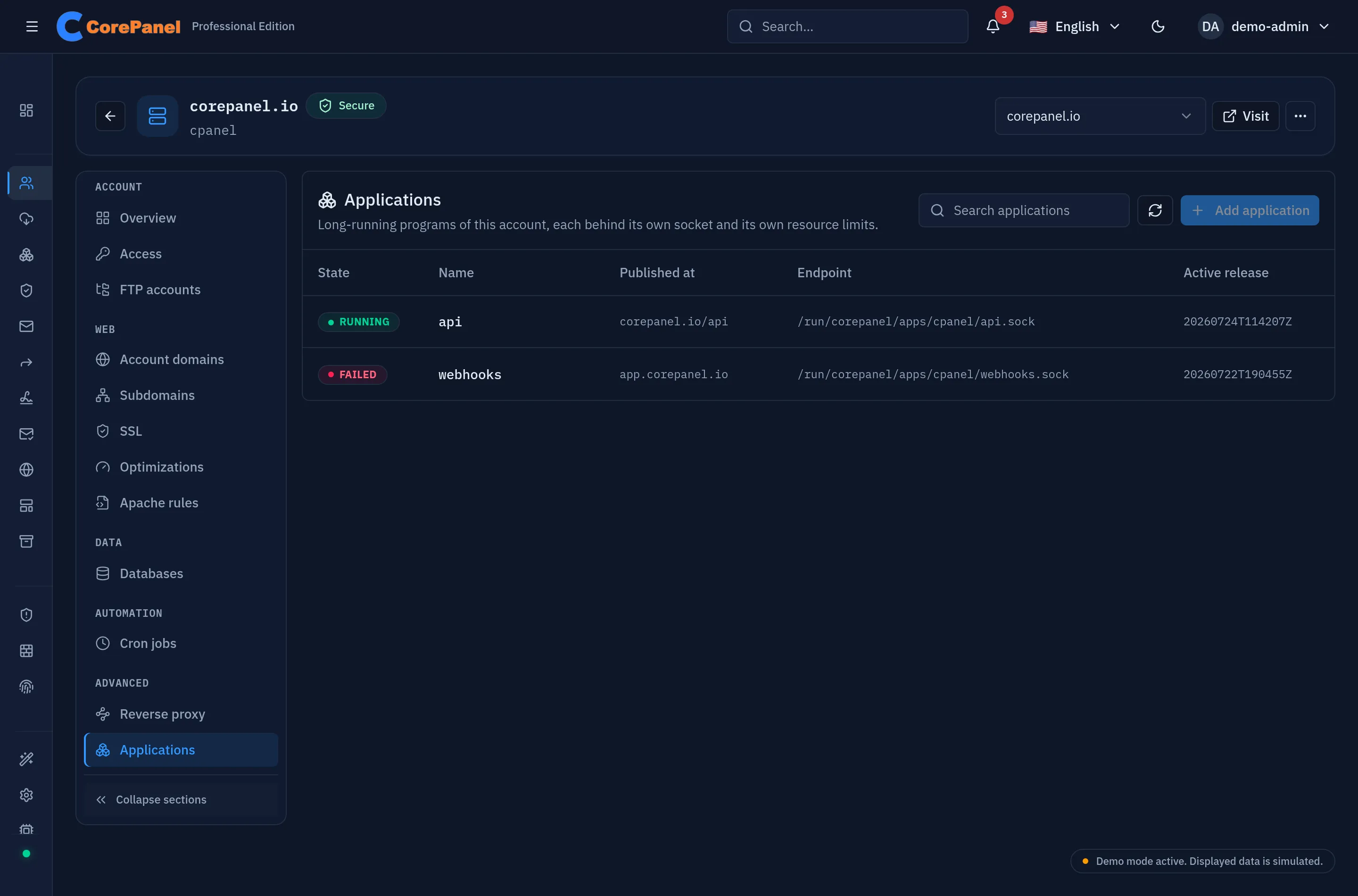
Five columns, and each answers a different question:
| Column | What it tells you |
|---|---|
| State | What CorePanel last recorded — Running, Stopped, Failed, or Not deployed for one that exists but has never shipped a release |
| Name | The application’s slug. It names the systemd unit and the socket, and cannot be changed later |
| Published at | The site, and the path under it, that reaches the program |
| Endpoint | The unix socket the web server proxies to |
| Active release | The version serving right now |
Selecting a row opens the application itself: its live systemd status, its releases, its environment, its deploy webhook and its journal, with the actions that change any of them. That detail is reached from the table, not from a URL of its own.
The account has to be allowed to run them
Section titled “The account has to be allowed to run them”An application is only available to an account whose Applications limit is above zero.
That limit starts at 0 — which here means none, not unlimited, unlike every other
limit in CorePanel — so the runtime is granted deliberately, per account:
- From the panel: the account → Overview → Edit account → Applications.
- From the CLI:
corepanel account update <account-id> --max-apps 5. - From a plan: set Applications on the hosting package the account is provisioned from.
Until then Add application stays disabled and says why, and the API refuses a creation with applications are not enabled for this account.
A first application, from the panel
Section titled “A first application, from the panel”1. Register it. Press Add application. The form asks for the name, the site and path it is published under, the command that starts it, the port it listens on inside its namespace, an optional health path, and the limits it runs within. Every field is explained on Configuration.
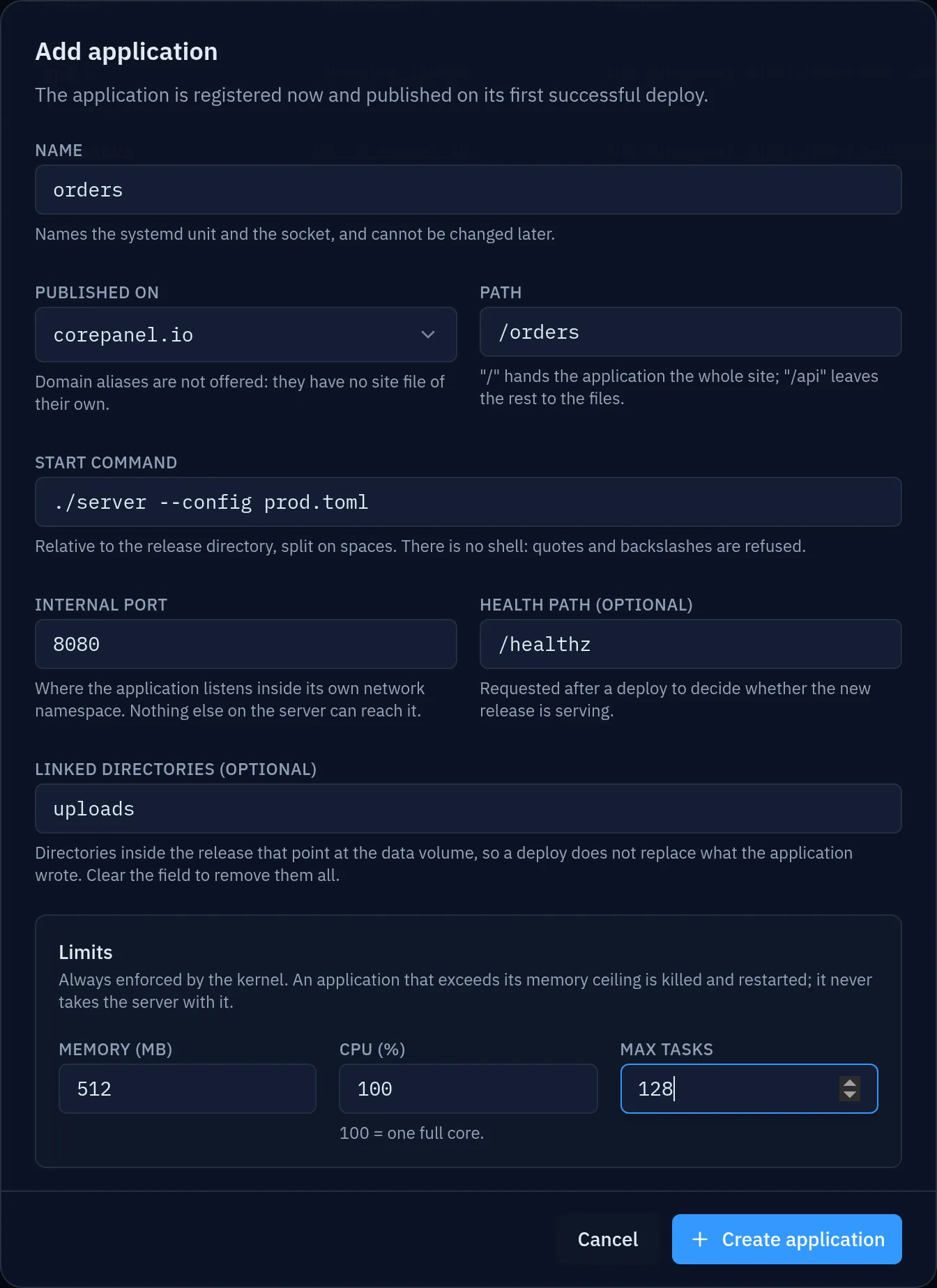
Saving takes you straight to the application, which now exists but serves nothing: Not deployed, no active release, and no unit for systemd to report on — that is written by the first successful deploy.
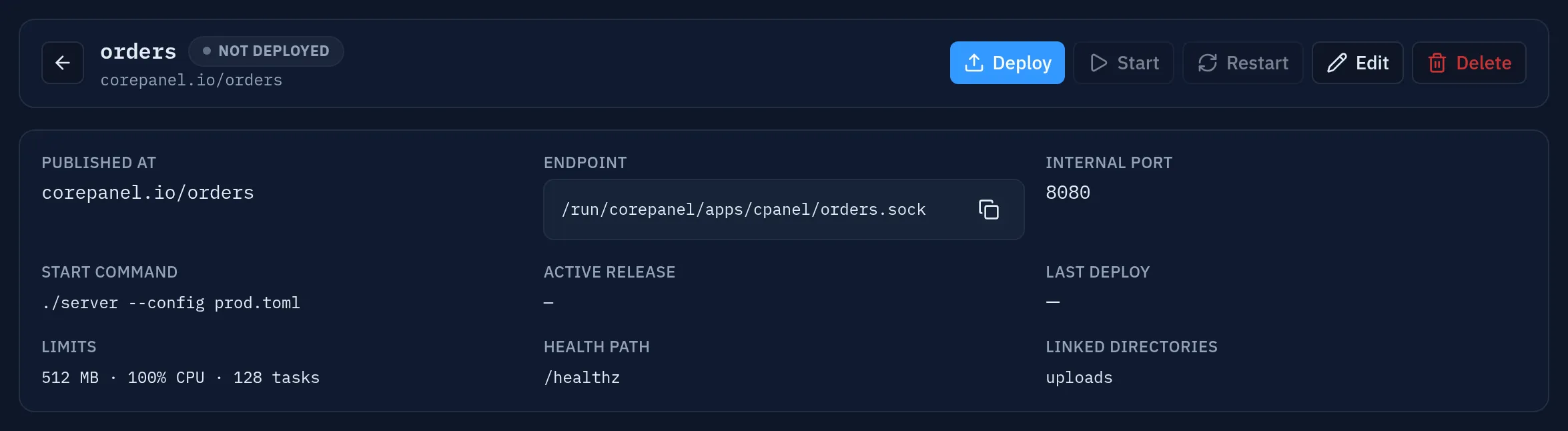
Note what is greyed out: Start and Restart do nothing until a release exists, and the panel says why rather than failing when pressed.
2. Deploy the build. Press Deploy and drop the .tar.gz on the dialog: the panel
uploads it and deploys it in one act. CorePanel extracts it, starts it, checks that it
answers, and only then publishes the path. If it does not answer, the previous release is
put back — Deploying covers the whole sequence.
For an archive that is already on the server — put there over FTPS at
~/apps/<name>.tar.gz, or by a pipeline that
POSTs it and deploys in the same call
— switch the dialog to Already on the server and leave the field empty. The account’s
FTP password is set in the account’s Access section.
4. Watch it. The detail refreshes itself every 15 seconds, so the state, the restart count and the socket are what the machine says now, not what the last action returned.
A first application, from the command line
Section titled “A first application, from the command line”Every corepanel app command starts with the account id — the numeric identifier of
the hosting account the application belongs to. It is printed when the account is created;
afterwards, recover it with corepanel account list, or resolve a domain to it directly:
corepanel account list --search example.com+----+-------------+---------+--------+| ID | Domain | User | … |+----+-------------+---------+--------+| 12 | example.com | example | … |+----+-------------+---------+--------+That 12 is what goes where the examples say <account-id>.
# 1. Register it (does not publish yet)corepanel app create <account-id> api --domain example.com --path /api --port 8080 \    --health /healthz -- ./server
# 2. Upload the build as the account, over FTPS: ~/apps/api.tar.gz#    (or over SFTP with a key — hosting accounts have no shell, so no rsync)curl --ssl-reqd --ftp-create-dirs -T api.tar.gz \     --user 'example:<ftp password>' ftp://example.com/apps/api.tar.gz
# 3. Deploy — extracts, starts, verifies, publishescorepanel app deploy <account-id> api
# 4. Check what the machine says, not what CorePanel recordedcorepanel app show <account-id> api
From there: use cases for other shapes, configuration for every setting, and CI/CD to replace steps 2 and 3 with a single POST that carries the artifact.
Whether the server can run containers
Section titled “Whether the server can run containers”Everything above is the native runtime: a process supervised by systemd, which works on every supported release with nothing to prepare. A container backend (Podman) is in development, and it asks more of the machine — podman itself, and a kernel booted with the unified cgroup hierarchy.
Settings → Container runtime answers whether this server has both, and
corepanel app runtime status prints the same reading:
- Ready — AlmaLinux 9 and 10 out of the box.
- Reboot pending — the preparation is done and takes effect on the next boot.
- Unavailable — podman is not installed.
AlmaLinux 8 starts on the older cgroup hierarchy, and the consequence is worth stating plainly: there, podman accepts a container’s memory and CPU limits, ignores them, and starts the container anyway. A limit that silently does not apply is worse on a shared server than a refusal, so CorePanel checks before it offers rather than degrading in silence.
Prepare server — the button on that card, or corepanel app runtime prepare — installs
the systemd delegation drop-in and adds systemd.unified_cgroup_hierarchy=1 to every boot
entry. It does not reboot the server. The argument takes effect on the next boot, and
choosing when to take a hosting machine down is yours to make; the card keeps saying
reboot pending until you do. Running it twice changes nothing.
Nothing about native applications changes either way, and preparing the server does not alter how they run.
What is not here yet
Section titled “What is not here yet”Deliberately, so that what exists is solid:
- Building on the server. You ship a built artifact; CorePanel does not compile it. A
gitorigin and a build step are in development. - Node and Python runtimes. The runtime field exists and the machinery is shared, but only Go artifacts are accepted today.
- Containers. A Podman backend is in development. Today an application is a native process — but the server’s readiness for containers can already be checked and prepared, see above.
- Zero-downtime restarts. A deploy costs a restart of roughly 200 ms behind the web server, with retry — measurable, but not something a visitor notices.