Deploying
A deploy replaces the running program with a new build, verifies it actually serves, and puts the old one back if it does not. The old release keeps serving throughout the parts that take time.
The artifact
Section titled “The artifact”A .tar.gz containing your built program — CorePanel does not compile anything. Its
contents become the release root, so paths in the start command are relative to it:
api.tar.gz├── server ← the binary├── templates/└── static/corepanel app create <account-id> api --domain example.com --port 8080 -- ./serverThere are three ways to get it onto the server. By hand, the shortest is to drop it into the panel, which uploads and deploys in one go. From a build pipeline, POST it and let the deploy run on the same call — no FTP account involved. For an artifact too large for either, upload it as the account, over FTPS, to the conventional location:
curl --ssl-reqd --ftp-create-dirs -T api.tar.gz \ --user 'example:<ftp password>' \ ftp://example.com/apps/api.tar.gzWith lftp, which handles the directory and the TLS negotiation in one line:
lftp -u 'example,<ftp password>' -e \ 'set ftp:ssl-force true; mkdir -p apps; put api.tar.gz -o apps/api.tar.gz; bye' \ example.comThe FTP password is the account’s FTP password, a separate secret from the panel password. Set or rotate it from the panel, in the account’s access settings.
~/apps/<app>.tar.gz is what deploy picks up with no arguments. Any other path inside
the account’s home works too:
corepanel app deploy <account-id> api --artifact uploads/api-2026-07-27.tar.gzThe archive must live inside the account’s home and belong to the account — it is
read and extracted as root, so a path that resolves outside the home, a symlink pointing
out of it, and a file owned by anyone else are all refused. A file uploaded over FTP is
always owned by the account; one an operator placed by hand may not be, and chown <account>:<account> is the fix. Extraction validates every entry too: one that tries to
write outside its destination is rejected rather than followed, and extended attributes
are not preserved, so an archive cannot smuggle in file labels that would keep the program
from starting.
Deploying from the panel
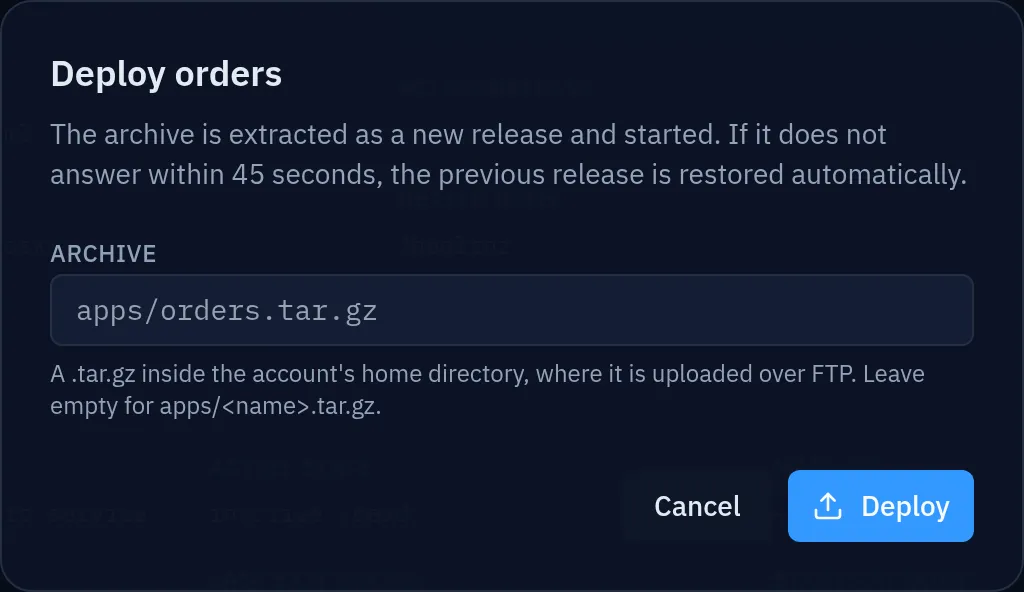
Section titled “Deploying from the panel”Open the application from the account’s Applications section and press Deploy. The only thing to decide is where the archive comes from:
Upload an archive takes the .tar.gz from the machine you are sitting at — drop it on
the dialog or click to pick it — and uploads it straight to the application. Nothing else
is needed: no FTP client, no FTP password, no file placed in advance. The upload runs in
pieces with a progress bar, so a build of a few hundred megabytes is not one long request
that a dropped connection undoes: a piece that fails is re-sent on its own, and Cancel
stops the transfer and discards what had arrived. When the last piece lands, the deploy
starts by itself — same extract, same health check, same automatic rollback.
Already on the server is the other tab, for an archive that is in the account’s home
already. Leave the field empty for apps/<name>.tar.gz, or name any other path inside the
home — uploads/api-2026-07-27.tar.gz, for instance. This is the route for an artifact
too large to upload through the browser, and the one to use when the file got there over
FTP or from a pipeline.
The dialog blocks while the deploy runs — the extract, the swap, the restart and the health check are one operation — and the outcome is a dialog, not a toast, because there are two outcomes worth reading. Deploy complete names the release now serving. The other one is this:
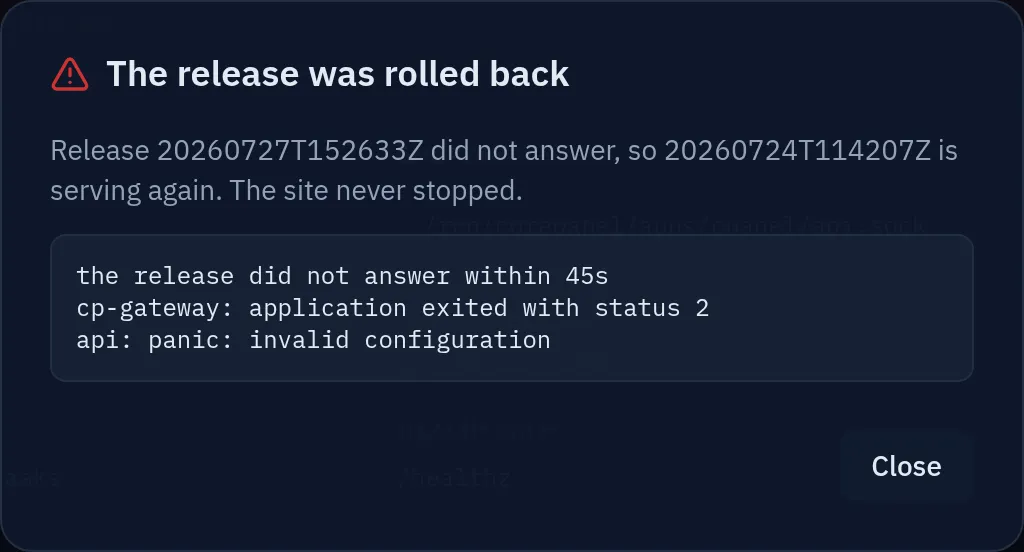
That is the safety net, not an error: the site never stopped serving. The tail of the journal is included so the reason is on screen, and the same text stays on the application as Last failure after you close the dialog.
What a deploy does, in order
Section titled “What a deploy does, in order”- Extract the archive into a new release directory. The old release keeps serving.
- Prepare it: permissions, the symlinks for any linked directories, security labels.
- Swap
currentto the new release and restart the service — milliseconds of cut. - Verify: connect to the endpoint and, if a health path is set, request it. Up to 45 seconds, retried.
- If it does not answer, put the previous release back, restart, and report the deploy as rolled back with the tail of the journal explaining why.
- Prune the releases the retention policy no longer keeps.
Only steps 3 and 4 touch production, and step 5 is why a bad build is an inconvenience rather than an outage.
Releases and rollback
Section titled “Releases and rollback”In the panel, the Releases card on the application lists what is on disk, with the one currently serving marked Active and a Roll back button on every other row:
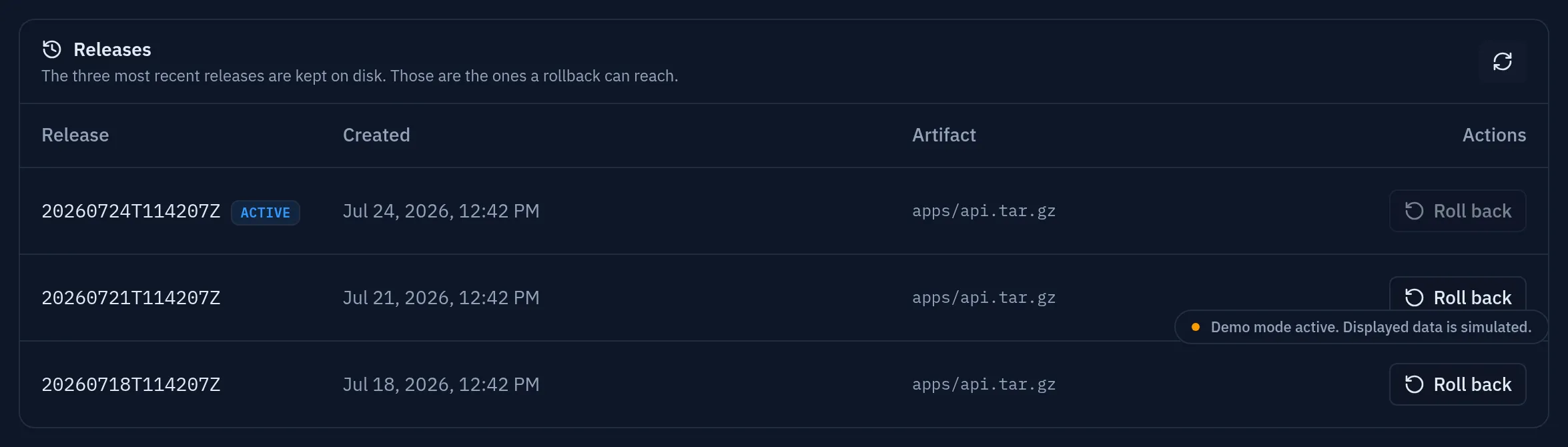
The same, from corepanel:
corepanel app releases <account-id> apiRELEASE CREATED ARTIFACT ACTIVE20260727T142212Z 2026-07-27 14:22 apps/api.tar.gz yes20260727T101500Z 2026-07-27 10:15 apps/api.tar.gz20260726T173040Z 2026-07-26 17:30 apps/api.tar.gzThe list comes from disk, not from the database: those are the releases a rollback can actually reach. The three newest are kept, plus the active one if it is not among them — a release that is serving is never pruned, however old it is.
corepanel app rollback <account-id> api # the previous onecorepanel app rollback <account-id> api --to 20260727T101500Z # a specific oneA rollback is verified the same way a deploy is: if the older release does not answer either, the current one is restored.
Rolling back changes the program, not the data. $CP_APP_DATA is untouched, so a
release that migrated a database schema forward will not un-migrate it by going back —
that part is yours to plan.
The first deploy is special
Section titled “The first deploy is special”An application is registered without being published. The route that sends traffic to it
is added by the first deploy that answers, because pointing a site at a socket nothing
is listening on would turn that path into a 502 — and for an application mounted at /,
that is the whole site.
So the order is always: create, upload, deploy. Only then does the hostname serve anything.
Deploying without a person
Section titled “Deploying without a person”Everything above can be handed to a build pipeline with a token that authorises exactly one thing: Deploying from CI/CD.
Common failures
Section titled “Common failures”| What you see | Usually means |
|---|---|
Deploy reports rolledBack with connection refused | The program exited immediately, or it is not listening on $PORT |
Deploy reports rolledBack with a 404 on the health path | The program serves, but that path does not exist — check for the prefix strip on a sub-path mount |
the artifact was not found | It is not at ~/apps/<app>.tar.gz, or it was uploaded as root instead of the account |
| The program starts by hand but not under CorePanel | It probably depends on the working directory or on a variable from your shell. The working directory is the release root; everything else must come from environment variables |
a deploy is already running for this application | One deploy at a time, by design. Wait for it |
More in Running and troubleshooting.