File Manager
The file manager shows an account’s home folder in the panel: every site’s folder, hidden
files such as .htaccess, a preview of any text file, and the address each file is served at.
It is the same screen in two places:
- Customers open File manager in the client panel, under Files & data.
- Administrators open an account from Accounts and pick File manager in the account workspace, next to FTP accounts and SSH access.
It browses, searches, uploads, downloads, organises and edits: uploads
of files or whole folders — dragged in from the desktop or picked — downloads of a file, a
folder or a selection as a zip, extracting and compressing zip files and
tarballs, new folders and files, rename, copy and move, permissions, the trash, and an
editor that checks PHP and .htaccess files when you save them.
The same reach as FTP, and no more
Section titled “The same reach as FTP, and no more”Every request runs on the server as the account’s own Linux user, inside its home folder — the same identity its FTP login and its PHP run as. So the file manager can open exactly what that account can open, and nothing else:
- The home folder is the top. Paths are shown from it (
/public_html, not/home/example/public_html), and nothing climbs above it: another account’s home is refused by the kernel, not by a check the panel could get wrong. - A symbolic link is listed with its target. One that stays inside the home opens like
the folder it points to (
site → public_html); one that leaves the home is shown but never followed. - Entries the account does not own — a log folder the system keeps in the home, for instance — are marked system. The account can usually read them, not change them.
- A folder whose permissions shut the account out says so: The account can’t read this folder. The file manager does not work around permissions, because the account could not either.
That holds for administrators too. An administrator browsing an account sees precisely what the customer would; to reach anything else on the server, use SSH as root.
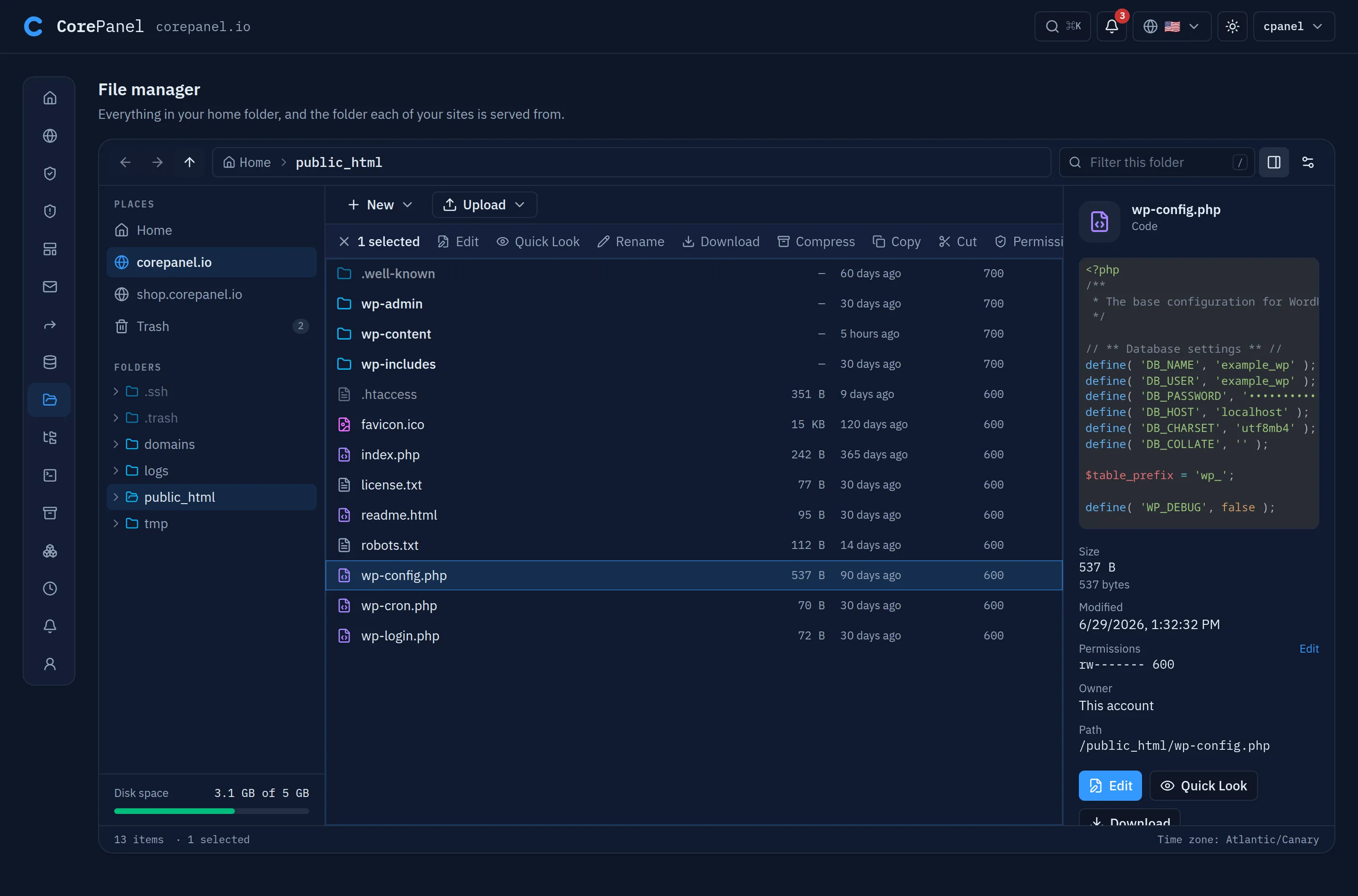
The screen
Section titled “The screen”Places lists one entry per site, named after the domain rather than the folder it
lives in: the primary domain opens public_html, an addon domain or subdomain opens its
own folder under domains/. Aliases share their site’s folder and do not get an entry of
their own. Home and Trash sit with them.
Folders is the tree of the home. It opens as you move, so it always shows where the list is.
The list has the name, size, age and permissions (in octal — hover for rwxr-x---)
of each entry, folders first. Click a column title to sort by it. With something
selected, the column titles give way to the selection bar.
The details pane describes the selection — or, with nothing selected, the folder you
are in: size, exact modification date, permissions, owner, full path, and a preview. Under
a site’s folder it adds Open in browser, which opens the address the file is served
at: /public_html/wp-content/uploads/logo.png becomes
https://example.com/wp-content/uploads/logo.png. The web server has the last word on
that address — an .htaccess rule can deny it or a rewrite can hide it — so it is a link
to try, not a promise. Copy path copies the path in the home.
The disk-space bar under the tree is the account’s usage against its quota. It turns amber at 75% and red at 90%.
Where you are is part of the address (/my/files?path=/public_html/wp-content), so back
and forward work, a reload lands in the same folder, and a link sent to a customer opens
where it should.
Hidden files
Section titled “Hidden files”Files whose name starts with a dot — .htaccess, .user.ini, .env, .well-known —
are shown by default, a little dimmer than the rest. They are the files people come
looking for. Show hidden files in the view options (the sliders button) hides them;
the choice is remembered in the browser, with Compact rows and whether the details
pane is open.
Previews and Quick Look
Section titled “Previews and Quick Look”Select a file and press Space to open Quick Look: the
whole file, with line numbers and syntax highlighting for PHP, HTML, CSS, JavaScript,
JSON, YAML, XML, Markdown, SQL, shell scripts, .ini/.env files and .htaccess. The
arrow keys move to the previous or next file of the folder; Space or Esc closes it, and
Edit opens the file in the editor.
- Text files up to 2 MB are shown. A larger one, or a file that is not text, says so.
- Images are shown from the site that serves them, through the same address as Open in browser. Quick Look loads it straight away; the details pane asks first (Show the preview from example.com), so selecting a row never makes your browser fetch anything from a site. An image outside every site’s folder, or one the site will not serve, is not previewed.
Large folders
Section titled “Large folders”A folder lists its first 10,000 entries, and says when it holds more. The filter (press
/) narrows the list as you type, which is how you find a file in a
wp-content/uploads with tens of thousands of them — and Enter turns it into a
search through every folder below.
Finding files
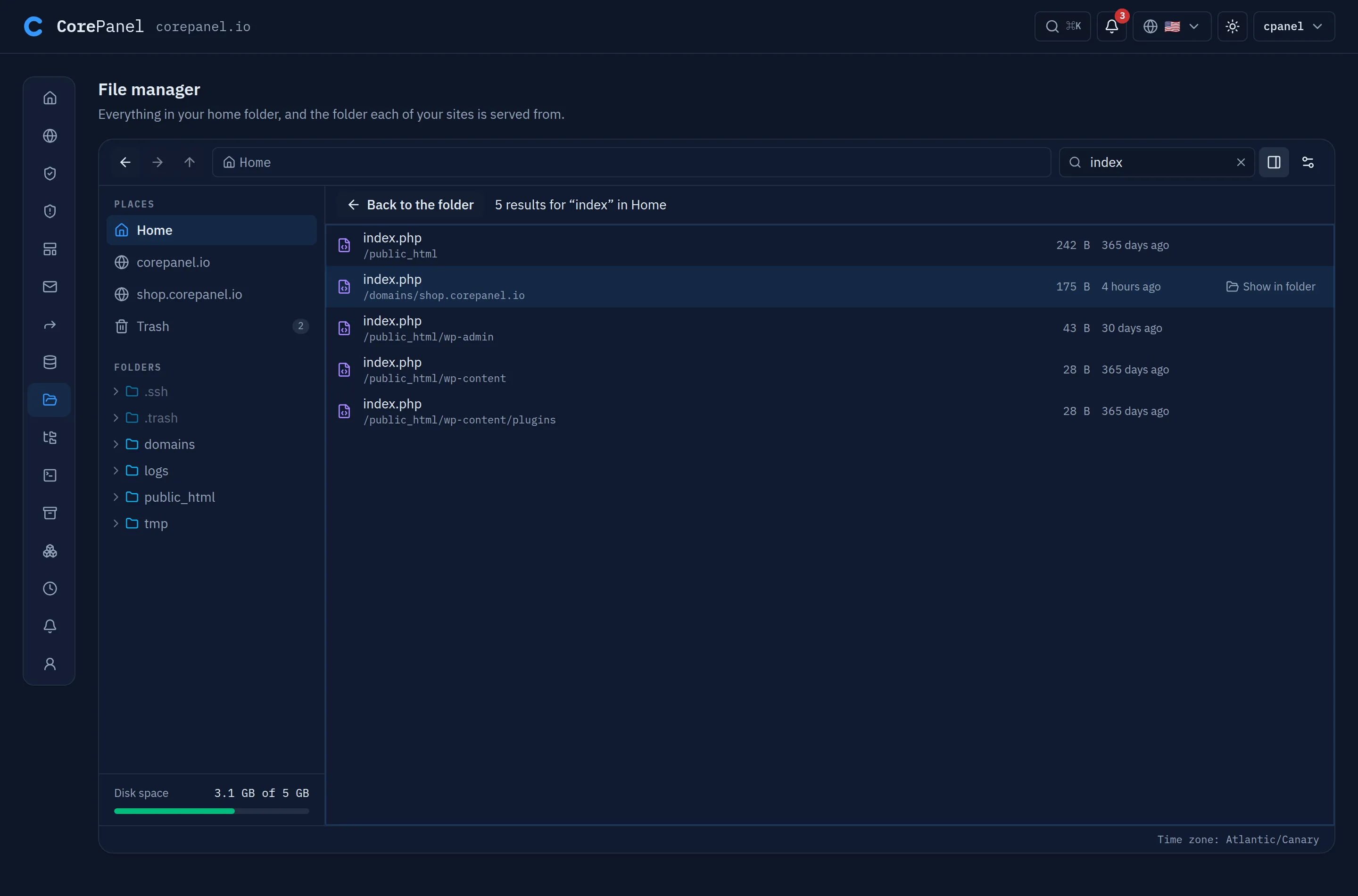
Section titled “Finding files”The filter only looks at the folder on screen. Press Enter in it to search every
folder below the one you are in, on the server: the results list each match with the
folder it is in, nearest folders first. Double-click a result, or press Enter on it, to
go to its folder with the file selected — from there it can be edited, downloaded or
renamed as usual. A folder result opens the folder. Back to the folder, Backspace or
the browser’s back button return to where you searched; the search is part of the
address (?find=wp-config), so going back from a result lands on the results again. When the
filter matches nothing in the folder on screen, Search every folder below runs the same
search with a click.
- The search matches part of a name, in any case:
configfindswp-config.phpandConfig.PHP. With*or?it matches the whole name as a pattern:*.php,wp-config.ph?,error_log*. It looks at names, not at what is inside the files. - Symbolic links below the folder searched are listed when their name matches but never followed, and the trash is left out unless you search from inside it.
- A search stops at 5,000 results, after about 12 seconds, or when the tree is too
wide to keep track of (hundreds of thousands of folders) — then it shows what it found
and says it did not look everywhere. An account runs one search at a time. Searching from a folder further down
(
public_htmlrather than the home) covers the rest. - Hidden files follow Show hidden files: when every match is hidden, the results say so.
How big is a folder?
Section titled “How big is a folder?”The list shows no size for folders: adding one up means reading everything below it, which on a big site is real work for the disk. Calculate size in the details pane does it on demand — for the selected folder, for a selection that holds folders, or with nothing selected for the folder you are in. It counts up while it runs and then shows the size of everything inside (what a download of it would weigh), how many files and folders that is, and the space it takes on disk — folders included and each hardlinked file once, which is what counts against the quota. Symbolic links inside it count as themselves, never as what they point to; a folder you opened through a link (a site folder that is a symlink) is counted as the folder it shows. Entries the account cannot read are left out, and the pane says how many. Recount runs it again after a change; selecting something else stops a count that is still going.
Editing files
Section titled “Editing files”Double-click a text file — or select it and press Enter, or choose Edit — to open it in the editor, which covers the file manager until you close it. A new file created with New → New file opens in it straight away.
- Ctrl+S (⌘S on a Mac) saves; Ctrl+F finds and replaces. Esc closes the editor, and asks first if there are unsaved changes; closing the browser tab asks too.
- The header sets the indentation (2 spaces, 4 spaces or tabs — it starts with whatever the file already uses) and whether long lines wrap. The status bar shows the line and column.
- Files up to 2 MB that are text can be edited. A larger one, or one that is not text, says This file can’t be edited here.
- A file without write permission for its owner opens read-only, with a line saying
so; give the owner write permission under Permissions to edit it. The
editor does not route around a
chmod 400 wp-config.php, just as FTP does not. - Saving keeps the file’s permissions, group and SELinux label, and replaces it in one step where it can, so the web server never serves a half-written file.
When a file changed while you had it open
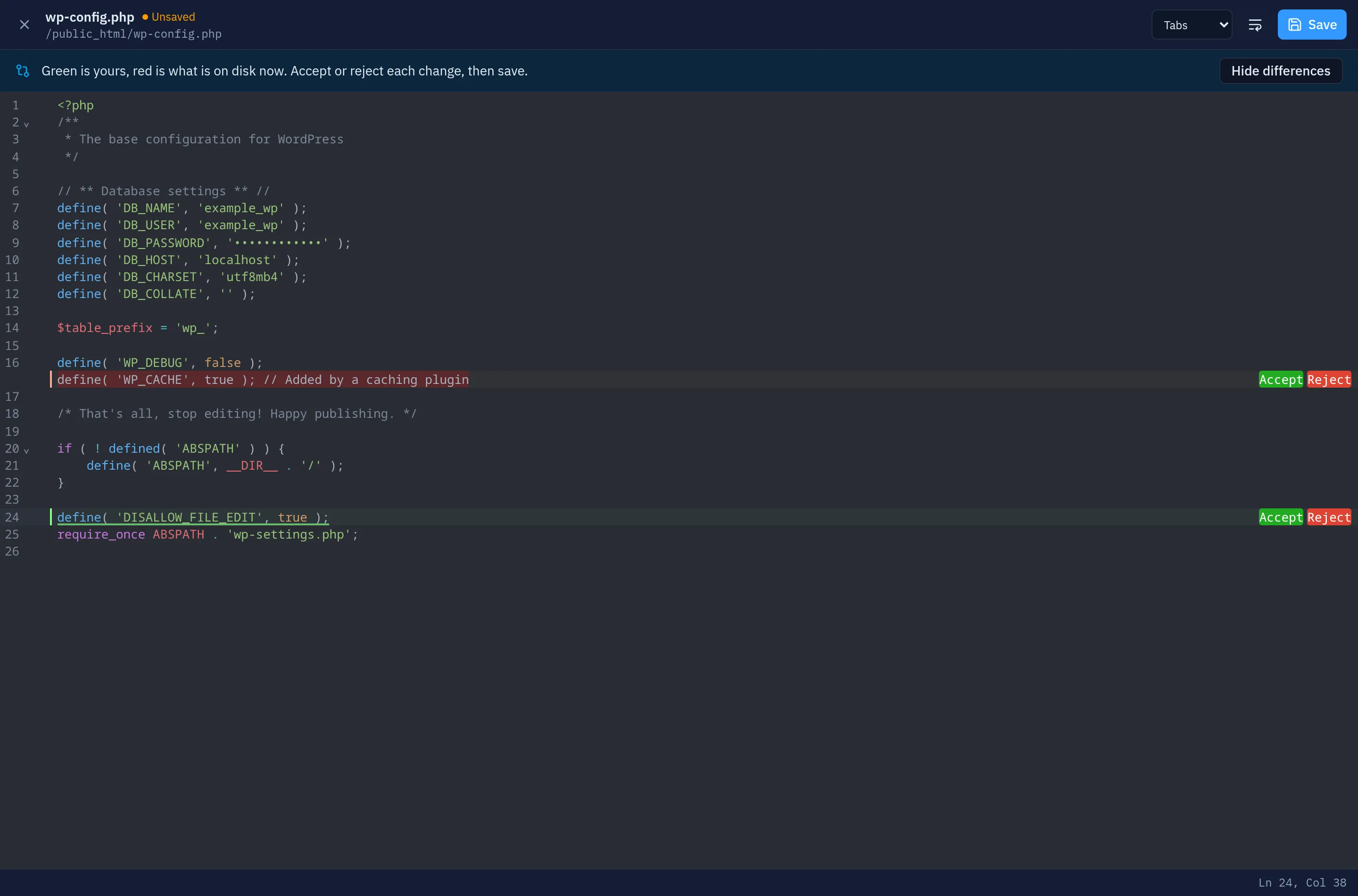
Section titled “When a file changed while you had it open”A save only goes through if the file on disk is still the version you opened. If a plugin rewrote it, or somebody saved it over SFTP meanwhile, nothing is overwritten and the editor says This file changed on disk since you opened it, with three ways on:
- See differences shows your version against the one on disk, line by line: green is yours, red is what is on disk now. Accept or Reject each change, then save.
- Overwrite saves your version over theirs.
- Reload, discarding my changes replaces your version with the one on disk.
Checks after saving
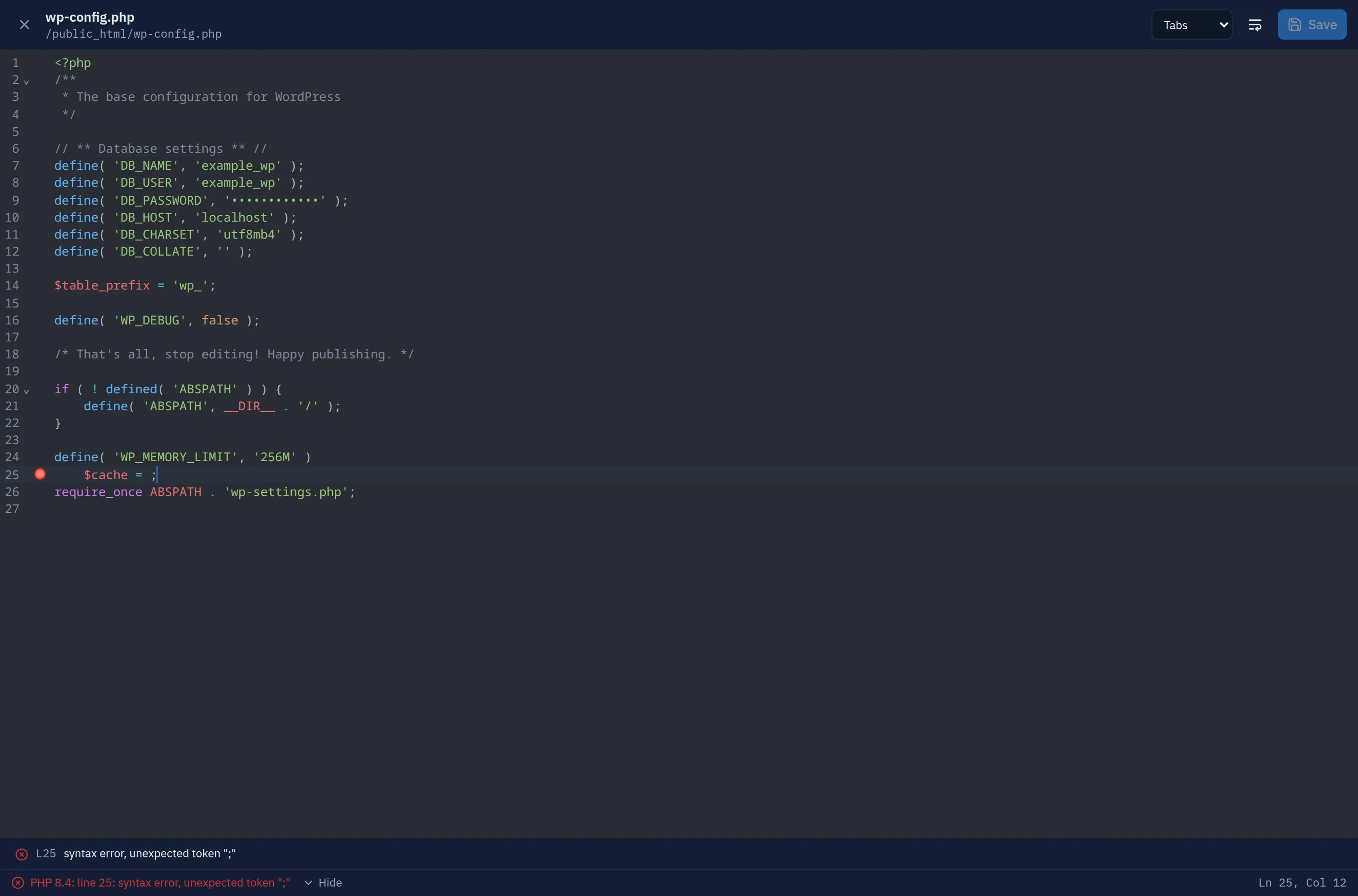
Section titled “Checks after saving”Saving a PHP file or a .htaccess also checks it. The save has already happened by then:
the check tells you whether the file does what you meant, on the line it concerns, and
never stops a save.
- PHP (
.php,.phtml) is compiled withphp -lby the PHP version the account’s sites run — a file that parses on 8.4 but not on 7.4 is reported against the version that actually serves it. It runs as the account and only compiles; nothing in the file is executed. A syntax error is marked in the gutter and named in the status bar (PHP 8.4: line 25: syntax error, unexpected token ”;”); deprecations are listed as notices. .htaccessis looked up in the web server’s own compatibility report for the site whose folder holds it, and that folder’s rules are reloaded, so the file is in force from the next request. Lines the server skips, does not support, or does not need are marked and listed; the status bar says In force on example.com now and how many lines are not applied. If the site has.htaccesssupport turned off, it says that instead.
When a check cannot run — the account has no PHP version, the .htaccess is outside every
site’s folder, or the web server could not be asked — the status bar says so rather than
reporting no problems.
Uploading and downloading
Section titled “Uploading and downloading”Upload ▾ above the list sends files from your computer into the folder you are in: Upload files… picks one or more files, Upload a folder… picks a whole folder and keeps its tree. Or drag files and folders from the desktop:
- onto the list — they go into the folder you are looking at, which is outlined while you hold them over it;
- onto a folder in the list, in the folder tree, under Places or on the breadcrumb — they go into that folder.
A name already taken in the folder asks first — once per dropped file or folder, not once per file inside it — with the same choices as a copy:
| Choice | For a file | For a folder |
|---|---|---|
| Replace | The old file goes to the trash; the upload takes its place | The upload is merged into the existing folder; files it brings with names already there replace them, and the old ones go to the trash |
| Keep both | The upload gets a number: logo (1).png | The folder is uploaded next to the old one as theme (1) |
| Skip | Nothing is uploaded | Nothing inside it is uploaded |
The Uploads tray in the corner lists every file with its own progress. Each one can be cancelled while it goes, and one that failed says why and has Try again. A file that landed under another name says so (Saved as /public_html/logo (1).png). Closing the browser tab while files are still going asks first. The folder refreshes as they arrive.
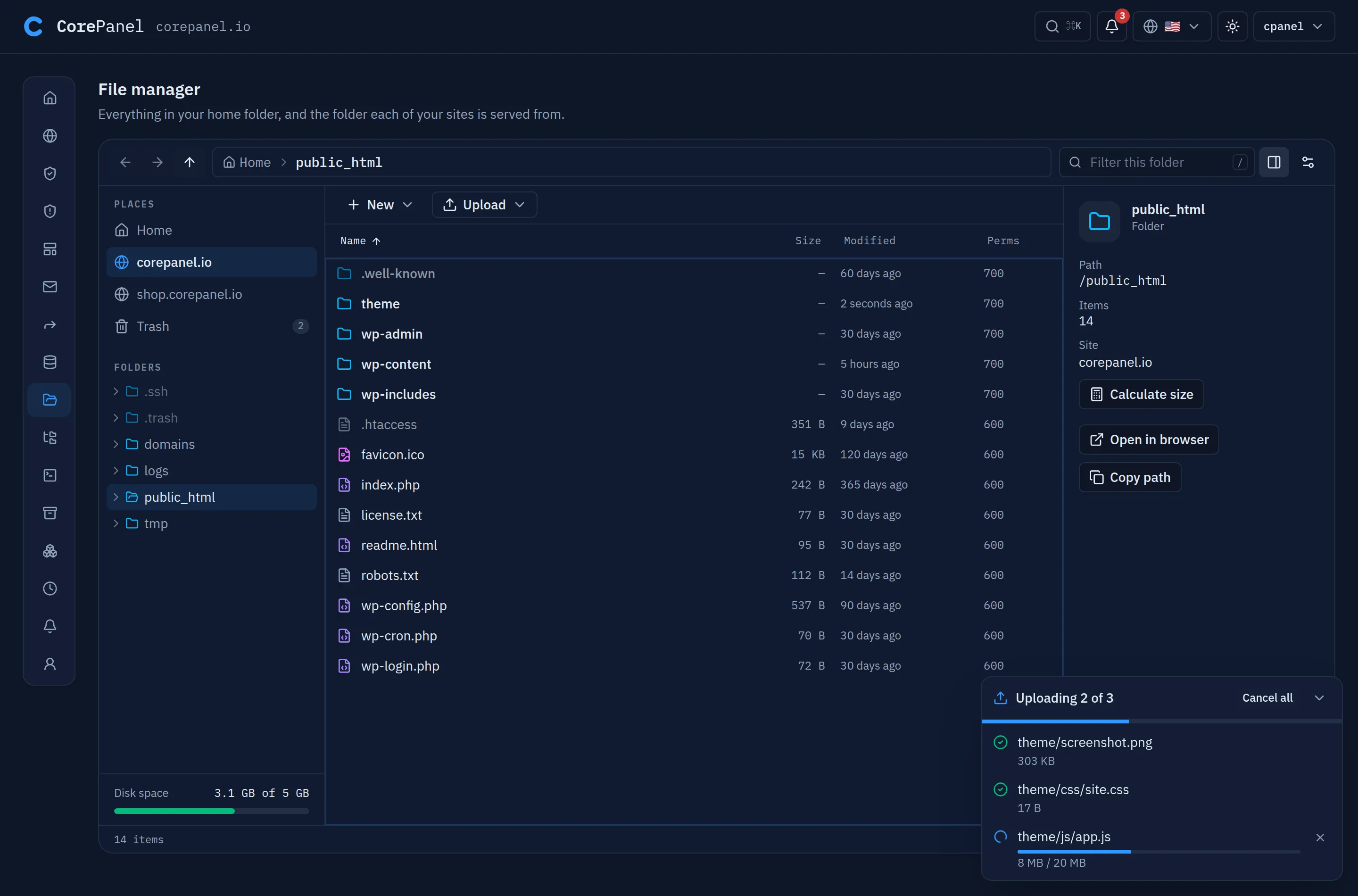
On the server an upload is written as the account, like anything it sends over FTP: files are private to it (600), folders it creates too (700), and the quota counts every byte as it is written — a file that does not fit fails with It does not fit in what is left of the account’s disk quota, and leaves nothing behind. The file takes its name only once every byte has arrived, so a site never serves half of one. A connection that drops resends only the piece that was in flight.
Download — in the selection bar, the right-click menu, the details pane and Quick Look
— saves the selection to your computer. One file comes down as it is; a folder, or several
entries, comes down as a zip named after the folder (wp-content.zip). Symbolic links are
left out of a zip, never followed, and anything the account cannot read is left out too;
the notice says so when it happens. Double-clicking a file the panel cannot show — a
video, a binary, an archive it does not extract — downloads it, and so does the Download button the editor
offers for a file it cannot edit.
A download is prepared on the server as the account, then handed to your browser once: its link belongs to your session, works a single time, and is useless to anybody else who sees it.
The transfer limit
Section titled “The transfer limit”One file uploaded, or one download, can be up to 2 GB by default. An administrator changes it in Settings → File manager transfers (1 MB to 100 GB). Both directions are staged on the server’s own disk — outside every account’s quota — while they move, which is why the limit exists; anything larger goes over SFTP, which has none. The server also keeps its staging area from filling its disk: when free space runs low, a transfer is refused with The server has no room for this transfer right now, not started and left to fail. An empty folder inside a dropped folder is not recreated.
Archives
Section titled “Archives”A zip file or a tarball (.tar, .tar.gz or .tgz, .tar.bz2) is extracted where it
is: double-click it, or pick Extract in the selection bar or Extract… in the
right-click menu. Before anything is written the file manager looks inside and says what
it holds — how many files and folders, how much they weigh once extracted, and what is at
its top — and warns when that is more than is left of the account’s
quota.
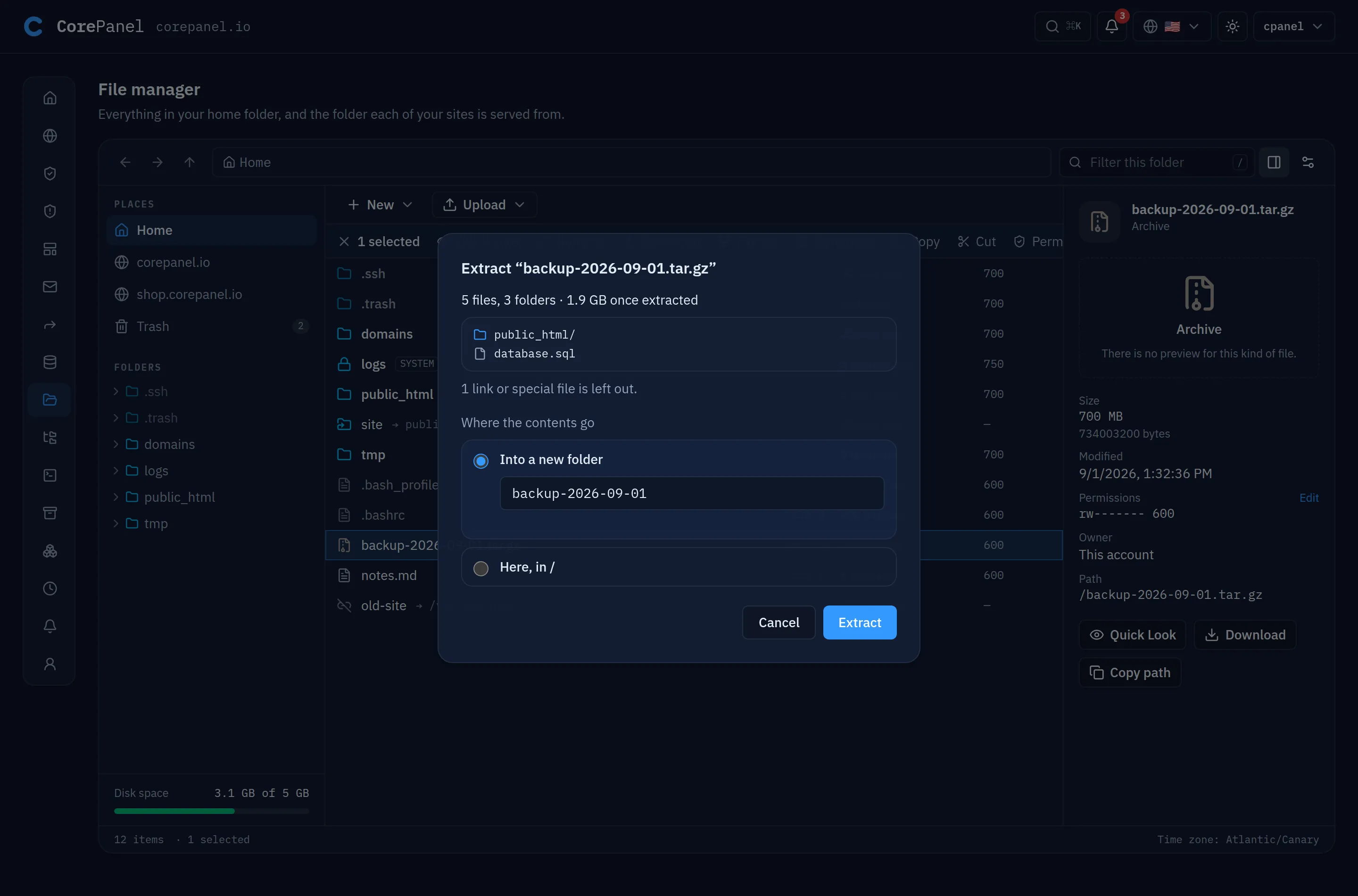
The contents go into a new folder named after the archive (theme for theme.zip,
theme (1) when that is taken), or here, into the folder the archive is in. An archive
whose contents are all inside one folder — wordpress.zip holding wordpress/, a plugin
holding its own folder — goes here by default, so it does not end up one folder deeper
than intended; a hidden folder never does, and extracting hidden entries such as .ssh or
.bashrc into the home says so before it writes them. Extracting here onto names that are already taken asks once, for all of
them:
| Choice | What happens |
|---|---|
| Keep both | The archive’s gets a number: contact-form-7 (1) |
| Replace | What is there goes to the trash, whole, and the archive’s takes its place — nothing is merged, so an updated plugin carries none of the old version’s files |
| Skip | What is there stays, and the rest of the archive is extracted |
Replacing a site’s folder this way asks first, like any other change that would take a site down.
Extracting runs on the server as the account, with the same reach it has over FTP:
- Only files and folders are made. Symbolic links, hard links and device files in the archive are left out, and the result says how many.
- A name that would land outside the folder — an absolute path, or one that climbs out with
..— is refused, not rewritten, and counted. - Files keep their owner permission bits and modification date; nothing gets group or other bits, or setuid. Folders are 700, as everywhere else in the account.
- The quota counts every byte as it is written. An archive that inflates to far more than its own size (over a hundred times, and over 1 GB) or holds more than 200,000 entries is stopped. What was extracted before a stop stays, and a file takes its name only once it is whole — a stopped or cancelled extraction never leaves half a file behind.
- A very large compressed tarball is looked into for a few seconds; the preview then shows what it counted so far, and the extraction itself reads it to the end.
- Password-protected entries are not extracted, and say so. Other formats —
.rar,.7z,.xz, a single.sql.gz— are not opened; use SSH for them.
Compress (in the selection bar, or Compress… in the right-click menu) packs the
selection into a zip or a tar.gz saved in the same folder. The name starts as the
entry’s, or the folder’s for several (public_html.zip), and gets a number when it is
taken. Symbolic links are left out, the archive is private to the account (600), and it
counts against the quota. It is written under no name at all until it is complete, so it
never includes itself, and a compress that fails or is cancelled leaves nothing behind.
Both are long operations, with progress and Cancel.
Organising files
Section titled “Organising files”Select with a click, add with Ctrl-click (⌘-click on a Mac), take a range with Shift-click, or drag a box over the empty space under the list. With anything selected, the column titles give way to a bar of what can be done with it; right-click a row for the same actions with their shortcuts, or the empty space for New folder, New file and Paste.
- New ▾ above the list creates a folder (mode 700) or an empty file (mode 600) in the folder you are in.
- Rename (F2) edits the name in place, with the part before the extension selected:
typing replaces
index, and.phpstays. Enter saves, Esc gives up. - Copy and Cut (Ctrl+C, Ctrl+X) remember the selection; open another folder and
Paste (Ctrl+V), or use Paste here above the list. What was cut shows faded until
it is pasted. Pasting a copy into the folder it came from makes a duplicate,
index (1).php. - Drag rows onto a folder — in the list, in the folder tree, under Places, or on the breadcrumb to move something up — to move them there. Hold Ctrl (Option on a Mac) while dropping to copy instead.
A copy keeps each file’s permissions and modification date. Symbolic links are copied as links, never followed; fifos, sockets and devices are not copied, and the result says which were left out.
A move takes a file with it as it is, so on a server with SELinux enforcing the file
manager also gives what it moved into a site the security label of its new folder: a page
moved from a folder of the home into public_html serves at once, as if it had been
uploaded there. Moving something out of a site leaves its label alone, so a site folder
parked elsewhere and moved back still serves.
When the name is taken
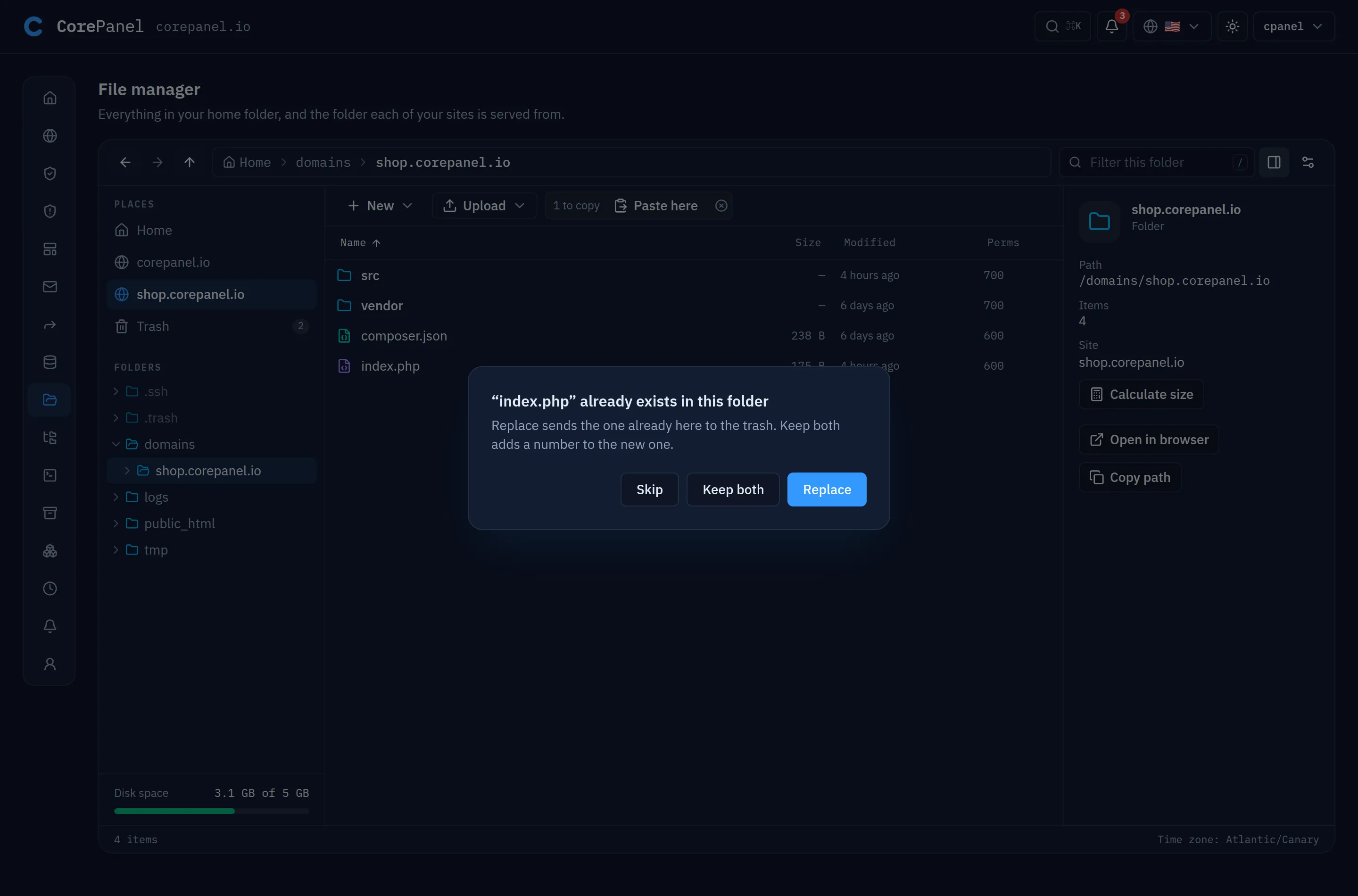
Section titled “When the name is taken”Copying or moving onto a name that is already there asks, one name at a time, with Apply to all when there are more:
| Choice | What happens |
|---|---|
| Replace | The one already there goes to the trash, and the new one takes its place — so a replace can be undone from the trash |
| Keep both | The new one gets a number: logo (1).png |
| Skip | Both stay as they are |
Long operations
Section titled “Long operations”Copy, move, permissions, trash, delete, extract, compress and Calculate size run on the server as a task. A notice in the corner shows the progress and a Cancel button, the rows being worked on are greyed, and the list refreshes when it ends. What a cancelled task had already done stays done. An account runs one such task at a time; a second one waits for the first.
A site’s folder
Section titled “A site’s folder”Moving a site’s folder away, trashing it, deleting it or taking read access to it from its owner would take that site offline. The file manager asks first, naming the sites and saying so on the button — Move to trash — example.com will stop working — and nothing happens until you confirm.
Permissions
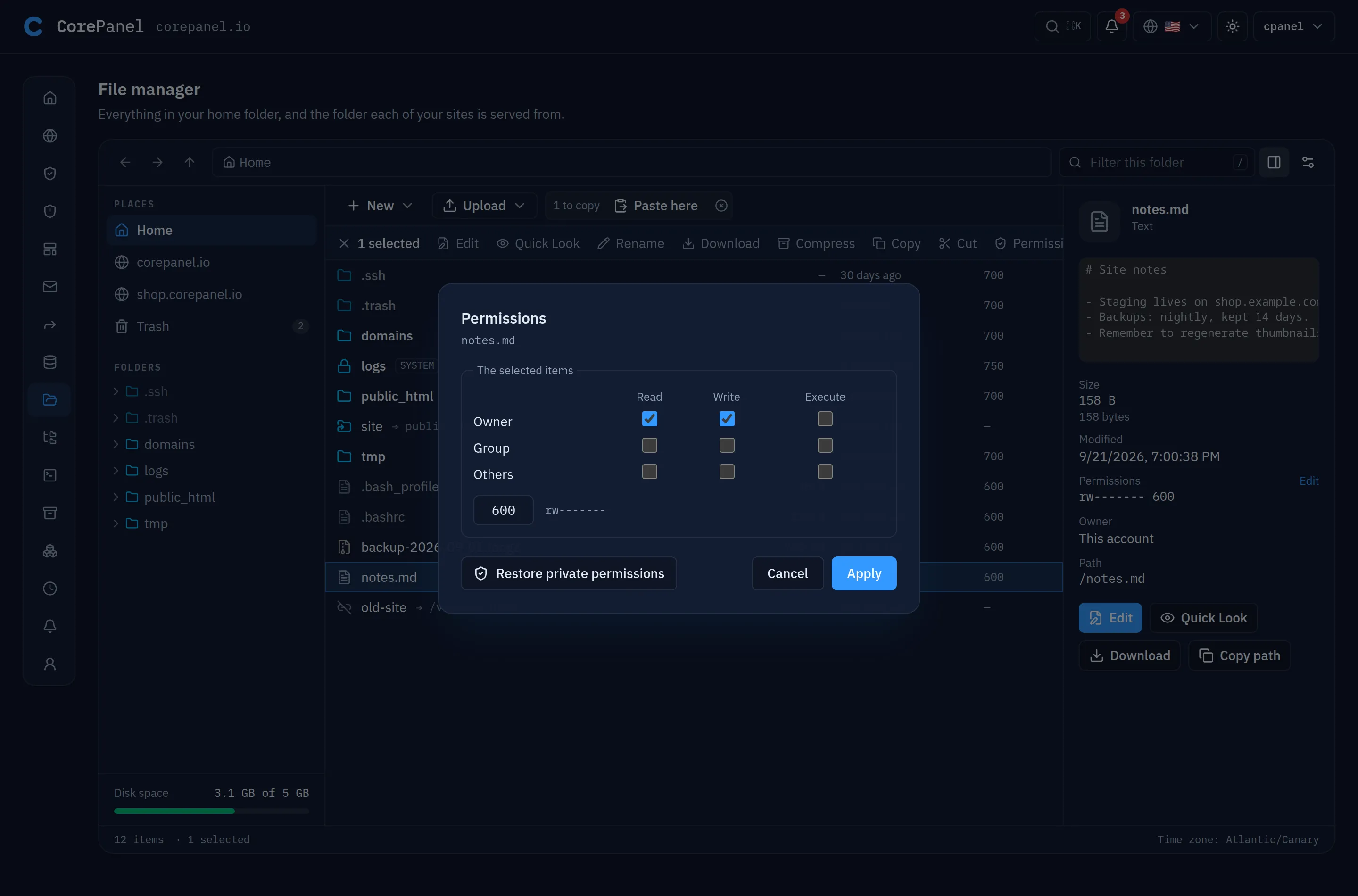
Section titled “Permissions”Permissions (from the selection bar, the menu, or Edit in the details pane) shows who may read, write and enter, as a grid kept in step with the octal number.
- For a folder, Also apply to everything inside sets the folder bits on every folder below it and a second, separate set on the files — so folders keep their execute bit and files do not get one.
- Restore private permissions puts folders at 700 and files at 600, all the
way down. That is CorePanel’s own model, and the fix for an old
chmod -R 777: the web server and PHP read an account’s files as the account itself, so no site needs a group or an “others” bit. - A group or others bit gets a note saying CorePanel does not need it, and anything world-writable a red warning. Setuid, setgid and sticky bits cannot be set here.
Keyboard
Section titled “Keyboard”| Key | What it does |
|---|---|
| ↑ ↓, Home, End | Move through the list; with Shift, extend the selection |
| Ctrl+A (⌘A on a Mac) | Select everything in the list |
| Enter, double-click | Open a folder; edit a text file; extract an archive; images open in Quick Look, anything else downloads |
| Space | Quick Look |
| Ctrl+S, Ctrl+F (⌘ on a Mac) | Save; find and replace — in the editor |
| Backspace | Go to the parent folder; from search results, back to the folder searched |
| F2 | Rename |
| Ctrl+C, Ctrl+X, Ctrl+V (⌘ on a Mac) | Copy, cut, paste |
| Del (also ⌘⌫ on a Mac) | Move to the trash |
| Shift+Del | Delete permanently, after asking |
| / | Filter this folder |
| / then Enter | Search every folder below this one |
| Ctrl+I (⌘I) | Show or hide the details pane |
| Esc | Clear the selection |
| ? | The list of shortcuts |
Click the breadcrumb to type a path instead; Enter goes there.
On a phone the list takes the whole width, Places becomes a menu above it, a tap opens a folder or previews a file (with Edit in the preview), and a long press starts a selection that further taps add to; the details and the actions open from the selection bar. Upload opens the phone’s own file picker.
The trash
Section titled “The trash”Move to trash (Del) is how things are deleted here: it is instant whatever the size, and the notice that says so has an Undo. Delete permanently (Shift+Del) skips the trash, and asks first.
Trash under Places lists what is in it: the name, the folder it came from and when it
was deleted. Tick items to Restore them to where they were — folders that no longer
exist are recreated — or to Delete permanently; Empty trash deletes everything in
it. When the original name has been taken since, the restore says so and offers Keep
both, which brings the item back as name (restored). The trash lives in ~/.trash,
where cPanel kept its own.
Items in the trash still count against the account’s disk quota until they are deleted for good, and the screen says so.
Each item is deleted for good 30 days after it was moved to the trash. The server
does it once a day (at 04:30, server time), for every account, as the account’s own user
and one account at a time. The purge waits its turn behind whatever long operation the
account is running; an account whose queue is already full is caught the next day. A
suspended account’s trash is left alone until it is reactivated.
Only the file manager’s own items are purged — anything else in ~/.trash, such as
cPanel’s leftovers below, is never touched. Restore an item before then if it is still
wanted.
An account migrated from cPanel may still have cPanel’s old trash in ~/.trash, in a
format the file manager does not list as items. When there is one, the trash shows a
Left over from cPanel row with its item count and an Open folder button — so an
empty-looking trash never hides gigabytes still counted against the quota.
When it is not there
Section titled “When it is not there”The file manager needs a server that has it. A panel talking to an older server shows The file manager is not available on this server yet and leaves the entry out of the menus; updating CorePanel on that server brings it. The editor, and then uploads and downloads, and then archives, need newer servers still: where the file manager is there but the editor is not, text files open in Quick Look, read-only; where uploads are not, Upload and Download are left out; where archives are not, Extract and Compress are; where search is not, Enter in the filter does nothing more and Calculate size is left out. A server without the daily purge keeps trash items until they are deleted by hand, and the trash screen does not promise the 30 days.