Skip to content

The Client Panel

Every hosting account can sign into CorePanel and manage its own hosting, at the same address you use. You do not create a user for it, you do not set a second password, and there is nothing to provision: the account is the user.

The client panel requires CorePanel Business. On Personal and Pro the login form only accepts administrators, and a customer trying their hosting credentials is told the panel is not available on this server — not that their password is wrong.

They go to the same URL you do, and enter their account username and their account password — the ones the account was created with, the same pair that opens FTP.

One form answers both identity tables. CorePanel resolves the submitted name against administrators first and hosting accounts second; because the two share a namespace, a name belongs to one of them and never both. A failed attempt looks and takes exactly the same whichever table it missed, so the form cannot be used to find out which usernames exist on your server.

After signing in, a customer lands on /my — their panel. An administrator who opens /my is sent back to the accounts list, and a customer who opens an administrator page is sent back to /my.

PageWhat it shows
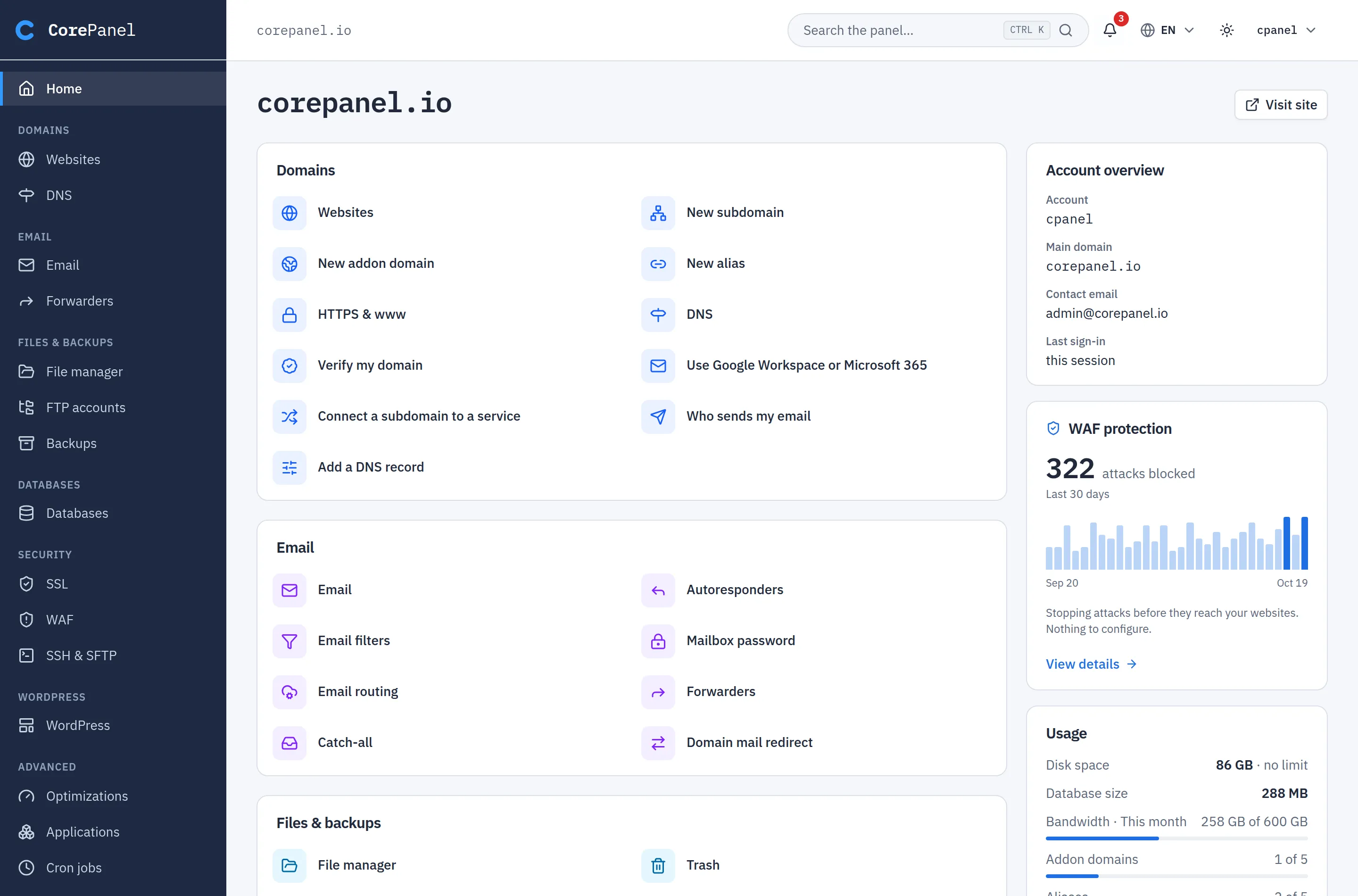
HomeTheir primary domain, when they last signed in, and — depending on which layout they use — either a summary of the account or the page of icons
WebsitesEvery domain and subdomain the account serves: adding an addon or parked domain, adding and removing subdomains, and the per-site settings — serving mode, the optimization switches, the canonical hostname and Force HTTPS
WordPressTheir WordPress installs: install a new one, log into wp-admin in one click, update core, plugins and themes, harden a site, check its integrity, and take or roll back a restore point
EmailThe mailboxes of the account’s domains: create and delete them, set their size, change their password, suspend one, and per mailbox its aliases, autoresponder and filters
ForwardersWhere mail goes when no mailbox answers: forwarders, the catch-all and the whole-domain redirect
DatabasesThe account’s MySQL databases and their users: create, delete, change a password, change privileges, browse tables, import and export a dump
SSLThe certificates covering the account’s own sites: what the free automatic certificate covers and when it renews, and — if you allow it — installing a commercial certificate they bought, on their own domains
Files & FTPThe FTP logins that reach their files: add one confined to a single directory, change a password, delete one
BackupsCopies of their own account: the ones you took and the ones they took, with a download link for each — and, if you allow it, a button that takes a new one
ApplicationsThe applications you set up for them: deploy a new version, roll back to an earlier one, start and stop it, read its journal and edit its environment
Cron jobsTheir scheduled commands: add, edit, enable, disable, delete and run one now
NotificationsThe events about their own account — sites, mailboxes, backups, WordPress — and whether those reach their mailbox
My accountTheir username, primary domain, contact details, how the panel is laid out for them, and the form that changes their password

Every one of them is the screen you already know from the account workspace, reading the customer’s own account instead of the one you picked from a list. There is no second implementation to keep in step, and no page that behaves differently depending on who opened it — the difference is entirely in which account the request is allowed to name.

The account’s own domains and subdomains, and the settings that decide how each one is served.

A customer can add a domain alias or an addon domain and add or remove subdomains, within the allowances the account was sold. Per site they can change the serving mode, the optimization switches — WebP, minification, Early Hints and the dynamic page cache — the canonical hostname (www or bare) and Force HTTPS.

Which of those switches appear at all follows the licence, exactly as they do for you: minification and the dynamic cache are Pro and above, and on a Personal server they are not rendered rather than shown greyed out. The client panel carries no upsell copy — the customer is not the buyer.

What stays with you is the routing underneath: DNS records and reverse proxy routes are not in the client panel. A DNS record is how the internet finds the site, and a proxy route decides which process answers a path — both are the kind of change that takes a site down in a way the customer cannot diagnose and you get called about anyway.

The whole WordPress Manager, for the account’s own installs, with nothing taken away.

A customer can install WordPress on one of their domains, adopt one that is already there, open wp-admin through a one-time login link, update core, plugins and themes and set what updates automatically, apply the hardening switches, check the install’s integrity and repair it, toggle maintenance mode, debug logging and search-engine visibility, and take, restore or delete a restore point.

That it is the full screen is the decision, not an oversight. Every one of those acts is one the customer could already perform against their own files — they own the docroot, and an account with FTP or shell access reaches WP-CLI regardless — so a panel that offered less would only be slower, not safer. The two ceilings that bound it, on installs per account and on stored restore points per account, are the same numbers that apply when you do it yourself; restore-point artifacts live on the panel’s disk rather than in the customer’s home, which is why the second one exists at all.

What a customer cannot do is name somebody else’s site. Every request is pinned to their own account before it reaches the data, and the one shape that survives that — their own account together with an instance or a restore point belonging to their neighbour — is refused by the server that owns the row. A rollback is the reason that matters: it overwrites files and the database from a snapshot, so a site pointed at the wrong instance would be a customer restoring their neighbour’s site over their own.

Two smaller notes for support:

  • The install form asks for a domain by name. The customer types one of their own; the server resolves it against their account and refuses anything else. A typo comes back as an error, not as an install in the wrong place.
  • Detaching is not deleting. It removes the site from the managed list and leaves WordPress exactly where it was — the customer’s files are untouched, and a rescan re-adopts it.

The mailboxes of the account’s own domains, and the same screen you use: the list with its storage meters, the create dialog, and per mailbox its password, size, suspension, aliases, autoresponder and filters.

The domain picker at the top lists the account’s domains only — its primary, its parked aliases and its addons. A subdomain never appears there, because a subdomain has no mail of its own; mail for blog.example.com is mail for example.com.

Forwarders, the catch-all and the whole-domain redirect are on their own page next to it, for the same domains.

Two things stay with you:

Anti-spam is not in the client panel. The thresholds and the allow/deny lists are set per server, per domain and per mailbox from the same call, and the server-wide setting is the one that decides what the whole box rejects — so until a customer’s request can be pinned to their own mailbox, and until their writes stop re-applying the mail server’s configuration on every save, the tab is not offered. A customer who is losing mail to the spam filter asks you, and you fix it per mailbox.

DKIM, SPF and DMARC stay with you too, for the same reason DNS does: they are records in the zone, and email authentication is something you set up once per domain and rarely touch again.

Create and delete MySQL databases, create users, change their passwords and change their privileges. Names are prefixed with the account’s username by the server, so a customer cannot create a database that collides with a neighbour’s.

The table manager comes with them. Clicking a database opens the same manager you use: an overview of its tables, browsing and editing rows, changing the structure, an SQL console with reads and writes, and import/export. It is what a customer migrating from cPanel looks for first, and without it a Databases screen can create a database and nothing else — it cannot fix a row, load the dump they arrived with, or read the table their site is erroring on.

Import/export is usually the first thing they use. A customer who has just moved hosts arrives holding a .sql from their old panel: they create a database, open it, press Import and pick the file. Export gives them the same file back, gzipped, whenever they want a copy — which also means “take a backup before I try something” is something they can do for themselves. A dump is loaded through a MySQL user granted that one schema and nothing else, so a crafted dump cannot write into a neighbour’s database, grant itself privileges, or read a file off the host; and because the ceiling on a dump is 512 MB, moving a whole account still belongs in backups.

How it is kept safe is worth knowing, because it is not a filter on what they type. Each account gets its own MySQL user, owned by the panel and invisible in their users list, holding privileges on exactly the databases their account owns. Their console statements run as that user, so MySQL itself refuses anything that names a schema they do not own — a qualified SELECT, a USE, a subquery, information_schema or LOAD_FILE alike. There is no statement a customer can compose that reaches another account’s data, and no parser of ours that has to keep up with the ways of writing one. The connection also carries a statement timeout and a row ceiling, because a slow query is a cost every account on the box shares.

The Activity tab is yours alone. The processlist is the whole MySQL instance’s: it shows other accounts’ statements while they run, and credentials appear inside statements. It is absent from the customer’s manager, and so is killing a session.

SSL: read the automatic one, install their own

Section titled “SSL: read the automatic one, install their own”

The customer sees the managed certificates covering their sites: which hostnames are covered, whether the certificate is valid and when it renews. That is usually the whole question — “is my site secure?” — and it is answerable without any button.

Installing a commercial certificate is theirs too, and it is on by default. The person who bought the certificate is the customer, and the person who will have to buy the next one is the same customer; routing every OV certificate through you made a support ticket out of a form. Turn it off in Server → Settings → Client panel if you would rather do it yourself — that stops installing and never stops removing, so nobody is left holding a certificate they cannot replace.

Three limits hold whatever the switch says. It covers the web only: mail and FTPS keep using the automatic certificate, and the dialog says so before anyone pastes a key. A customer may only name a host their own account owns. And the panel’s own hostname is excluded even from the account that owns the zone under it — that name is the server’s identity, not a site.

FTP accounts are the customer’s to hand out

Section titled “FTP accounts are the customer’s to hand out”

The same screen you see in the account workspace, and for the same reason cron is: an additional FTP login signs in as the account’s own system user, confined to a directory inside its own home. A customer who wanted to give their designer access could already do it by sharing the account password — this is the narrower version of that, so withholding it would push them toward the worse option.

Two things stay the same for both audiences. The account credential — the login named after the system user — cannot be deleted by anyone, because it is what the hosting account itself signs in with. And a new login is named user@domain with the domain checked against the account’s own: FTP usernames are unique server-wide, so that check is what keeps one customer from claiming a name another account may need.

The directory a customer types is confined to their home by the server, and again by the root daemon that creates it — which is the side that can tell a directory from a symlink pointing somewhere else.

The Files & FTP screen of the client panel: a "Connection details" card giving the host ftp.corepanel.io and port 21, and below it a table of FTP accounts — "cpanel", tagged "Account credential" and reaching "The whole account", and "designer@corepanel.io", confined to public_html/wp-content/uploads. Each row offers "Change password"; only the second offers a delete.

It is the same screen you see in the account workspace, with nothing taken away, and that is deliberate: a cron job runs as the account’s own system user, under the same limits, and an account with shell or FTP access could schedule work for itself regardless. The per-account ceiling on the number of jobs is the same number for both of you.

What a customer still cannot do is point a cron job at somebody else’s account. Every request is pinned to their own account before it reaches the data, and a request naming their own account with a job belonging to their neighbour is refused by the server that owns the row — not by the panel, and not by the browser.

The panel carries none of your chrome: no accounts list, no server settings, no firewall, no licence, no server-wide notification settings. That is not a matter of hiding buttons — the API refuses every administrator method to a customer’s session, whatever their browser is showing.

Backups are readable always, writable only if you say so

Section titled “Backups are readable always, writable only if you say so”

Backups shows every backup and restore of that account — the ones your schedule produced, the one you took by hand before a risky change, and the ones the customer took themselves — with the size, the outcome, the per-resource report and a Download link for each finished archive. That much is always available and no setting turns it off: the archive is a copy of the customer’s own files, databases and mail, and a switch that took it away from them would be withholding their own data.

Taking a new one is off by default, and turning it on is a decision about your disk. Server → Settings → Client panel carries the switch:

  • The archive is written to the panel’s own disk (/var/lib/corepanel/backups), which the account’s quota does not reach. A customer with a 10 GB account can therefore spend 10 GB of your space, and two hundred of them can spend two hundred times that.
  • CorePanel bounds it rather than leaving it open-ended: a customer’s two most recent archives are kept, and taking a new one deletes their oldest. Your own backups are never touched by that — a backup you took by hand is kept until you delete it, and scheduled ones follow the retention you set.
  • One backup runs at a time per account, and there is an hour’s cooldown between them. A customer pressing the button twice gets a message, not a second mysqldump on the database server everybody shares.

Because of the rotation, the panel tells the customer plainly that the way to keep a copy is to download it. That is the shape of the feature: a self-service copy to take before they change something, not an archive.

The Backups screen of the client panel: the heading "Backups" over the line "Copies of your files, databases and email, and where to download them", with a "Back up now" button at the right. Below it a table of two completed backups of 1.1 GB each, one taken two days ago and one this morning, each row offering "Details" and "Download". Under the table, a note reads "Only your most recent backups are kept: taking a new one removes the oldest. To keep a copy for longer, download it."

Restoring is not in the client panel and is not planned for it. Restoring an account is not the inverse of backing one up — it recreates the system user, rewrites credentials and can leave the account without the password it signs in with. It stays an operator’s act, so a customer who needs one asks you, and the panel says so instead of showing a button that always refuses. Remote destinations are absent for a related reason: they are your storage, reached with your credentials.

A restore you ran on their account does appear in their list, without a download link. Hiding it would leave a customer unable to see that their site was rolled back.

The customer has their own bell and their own feed, under Notifications. What it holds is the account owner copy of each event — the same one that has always been emailed to them (Notifications) — and nothing else: your copy of the same failure, and everything about the server itself, is not in it.

The scoping here works differently from every other section, and it is worth knowing which question the server is answering. Elsewhere a request names a domain or a database and the server checks it belongs to the caller. A notification names no account at all: the request carries no identity, and the server derives the audience from the session before it reads a row. So there is nothing in the request for a customer to point at their neighbour — the parameters that would widen it (asking for the administrator’s audience, or for all of them at once) are stripped on the way in and count for nothing.

The Notifications screen of the client panel: a severity filter and an "Unread only" toggle above a feed of five entries — a warning that a known vulnerability affects the Contact Form Lite plugin on example.com, an informational WordPress update, a warning that the account is close to its disk limit showing 8.6 GB of 10 GB and a ×2 chip, a completed backup and the account's own creation. Unread entries are highlighted and offer "mark as read" and delete. Below the feed, an "Email me about this" card gives the recipient address, a "Send me email" switch and a minimum severity of Info.

What a customer may do here is read their own entries, mark them read, delete them, and decide what reaches their mailbox:

  • Send me email — off keeps everything on the page and mails none of it.
  • Minimum severity — the floor. Info by default, which is the opposite of your own default and deliberate: “your backup finished” is not worth an email to whoever runs the server and is exactly what a customer wants to hear about their own account.

The digest interval and the From address are absent, not disabled — they are the server’s, and a control that saves nothing is worse than no control. Sending a test is yours too.

Marking read is per audience: a customer clearing their feed does not touch yours, and reading yours does not clear theirs.

In a support session you can read this card but not save it (logging in as a customer). There is no administrator method that writes an account’s notification preference, so allowing it through impersonation would hand support something you do not otherwise have — and muting a customer’s own alerts is the kind of change nobody would think to look for afterwards.

Applications: they deploy it, you decide what it is

Section titled “Applications: they deploy it, you decide what it is”

Applications is the one section split between the two of you, and the line is worth being explicit about, because it is the difference between hosting an application for somebody and handing them the machine.

Yours: creating an application, changing it, and deleting it. Those write the specification — which program systemd executes, how much memory and CPU it may take, which site and path it is published under, and its CI deploy token. That decides what runs on your server rather than what runs in one account, so it stays in the account workspace and a customer never sees the buttons.

Theirs: everything that happens afterwards, which is the loop they live in.

  • Deploy — upload a .tar.gz from the browser, or deploy one already sitting in the account’s home. The release is started, probed through its own socket, and rolled back automatically if it does not answer — the customer sees the same result you would, the journal tail included.
  • Roll back — activate an earlier release from the history, and back again.
  • Start, stop, restart — with the same effect on whether it comes back after a reboot.
  • The journal — the unit’s own log, which is where a failed deploy explains itself.
  • The environment — add, change and remove variables, mark one secret, reveal one when they need to read it back. Revealing is recorded in the audit trail with the customer named, exactly as it is when you do it.

Opening the environment to the customer is not the concession it looks like. Whoever deploys the code chooses what reads those variables, so keeping the editor from them would stop them configuring their own program without stopping them doing anything else. Note the consequence, though: an environment variable you set for them is a variable they can read and replace. If a credential must not be theirs, it does not belong in their application’s environment.

An account whose plan grants no applications (the Applications allowance is 0, which here means none rather than unlimited) sees the section say so, rather than an empty table.

Granting an application grants deploys, and deploys land on your disk. A release is unpacked under /opt/userapps/<account>/<application>/, not in the account’s home, so the customer’s quota does not bound it — the same way a backup does not. What bounds it is release retention: the active release plus the three before it, and each extraction is capped at 8 GiB. So the worst case per application is four releases’ worth of unpacked files, and the worst case per account is that times its Applications allowance. Set the allowance with your /opt in mind, the same way you would size /var/lib/corepanel/backups before turning on customer backups. Uploads in flight are smaller and transient: at most 512 MB each, two open at a time per customer, and swept within the hour.

One application open in the client panel: the header "api", tagged RUNNING and published at corepanel.io/api, with Deploy, Stop and Restart at the right — and no Edit or Delete. Below it the specification read-only (start command ./server --addr unix, limits 512 MB · 100% CPU · 128 tasks, outbound network "Internet and DNS", health path /healthz), a "System status" card giving the unit, active state, main pid and restarts as systemd reports them plus a Health check reading "Answering", and a "Releases" table of three releases, the newest tagged ACTIVE and the two older ones each offering "Roll back".

Security: their own attack radar, and none of the controls

Section titled “Security: their own attack radar, and none of the controls”

Security gives the customer the WAF view of their own sites: what was blocked, when, from where, and which protection stopped it. It is the same radar you read on the server’s Overview, narrowed to their account — the hero counters, the per-day chart, the top attacking addresses, the countries they came from, the protections that fired most, and the last ten events with the full request behind each one.

The Security screen of the client panel: a site selector reading "All my sites" and a 7D/30D/90D range switch, then three cards — 322 blocked, 43 detected (logged, not blocked) and a last activity of 19 minutes ago over 365 threats seen. Below them the Attack radar, a stacked bar per day of blocked (amber) and detected (grey) threats across a month. At the bottom three cards: Top attackers listing client IPs with a country flag and when each was last seen, "Where they came from" ranking countries, and "What they tried" naming the protections that fired — SQL injection attempt in POST, XSS injection attempt in headers, wp-login POST without Referer. Under them the Recent activity table begins, its first column headed Reference and its first row WAF-4205.

It is read-only, and deliberately so. Every method that configures the WAF — the protection packages, the per-rule toggles, the exceptions and the trusted-IP lists — stays yours. A customer looking at a blocked request cannot switch the rule off for themselves, because the shipped policy protects the whole server and a customer with a false positive is not the person to decide what happens to it.

What they get instead is the event reference. Every event carries one — WAF-1284391 — shown on each row, in the detail dialog and copyable with one click. When a customer writes “my contact form is being blocked”, the reference is what turns that into something you can look at: paste it into the Reference field of your own event log and you are on the exact request, with its headers, form fields and body, ready to write the exception. Without it the conversation starts with “which form, and when?”.

The event detail dialog open over the customer&#x27;s Recent activity table. Its header reads "Event detail" beside the reference WAF-4205 with a copy icon, and a BLOCKED badge. The body gives the target api.startup.dev with a timestamp, a Network block (remote IP 192.140.58.88, country BR, rule LFI-002 "Local file inclusion"), the request line GET /index.php?page=/etc/shadow, the four captured headers including a masscan User-Agent, and an empty body. The footer offers only Close — no "Add exception".

The scoping works like Notifications rather than like the sections above it: the request names no account. The web server stamps every stored event with the account whose site was hit, and the panel derives that account from the session, so a customer asking for somebody else’s events — or quoting a reference that is not theirs — gets the same “not found” an event id that never existed would produce.

When the window is quiet, the page says so in a sentence instead of showing six empty cards. That is the normal state of a well-defended site, and it should not read as a broken page.

Files is not there. A customer manages their files over FTP for now — the file manager is yours — and one asking for it asks you. The sections are being opened one at a time, and each one arrives only after the same review the sections above went through.

The client panel has two navigations, one set of pages. Whichever a customer is using, the sections are the same, the URLs are the same and what they may do is the same — the only difference is the shape of the home page.

  • List view — a menu of sections down the side and a summary of the account on the home page: how many domains, subdomains, databases and cron jobs there are, and the list of every domain the account serves. This is CorePanel’s own layout, and the default.
  • Icon view — the home page is a page of grouped icons, in the shape a customer coming from cPanel already knows. Nothing else changes: clicking an icon opens exactly the page the menu would have.

The client panel in icon view: the account&#x27;s domain and a "Visit site" button across the top, a full-width "Search the panel" box below it, and then panels of labelled icons grouped under Websites (Websites, SSL, WordPress), Email (Email, Forwarders), Files &#x26; data (Databases, Files &#x26; FTP, Backups), Automation (Applications, Cron jobs) and Account (Notifications, My account), two panels to a row. The header bell carries an unread badge of 3.

Opening one WordPress site, or one database, gives that thing a menu of its own down the side. The panel’s own menu shrinks to a column of icons while the customer is in there, rather than disappearing: pointing at it — or tabbing into it — opens it back over the page, and leaving the site or the database restores it. Icon view does the same, since both views share these screens.

⌘K (Ctrl+K on Windows and Linux) opens a search over every section, in both views — and it is the search box at the top of the icon view too. It matches what a customer is likely to type rather than only the name on the screen: “mysql” and “phpmyadmin” find Databases, “certificate” finds SSL. Arrow keys move, Enter opens, Escape closes.

Both of you, in that order:

  • You set the default in Server → Settings → Client panel layout. It applies to every account that has not chosen for itself — including every account that exists today, since none of them has. The card only appears on Business, and only for super-administrators.
  • The customer can override it in My account → Appearance, or from the menu under their username, where a single entry switches to the other view. Their third option is “Whatever my provider chooses”, which is what puts them back under your default.

The choice is stored on the account, not in the browser, so it follows the customer to their phone. Changing your default moves everyone who never chose and nobody who did — which is why “follow the provider” is a real setting rather than the absence of one.

A support session can look, but not save. While you are signed in as a customer the menu still switches views — labelled “This session only” — so you can see exactly what they see, or show them the other layout. Nothing is written: close the tab and the customer’s panel is as they left it. The saved preference is theirs, like the password, and the server refuses to change it from a support session. Flipping to the icon view to find something and then leaving must not rearrange their panel for good.

Upgrading an existing server changes nothing: the default is list view, so no customer’s home page is rearranged without you asking for it.

The panel is translated into English, Spanish, German, Indonesian and Brazilian Portuguese. The globe in the header switches between them, in both views — and it is on the login form too, before anybody has signed in.

A customer who has never chosen gets whatever their browser asks for, which is why most of them never open the menu. Once they do choose, the choice is stored on the account, not in the browser, and it wins over the browser from then on. That is the same rule as the layout and it is there for the same reason: it follows them to their phone, and a language that reset on a new device would read as a bug.

Portuguese resolves generously. A browser set to pt, pt-PT or pt-BR lands in Brazilian Portuguese in all three cases. There is no European Portuguese catalogue, and a reader who would understand nine words in ten of the Brazilian one is better served by it than by English. Anything the panel does not speak at all falls back to English rather than to a half-translated screen.

Two places the menu behaves differently from what you might expect, both on purpose:

  • A support session switches the language and writes nothing. Signed in as a customer you can put the panel into their language to see what they see, or into your own to read an error message — and when you close the tab their account is exactly as they left it. The language is theirs, like the password and the layout.
  • The menu still works while the forced password change is up, which is the one screen where it matters most: a customer who cannot read the page they are being asked to act on can switch first. Nothing is stored on the account until the wall comes down, so tell them to pick again afterwards if they want it to stick.

What the language does not change is the mail. Notifications are composed on the server, which does not consult the account’s language, so a customer who set the panel to Indonesian still receives the notification digest in English. The screen is translated; the message about it is not, yet.

New in this release, and worth knowing about before a customer trips one: there are now hard per-account ceilings on how many domains, subdomains, mail aliases, MySQL users and mailbox filter rules an account may hold. They sit underneath the allowances a hosting package sets, and they apply even when a limit is 0 — which everywhere else in CorePanel means unlimited.

They exist for one shape of problem, and it is not the customer who miscounts: a client panel is a scripted API endpoint, and a loop that creates aliases until something breaks would otherwise break the mail server rather than the request. The numbers are set high enough that a real account never meets them — if one of your customers does, the message names the ceiling and you should be reading it as a signal about that account rather than as a limit to raise.

Also worth stating, because it surprises people migrating from another panel: a MySQL user created in the client panel may only connect from the server itself. Opening a database to a remote address is a firewall decision and a server-wide one, so it stays yours. An application hosted on the same server — which is nearly always the case — is unaffected.

Some accounts arrive with a password CorePanel has never checked. The most common case is an import from another control panel: the hash is preserved so the customer’s existing password keeps working, which also means it has never been measured against this server’s policy — and it may be an md5-crypt hash from 2011.

Those accounts can sign in, and can then do exactly one thing: choose a new password. Every other screen and every other request is refused until they do. The same happens to an account whose password turns out to be weak — sign-in is the only moment the password exists in the clear, so it is the only moment it can be judged.

The requirements are 12 characters or more, with upper and lower case, a digit and a symbol; passwords that are common, or that are built out of the username or the domain, are refused whatever their shape. Only the parts of the name the account actually owns count — example in example.cloud, not cloud, which it shares with everybody else under that extension.

The change form offers to move the FTP password with it, and ticks that by default. The account password and the main FTP user’s start out as the same string, so hardening only the panel would leave the weak one still answering on the port bots knock on.

Accounts → the account → Access → Client panel.

The toggle is the one thing you write. Turning it off refuses the next sign-in and ends the sessions that are already open — the panel re-reads the flag on every request, so a revocation takes effect in seconds rather than whenever a 24-hour session happens to expire.

The card shows more than the toggle, because “my customer cannot log in” is almost never the toggle. It also tells you:

  • whether the licence includes the client panel at all,
  • whether the account is suspended — a suspended account cannot use the panel,
  • whether a password change is pending, which lets the customer in but no further,
  • when they last signed in.

The same four answers, and a plain verdict line, come from the command line:

Terminal window
corepanel account panel status acmecorp
corepanel account panel disable acmecorp
corepanel account panel enable acmecorp

See the CLI reference for the exact output.

Neither direction is gated by the licence. Disabling has to keep working on a server whose licence has lapsed, and gating enable would leave you able to turn access off and unable to turn it back on.

Accounts → the row’s Log in as customer button, or Accounts → the account → Access → Client panel → Log in as customer.

It sits in the list because that is where you find the customer who has just written in; the copy in the account’s Access section is next to everything that decides whether it will work.

When a customer writes in describing a screen, the fastest answer is usually to look at that screen. The button opens their panel in your browser: same sections, same data, same limits they have — without asking them for their password, and without you having to reset it.

While you are in there, a band across the top of every page says Viewing as <customer> with a Leave button. It is not a toast and it cannot be dismissed: everything under it is somebody else’s account, and every change you make lands on it. Leave puts your own session back with whatever time was left on it — impersonating and leaving is not a way to keep a session alive indefinitely.

Four things bound what a support session is:

  • It is scoped to that one account. While it lasts, your server-wide surface is gone: the accounts list, the firewall, the licence and everything else answer the same refusal a customer gets. To reach them again, leave.
  • It lasts up to 30 minutes and cannot be renewed. Never longer than what is left of your own session, either — it is your authority, borrowed. Starting one is an administrator’s act, and inside the session you are not an administrator, so it cannot extend itself. When it runs out you land back on the login form.
  • It cannot change the customer’s password. That credential is also their system and FTP password, and a support tool able to rotate it could take an account away from the person who owns it. If it genuinely has to be reset, do it from the account’s Access section — as yourself, where it is recorded as a reset rather than as the customer choosing a new one.
  • Everything you do is recorded as yours. Each action carries both identities into the log — the account it touched and the administrator behind it — so “who deleted this database” is never answered with “the customer” when it was support.

It is read-write on purpose. A read-only variant sounds safer and produces a support session that cannot fix the thing you opened it for.

The button is unavailable, with the reason on hover, when the resulting session would be useless anyway: on a server whose licence does not include the client panel, on a suspended account, and on an account whose panel access you have turned off. Lift the one that applies first — the server refuses the attempt for the same reason, so a session is never issued that would fail on its first request.

Any administrator can use it. It grants nothing you did not already have — every account is yours to read and write from the accounts list — what it changes is the shape: one account, seen the way its owner sees it.

Nothing stops serving. Sites, mail, databases and FTP are untouched, and you still administer everything exactly as before. What ends is your customers’ self-service — and because they did not make the decision that ends it, they get a warning and a window rather than a door closing overnight.

Your customers keep signing in for 5 days. For those five days the client panel shows a band across the top of every page: this server’s license has expired, contact your hosting provider, with the number of days left and a reminder that their sites and email are not affected. After that the logins stop, and the login form says the same thing.

The five days are counted from the moment Business actually stopped applying, which is not always the licence’s own end date: a licence that expired counts from its expiry, one that lapsed because check-ins kept failing counts from the end of that grace window, and a revoked one counts from when we found out.

You are told first, and earlier: the panel raises a notification and CorePanel emails you at 7, 3 and 1 days before the licence ends, and once after it has. The emails for a Business licence spell out this five-day window explicitly, because it is the part of lapsing that lands on somebody else.

Worth stating explicitly, because it is the question every hosting provider asks first:

  • Another account’s anything. Every request a customer makes is pinned to their own account before it reaches the data, and a request naming somebody else’s resource fails with the same error a resource that does not exist would produce — so the panel cannot be used to find out what else is on the server.
  • Server-wide settings. Firewall, WAF policy (they see the attacks on their own sites, never the rules, exceptions or trusted IPs behind them), licence, telemetry, packages, imports, the accounts list, service states and the server’s notification settings are administrator-only and stay that way regardless of who owns what. A customer’s own notification preference is theirs; the digest interval and the address the mail is sent from are not.
  • The operator’s tools inside the sections they can see. DNS records, reverse proxy routes, MySQL activity and the process list, anti-spam thresholds, email authentication records and the server-wide certificate inventory are absent from the client panel even though the customer manages the site, the database, the mailbox and the certificate they belong to. Each one is either a change whose blast radius reaches past the account or an answer that describes every tenant on the machine rather than one.
  • Their own limits. A customer cannot change their disk quota, their account count or their application allowance. Those are yours to set.