Speed Optimizations
A WordPress site on CorePanel can be sped up at the web-server level, without a caching plugin, a build step or a single change to the site’s code. Four of the switches are transformations of what the site returns; the fifth — the dynamic page cache — skips building the page at all, and is the one that turns a server that dies at 20 visitors into one that serves thousands.
This page is the operating manual: what to enable, in what order, how to prove it is working, how to turn it off, and what each failure looks like from the panel. The reference for each individual switch — and the benchmarks — lives in Web Optimizations; how the plugin decides what may be cached is in the cache module.
| Switch | What it does | Editions |
|---|---|---|
| Automatic WebP | Serves images as WebP to browsers that accept it | All, including Personal |
| Early Hints | Announces a page’s key assets while PHP is still building it | All, including Personal |
| Minify JS / CSS | Strips whitespace and comments on the way out | Speed Optimizer — Pro and above |
| Dynamic page cache | Answers a repeat visitor without running PHP at all | Speed Optimizer — Pro and above |
Everything here is per site. A hosting account with a primary domain, an addon domain
and two subdomains has four independent sets of switches, and nothing is inherited between
them: turning the cache on for example.com leaves blog.example.com exactly as it was.
Before you start
Section titled “Before you start”Five things decide whether this will work at all. Check them once, at the beginning, and most of the troubleshooting section below never applies to you.
- The edition. WebP and Early Hints are in every edition. Minification and the page cache are the Speed Optimizer, which needs Pro or Business. On Personal those rows are shown locked in your panel, and are not rendered at all in a customer’s.
- CorePanel must know the site is WordPress. The page cache installs its companion
plugin into the WordPress instances CorePanel manages. A site that was copied in by hand
and never scanned is, as far as the cache is concerned, not WordPress — see
Adopting sites that are already there,
or run
corepanel wp scan <account>. - Not on an alias. An alias (parked) domain serves a copy of another domain’s site, and WordPress invalidates by path — it never learns which hostname the visitor came through. CorePanel refuses to cache one. Enable it on the domain the alias points to; the other optimizations work on an alias normally.
- One page cache at a time. If WP Rocket, LiteSpeed Cache, W3 Total Cache, WP Super Cache, WP Fastest Cache or Cache Enabler is active, CorePanel’s companion stands down and declares nothing — two page caches fight over the same output buffer. Remove the plugin cache first.
- A site that is being edited is a site to leave alone. The cache is safe during a redesign, but comparing before-and-after numbers while a theme changes underneath you proves nothing.
Where the switches are
Section titled “Where the switches are”In the panel, open the account and go to Optimizations. The selector at the top right picks which of the account’s sites you are configuring — every domain, addon, alias and subdomain is listed, each with its own settings.
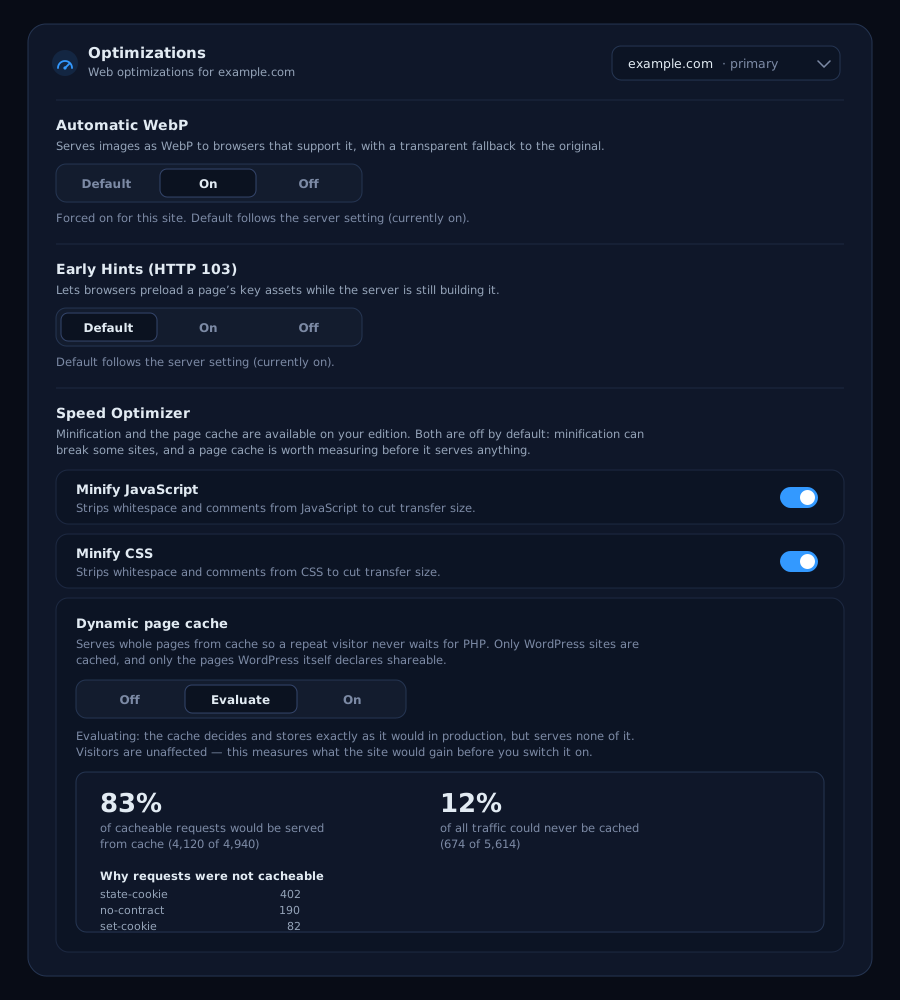
Customers with access to the client panel get the same section for their own sites, under Websites. Everything in this guide applies to them too.
Each switch takes effect on the next request — the site file is rewritten and the web server reloads, with no downtime and no restart of anything the visitor can notice.
Turning them on, in an order that stays boring
Section titled “Turning them on, in an order that stays boring”Enable them one at a time, in this order, and check the site after each. The order is not arbitrary: it goes from the change least likely to be visible to the one that changes what a visitor is actually served.
1. Automatic WebP
Section titled “1. Automatic WebP”Set it to On. It is the largest single win on an image-heavy site, it costs nothing, and it cannot break a page: browsers that do not accept WebP keep receiving the original file, and the files in the document root are never touched.
corepanel domain optimizations set example.com --webp onHow much it saves is decided by what was uploaded. Flat graphics — screenshots, logos, exports — are what PNG handles worst and WebP best; photographs that were already exported sensibly give up far less. The measured range is here.
2. Early Hints
Section titled “2. Early Hints”Leave it on Default (which is on) unless you have a reason not to. It only affects responses that take time to build — PHP-FPM and proxied backends — and lets the browser start fetching the stylesheet while WordPress is still working.
3. Minify CSS, then JavaScript
Section titled “3. Minify CSS, then JavaScript”Turn on Minify CSS, load the site, then turn on Minify JavaScript and load it again. Two separate steps, because if something breaks you want to know which one did it.
corepanel domain optimizations set example.com --minify-css oncorepanel domain optimizations set example.com --minify-js onMinification is generally safe, but it is a transformation of what your application returns. Sites that depend on the exact bytes of a script — an integrity hash, an inline source map — are the ones that notice.
4. Page cache: Evaluate first
Section titled “4. Page cache: Evaluate first”Do not go straight to On. Set the cache to Evaluate and leave it there for a few days of real traffic.
corepanel domain optimizations set example.com --page-cache shadowIn Evaluate the cache decides and stores exactly as it would in production, and serves none of it. Visitors get the same site they got yesterday. What you gain is the only honest answer to “is this worth it for this site”, which cannot be guessed from the outside: a news site and a membership site with identical traffic land in completely different places.
This is also the step that installs the companion plugin — see what switching it on actually does below.
5. Read the report, then switch it On
Section titled “5. Read the report, then switch it On”While a site is evaluating, the Optimizations section shows what the cache is finding, and the CLI reports the same numbers for every site being measured:
corepanel cache stats # every site under evaluation, busiest firstcorepanel cache stats example.com # just this oneHOSTNAME REQUESTS HIT% BYPASS% TOP BYPASS REASONexample.com 5614 83.4 12.0 state-cookie (402)Two numbers, kept deliberately apart:
- HIT% — of the traffic the cache could serve, how much it would have served from cache. This is the number that says whether switching it on is worth it.
- BYPASS% — how much of all traffic could never be cached at all. A shop where every visitor carries a cart is not a site with a bad cache; it is a site the cache cannot help.
A site above roughly 60% HIT% with a low bypass share will feel dramatically faster. A site whose bypass share is most of its traffic will not, and no setting will change that — what the reasons mean is below.
When the numbers say yes:
corepanel domain optimizations set example.com --page-cache onLeaving Evaluate is clean: everything stored while evaluating is discarded rather than served, so nothing built under rules you were still testing ever reaches a visitor. The only cost is that those pages are generated once more.
What switching the cache on actually does
Section titled “What switching the cache on actually does”Four things happen, and knowing them is most of the troubleshooting:
-
The site file gains a cache configuration and the web server reloads. The only caching policy CorePanel ever writes is the application decides: the engine stores a page when, and only when, WordPress declares that page shareable.
-
The companion plugin is installed or refreshed at
wp-content/mu-plugins/corepanel.php, in every WordPress instance that belongs to this site. It is the same must-use plugin that already provides one-time login links and hardening; if the site had it, it is brought up to date. -
The site is told the cache is running, per request, through two FastCGI parameters. Without them the plugin registers no hooks at all — which is why having it installed on every managed site costs nothing, and why enabling the cache later needs no visit to the site.
-
Invalidation starts flowing back. Publishing, editing or deleting a post drops its permalink, the front page, its archives, the feed and the sitemaps; a comment drops the page it lives on; a theme switch, a plugin activation or a permalink change drops everything. The signal travels on the very response that made the change, including the admin
POSTthat is never itself cached. -
Updates drop everything too. Updating a plugin or a theme — from the panel’s WordPress section, or from the plugins list in wp-admin — empties that site’s cache, and so does rolling the site back to a restore point. Updates run from the panel have no page load to carry the signal, so the panel empties the cache itself once the update succeeds.
Updating WordPress itself is the one case where the signal cannot ride the update’s own page — by then it has already started printing — so it is carried by the next screen you open in wp-admin, normally the very next click. An automatic update from cron has no page at all, so the site fetches one of its own and empties the cache within the run.
Pages are stored with a lifetime of up to a year, which is only safe because freshness comes from that invalidation rather than from a timer. The plugin also caps a page’s lifetime whenever it mints a WordPress nonce, so a cached page can never hand out a security token that has already expired.
Verifying it is working
Section titled “Verifying it is working”While the site is evaluating, the engine reports its verdict in a response header. This is the only mode that emits it:
curl -sI 'https://example.com/' | grep -i x-px-cacheX-Px-Cache: would-hitThe values are would-hit, would-miss and bypass:<reason> — the same vocabulary the
report counts. Fetch a page twice: the first request is a would-miss, the second should
be a would-hit. A bypass: on a plain anonymous page view is the interesting case, and
the reasons are below.
With the cache On there is no such header — a live site does not advertise its cache state to visitors — so measure the thing you actually care about instead:
curl -s -o /dev/null -w 'ttfb %{time_starttransfer}s\n' 'https://example.com/'curl -s -o /dev/null -w 'ttfb %{time_starttransfer}s\n' 'https://example.com/'The second call should come back in single-digit milliseconds plus your network latency. If both calls are equally slow, the page is not being served from cache; start at the cache is on and nothing got faster.
The safety check worth doing once, on any site with logins: sign in, load a page you know is cached, and confirm you see your admin bar and your own content. A logged-in visitor is never served a cached page — this is enforced in the plugin and independently in the engine, which refuses to store any response that sets a cookie.
Day to day
Section titled “Day to day”Nothing. WordPress refreshes its own cached pages as content changes, so a site publishing posts, taking comments and updating plugins keeps itself fresh without anyone touching the panel.
What WordPress cannot signal is a change it never saw:
- a theme or template edited over SFTP or in the file manager,
- a database restored underneath the site,
- a page that was cached while something was already wrong.
For those, Empty cache in the Optimizations section drops every stored page for the selected site. The button only appears while the cache is On. From the CLI:
corepanel cache purge example.com # the whole sitecorepanel cache purge blog.example.com / /feed # just those pagescorepanel cache purge example.com "/2026/*" # everything under a prefixTwo things worth knowing. Every hostname of the site is emptied, not just the one you
named — a page is stored once per hostname a visitor arrived through, so example.com and
www.example.com hold separate copies; the panel and the CLI both report the hostnames
they reached. And emptying the cache is never blocked, even on a server whose licence
has lapsed: being unable to clear a wrong page is not an acceptable way to be reminded of a
renewal.
Clearing the cache costs the next visitor to each page one normal, uncached page load. There is no other side effect.
Turning it off
Section titled “Turning it off”| What you want | How |
|---|---|
| Stop serving cached pages for a site | Set the page cache to Off (--page-cache off). Effective on the next request; stored copies stop being reachable. |
| Stop caching one WordPress site from inside WordPress | define( 'COREPANEL_CACHE_OFF', true ); in wp-config.php. Hardening and login links keep working. |
| Rule the companion plugin out entirely while diagnosing | define( 'COREPANEL_MU_OFF', true ); in wp-config.php. This also disables hardening and one-time login links. |
| Keep a specific page out of the cache | add_filter( 'corepanel_cache_public', '__return_false' ); on that page — see the filters |
| Undo minification | Switch Minify CSS / Minify JavaScript off |
If you turn the cache off and on again around a change, empty the cache afterwards. It costs one uncached load per page and removes any doubt about what is stored.
Troubleshooting
Section titled “Troubleshooting”| Symptom | Most likely cause | What to do |
|---|---|---|
| Cache is On, nothing got faster | The companion plugin is not answering | See below |
no-contract dominates the report | Same, or the traffic is admin/REST | See below |
state-cookie dominates | Visitors are logged in or carrying a cart | Nothing to fix — the cache cannot help that traffic |
set-cookie dominates | A plugin issues a cookie on every response | Identify it; the engine will never store those responses |
vary dominates | A plugin emits Vary: Cookie indiscriminately | The report names the field; a per-visitor Vary cannot be cached |
| Old content after an SFTP or database change | WordPress never saw the change | Empty cache for that site |
www still shows the old page | Each hostname stores its own copy | Purge reports the hostnames it reached; if one is missing it is a separate site |
| A form stopped submitting | A stale security token | See below |
| Site looks wrong after enabling minify | An asset that must not be rewritten | Turn Minify JS off, then CSS, to find which |
| The page cache row is missing | Personal edition, or the site is an alias | Pro or Business; enable it on the domain the alias points to |
| ”The Speed Optimizer requires CorePanel Pro or Business” | The licence does not include it | Turning something off is always allowed, even unlicensed |
| The report is empty | No traffic yet, the server restarted, or the site is already On | Counters only run under Evaluate |
The cache is on and nothing got faster
Section titled “The cache is on and nothing got faster”This is the failure this feature can produce that leaves no trace in any log, and it has
one cause with four flavours: the companion plugin is not speaking, so every page is
bypassed as no-contract and the cache stores nothing at all.
Work down the list:
- Is the site a managed WordPress instance? Open WordPress in the panel and look
for it. If it is not listed, the plugin was never installed there — run a scan
(
corepanel wp scan <account>) and enable the cache again. - Is the instance attributed to this hostname? The plugin goes into the WordPress under this site’s document root. A WordPress living under a subdomain’s docroot belongs to the subdomain, and must have the cache enabled on the subdomain.
- Is the file there? Check
wp-content/mu-plugins/corepanel.php. Reinstalling WordPress or a migration that skippedmu-pluginsremoves it. Any of these puts it back: re-applying the cache mode from the CLI, toggling the mode in the panel, applying hardening, or clicking Log in. - Is something disabling it?
COREPANEL_CACHE_OFForCOREPANEL_MU_OFFinwp-config.php, or another page-cache plugin still active — the module stands down for both.
The quickest confirmation is Evaluate mode: set the cache to Evaluate, fetch a page twice
and read X-Px-Cache. A bypass:no-contract on an ordinary anonymous page view means the
plugin is not running; a would-hit means it is.
Reading the bypass reasons
Section titled “Reading the bypass reasons”The report names why requests could not be cached, busiest first. The ones that come up:
| Reason | Meaning |
|---|---|
state-cookie | The visitor is logged in, has a cart, or carries another state cookie. Normal, and the honest ceiling on a shop or a membership site. |
no-contract | Nothing declared the response cacheable. On a WordPress site with the plugin running this is normal for wp-admin, REST, AJAX and XML-RPC traffic, which never reach the page path at all — so a share of no-contract is expected. A site where it dominates the front-end is the case above. |
set-cookie | The response issued a cookie of its own. The engine never stores those, whatever the application says. |
vary | The response declared it varies on something the cache cannot distinguish. The report breaks it down by field: a language or encoding header can be handled; Cookie cannot. |
The report lists these names on their own; the X-Px-Cache header prefixes them, so the
same finding reads as bypass:no-contract on the wire.
Reasons the plugin declares on purpose — searches, previews, password-protected posts, visitors who have left a comment, 404s, cart, checkout and account pages — are working as intended, not problems to solve.
A form or a comment stopped working
Section titled “A form or a comment stopped working”WordPress security tokens expire, and a page cached for a long time could hand out a dead one. CorePanel already caps a cached page’s lifetime a minute short of the token inside it, so this should not happen — but a plugin that mints its own token with its own lifetime is outside that rule.
Empty the cache to confirm the diagnosis: if the form works right after a purge and fails again later, that is what it is. Fix it by shortening the page’s lifetime, or by keeping it out of the cache:
// This page: cache for an hour instead of the default.add_filter( 'corepanel_cache_max_age', function () { return HOUR_IN_SECONDS; } );A visitor sees another visitor’s page
Section titled “A visitor sees another visitor’s page”Prices in the wrong currency, a greeting with somebody else’s name, a members-only block on an anonymous page. A plugin is personalising the page through a cookie, and CorePanel does not know that cookie means “this visitor is different”.
The session, comment, WooCommerce and Aelia currency cookies are already handled. For anything else, name the cookie and the site stops sharing those pages at once:
corepanel domain optimizations set shop.example.com --state-cookies "my_currency"Full detail — including why the list survives your other setting changes, and what it costs — is in Cookies that mean “this visitor is different”.
A cookie consent banner
Section titled “A cookie consent banner”A banner that decides in PHP what the page contains turns one URL into two different pages, and only one gets stored. The companion recognises Cookie Notice & Compliance and CookieYes in its legacy mode and stops caching those sites outright, because the alternative is serving tracking tags to visitors who refused them. Complianz, Real Cookie Banner and CookieYes on its web app block in the browser and cache normally.
For any other banner, the one-minute test fetches the page with and without the consent cookie and diffs the two.
What it will not do
Section titled “What it will not do”- It does not cache non-WordPress sites. Without an application that can say what is shareable and which URLs went stale, the honest answer is not to cache. Enabling the mode on such a site is harmless — nothing is stored, nothing is served from cache — but it changes nothing either.
- It does not cache alias domains, for the reason in Before you start.
- It does not shorten how long your content is wrong. It shortens how long each page takes to serve. When you publish, the affected URLs are dropped immediately.
- It is not a CDN. Pages are served from your server, close to your server. What changes is that serving one costs about a millisecond of CPU instead of a quarter of a second.
- A store or a membership site will see a smaller win than a blog, because much more of its traffic is personal to each visitor. That is the cache working correctly.
- Web Optimizations — the reference for each switch, and the measured numbers on a 2-vCPU server
- Security and Hardening — what the companion plugin declares, its filters and its escape hatches
- Web Traffic — what your server is actually serving, before and after
- CLI reference —
domain optimizations,subdomain optimizationsandcache