Configuration
Everything on this page can be changed after the application exists, and most of it without redeploying.
The form and the flags
Section titled “The form and the flags”The panel and the CLI set the same fields. Add application and Edit open the same form — the one shown in the overview — and this is what each of its fields is called on the command line:
| Field in the panel | Flag | Explained under |
|---|---|---|
| Name | the positional argument | Set once, at creation; it names the unit and the socket |
| Published on | --domain | Where it is published |
| Path | --path | Where it is published |
| Start command | everything after -- | The start command |
| Internal port | --port | The internal port |
| Health path | --health | The health path |
| Linked directories | --link, --clear-links | Linked directories |
| Memory (MB), CPU (%), Max tasks | --mem, --cpu, --tasks | Resource limits |
Two differences worth knowing before you use the form. Name is absent when editing,
because it cannot be changed. And Linked directories is a single field of
space-separated names, where the CLI repeats --link; clearing the field is what
--clear-links does.
The start command
Section titled “The start command”The program and its arguments go after a -- separator, as a path relative to the
release root:
corepanel app create <account-id> api --domain example.com --port 8080 -- ./server --config prod.tomlThe -- is what keeps your application’s flags from competing with the CLI’s, so
--config above belongs to your program. The working directory is the release root — the
current symlink, not the release it was deployed from, so a rollback changes what runs
without rewriting the unit.
Where it is published
Section titled “Where it is published”| Flag | Meaning |
|---|---|
--domain <fqdn> | The domain or subdomain of the account. A domain alias is refused: it has no site file of its own, so the route belongs on the domain it points at |
--path </sub> | / for the whole site, or a path under it. A sub-path mount strips the prefix before the request reaches your program |
A sub-path mount works even when the site is a CMS whose .htaccess rewrites every
unknown URL to a front controller: the application’s route is answered before that file
is read, so /api reaches your program and the rest of the site keeps its permalinks.
The reverse also holds — a deny rule or a password in that .htaccess does not protect
the application, which authenticates its own callers. See
.htaccess.
Both can be changed later with update; the route is moved for you.
corepanel app update <account-id> api --domain app.example.com --path /The internal port
Section titled “The internal port”corepanel app create <account-id> api --domain example.com --port 8080 -- ./serverYour program listens on this port inside its own network namespace, where nothing else
on the server can reach it. CorePanel exports it as $PORT, which nearly every framework
reads without configuration.
It must be 1024–65535: the process runs unprivileged and without
CAP_NET_BIND_SERVICE, so a lower port could never be bound. Two applications may use the
same number without conflicting — the namespaces are separate — but keeping them distinct
makes a ps listing easier to read.
Outbound network
Section titled “Outbound network”With --network outbound (the default) the application reaches the internet and
resolves names. Towards this server itself it gets exactly what a visitor gets:
| Destination | Reachable |
|---|---|
| Any site hosted on this server, on ports 80 and 443 | Yes |
| Any other port on the server’s public addresses (mail, MariaDB, SSH, the panel) | No, refused |
The server’s 127.0.0.1 | No |
So an application can call a sibling site on the same machine by its domain, but cannot
use the server’s own address to log in to a service that trusts it. Mail goes out
through sendmail instead. The
server’s addresses are read when the application starts: after adding one, restart the
application. --network none leaves loopback only.
Sending mail
Section titled “Sending mail”An application sends mail through /usr/sbin/sendmail, the same way PHP’s mail()
does. Nothing to configure: frameworks that use a sendmail transport work as they are.
| Caller | Command |
|---|---|
PHP mail(), most scripts | sendmail -t -i |
| Laravel, Symfony (default) | sendmail -bs |
| Nodemailer and others | sendmail -i -f <sender> <recipients> |
The server queues the message as the account, the same as mail from the account’s PHP
sites, and logs which application sent it. It does not use the network, so it works with
--network none too. Options other than sending are refused, including -bp (the
queue listing).
To send through an outside provider (Brevo, Amazon SES, Postmark), use its HTTP API or its SMTP server on port 2525. Ports 25, 465 and 587 are closed to applications, towards any server.
An application created before this release gets sendmail on its next deploy, or when
its specification is changed (Edit, corepanel app update). Changing its variables
or restarting it is not enough.
The health path
Section titled “The health path”corepanel app create <account-id> api --domain example.com --port 8080 --health /healthz -- ./serverAfter every deploy and rollback, CorePanel connects to the endpoint and — if a health path
is set — requests it. Without one, the check only proves that something accepted the
connection, which means bind succeeded and nothing more. A process that binds and then
fails every request would pass.
The path is the one your program sees, after the prefix strip: an application mounted
at /api with --health /healthz is checked at /healthz, and the visitor-facing URL is
https://example.com/api/healthz.
Make it cheap. It runs on every deploy and every two minutes afterwards (see the health check), so one that touches a database turns a slow database into a failed deploy and into a false alarm.
Environment and secrets
Section titled “Environment and secrets”The Environment card on the application is an editable table. A plain value is there in the open; a secret shows as dots until you ask for it, with the eye button:
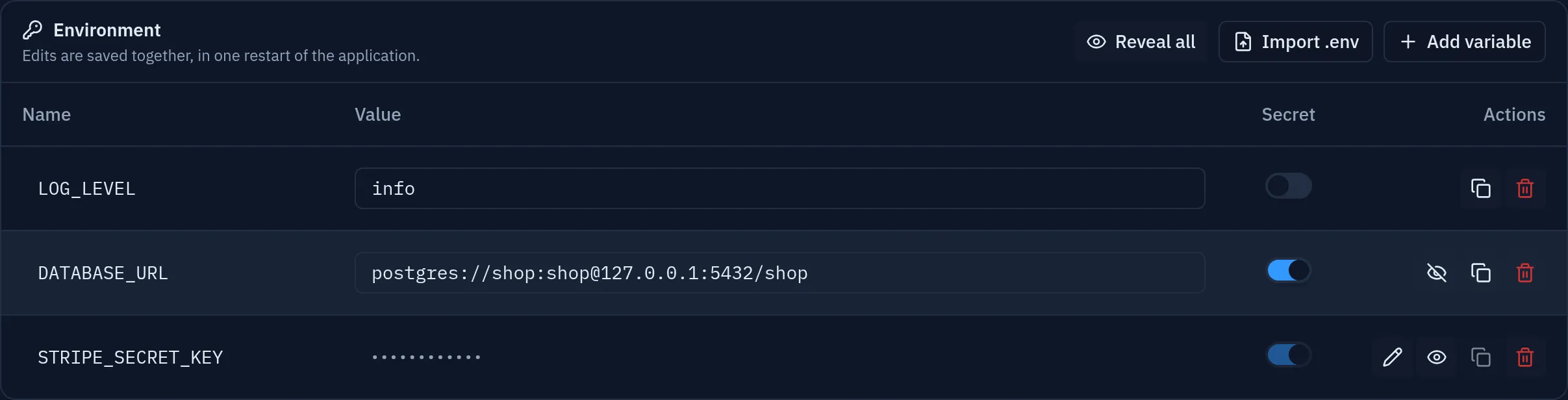
Edits accumulate and are saved together. The card counts what is unsaved and offers two ways out: Save and restart, which applies the change to the running process, and Save without restarting, which stores it for the next deploy. Editing row by row would mean restarting a live application once per variable, each restart landing on a configuration that is still half applied.
Turning Secret on hides the value from the listing. It does not make it unrecoverable:
the eye button reveals it, and so does corepanel app env reveal. What it does is keep
credentials off a screen somebody may be sharing, and make reading one a deliberate act —
every revelation is recorded in the server log, with who asked and what for.
Whoever can edit a variable can also reveal it, and no password is asked for. That is deliberate rather than an oversight: the same person can replace the value and deploy code that prints it, so a prompt would buy friction, not secrecy. The record is what protects you, which is why there is one.
To change a secret you do not need to look at it: the pencil on a masked row opens an empty field for the new value and replaces the stored one when you save. Rotating a credential is the commonest thing done to a secret, and it should not put the old value on a screen — nor write an audit entry for a revelation nobody wanted. Opening that field and changing your mind counts as nothing: an empty box is not an empty value.
Turning Secret back off is only possible while the value is on screen — the switch stays locked on a masked row until you reveal it. The rule is that you cannot mark as plain a value you are not sending: the panel is never given a secret’s value, so a demotion without it would leave a variable listed in the clear that nobody in that request could actually see. Marking a plain value as secret needs no such thing; it only ever hides more.
Importing a .env
Section titled “Importing a .env”Import .env takes a whole file at once. It shows what each line would do — replace an existing variable or add a new one — before anything is applied:
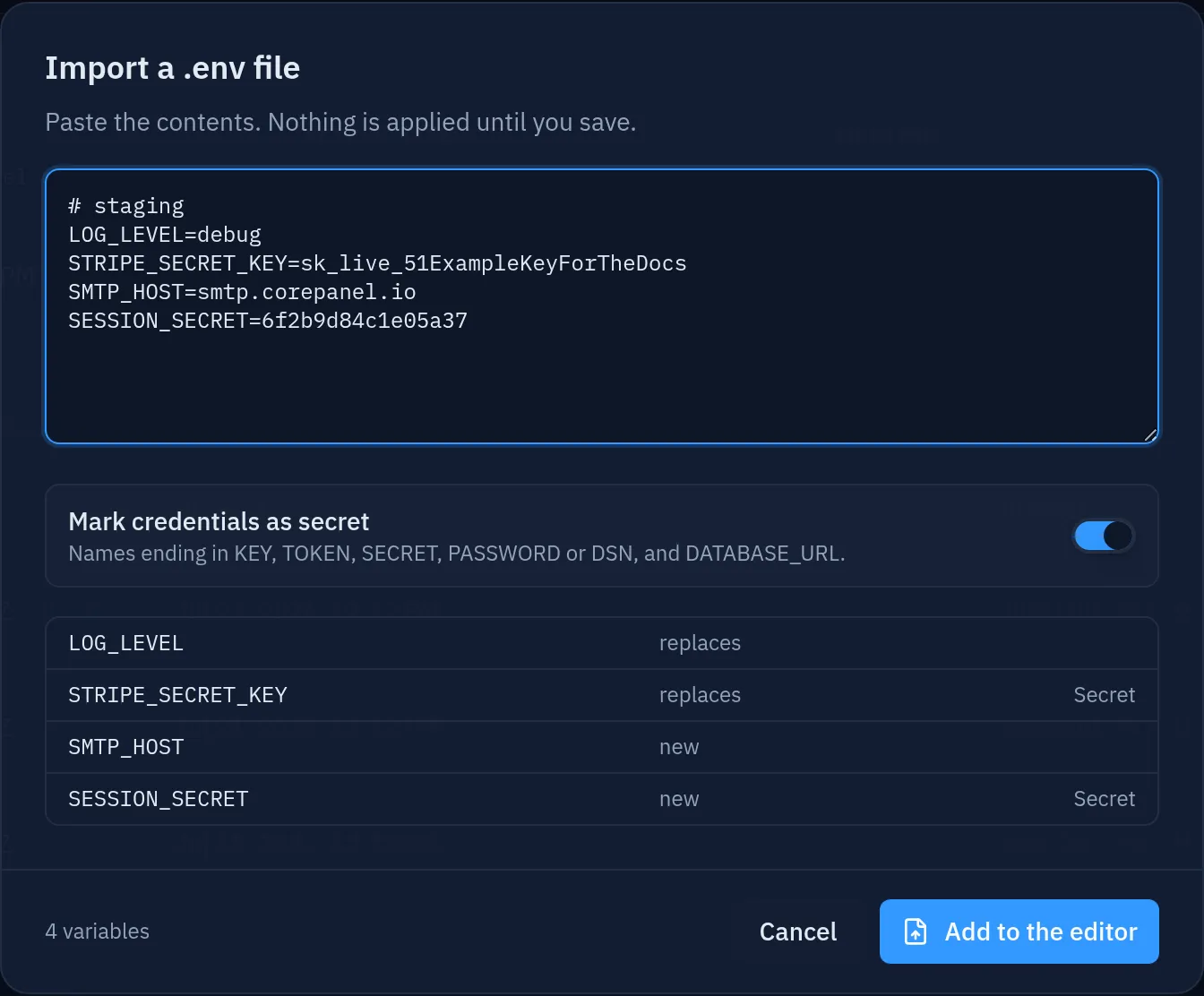
Names that look like credentials — ending in KEY, TOKEN, SECRET, PASSWORD or
DSN, plus DATABASE_URL — are marked secret for you. The toggle turns that off if you
would rather decide yourself. Nothing reaches the server until you save.
The same, from corepanel:
corepanel app env list <account-id> apicorepanel app env reveal <account-id> api # everything, one audit entrycorepanel app env reveal <account-id> api STRIPE_SECRET_KEYcorepanel app env set <account-id> api LOG_LEVEL=debugcorepanel app env set <account-id> api DATABASE_PASSWORD='...' --secretcorepanel app env set <account-id> api NEXT_FLAG=on --no-restartcorepanel app env import <account-id> api ./.env # one restart, whatever its lengthcorepanel app env unset <account-id> api LOG_LEVELenv import adds and overwrites; --replace also removes the variables the file does not
mention, making it the whole environment. Both print how many changes were applied.
The variables live in a file systemd reads as root before dropping privileges, so your application receives them while the account cannot read the file that holds them — not over FTP and not from a shell. The application itself does receive them, which is the point, and is why the panel does not pretend a secret is beyond the reach of whoever deploys the code.
Encrypted at rest
Section titled “Encrypted at rest”Values are stored encrypted in CorePanel’s database, under a key held per account
outside it (/var/lib/corepanel/secrets/env, owner-only). AES-256-GCM, a fresh nonce per
value, and the key is per account so one leaked copy exposes one account.
Be clear about what that buys, because the honest scope is narrower than “encrypted” usually suggests: it protects the database once it leaves the server — a backup, a snapshot, a copy taken for debugging, a bug that reads a file it should not. It does not protect against someone who already has the server, and it was never going to: CorePanel hands the values to systemd on every write and to you on every reveal.
The key never leaves the server, by design: a key travelling next to the data it protects is not a key, it is obfuscation. So an account backup carries the values decrypted and the restore re-encrypts them under the destination server’s own key — which is what lets an archive be restored onto any server without carrying a key across, and is also why the archive itself has to be handled like a password store.
Applications deployed before this shipped keep running: their values are read as they were stored and converted in the background the first time the upgraded panel starts. Nothing has to be re-entered.
Limits
Section titled “Limits”A single value can be up to 16 KB, and the environment as a whole up to 256 KB. That second ceiling is not decoration: a process’s environment is capped by the kernel at around 2 MB, and past it the unit fails to start — which reads as a broken application rather than as a rejected variable.
Values cannot contain line breaks: the file is parsed in systemd’s EnvironmentFile
syntax, where a newline ends the assignment. A multi-line credential — a PEM key, a
formatted JSON — has to be minified or base64-encoded first.
Variables CorePanel sets for you
Section titled “Variables CorePanel sets for you”| Variable | Value |
|---|---|
PORT | The internal port you chose |
CP_APP_NAME | The application’s slug |
CP_APP_DATA | The persistent data directory |
CP_APP_TMP | A private /tmp, invisible to the rest of the server |
Those four names are reserved; your own variables cannot override them. The panel refuses
them in the editor rather than after a round trip, and applies the same rule to the name
itself: it starts with a letter or _ and contains only letters, digits and _.
An application that has been given a database also receives the CP_DB_*
set and DATABASE_URL, on the same terms.
The database
Section titled “The database”An application can be given a MySQL database of its own, from the Database panel on its page or from the command line:
corepanel app database create <account> api # schema + user + passwordcorepanel app database attach <account> api blog # one the account already hascorepanel app database detach <account> api # keeps the dataCreating it provisions the schema, a user dedicated to the application and a password, writes the connection into the environment and restarts the process. There is nothing to copy anywhere: the program reads it from its own environment.
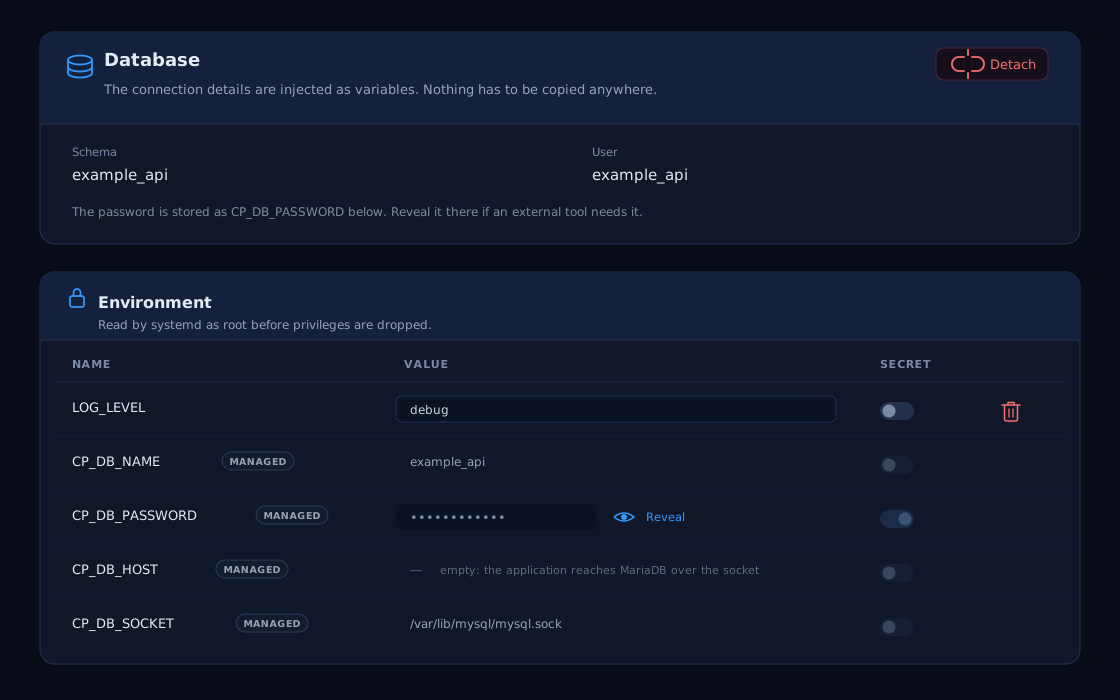
| Variable | Value |
|---|---|
CP_DB_NAME | The schema, <account_user>_<suffix> |
CP_DB_USER | The user the application connects as, always @localhost |
CP_DB_PASSWORD | The password, stored as a secret |
CP_DB_SOCKET | The MariaDB unix socket to connect to |
CP_DB_HOST, CP_DB_PORT | Present and empty — there is no TCP route |
DATABASE_URL | The whole thing as a DSN, for a library that takes one |
These are managed variables. The panel shows them read-only with a Managed badge —
a connection that fails is debugged by looking at what the process was actually told, so
they are shown rather than hidden — and app env set refuses to write one. Detaching is
what removes them.
DATABASE_URL is the one exception: set it yourself and your value wins. Every driver
spells a DSN a little differently, and a format CorePanel guessed wrong would be a
variable you could not correct.
Attaching a schema the account already owns still creates a new user for the
application. It cannot do anything else: CorePanel does not store MySQL passwords, so
there is no existing credential to hand over, and resetting one would break every
wp-config.php that shares it. The data is untouched and no other grant is changed.
Once the link exists it is protected in both directions. Deleting that database or that
user — from the Databases section, from
corepanel database or over the API — is refused, naming
the application that holds it; changing the user’s password re-injects it and restarts
the application, so a rotation never leaves the process with a dead credential. Deleting
the application drops its user and never the schema — the files under its directory
are the application’s, the database is the customer’s.
Persistent data
Section titled “Persistent data”$CP_APP_DATA points at a directory that survives deploys, rollbacks and even deleting
the application:
/var/opt/userapps/<account>/<app>/dataThe program tree does not survive: every release replaces it. Anything your
application must keep — uploads, a SQLite file, generated configuration — belongs under
$CP_APP_DATA.
Linked directories
Section titled “Linked directories”Some programs insist on writing inside their own tree and cannot be told otherwise.
--link handles those: the named directory, relative to the release root, is replaced by
a symlink into the data volume on every deploy.
corepanel app create <account-id> gitea --domain git.example.com --port 3000 \ --link data --link custom -- ./gitea web./data then keeps its contents while everything around it is replaced. Repeat the flag
per directory; corepanel app update ... --clear-links removes them all.
Resource limits
Section titled “Resource limits”Every application has all three, and they are mandatory — an unbounded process on the same machine as the control panel is the straight road to an out-of-memory event that takes the panel down with it.
| Flag | Default | Meaning |
|---|---|---|
--mem <mb> | 256 | Hard memory ceiling. Exceeding it means the kernel kills the process; systemd restarts it |
--cpu <pct> | 50 | Percentage of one core. 100 is a whole core, 200 is two |
--tasks <n> | 64 | Threads and processes together |
corepanel app update <account-id> api --mem 1024 --cpu 200They are applied as cgroup properties, so they are enforced by the kernel rather than requested politely. If the application stops serving under the new settings, the previous ones are restored.
On Personal the three are fixed at those defaults. Applications run — that is not the gated part — but giving one more of the machine is a Pro feature, so the panel shows the fields disabled and the CLI refuses a higher value with the reason instead of quietly applying 256 MB to a form that asked for 2 GB. Lowering a limit never needs a license, and an application that was already configured under a paid edition keeps the limits it has if the license lapses: a payment problem must never shrink a running application.
Sizing, roughly: a small Go or Rust API is comfortable at the defaults; a service with an
embedded database, background jobs and a template cache wants 512–1024 MB and a full core;
a program that spawns workers needs --tasks raised or it will fail to fork under load.
Changing the specification
Section titled “Changing the specification”In the panel, Edit on the application opens the creation form again with the current values, minus the name. Only the fields you actually change are sent, so saving does not re-apply — or re-validate — settings nobody touched; if nothing changed, the form says so instead of writing.
corepanel app update <account-id> api --mem 512 --health /healthz -- ./server --addr :8080Omitted fields are left as they are. The change is applied to the release already running — no redeploy — and if the application stops serving under the new settings, the previous ones are put back. An application that was stopped stays stopped.
Per-account allowance
Section titled “Per-account allowance”Each account has a maximum number of applications, in parallel with its subdomain and addon-domain limits, and hosting packages carry it to the accounts they provision.
Zero means none here, not unlimited — this is the one limit in CorePanel that reads
the other way round, and it has no unlimited value at all. An application is a resident
program with its own memory, socket and network namespace, so an account gets to run them
only when somebody grants a number: on the account (Edit account → Applications, or
corepanel account update <id> --max-apps N) or on its
hosting package.
Lowering the number below the applications already running is refused, exactly like any other limit below current usage; the applications themselves are never deleted to make room.
The edition’s cap
Section titled “The edition’s cap”An application has to pass two allowances, and they answer different questions:
| Who sets it | Zero means | Counted over | |
|---|---|---|---|
Per-account (--max-apps) | you, per account or per package | none | that account |
| Edition cap | the license | unlimited | the whole server |
| Edition | Applications |
|---|---|
| Personal | 2 on the server, in any mix of accounts |
| Pro, Business | unlimited |
The two refusals are deliberately different messages, because your next step is different: the account one is raised by editing the account or its hosting package, the edition one by upgrading the server. The cap counts every application on the box, not per account — counting per account would be answered by creating another account.
A restore is exempt. An account that comes back with more applications than the edition allows comes back complete, with a warning on the restore report; dropping one to respect a commercial limit would destroy the data directory, which is the one thing a redeploy can never rebuild. Applications restored over the cap on Personal also come back on the fixed resource limits, and the report says so per application.
Full flag reference
Section titled “Full flag reference”The complete list, with every default, lives in the CLI reference.