Licensing
CorePanel Personal is free and needs no license. A license is what unlocks the Pro and Business features on a server — nothing else changes.
Two rules govern everything on this page, and they are worth reading before the details:
- A license binds to the public IPv4 address your server is seen from, observed by the license server on the connection itself — never an address your machine reports. There is nothing to configure and nothing that can be spoofed by editing a file.
- Licensing never takes a site offline. Every failure mode — an unreachable license server, an expired license, a revoked one — ends in the same place: the server falls back to Personal features. Sites, mail, DNS and databases keep running.
Choosing an edition
Section titled “Choosing an edition”The first time you sign in, CorePanel asks which edition this server is going to be.
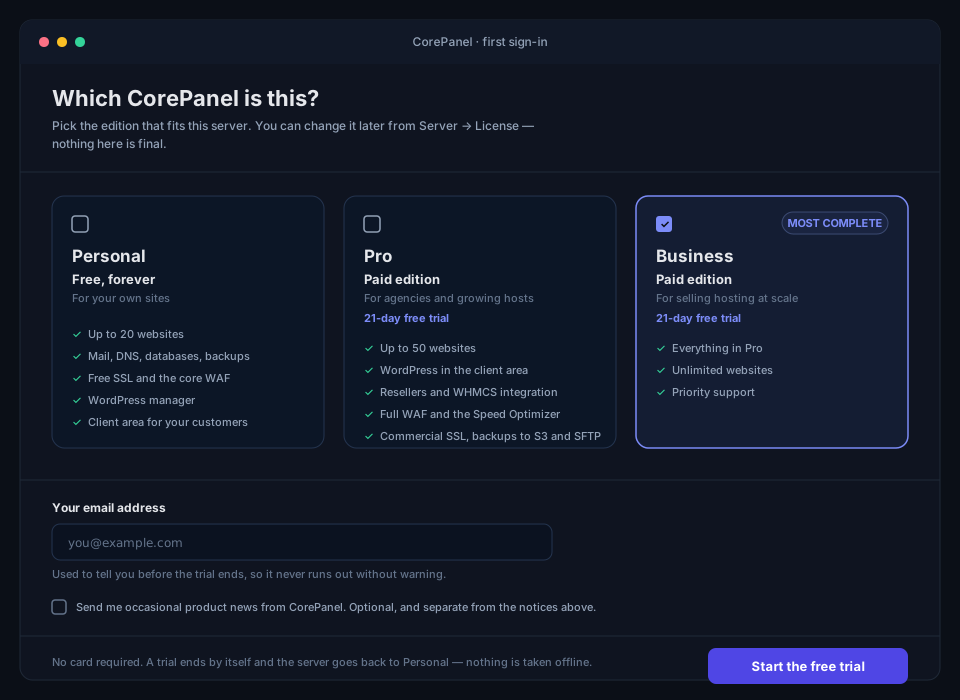
The choice is not final. Everything here can be changed later from Server → License, including starting a trial you skipped at the time.
- Personal is free, has no time limit and is a complete edition: up to 20 websites with their mail, DNS, databases, backups, free SSL and the WordPress manager, two applications on their fixed resource limits, and the client panel for your customers — with log in as customer for support.
- Pro is what a hosting provider needs to run that business on autopilot — WHMCS, suspension, resellers, per-account limits and WordPress in the customer’s own panel, plus the Speed Optimizer, commercial SSL and remote backups — for up to 50 websites.
- Business is everything in Pro with no website cap, plus priority support.
- Pro and Business each come with a 21-day free trial. No card, nothing to cancel — it ends by itself.
Website limits
Section titled “Website limits”| Edition | Websites on the server |
|---|---|
| Personal (free) | 20 |
| Pro | 50 |
| Business | Unlimited |
A website is a primary or addon domain, counted across every account on the server — your own and your resellers’. Domain aliases and subdomains are unlimited in every edition and do not count. At the limit, creating a new website is refused everywhere (the panel, the CLI, WHMCS, imports and restores); everything already there keeps serving.
Moving to a smaller edition never removes anything. A server that goes from Business to Pro with 80 websites, or from Pro back to Personal with 30, keeps every site, mailbox and database serving. It is simply over its cap: new websites are refused until the count drops below it or the server moves up again. The details, and where the meter shows, are in the server-wide website limit.
The email address is asked for in all three cases. On a trial it is where the warnings go before it ends; on Personal it is how we can reach you about a security release affecting your server. The checkbox below it is a separate opt-in for product news, and nothing else depends on it.
If you would rather not decide yet, pick Personal. It is a supported edition, not a downgrade, and the trial is still there when you want it.
Free trials
Section titled “Free trials”A trial is an ordinary license with a short life: it installs itself, unlocks the whole edition, and expires. Start one from the chooser above, from Server → License on a server already running Personal, or from a shell:
corepanel license trial --edition business --email ops@your-domain.comWhile it runs, the panel header shows Trial — N days left, turning amber in the last three days. You are also warned by email at 7, 3 and 1 days, and once after it ends.
Three things are worth knowing before you start one:
- One trial per server and per email address. A second request is refused, and the answer is the checkout rather than another trial.
- The address has to be one that can receive mail. Documentation and reserved domains —
example.com, anything under.test,.invalid,.localhostor.local— are refused, because the trial warnings at 7, 3 and 1 days would go nowhere. The same applies to the address given for Personal, which is how you hear about a security release. - Switching edition mid-trial is free and keeps the original end date. Starting on Pro and moving to Business to load more than 50 websites does not restart the countdown, and does not use up a second trial.
- When it ends the server goes back to Personal. Nothing is taken offline: every site, mailbox, database and certificate keeps running exactly as it was. What stops is the paid features, and creating sites beyond Personal’s allowance of 20.
Trialling with real customers
Section titled “Trialling with real customers”The client area is part of every edition, so your customers keep signing in when a trial or a licence ends. What they lose is the paid part of it — WordPress in their own panel — and what you lose is the automation: WHMCS stops suspending, and no new resellers or API tokens can be created. Their sites, email and databases keep working throughout.
Buying a license
Section titled “Buying a license”Buy from the server that will use it: Server → License, pick Pro or Business and a billing cycle, and press Continue to checkout. Payment happens in a tab that opens on corepanel.net, handled by Paddle as merchant of record — taxes are calculated there.
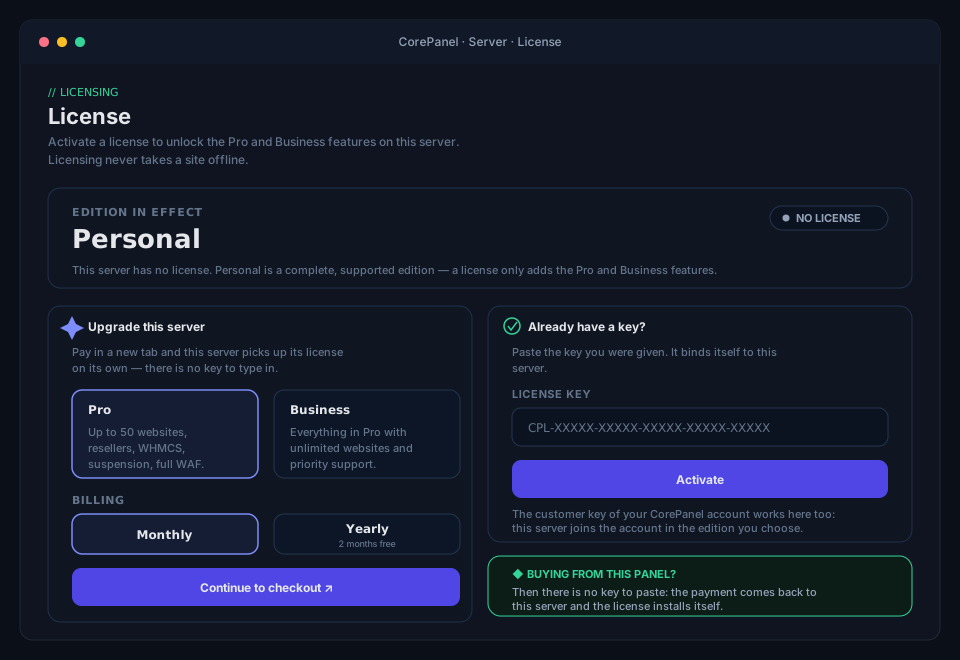
Nothing is typed in afterwards. The checkout tab carries a single-use token minted by that server, so the payment comes back to that machine: the panel installs the license by itself within a few minutes of it clearing, and the key never has to be seen. You can close the tab, or the whole panel: the server keeps asking for 24 hours.
A purchase from the panel goes into your account — a monthly one always, and a yearly one where your account area sells yearly as slots too. The account area then offers the cheapest way to cover that server, and only an owner of the organization can take it:
- a free slot of that edition — one your account pays for and no server holds: the server takes it and nothing is charged;
- otherwise one more slot on your subscription of the cycle you chose, monthly or yearly, confirmed by the emailed link like any slot you add (see Servers in your account area);
- with no subscription on that cycle yet, a checkout for one slot that starts it.
Either way the server then joins your account by itself within a few minutes, with a secret of its own — the customer key never reaches it. A server on a trial can buy the same way: the trial ends at once and the server takes the edition bought; a slot bought for it is billed from the purchase. A server that holds a paid single-server licence is asked to release it first. An offer code, the renewal of a promotional licence, panels older than CorePanel 1.12 and — until yearly is sold as slots — a yearly purchase still buy a licence of the server’s own.
The same thing from the shell, for a server you administer over SSH:
corepanel license upgrade --edition pro --cycle yearly --waitBuying from the pricing page instead works too, but there is no server attached to that purchase: it adds slots to your account, which servers then join with the customer key — except an offer code (or a yearly purchase, until yearly is sold as slots), which buys a licence key that you activate as below. Prefer the panel when you already know which machine the license is for.
What it costs
Section titled “What it costs”Pro and Business are licensed per server, monthly or yearly — yearly is ten months of the monthly price, so two months are free. Prices exclude tax: VAT, GST or sales tax is added at checkout according to where you are.
The current figures are on the pricing page, and the panel shows them again in Server → License before you commit to anything. Slots bought in your account area get a volume discount from ten servers on one subscription — see Servers in your account area.
Activating a license
Section titled “Activating a license”This is the path for a key you already hold — one bought from the website, moved from another server, or issued to you directly. A license bought from the panel installs itself and never shows you a key, so there is nothing to do here.
In the panel, go to Server → License, paste the key and press Activate. The key
looks like CPL-XXXXX-XXXXX-XXXXX-XXXXX-XXXXX; it is case-insensitive and the dashes are
optional. The page is reserved for super-administrators: the license decides the
edition every account on the server runs under.
From the shell:
corepanel license activate --key-stdin < license.keycorepanel license statusThe key is a bearer credential, so on a shared machine prefer --key-stdin over passing
it as an argument, where it lands in the shell history and in the process list.
Activation contacts the license server, which binds the license to the address it sees and returns a signed answer. The panel stores those signed bytes and verifies them against a signing key built into CorePanel itself, so a stored license cannot be edited into a better one.
Joining a server to your account
Section titled “Joining a server to your account”A customer key belongs to your CorePanel account rather than to one server: the
account pays for a number of Pro and Business slots, and the key joins servers to it.
It has the same CPL-… form, so it goes in the same field on the server’s License
page: the page recognises it and joins the server in the edition your account has a free
slot of. It asks Pro or Business only when there is a real choice — free slots of
both editions — or when no slot is free and the account holds both editions or neither.
When you are asked, choose with care: the edition cannot be changed from the panel
afterwards. From the shell:
corepanel license activate --key-stdin < customer.keyAdd --edition pro or --edition business to choose the slot yourself. When the command
has to ask, it does so on a terminal and refuses when it cannot (a script, --key-stdin),
so a script that joins an account holding free slots of both editions passes --edition.
Panels older than 1.12.1 always ask.
A new server can join as it installs: give the installer the key (see
Getting Started), one command per server for a
fleet.
A server that holds a licence key — a trial or a single-server licence — has to Release it before joining with the customer key; releasing does not cancel that licence’s subscription, which is cancelled from your account area. A trial needs no release if you buy from its License page instead: the purchase converts it. A join also waits while a checkout started on the server is still open: finish it or discard it first.
The key is not stored on the server. Joining returns a secret that belongs to that one server, and the server checks in with it from then on — every 12 hours instead of daily. Servers hold the slots of their edition in the order they joined; one beyond the slots the account pays for joins anyway and runs as Personal until a slot is added or another server is removed, and the License page says so.
A server removed from the account drops to Personal and stays removed: the License
page says it was removed, and nothing adds it back on its own. To bring it back, enter
the customer key on its License page again (or run corepanel license activate
with it); it joins after the servers already there, so if no slot is free then, it
runs on Personal. Remove from account on a joined server’s License page, or
corepanel license deactivate, removes it for good and frees its slot — a server waiting
for a slot holds none — and the account keeps paying for the slot until it is removed
under Servers in your account area. A joined server’s License page points at Servers
instead of offering a key field or a purchase: it cannot take a licence key until it
leaves the account.
Servers in your account area
Section titled “Servers in your account area”Slots are bought and managed in your account area at account.corepanel.net, under Servers:
- Buying slots. A purchase there buys a number of slots — Pro, Business or both — on one subscription per billing cycle, so a fleet is one charge per month (or per year) rather than one per server. Where yearly is sold as slots too, you can hold a monthly and a yearly subscription side by side; the slots of both add up. The customer key appears under Servers once the payment clears; owners of the organization can reveal and copy it from Add server, which also lists the steps: paste it on the server’s License page and choose the edition.
- Adding slots goes onto the subscription of the cycle you choose. The screen first shows Paddle’s figure: the rest of the current period, charged to the card on file, and what each renewal costs afterwards. Because it spends money, nothing is charged from the screen: you are emailed a link with the same figures, and the charge happens only when you open it while signed in and press Pay now. If the charge fails, nothing changes.
- Removing free slots lowers the subscription. What is left of the period is credited to your Paddle balance and pays your next invoices — it is not refunded to your card. A slot a server holds cannot be removed this way; remove the server instead. On a yearly subscription mid-year that credit can be most of a year’s price, and the screen says so before you confirm.
- Removing servers. Select one or more servers, choose Remove, and pick Keep slots (you keep paying for them, and they can take other servers) or Remove slots too (the subscription is lowered, with the same balance credit; when both your subscriptions hold that edition, you choose which one). Either way you are emailed a link to confirm, and nothing changes until you open it while signed in.
Each edition draws its slots as a row of cells — held, free, and past the line of what you pay for, the servers waiting for one — or as one bar with a scale once it holds more than 40. Each server’s row carries a coloured edge: green while it holds its slot and checks in, amber while it waits for a slot or has not checked in for more than two days (its last check-in date then shows in amber), grey once it has been silent for over two weeks. Open a row for its reverse DNS, install id, join date and last check-in. From six servers on, the list can be searched by name or IP, filtered by state and sorted by last check-in, and it shows 50 servers at a time.
Volume discounts. The more slots one subscription holds, the less each one costs: the discount starts at 10 slots and grows in steps from there. The current steps are on the pricing page and in your account area, as Paddle bills them.
Pro and Business slots count together, but only within one subscription: a monthly and a yearly subscription each reach their own tier, so ten slots split 6 + 4 between them get no discount. A first purchase that reaches a tier is discounted from its first charge. When adding or removing slots moves the subscription into another tier, the new discount starts at the next renewal and covers every slot; the part of the current period charged or credited for the change itself is at the full price. The screen, and the emails that confirm adding slots or removing servers with their slots, say when the discount changes or ends. A volume discount does not combine with an offer code.
Every server that joins the account is announced to its owners by email, with its address, reverse DNS, hostname and edition, so a server you did not add is noticed the day it appears. A change reaches the servers at their next check-in — within 12 hours — or at once with Check in now on the server’s License page. Yearly licences bought one server at a time keep working as they are.
The License page
Section titled “The License page”Server → License answers three questions at a glance: which edition the server is getting, which edition the license pays for, and whether anything needs attention. Those first two are separate on purpose — when they differ, the panel says so instead of showing an edition that is not actually in effect.
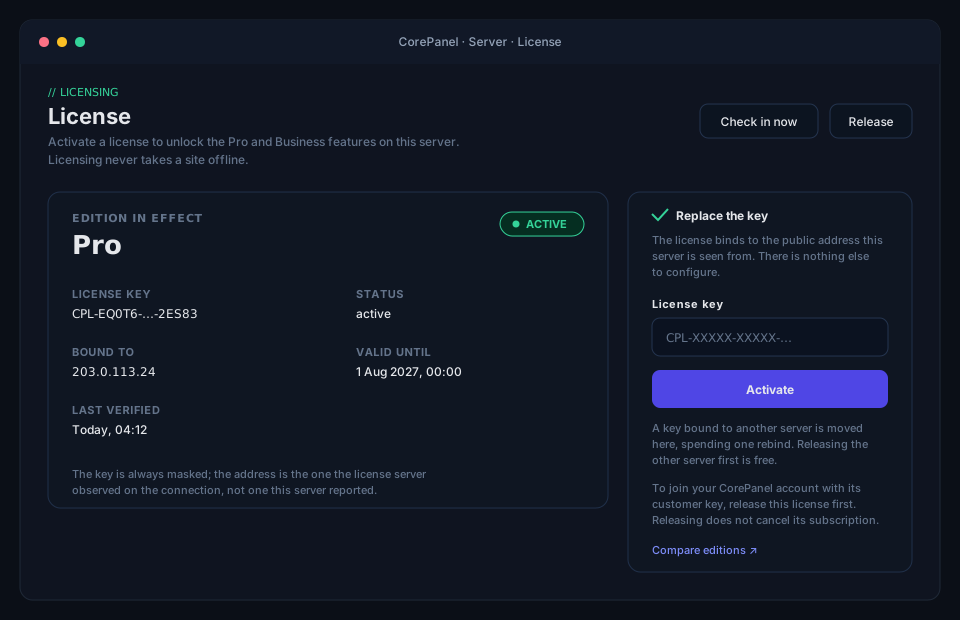
The page also shows the masked key, the bound address, the expiry date and the last
successful check-in. The key is always masked (CPL-EQ0T6-…-2ES83): CorePanel never
displays or logs it in full.
The same information, for scripts and monitoring:
corepanel license status # exit status 1 if the paid edition is not in effectcorepanel license status --jsonCheck-ins, and what happens when they fail
Section titled “Check-ins, and what happens when they fail”Once a day the panel asks the license server “is this server still entitled?” — every 12
hours on a server joined to an account. You can force it from the page (Check in now)
or with corepanel license refresh.
A failed check-in is not a verdict. Your ISP’s link, a DNS hiccup or maintenance on our side must not cost you the edition you paid for, so an unreachable license server starts a countdown instead:
| Time since the last successful check-in | What happens |
|---|---|
| Up to 7 days | Nothing. The edition applies normally |
| 7 to 14 days | The panel warns you and shows the deadline; the edition still applies |
| Over 14 days | The server falls back to Personal features |
Recovering is a single successful check-in — there is nothing to repair and nothing to
re-enter. If the countdown ran out, run corepanel license refresh (or press Check in
now) once connectivity is back and the edition returns.
A verdict is different. If the license server answers that the license expired or was revoked, that is an answer, not an outage, and it applies immediately.
Moving a license to another server
Section titled “Moving a license to another server”Release it on the old server first — that path is free:
# on the server you are leavingcorepanel license deactivate
# on the new servercorepanel license activate --key-stdin < license.key
Activating a key that is still bound elsewhere also works: the license is rebound to the new server, spending one of the license’s rebinds (3 per 30 days). Releasing first spends none, which is why it is the recommended order.
Releasing makes the server forget the key, so keep the key at hand before you do it. The
panel asks for confirmation, and the CLI refuses to run non-interactively without --yes
for exactly that reason.
A changed IP address is not a migration. If the same server gets a new address, just check in: the panel notices the mismatch, rebinds and retries by itself.
What leaves your server
Section titled “What leaves your server”The check-in sends four things: the license key, a random number that makes each answer single-use, your server’s hostname and the CorePanel version. The bound address is not sent — it is what the license server observes.
Nothing else travels: no account names, no domains, no email addresses, no site content, no usage figures.
Troubleshooting
Section titled “Troubleshooting”“The stored license does not verify” — the saved license does not match the signing key this CorePanel build trusts, so it is not honoured. Check in again to fetch a fresh one. If it persists after an update, contact support.
Check-ins keep failing — the server needs outbound HTTPS to
licenses.corepanel.net. Confirm name resolution and that nothing is intercepting TLS to
that host:
curl -fsS https://licenses.corepanel.net/healthz“Waiting for the payment to be confirmed” does not go away — the panel is polling for a payment the license server has not been told about yet. Give it a minute: the notification from the payment provider is normally seconds, occasionally a retry. If it is still there after a few minutes, leave it — the panel keeps trying in the background and at every daily check-in — and contact support with the email address you paid with.
Do not press discard if you paid. It is meant for a checkout you abandoned. (If you do press it, the panel tries to redeem the purchase first and installs the license instead of throwing it away — but do not rely on that.)
The panel shows Personal after a successful payment — the license is bound to another
address (a server rebuilt with a new IP, or a license still bound to the old machine).
corepanel license status shows the bound address; corepanel license refresh rebinds
when the address simply changed.
“This purchase was already claimed by another server” — that checkout link was used
somewhere else. The license exists and is bound to that machine: release it there
(corepanel license deactivate) and activate it here with its key, or contact support.
Rebind allowance exhausted — the license moved between servers more than 3 times in 30 days. Contact support; the limit exists to stop a single key from being rotated across a fleet, not to get in the way of a real migration.
Related
Section titled “Related”- CorePanel CLI — the full
corepanel licensereference - Hosting Accounts — the website limit of the free edition