Websites, DNS and SSL
These are the sections a customer opens to put a site online and keep it reachable: Websites for the names the account serves, DNS for where they point, SSL for the certificates and Optimizations for speed. Each one works on the customer’s own domains only, within the limits of their plan.
Websites
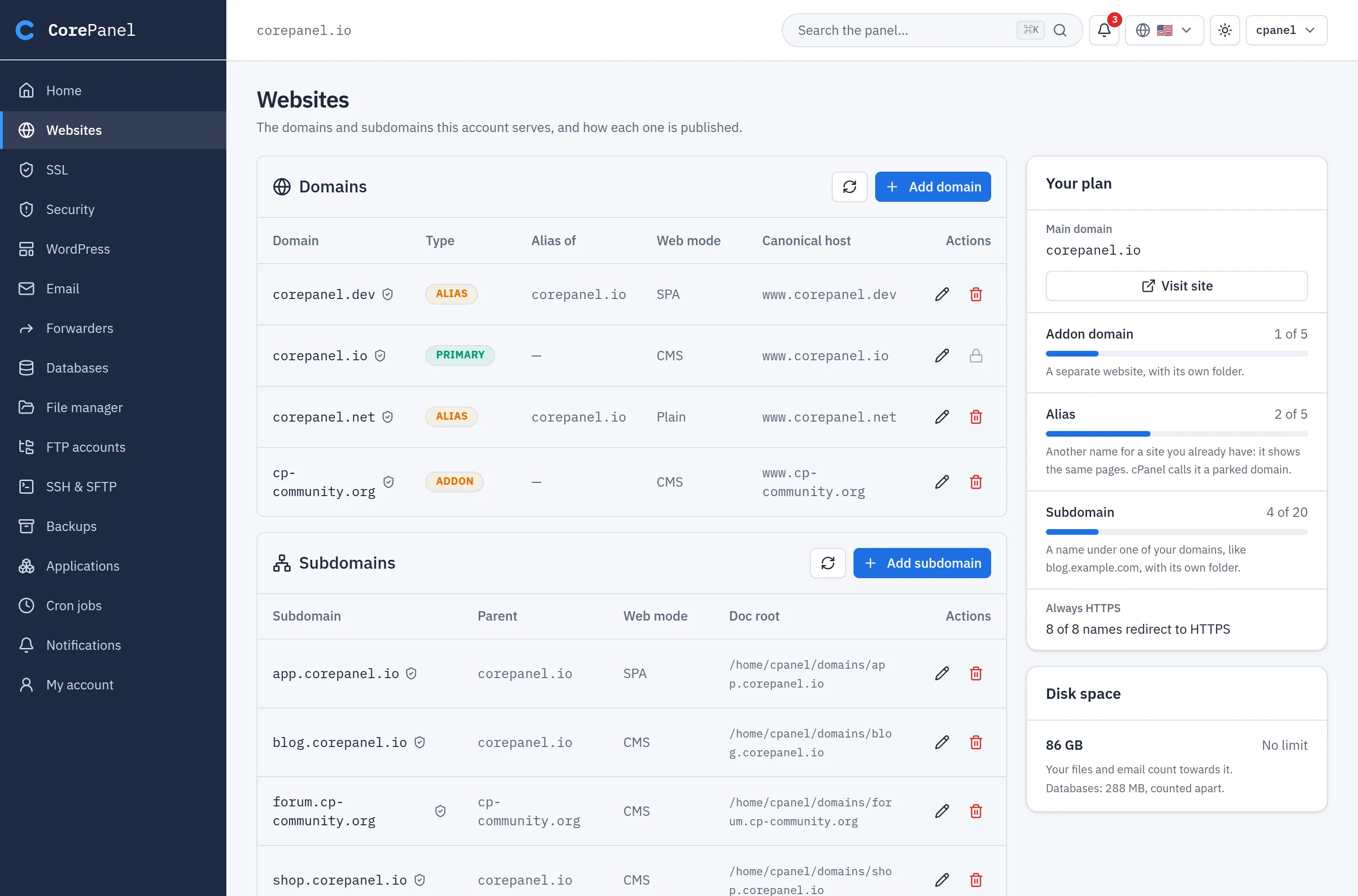
Section titled “Websites”What the customer sees. Every domain and subdomain the account serves. They can add a
domain alias or addon domain and add or remove
subdomains. Per site they set the
serving mode, the
canonical hostname (www or bare)
and Force HTTPS.
A Your plan card shows how many addon domains, aliases and subdomains they use against the plan (amber from 75 %, red from 90 %), with one line on what each kind is for — what cPanel calls a parked domain is an alias here. A Disk space card shows files and email against the quota; databases are counted apart.
What stays with you. The limits themselves, set on the account or its package, and reverse proxy routes — a customer choosing the upstream could point their domain at a service on the server’s loopback.
The DNS page opens on tasks, not record types. Each task writes the records it needs and shows what will change, record by record, before anything is saved:
| Task | What it does |
|---|---|
| Verify my domain | Adds the TXT code Google, Microsoft, Meta or Apple gave them; the prefix is added if they paste only the code |
| Use another email service | Points MX at Google Workspace, Microsoft 365 or back at this server, updates SPF (this server stays in it, because the website still sends from here) and switches the domain’s email delivery to match |
| Connect a subdomain to a service | shop → shops.myshopify.com: a hostname becomes a CNAME, an IP an A or AAAA record |
| Serve my website from elsewhere | Points the domain and www at another server, and removes records that would keep sending visitors here |
| Choose who sends my email | The SPF record as checkboxes; warns from eight DNS lookups and refuses past ten |
| Add a custom record | The full editor: A, AAAA, CNAME, MX, TXT, SRV, CAA, HTTPS, and NS to delegate a subdomain |
New records go in before old ones are removed, so a change that fails halfway leaves the previous setup working.
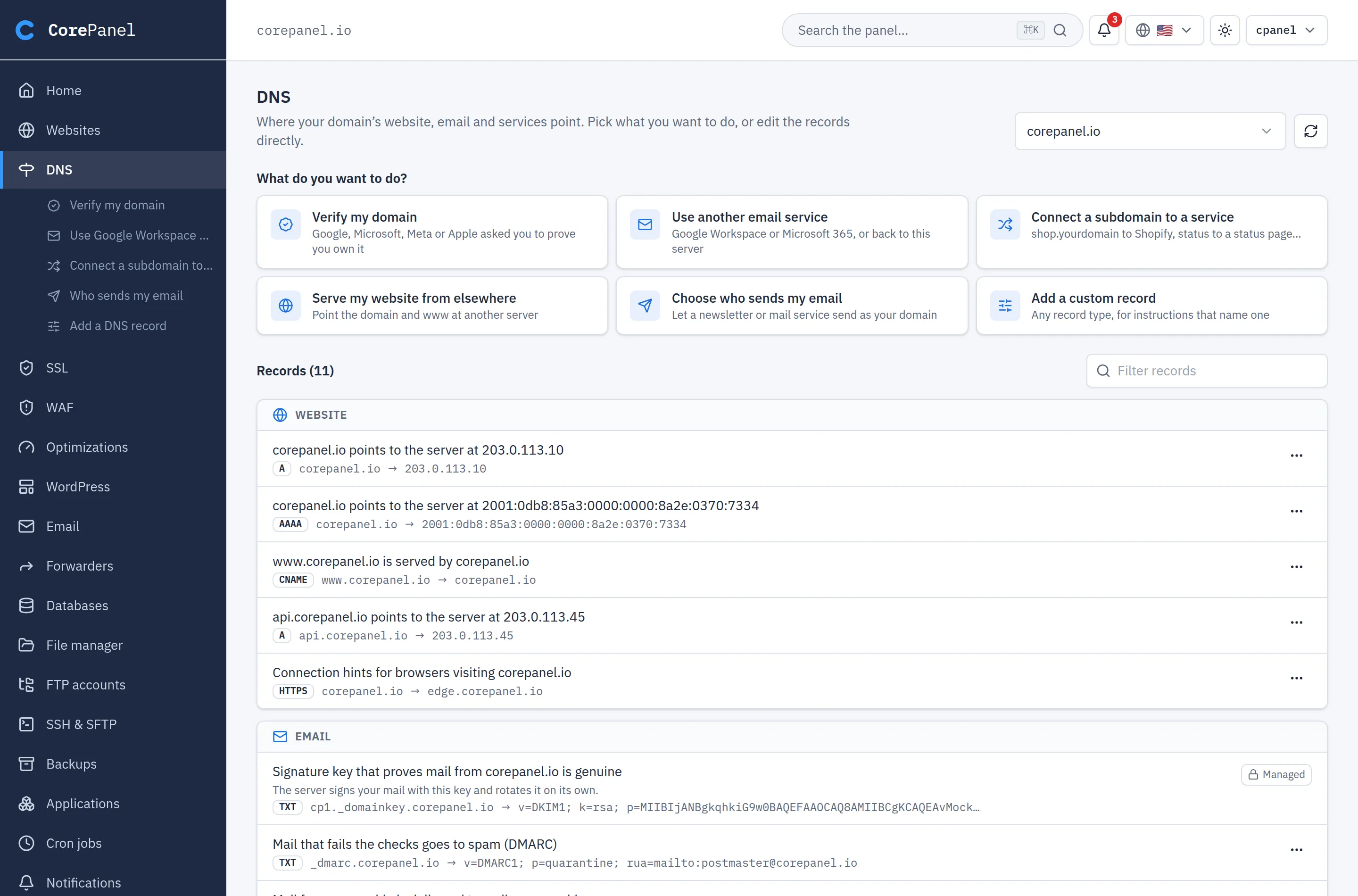
Below the tasks, the zone is grouped by purpose — Website, Email, Verifications
and other records — and each record is described in a sentence, with the raw record under
it. Deleting or changing a record the site or mail depends on (the domain’s address, www,
the MX, mail) says what will stop working. If the domain’s nameservers do not point at this
server yet, the page says so.
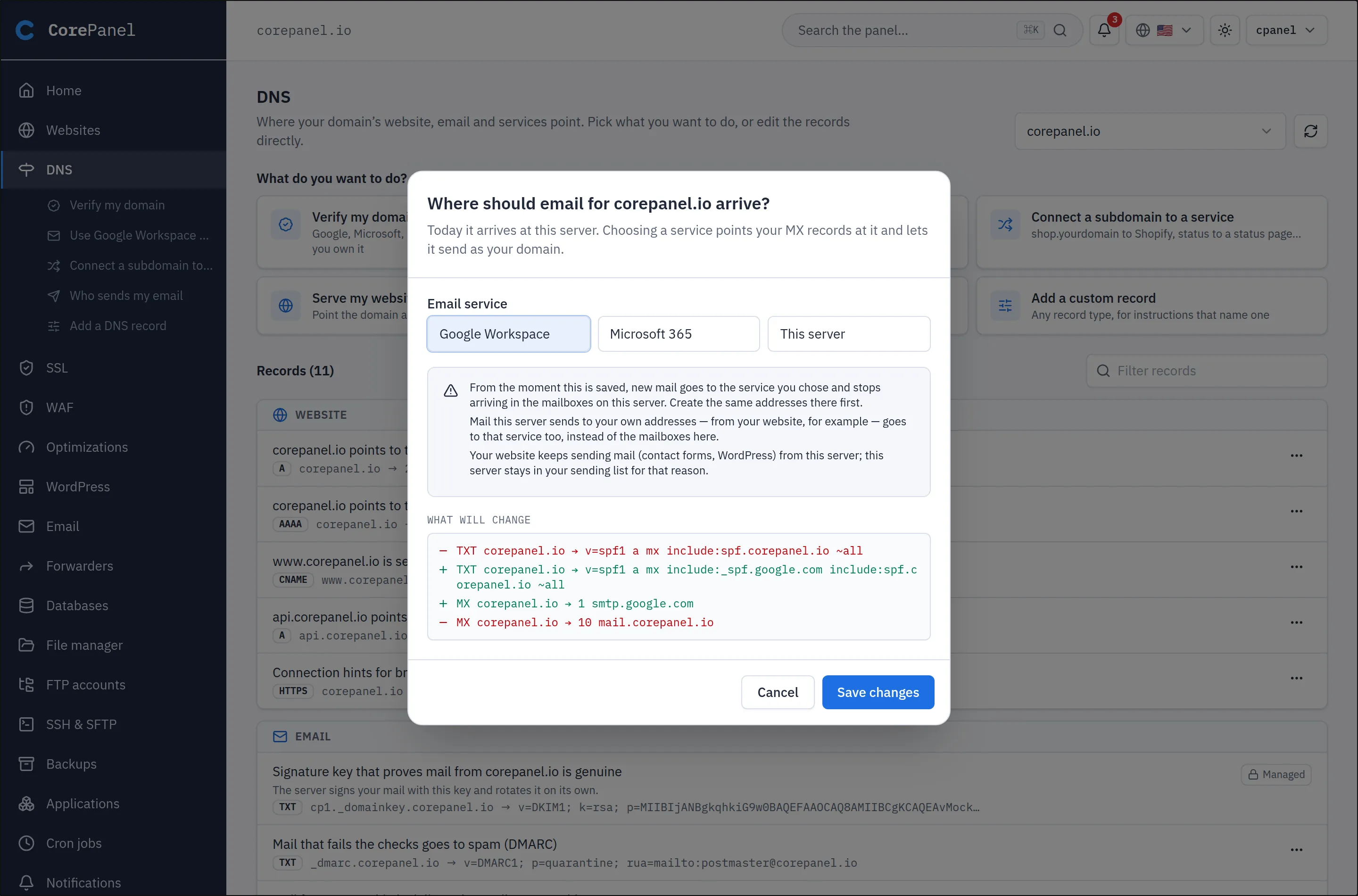
What the customer cannot change is shown with a lock and a reason, and the server refuses it:
- the domain’s nameservers (
NSat the apex) and the DKIM key the server signs with (another provider’s key, such asgoogle._domainkey, is theirs); - an ACME challenge while a certificate is being issued;
- the server’s own hostname and nameservers, and names that belong to another account;
- a CNAME at the apex or beside other records. A zone holds up to 500 records.
The zones are the account’s primary domain, addon domains and aliases; a subdomain’s records live in its parent’s zone.
Turning it off. Settings → Client panel → Let customers edit their DNS records is on by default. Off, the page stays readable and tells the customer you manage the records.
A read-only zone says why. When a customer cannot edit a zone, the notice at the top of the page names the reason: customer DNS editing is turned off; the name has no zone of its own (edit it in its parent); a parent domain is hosted for another account; or the zone also holds the server’s own hostname or nameservers. A task link such as Verify my domain lands on that notice instead of opening its dialog.
What the customer sees. The managed certificates of their sites: which hostnames are covered, whether each is valid and when it renews.
Installing a commercial certificate is also theirs, and on by default. Turn it off in Server → Settings → Client panel if you prefer to do it yourself — that stops installing, never removing. Whatever the switch says:
- it covers the web only; mail and FTPS keep the automatic certificate;
- they may only name hosts their own account owns;
- the panel’s own hostname is always excluded.
Optimizations
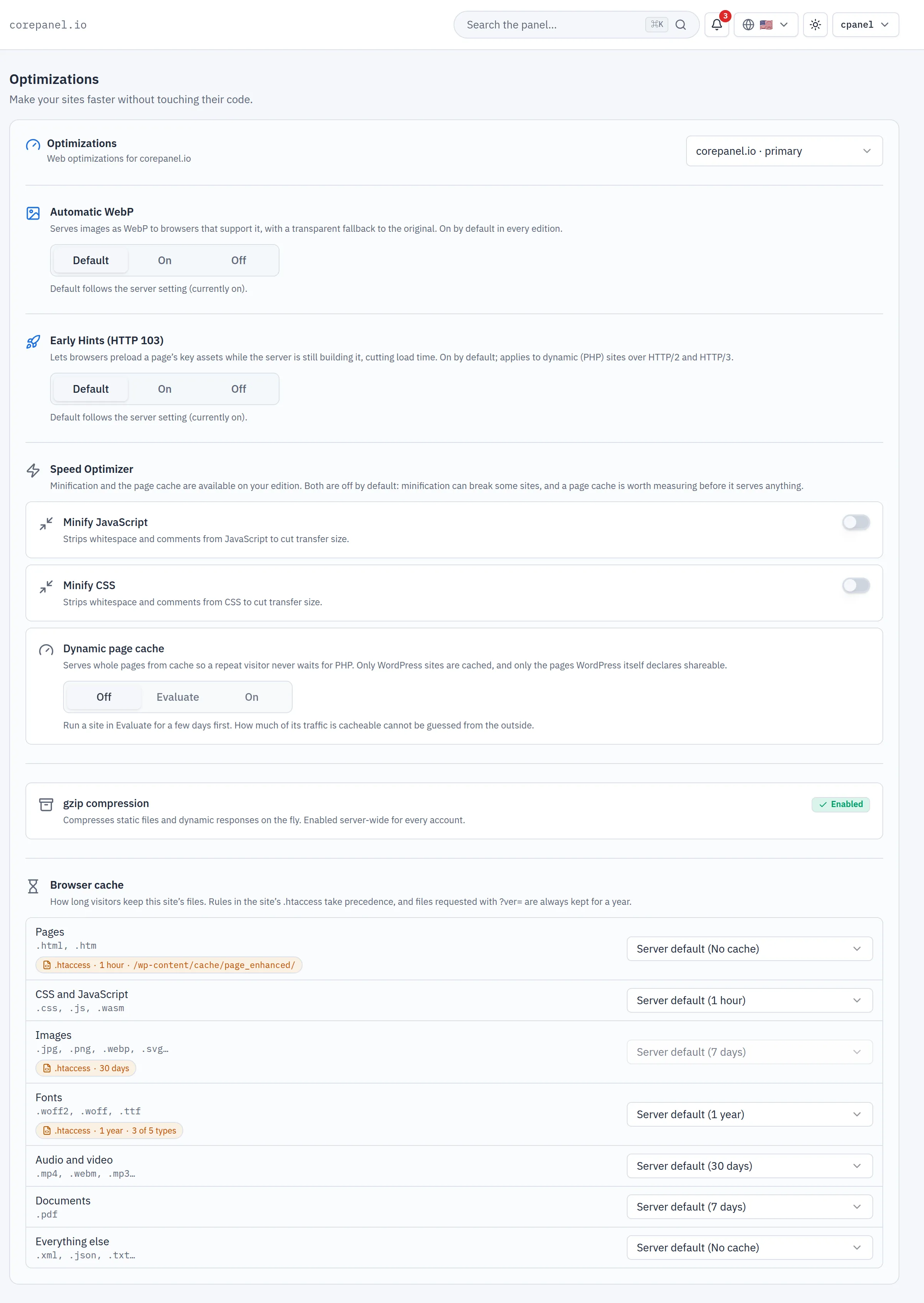
Section titled “Optimizations”What the customer sees. The Optimizations section for their own sites: WebP, Early Hints, and on Pro and Business the minification and page cache. Switches the edition does not include are not shown at all — the client panel carries no upsell.
They can also set the browser cache
lifetime per kind of file. Each starts at Server default, which names your server-wide
value. When the site’s own .htaccess decides instead, an amber chip says so and opens that
file in their file manager.
What stays with you. The server-wide defaults, the page cache’s evaluation report and the manual purge. WordPress sites purge on their own through the CorePanel plugin.