Backups
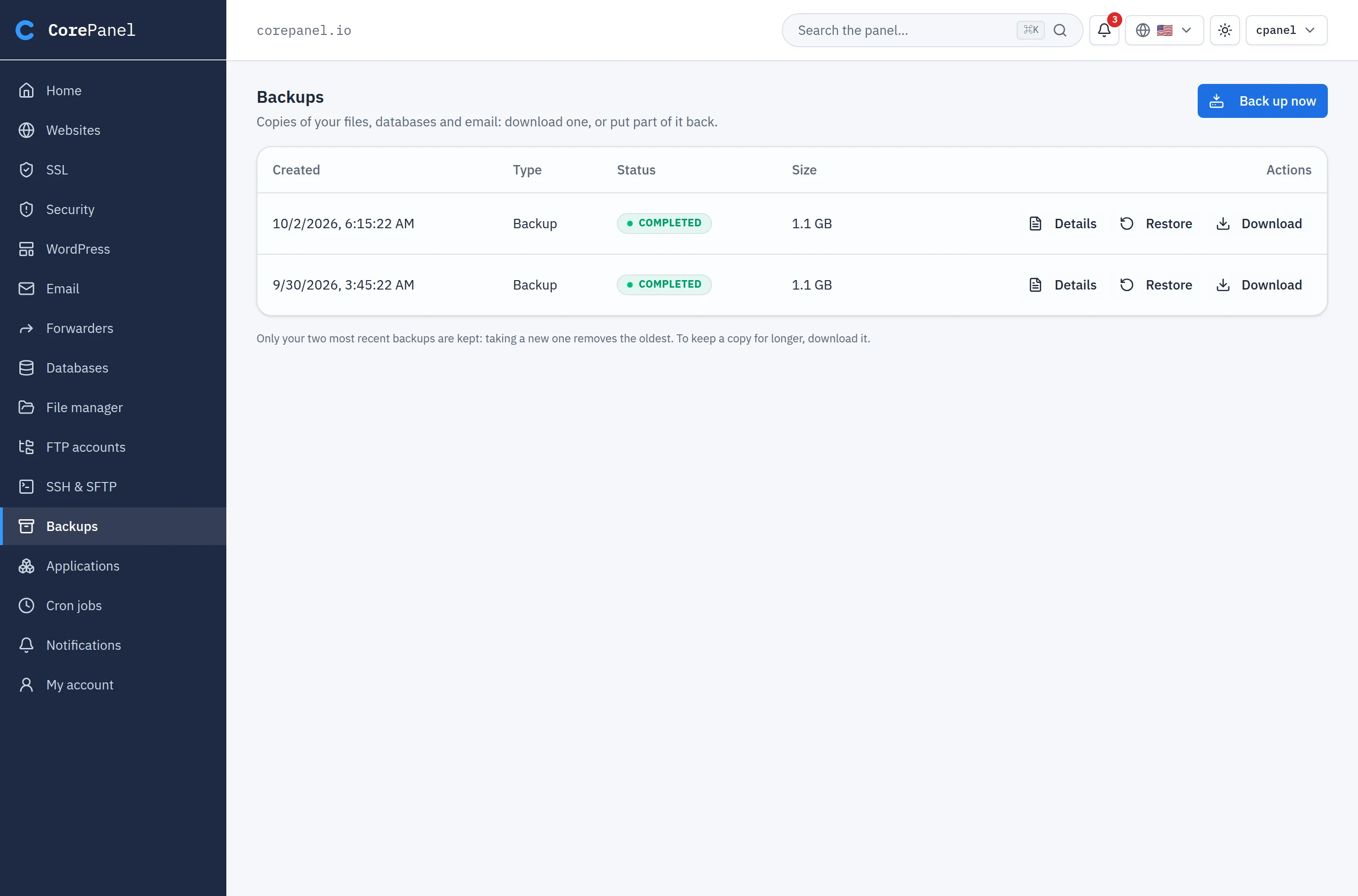
Backups lets a customer see and download every backup of their account. If you allow it, they can also take a new one and put their account back when something breaks — without opening a ticket. This page covers what they see, what the switch turns on and the limits that keep it safe for your server.
What every customer sees
Section titled “What every customer sees”Every backup and restore of their account — the ones your schedule made, the ones you took by hand and the ones they took — with size, outcome, per-resource report and a Download link. This is always on: the archive is their own data.
A restore you ran on their account appears too, without a download link, so they can see their site was rolled back.
Letting them take and restore backups
Section titled “Letting them take and restore backups”Server → Settings → Client panel has the switch, off by default. Turning it on adds Back up now and Restore. Before you do, know that it costs disk:
- Archives go to the panel’s disk (
/var/lib/corepanel/backups), outside the account’s quota. Each customer keeps their two most recent; a new one deletes their oldest. Your own backups are never touched by that rotation. - One backup per account at a time, with one hour between them.
Because of the rotation, the panel tells customers that to keep a copy they should download it.
Putting a backup back
Section titled “Putting a backup back”Restore on a backup offers two ways back:
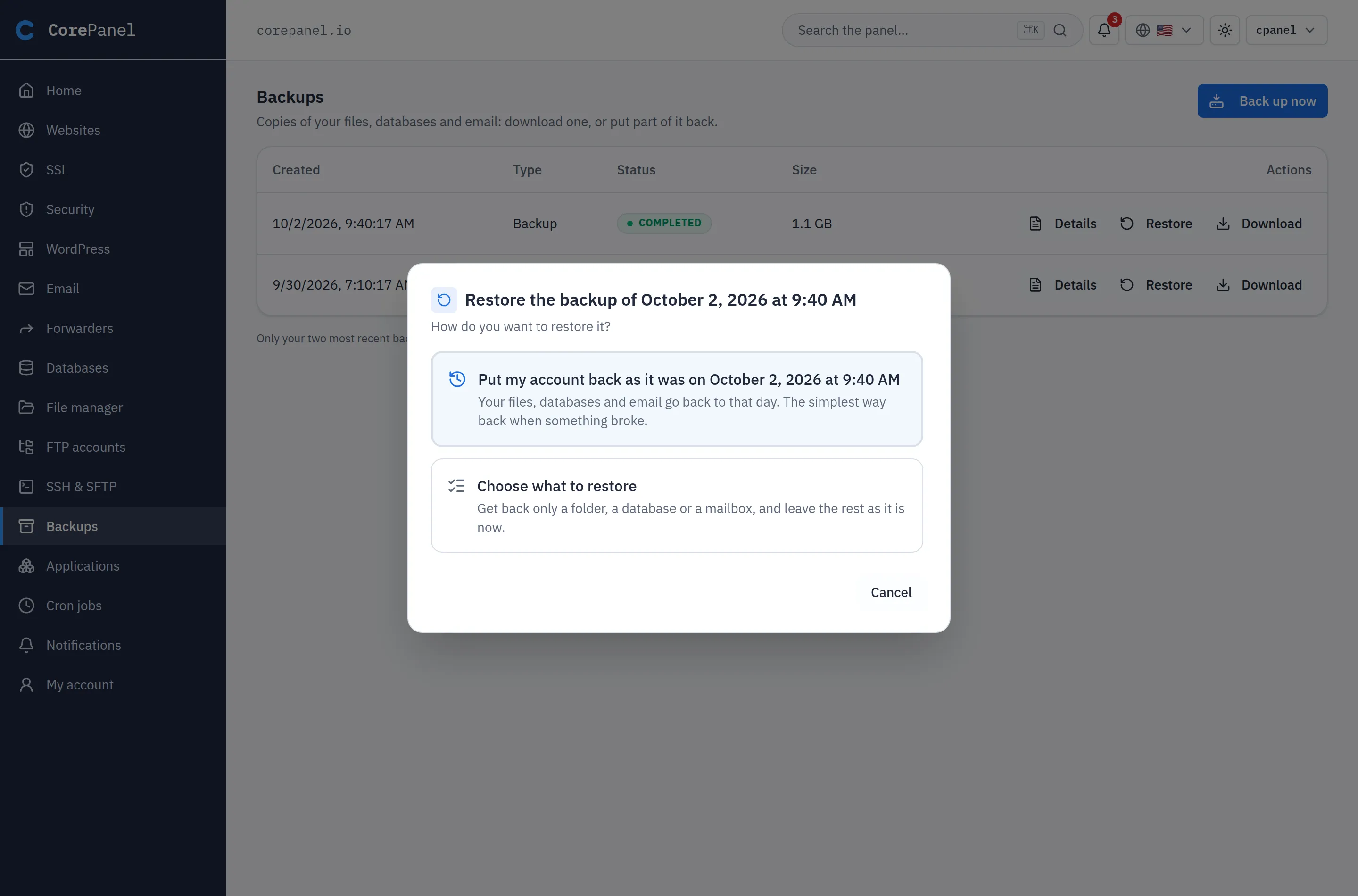
Put my account back as it was
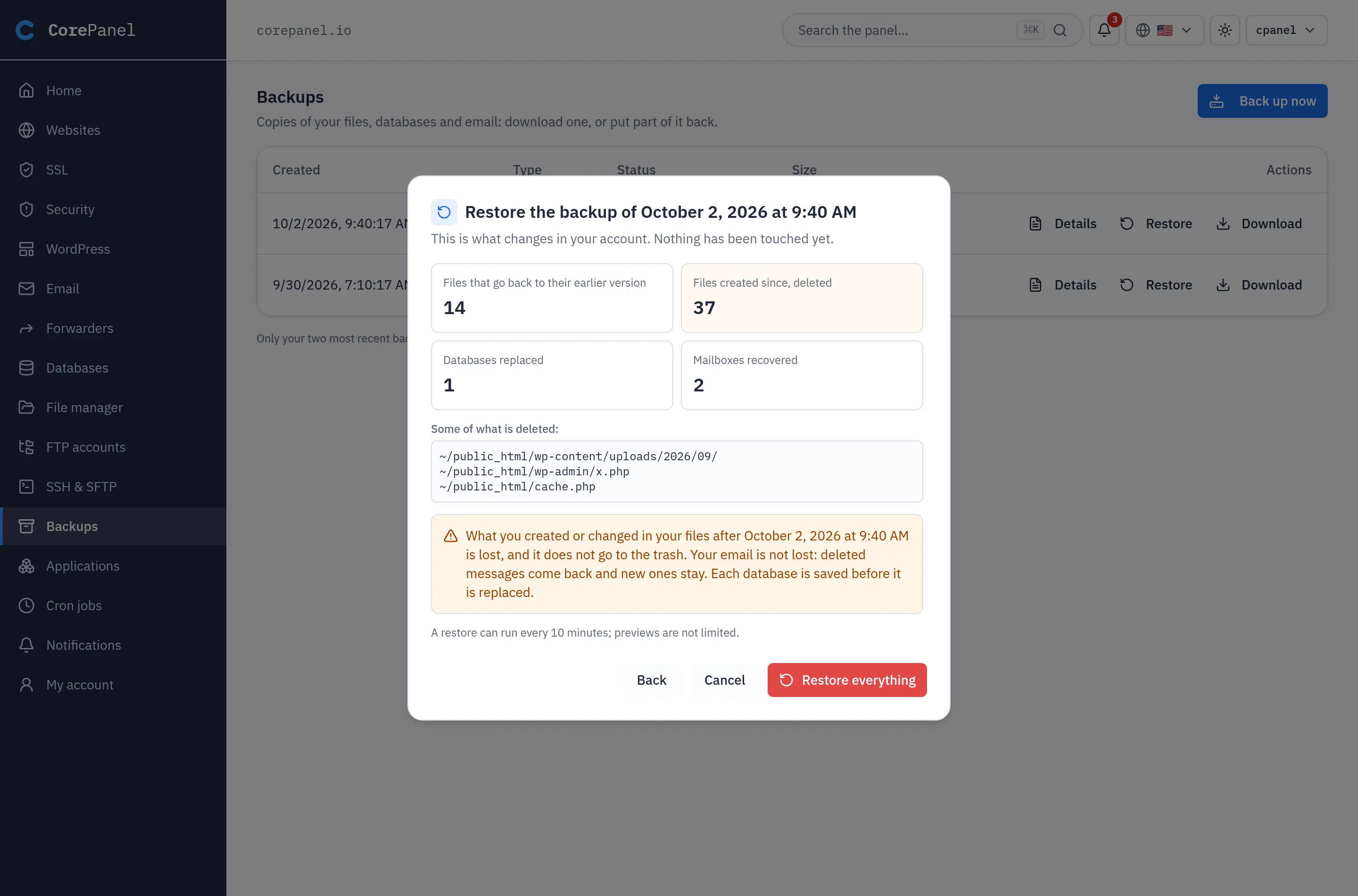
Section titled “Put my account back as it was”For a site that broke — a bad update, a plugin, an intruder’s files. The panel first shows in figures what would change; nothing is touched until they press Restore everything.
- Files return to the backup. Files created since are deleted, with no trash, so an intruder’s files do not survive.
- Databases in the backup are replaced, each saved as a copy first. Their users get back the password from the backup, matching the site’s config file.
- Email is never rolled back: deleted messages come back, new ones stay.
- Not touched: logs, live PHP sessions, application deploys,
~/backups, the trash, caches, and the files of a site added after the backup. - All or nothing: if the archive is damaged or the disk is full, nothing changes.
Afterwards the WordPress list is re-synced and every page cache emptied. This needs a backup made with a file list; older ones only offer the second way.
Choose what to restore
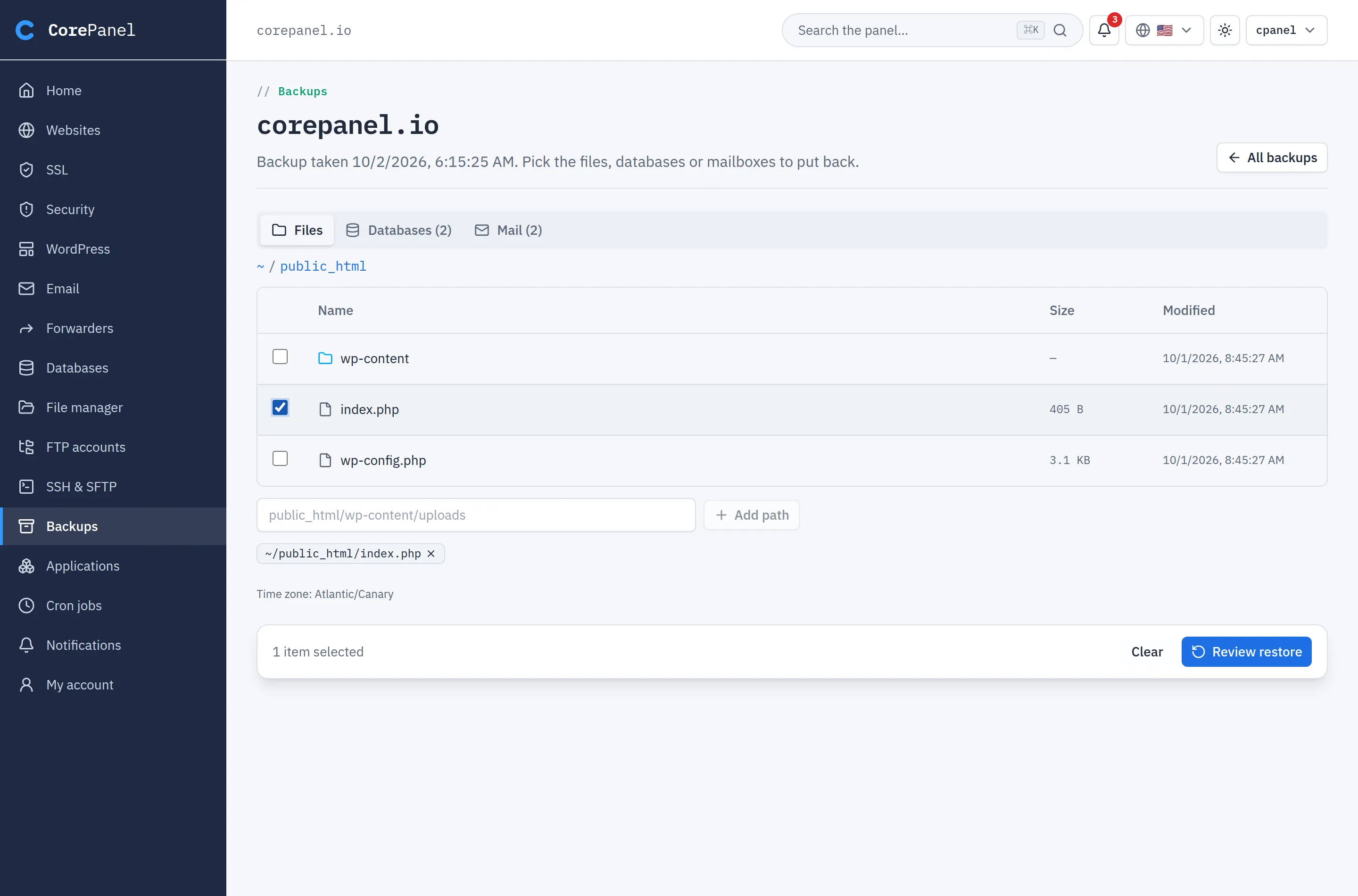
Section titled “Choose what to restore”The same browser as your partial restore, with three tabs
— Files, Databases and Mail — and a preview before Restore now. Files come back beside
the current ones in ~/restored-<date>-j<job>/; a database is saved as a copy first; a
mailbox is merged, never emptied.
What stays with you
Section titled “What stays with you”- Recreating a deleted account, and restoring domains, configuration or applications — those decide security-relevant settings.
- Archives from outside — uploaded, placed on disk or at a remote destination. Customers restore only this server’s own backups of their account.
- Remote destinations, which are your storage and your credentials.
And the limits on what they can do:
- a deleted database or mailbox comes back only if the plan has room for it;
- the restore must fit what is left of the account’s disk limit, and never more than half the server’s free space;
- one restore at a time, 10 minutes apart; the database copies saved before a replace rotate like their backups (two kept).