Coming from cPanel
There are two ways to move a cPanel server to CorePanel, and they are genuinely different operations — not two buttons for the same thing. One copies the accounts onto a second machine; the other converts the machine you already have.
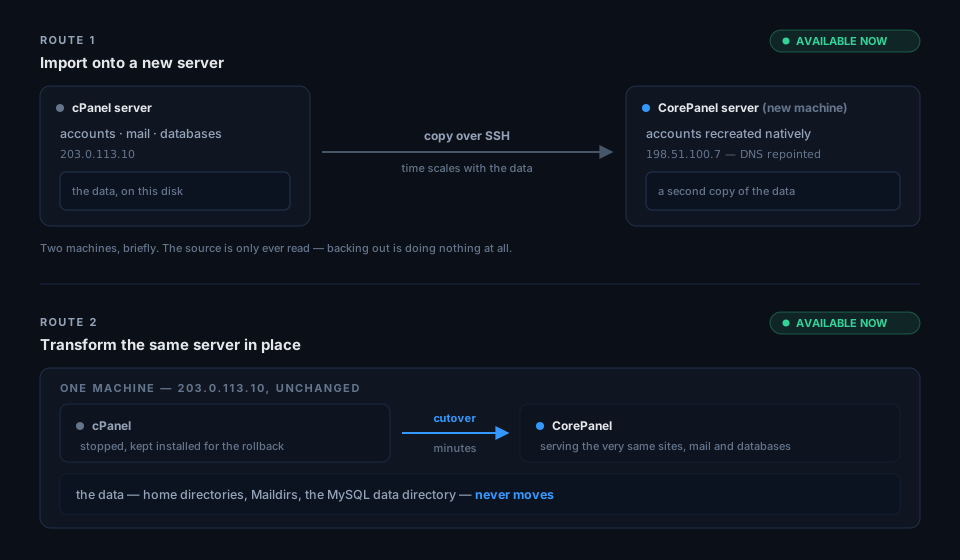
Whichever you pick, start the same way: run the migration check on the cPanel server. It is read-only, takes seconds, and its inventory and findings are the same ones both routes act on.
Route 1 — A new server, accounts imported across
Section titled “Route 1 — A new server, accounts imported across”Available today. You install CorePanel on a fresh server, then
import the accounts from the live cPanel/WHM over SSH — or from a
staged cpmove archive. Each account is recreated natively: files, mail, databases, DNS,
cron and certificates, with the original passwords preserved wherever the hash scheme
allows.
What makes this route comfortable is what it does not touch: the cPanel server is read from and never modified. It keeps serving throughout, so:
- You can import one account, verify it, and leave the rest for another day.
- Backing out is doing nothing at all — the source is still live and still authoritative.
- Imports are idempotent: re-running resumes what is missing instead of duplicating it.
What it costs:
- A second server, and both of them running until you are done.
- Time proportional to the data. Everything is copied over the network.
- A new IP, so the domains have to be repointed. CorePanel can do that per account as each import finishes — it logs into the source server, still authoritative at that moment, and repoints the A records that pointed at the old address. Domains whose DNS lives elsewhere are flagged and left alone for you to change.
Start at Getting Started to stand the new server up, then Importing cPanel accounts.
Route 2 — The same server, transformed in place
Section titled “Route 2 — The same server, transformed in place”Available today. The cPanel server becomes a CorePanel server. Nothing is copied anywhere: home directories, Maildirs and the MySQL data directory are adopted where they already are, with the same uids, on the same disk, behind the same IP address.
That single property is what changes the arithmetic:
- No second server, and no bill for running two.
- No DNS propagation window — the address does not change, so delegation is untouched.
- The downtime does not scale with the data. It is the time it takes to stop one set of daemons and start another, whether the server holds 20 GB or 2 TB. On the server we timed — 45 accounts, 51 domains — that was 28 seconds.
What it costs:
- It is the same machine, so backing out is a step you run rather than a thing you refrain from doing. cPanel is disabled and kept installed for as long as you want the way back, and because the data was never copied, mail and database writes made after the switch survive a rollback. The reversal gives back a whole cPanel — including mail, FTP and DNS, whose cPanel packages are reinstalled and whose configuration cPanel rebuilds itself — and it stops rather than discard anything created in CorePanel that cPanel would have no record of, such as a mailbox added after the switch.
- The server must already run RHEL 8–10 or a rebuild (AlmaLinux, Rocky). The check says so plainly if it does not.
Start with the read-only migration check, which inventories the server, scores it and lists exactly what needs attention — then follow Transforming a cPanel server, a guided command that walks the whole thing one stage at a time. The tool is in beta; what changed in each release is in the Transform changelog, and there is a summary of the whole route at CorePanel Transform.
Choosing
Section titled “Choosing”| Route 1 — import onto a new server | Route 2 — transform in place | |
|---|---|---|
| Available | Now | Now |
| Servers needed | Two, briefly | One |
| Data | Copied over the network | Adopted where it is, never moved |
| Downtime | Per account, as you switch each one over | One window for the whole server — 28 s measured on 45 accounts |
| Scales with data size | Yes | No |
| IP address | New — domains are repointed | Unchanged |
| Backing out | Do nothing; the source never changed | A rollback step, with the window held open — cPanel comes back whole, mail and DNS included |
| Good when | You want to move gradually and verify as you go, or the source OS is not supported | The server is large, the IP matters, or a second machine is not worth it |
If you can run a second server, Route 1 is the gentler of the two: nothing about the source changes, so the worst outcome is a wasted afternoon. Route 2 is the better operation for a big, busy server — one window, no copying, same address — and it keeps a way back to cPanel open for as long as you want it. Either way, run the check first: it costs nothing and it tells you where your server stands.
If you change your mind later
Section titled “If you change your mind later”Both routes bring accounts in in cPanel’s format, and the same format takes them back out.
Any account, at any time and on every edition, can be
exported for cPanel as the archive WHM’s Transfer or
Restore a cPanel Account takes, and restored on any cPanel server with restorepkg —
after a transformation’s cleanup too. Passwords travel with the account — see
Passwords for the details.
Where is the File Manager?
Section titled “Where is the File Manager?”Customers find it as File manager in their client panel, and
administrators in each account’s workspace — see File Manager.
It opens on the same home folder cPanel showed, with one entry per domain under Places
and dotfiles such as .htaccess visible from the start. Uploads are dragged in from the
desktop — whole folders included — a folder downloads as a zip, and a zip or tarball is
extracted where it is, with a look inside first. cPanel’s old ~/.trash is kept,
and the file manager’s trash points at it rather than hiding it — and never purges it:
only the file manager’s own items are deleted after 30 days.