Web Application Firewall
CorePanel includes a web application firewall that inspects every HTTP request before it reaches a site. Attacks are stopped at the web server, so nothing reaches PHP, the database or a vulnerable plugin.
The engine is pxShield, and the panel’s WAF section is where you see what it is catching and decide how strict it should be.
Rule families
Section titled “Rule families”Rules are grouped into families. Three of them are simply what the firewall is — they run on every edition, always blocking, and cannot be turned off one by one (the only thing that stops them is turning the whole WAF off):
| Family | Covers | State |
|---|---|---|
| BASE | Protocol integrity and catastrophic attack classes: null bytes, path traversal, CRLF injection, .sql file probing, dangerous uploads, .env and VCS exposure | Always blocking |
| SQLI | SQL and MS-SQL injection in GET and POST | Always blocking |
| XSS | Cross-site scripting in GET, POST, User-Agent and headers | Always blocking |
The fourth is opt-in:
| Family | Covers | State |
|---|---|---|
| WPE | WordPress Extended: login brute force, XML-RPC amplification, user enumeration, config/backup exposure, traversal in arguments, malicious uploads, comment spam | Off / Detect / Block, your choice |
WPE is opt-in for a technical reason, not a commercial one: its rules touch XML-RPC, author enumeration and comment flows that a legitimate plugin or a mobile app may rely on. Turning it on is a decision about your sites, so the panel asks instead of assuming.
Only WPE has a mode. The three are:
| Mode | Behaviour |
|---|---|
| Block | Matching requests are refused |
| Detect | Matches are logged, the request goes through |
| Off | The family is not evaluated at all |
Detect is a run-in mode: enable it on a live server, watch the event log for a few days, confirm nothing legitimate is matching, then switch to block. It is not a lesser tier.
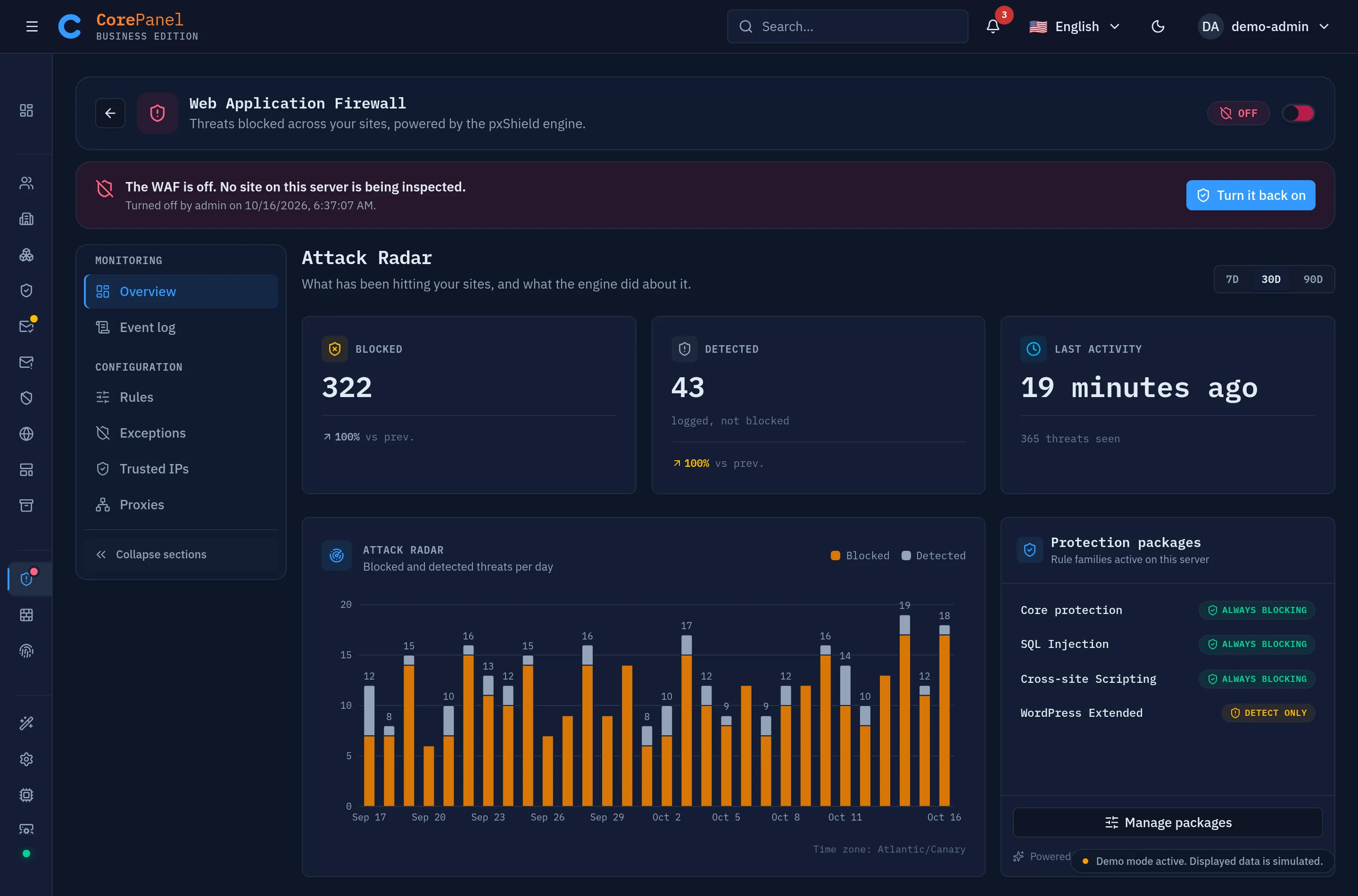
Manage the WPE package under WAF → Overview → Protection packages. The setting is server-wide and applies to every site.
Upgrading a server installed before this change
Section titled “Upgrading a server installed before this change”Servers set up before 6 August 2026 ran an older model, where SQLI and XSS logged instead of blocking on the free edition. Nothing has to be clicked: on the first restart after the upgrade, CorePanel raises both families to block and leaves your WordPress Extended choice as it was.
If a site depended on that gap — a form posting something a SQL rule reads as an injection, say — it will start being refused at that point. The event log names the rule and the URL, and the fix is an exception, not a downgrade.
Per-rule control
Section titled “Per-rule control”Rules lists every rule in the catalog with its ID, its family, its engine default and whether it is currently on. Most rules can be toggled individually — that is how you handle a rule that misfires on one application without disabling a whole family.
Some rules ship off by default and are opt-in, because they trade a higher false
positive rate for extra coverage. Examples: XSS-001/XSS-002 (XSS in GET/POST),
WPE-003 (wp-login POST without a Referer), WPE-021 (exposed database dumps),
WPE-023 (installer lockout).
In Pro and above, rules can also be tuned per domain: a rule turned off for one site while every other site keeps it. Personal edits the server-wide layer, which every domain inherits — the same rules applied to every site at once.
Per-domain overrides are not removed when a server drops back to Personal: an override usually exists because a rule was breaking a working site, and deleting it during a billing event would break that site again. They stay in place, and you can still delete them on any edition — what Personal cannot do is add a new one.
The attack radar
Section titled “The attack radar”The Overview is a live picture of what is hitting the server:
- attacks over time, so a spike is visible at a glance;
- the top attacking IP addresses;
- the most-triggered rules;
- a breakdown by domain, so you can see which site is the target.
This is also the fastest way to size a problem: one IP hammering wp-login is a
different situation from a distributed scan across every domain you host.
The event log
Section titled “The event log”Event log is the detailed record: timestamp, client IP and country, domain, request, rule that matched, and whether it was blocked or only detected. Opening an event shows the full request context that triggered it.
The request column carries the query string along with the path, because for a GET the
query string is usually the attack itself: GET /index.php tells you nothing, but
GET /index.php?id_products[]=(select*from(select(sleep(6)))a) shows you a time-based SQL
injection. The list shows the first 256 characters and ends a longer query with …. The
detail dialog shows the whole query string as it was received (up to 8 KB; raw bytes that
are not valid text, such as a NUL, are shown percent-encoded), and below it
a Query parameters table with each parameter percent-decoded, one row per occurrence
and in the order they were sent. Events recorded before this was added show the path only.
Two things it is for:
- Confirming an attack was stopped — the answer to “were we affected?”.
- Diagnosing a false positive — when a customer says “the panel of my site says 403”, the event log is where you see which rule fired and on which URL, which is exactly what you need to write an exception.
The event reference
Section titled “The event reference”Every event has a reference of the form WAF-1284391, shown on its own column in the log
and in the detail dialog. It is what a customer quotes: their own WAF
section shows
the same reference on the events for their sites, with a button that copies it.
Paste it into the Reference field of the filter bar to go straight to that request. A reference that does not resolve simply matches nothing — including one from another account, which is the case a customer’s ticket occasionally produces after a copy/paste between two panels.
You can filter by domain, rule, action, client IP and country. The country comes from a local GeoIP database the server keeps up to date on its own — there is nothing to configure and no lookup leaves the machine. A few addresses have no country: anycast ranges and networks the database does not map show an empty flag, which is normal and not a sign of anything being wrong.
Trusted IPs and exceptions
Section titled “Trusted IPs and exceptions”Two escape hatches, documented in Tuning the WAF:
- Trusted IPs — addresses that skip rule inspection entirely.
- Exceptions — skip specific rules on a specific URL prefix, optionally narrowed by method and client IP.
Reach for an exception before a rule toggle, and for a rule toggle before turning off a family. The narrower the change, the less protection you lose.
Sites behind Cloudflare or a proxy
Section titled “Sites behind Cloudflare or a proxy”When a site sits behind a reverse proxy, every visitor reaches the server from the proxy’s address. If the server believed that address, a few rule matches from one attacker would block the proxy, and every site behind it with it.
WAF › Proxies names the proxies whose forwarding headers (X-Forwarded-For,
CF-Connecting-IP, X-Real-IP) the server trusts to say who the visitor is. Requests
through them are still inspected — as the visitor, not as the proxy. The WAF, Access
Control, the access logs and PHP’s REMOTE_ADDR all see the real IP.
Server-wide applies to every site. Nothing is trusted until you change it, and changes apply at once, without a restart:
- Trust Cloudflare — Cloudflare’s published IP ranges.
- Your own proxies — the IPs or CIDR ranges your load balancer or nginx connects from.
Add only proxies you run: any address on this list can claim to be any visitor.
Ranges wider than
/8(IPv4) or/16(IPv6) are refused, and so are loopback, link-local and this server’s own addresses. A request from the server itself is never treated as coming through a proxy, even when a range on the list contains it: every account’s scripts run there.
Per site adds to the server-wide setting for one site, within seconds:
- Cloudflare — Server default follows the server-wide switch; On or Off replaces it for this site. The site’s owner can change this one from their own panel; whoever saves last wins.
- Additional proxies for this site — trusted for this site on top of the server-wide list. A visitor seen through them is greylisted on this site alone, never server-wide, so a proxy you only half trust cannot get its visitors blocked on every other site.
Each subdomain is a site of its own and is set separately; webmail.<domain> follows the
server-wide setting.
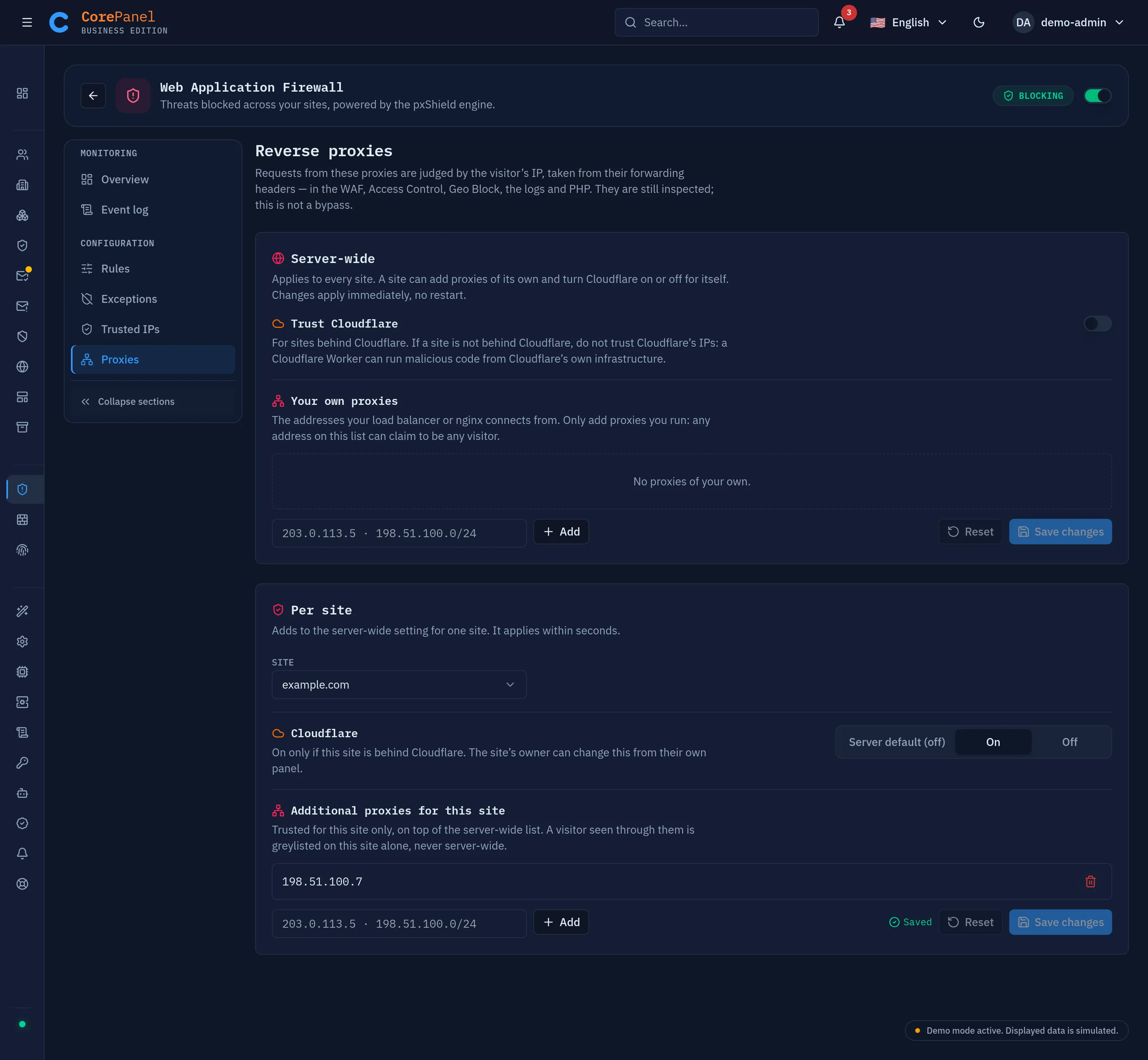
A request from any other address is its own visitor, whatever headers it sends. Only super-administrators see this page.
If a site’s Access Control only lets Cloudflare’s ranges in (to force traffic through Cloudflare), trusting Cloudflare for that site breaks that rule: the WAF now sees the visitor, not Cloudflare. Allow the visitors you want instead, or leave Cloudflare untrusted for that site.
Turning the WAF off
Section titled “Turning the WAF off”The header of the WAF section carries one switch for the whole server. It is there for the moment you need to know whether the WAF is what is breaking something — a deploy, an import, a payment callback that fails for no visible reason — and cannot spare the time to find which rule. Turn it off, retry, and you have your answer in a minute.
What it does:
- It applies at once and to every site, the panel and webmail included. The web server is not restarted and no connection is dropped.
- Off means no inspection at all — not a lower level. SQL injection, cross-site scripting, malicious uploads and any rule of your own all pass through, and no attack is written to the event log while it is off.
- Emergency access by IP loses its browser check.
https://<server-ip>normally answers real browsers only, and that check is a WAF rule. While the WAF is off the panel’s login page answers anything that asks for it on that address — the login itself is unchanged. - Nothing is forgotten. Packages, per-rule choices, exceptions and trusted IPs stay exactly as they were, can still be edited, and apply again the moment you turn it back on.
- It stays off until someone turns it on. There is no timer, and a restart of the web server or of the machine does not bring it back either.
Because of that last point the panel does not let it go unnoticed: the header badge turns red, a notice with who turned it off and when sits on every page of the WAF section, the WAF entry in the sidebar is marked on every screen of the panel, and every administrator gets a notification. Turning it off asks for confirmation; turning it back on never does.
The switch belongs to the server’s super-administrators, like the host firewall’s. Other administrators see the state, the notice and the mark in the sidebar, without the switch; a reseller sees none of it.
When the panel cannot change it
Section titled “When the panel cannot change it”Two cases, and the panel says which:
- “Turned off in corehttpd.ini” —
EnableWAF = falsein/etc/corehttpd.inikeeps the WAF off whatever the panel’s switch says. That file is read when the web server starts, so the way back is to change it there and restartcorehttpd. - No switch at all — the web server on the machine predates the feature. Update
corehttpdandcorepanel-sys; until then the WAF simply stays on.
If the WAF is unavailable
Section titled “If the WAF is unavailable”When the engine’s control socket cannot be reached, the security views degrade rather than failing the page: statistics and the event log are unavailable while the sites themselves keep being served. It is a monitoring outage, not a hosting one — but it does mean you are flying blind until it is back.