Move one website from cPanel to CorePanel: files, database, email and DNS
Migrate a single cPanel account to a CorePanel server without touching anything else on either side: package it with pkgacct, preview the import, bring over the WordPress site, its database and its mailboxes with their passwords, test it before DNS moves, then switch.
Moving off cPanel does not have to be all or nothing. This tutorial moves one hosting account: a WordPress site with its database, a mailbox with its messages, and the domain’s DNS. Nothing else on the cPanel server changes, the other sites keep running there, and the account already on your CorePanel server is left alone.
The account in the examples is shop, with the domain example.org. On cPanel it has:
- WordPress in
public_html, running PHP 8.1, with its databaseshop_wp; - the mailbox
info@example.org, with mail in it; - the DNS zone for
example.org, served by the cPanel server.
It starts from a server set up with
Install CorePanel and host your first website:
203.0.113.10 stands in for the CorePanel server, with ns1.example.com and
ns2.example.com as its nameservers. 198.51.100.5 stands in for the cPanel server.
You need root on both.
A day before: lower the TTL
DNS answers are cached for as long as their TTL says, often four hours or a day. Lower it
now, so the switch later takes minutes instead of a day. In cPanel, open Zone Editor
for example.org and set the TTL of the example.org, www, mail and MX records to
300 (five minutes). Wait for the old TTL to run out before you switch.
Package the account on cPanel
Log in to the cPanel server as root and package the account. pkgacct reads the
account and writes one archive; it does not stop, lock or change anything:
/scripts/pkgacct shop...pkgacct completedThe archive is /home/cpmove-shop.tar.gz. It holds the home directory with the site and
the mail, the database dumps, the DNS zone, the certificates and the password hashes of
every login. Treat it like a password file.
Copy it to the CorePanel server
On the CorePanel server, fetch the archive:
scp root@198.51.100.5:/home/cpmove-shop.tar.gz /root/CorePanel reads import archives from one directory only, /var/lib/corepanel/import,
owned by its own user. Create it and put the archive there:
install -d -o corepanel -g corepanel -m 0700 /var/lib/corepanel/importinstall -o corepanel -g corepanel -m 0600 /root/cpmove-shop.tar.gz /var/lib/corepanel/import/Preview the import
A dry run reads the archive and says what it would create, which passwords carry over and what conflicts with the server, without creating anything:
corepanel account import /var/lib/corepanel/import/cpmove-shop.tar.gz --dry-runcPanel import preview (dry-run)==============================Source: cpanel 11.138.0.12 @ cp.oldhost.example.netAccount: shop (uid 1055, gid 1056)Domain: example.orgPlan: default
Resources: domains=1 mailboxes=1 forwarders=0 databases=1 db-users=6 dns-records=28 ftp=2 cron=0 certificates=1
Credentials: system password: preserved mailbox/ftp: 3 preserved, 0 reset (of 3)
Domains: - example.org primary [ssl]
Conflicts: none
Warnings (1): * [warning] the source runs a different PHP version on example.org (8.1); this server runs one version per account, so they would run 8.4 (php)Check three things before going on:
- Conflicts: none. A username or domain that already exists here stops the import.
- Credentials.
preservedmeans the account’s own password, the mailbox and the FTP logins keep working with the passwords their owners already use. Aresetwould name the login that needs a new one. - Warnings. Here, the site ran PHP 8.1 and CorePanel will run it on 8.4, the newest version of the same major release. Most WordPress sites do not notice; the test below will show if this one does.
Import it
corepanel account import /var/lib/corepanel/import/cpmove-shop.tar.gz --preserve-uid --report /root/import-shop.jsoncPanel import=============Job: #1Status: completedAccount: shop (id 2)Domain: example.org
Resources: [created ] account:shop — system password preserved (sha512-crypt) [created ] domain:example.org — primary domain, vhost and managed DNS zone [created ] php:8.4 — php 8.4 (source PHP 8.1 is not installed; matched the major version to 8.4) [created ] mysql:shop_wp — database created and data loaded [created ] mysql-user:shop_wp — db user created with preserved password and privileges (host localhost) [created ] homedir — restored 3834 files, 545 dirs, 104 MiB (Maildir included) [created ] mailbox:info@example.org — mailbox password preserved [skipped ] ssl:example.org — self-signed certificate; a certificate will be issued automatically once DNS resolves [created ] dns:example.org — 15 custom record(s) imported, 13 skipped (managed by the new zone or already present); source IP 198.51.100.5 rewritten to 203.0.113.10 [created ] wordpress — 1 WordPress install(s) cataloged [created ] ssh:shop — SSH access sftp, from its /usr/local/cpanel/bin/noshell shell on the source...It took a few seconds for a 100 MB account. What happened:
- The site serves from
/home/shop/public_html, the same path as on cPanel, so the paths inwp-config.phpand in any cron job still point at the right place. - The database was loaded, and its MySQL user keeps its password, so WordPress connects
without touching
wp-config.php. - The mailbox came with its messages and its password.
- The DNS zone came over with its custom records, such as a site verification
TXTor aCNAMEfor a newsletter service, and every record that pointed at the old server now points at this one. SPF, DKIM and the mail records are CorePanel’s own, with a fresh DKIM key for this server. - The cPanel server’s self-signed certificate was left behind. A real one, issued by AutoSSL or bought, would have been installed. Either way CorePanel gets a free certificate for the domain as soon as the DNS points here.
- The WordPress site is in the WordPress list, with updates, restore points and one-click login.
The warning about the plan says cPanel’s default package has no match on this server, so
the account kept the limits cPanel recorded for it. Attach it to a package of yours later
with corepanel account update shop --package <id> if you sell plans.
The full report, resource by resource, is in /root/import-shop.json, and in the panel
under Backup & Transfers → Transfers → Recent imports.
Test it before the DNS moves
Visitors still reach the cPanel server: nothing in DNS has changed yet. Ask the new server for the site directly, by its own address:
curl -sk --resolve example.org:443:127.0.0.1 https://example.org/ | grep -o '<title>[^<]*</title>'corepanel wp list shop<title>Example Shop</title>ID STATUS VERSION SITE URL PATH1 ok 7.1.2 https://example.org /home/shop/public_htmlThe page came from this server’s copy of the database: WordPress on PHP 8.4, connected
to the imported data. -k skips the certificate check, because the free certificate is
only issued once the domain points here.
Then log in to the mailbox with the password it had on cPanel:
curl -sk --resolve mail.example.org:993:127.0.0.1 --url 'imaps://mail.example.org/INBOX' --user 'info@example.org:Info-Shop-2026!' -X 'STATUS INBOX (MESSAGES)'* STATUS INBOX (MESSAGES 1)To click through the site in a browser, point example.org at the new server on your own
computer only: add 203.0.113.10 example.org www.example.org to /etc/hosts (on Windows,
C:\Windows\System32\drivers\etc\hosts). Log in to wp-admin, open a few pages, submit a
form. Remove the line when you are done.
Switch the DNS
The zone on CorePanel is ready and already points at the new server. What is left is
telling the internet to use it, at the domain’s registrar: change the nameservers of
example.org from the cPanel server’s to ns1.example.com and ns2.example.com, the
same ones the first tutorial set up for example.com.
If you cannot change the nameservers yet, edit the zone that is still live instead, on
cPanel: point the A records of example.org, www and mail at 203.0.113.10. With the
TTL lowered a day ago, visitors follow within minutes. Change the nameservers later; until
you do, the zone on cPanel stays the one that counts, so make record changes there.
Once the domain is delegated, this server answers for it:
dig +short NS example.orgns1.example.com.ns2.example.com.CorePanel checks every 30 minutes whether a domain waiting for its certificate has been
delegated, and as soon as it has, orders a wildcard for example.org and
*.example.org, which also covers mail. and webmail.. Wait for it, then load the site
with the certificate checked:
timeout 2400 bash -c 'until echo | openssl s_client -connect example.org:443 -servername example.org 2>/dev/null | openssl x509 -noout -ext subjectAltName 2>/dev/null | grep -q "\*.example.org"; do sleep 10; done'curl -fsS -o /dev/null -w '%{http_code}\n' https://example.org/200Mail that arrives during the switch
For as long as some senders still have the old answer cached, they deliver to the cPanel server, and those messages land in the old mailbox. With a five-minute TTL that window is short, but not empty. Leave the account on cPanel for a few days. Then log in to the old webmail, and move anything that arrived after the import into the new mailbox: from a mail app connected to both, it is a drag and drop.
Remove the account from cPanel
Once the site and the mail have been served from CorePanel for a week, delete the account
on the cPanel server, and the archive with it. removeacct asks you to confirm:
/scripts/removeacct shoprm /home/cpmove-shop.tar.gzOn the CorePanel server, remove the archive too:
rm /var/lib/corepanel/import/cpmove-shop.tar.gz /root/cpmove-shop.tar.gzWhat you have now
| On cPanel | On CorePanel | |
|---|---|---|
| Site | public_html, PHP 8.1 | Same path, PHP 8.4, listed under WordPress |
| Database | shop_wp | shop_wp, same user and password |
info@example.org | Same mailbox, same password, its messages | |
| DNS | Zone on the cPanel server | Zone on CorePanel, records kept, IPs rewritten |
| Certificate | Self-signed | Free wildcard for example.org, renewed on its own |
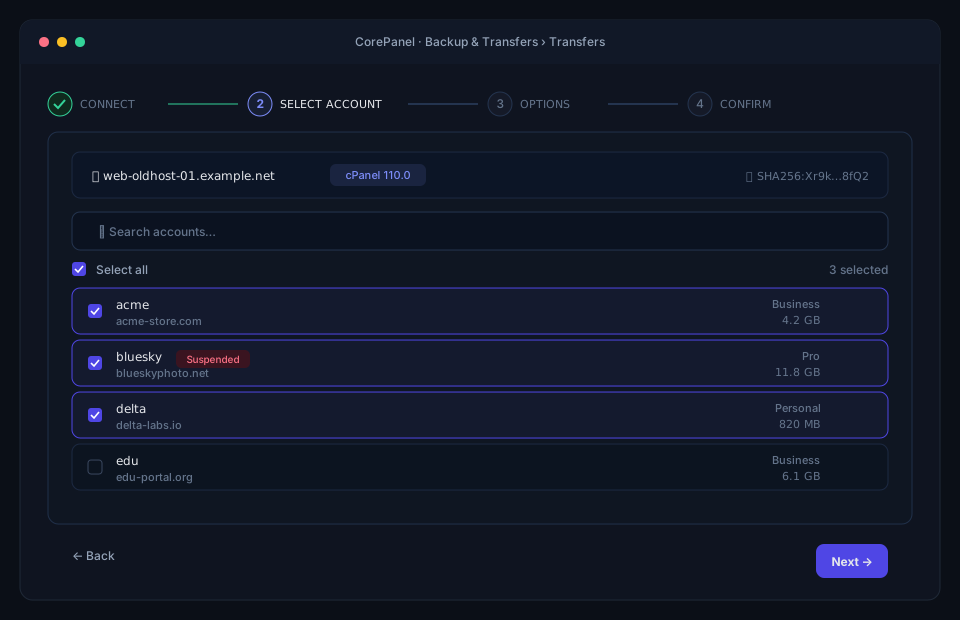
To move the next account, repeat from Package the account. To move many at once, the panel can pull them straight from the cPanel server over SSH, one after another, and repoint their DNS as each one finishes: Backup & Transfers → Transfers, described in Importing cPanel accounts.
Moving every account, and the server with them? Transform turns the cPanel server itself into a CorePanel server, in place, and can roll it back. Run the migration check on it first to see what that would involve.