Move a website off shared cPanel hosting to your own server, with only the cPanel login
No root, no WHM, no SSH: bring a WordPress site, its database and its mailboxes from a shared cPanel host to your own CorePanel server using the account's username and password, test it, then switch DNS.
Most sites that outgrow shared hosting sit in a cPanel account at a host that will never give you root. You have the account’s username and password, maybe two-factor authentication, and often no shell. That is enough. CorePanel logs in to the account the way you do, asks cPanel for the account’s own full backup, previews it, imports it onto your server, and deletes the backup from the old account when it is done.
The account in the examples is shop, with the domain example.org, at a shared host
whose cPanel is server.oldhost.example.net. It has:
- WordPress in
public_html, on PHP 8.1, with its databaseshop_wp; - the mailbox
info@example.org, with mail in it; - its DNS, at the shared host.
It starts from a server set up with
Install CorePanel and host your first website:
203.0.113.10 stands in for the CorePanel server, with ns1.example.com and
ns2.example.com as its nameservers.
Before you start: room for one backup
cPanel writes the backup inside the account, so it counts against the account’s disk quota at the old host. The account needs free quota of about half the space it uses: a 1 GB site needs about 500 MB free. CorePanel reads the numbers and stops before anything is made if the backup cannot fit, so there is no risk in trying. If the account is close to its quota, delete old backups or logs from it first.
Also lower the TTL of the domain’s records to 300 a day before, in Zone Editor in
the old cPanel, if the host gives you one. The switch later then takes minutes.
Log in to the old account
In CorePanel, open Backup & Transfers → Transfers and choose cPanel, with the account’s login. Enter:
- Server: the host name you open cPanel at,
server.oldhost.example.net; - Port:
2083, unless the host uses another one; - Username and Password: the account’s cPanel login.
The password is used to log in and is never stored. If the account has two-factor authentication, the next screen asks for the current code from your authenticator app, once.
If the host’s certificate does not verify, CorePanel shows its SHA-256 fingerprint before it sends anything. Compare it with what your browser shows for the same address, padlock → certificate details, and confirm only if they match.
CorePanel then reads the account’s disk usage, its quota, and whether the host allows it to make backups:
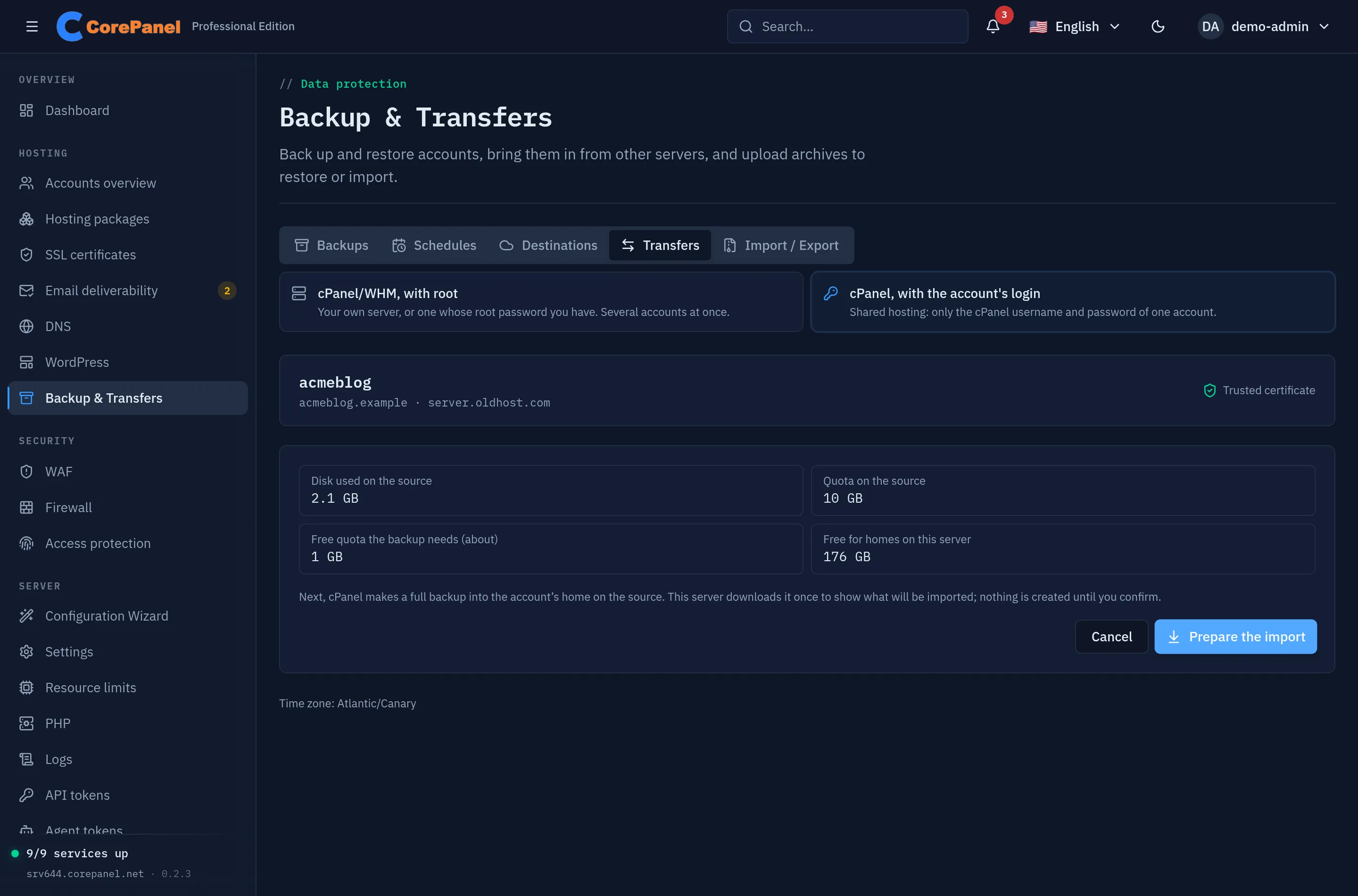
If a figure is red, the message says what to free. If the host has turned off backups for the account, it cannot package itself, and only the host can move it for you.
Prepare the import and read the preview
Click Prepare the import. cPanel makes the full backup in the account’s home; on a busy shared server it may queue it until the load drops, and the screen says so. CorePanel then downloads it once to read what is in it, keeps only the list, and shows the preview:
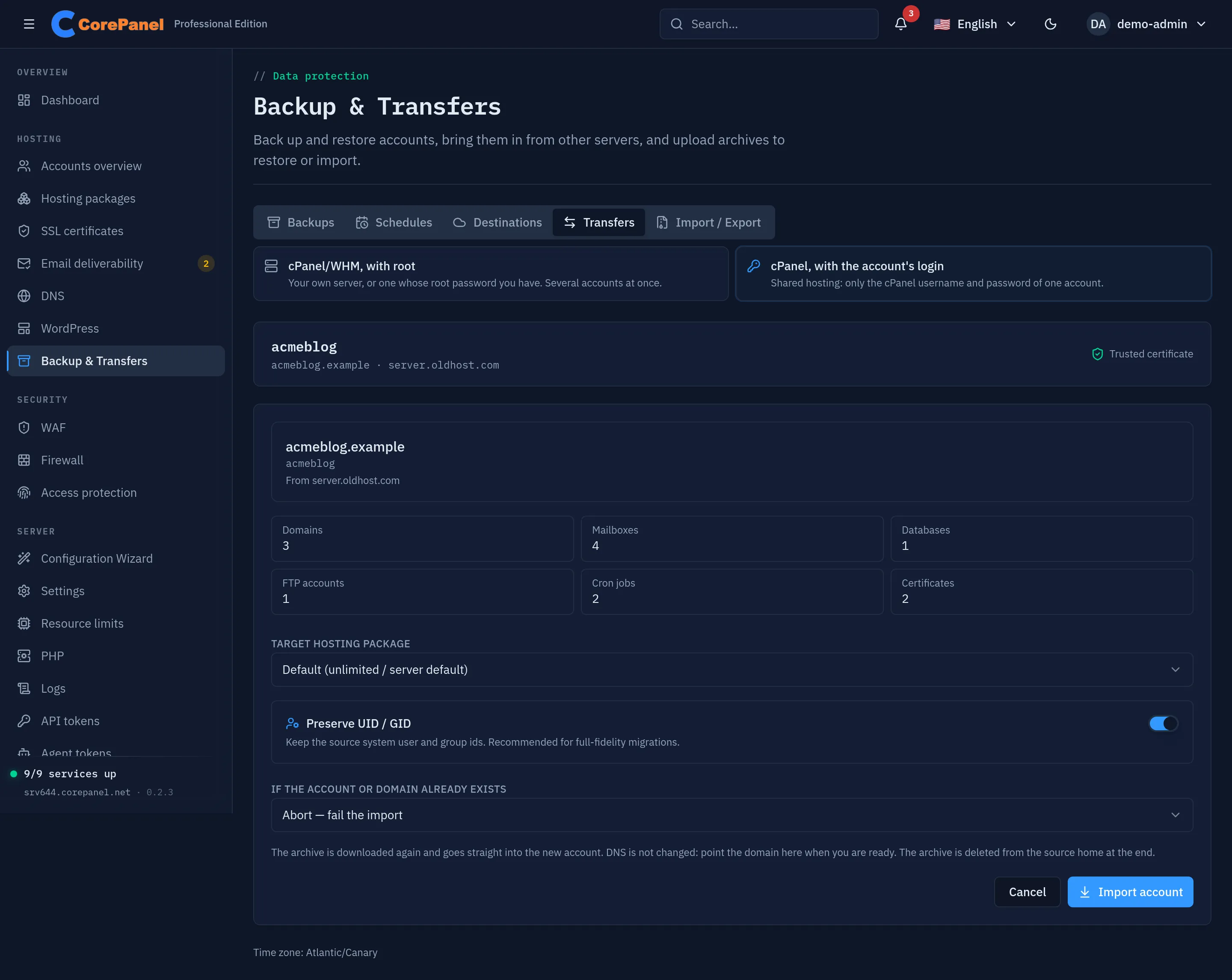
For shop, it lists one domain, one mailbox, one database, two FTP logins and one
certificate, says all three passwords carry over, and warns that the site ran PHP 8.1 and
will run on 8.4 here. Check for:
- Conflicts: a username or a domain that already exists on your server stops the import.
- Passwords: those marked to reset will need a new one after the move. The rest keep working as they are.
Import
Leave the package empty unless you sell plans, switch Preserve UID / GID on, and click Import account.
CorePanel downloads the backup a second time and splits it on the way: the home goes straight into the new account and the databases are loaded once the files are in. The progress is in the same tab. For a 100 MB account the whole thing takes under a minute, plus however long the old host takes to make the backup.
When it finishes, the backup is deleted from the old account, so its quota there is not left full, and CorePanel logs out. The old account, its site and its mail are otherwise exactly as they were: visitors still reach them.
Check the result from the shell:
corepanel account listcorepanel wp list shopcorepanel mail list example.org| 2 | example.org | shop | 1 | 1/∞ | 1/∞ | 0/∞ | | active |ID STATUS VERSION SITE URL PATH1 ok 7.1.2 https://example.org /home/shop/public_htmlinfo@example.org active quota=1024 MBWhat the import did:
- The site serves from
/home/shop/public_html, the same path as at the old host, sowp-config.phpand the site’s cron jobs keep pointing at the right place. - The database
shop_wpwas loaded, and its MySQL user kept its password: WordPress connects without any change. - The mailbox came with its messages and its password.
- The DNS zone came over with its custom records, and every record that pointed at the old host now points at this server. SPF, DKIM and the mail records are CorePanel’s.
- The WordPress site is in the WordPress list, with updates, restore points and one-click login.
Test it before the DNS moves
Ask the new server for the site directly. -k skips the certificate check, because the
free certificate is only issued once the domain points here:
curl -sk --resolve example.org:443:127.0.0.1 https://example.org/ | grep -o '<title>[^<]*</title>'curl -sk --resolve mail.example.org:993:127.0.0.1 --url 'imaps://mail.example.org/INBOX' --user 'info@example.org:Info-Shop-2026!' -X 'STATUS INBOX (MESSAGES)'<title>Example Shop</title>* STATUS INBOX (MESSAGES 1)The page came from this server’s copy of the database, and the mailbox opened with the password it had at the old host.
To click through the site in a browser, add 203.0.113.10 example.org www.example.org to
the hosts file of your own computer (/etc/hosts, or
C:\Windows\System32\drivers\etc\hosts on Windows), log in to wp-admin, and try the
pages and forms that matter. Remove the line when you are done.
Switch the DNS
At the domain’s registrar, change the nameservers of example.org to ns1.example.com
and ns2.example.com. The zone on CorePanel is already complete. If the domain was
registered through the shared host, the nameserver setting is in its client area, under
the domain.
dig +short NS example.orgns1.example.com.ns2.example.com.CorePanel checks every 30 minutes whether a domain waiting for its certificate has been
delegated, and then orders a wildcard for example.org and *.example.org. Wait for it,
then load the site with the certificate checked:
timeout 2400 bash -c 'until echo | openssl s_client -connect example.org:443 -servername example.org 2>/dev/null | openssl x509 -noout -ext subjectAltName 2>/dev/null | grep -q "\*.example.org"; do sleep 10; done'curl -fsS -o /dev/null -w '%{http_code}\n' https://example.org/200Mail that arrives during the switch
Senders that still have the old answer cached deliver to the old host for a while, so a few messages can land in the old mailbox. Keep the shared hosting for a few days after the switch. Then connect a mail app to both mailboxes and drag anything that arrived late into the new one, and cancel the old plan.
What you have now
| At the shared host | On your server | |
|---|---|---|
| Site | public_html, PHP 8.1 | Same path, PHP 8.4, under WordPress |
| Database | shop_wp | shop_wp, same user and password |
info@example.org | Same mailbox, same password, its messages | |
| DNS | At the host | On CorePanel, custom records kept |
| Certificate | The host’s | Free wildcard, renewed on its own |
For a site on a cPanel server where you do have root, the panel can pull many accounts at once over SSH and repoint their DNS as each one lands: see Importing cPanel accounts. If you already have the account’s backup file, the move with a cPanel archive imports it from the command line.